Requirements
NVIDIA GPU & Driver
An NVIDIA GPU with compute capability 7.5 or higher is required (Turing architecture and newer — GeForce RTX 20-series and up, Quadro RTX, Tesla T4, and all NVIDIA data-center GPUs from Turing through Blackwell).
Maxwell, Pascal, and Volta GPUs are no longer supported (e.g. GeForce GTX 900/10-series, Quadro P-series, Tesla V100). Check your card against NVIDIA's CUDA GPU compute capability list before installing.
Install an NVIDIA display driver version >= 580.65.06. Download drivers from NVIDIA.
Bundled dependencies
CUDA 13.0, TensorRT 10.13.3.9, cuDNN 9.x, NDI, Intel IPP, PyTorch, and cuVSLAM runtime libraries, as well as the Microsoft Visual C++ Redistributable and .NET 8 runtimes, are installed automatically by the Viz Object Tracker installer below. No separate downloads or manual copy steps are required.
Installer
Viz Object Tracker ships as two separate installers:
Viz Object Tracker (
VizObjectTracker-<version>.exe) — the main application: GUI, tracking server, and all runtime dependencies.Viz Object Tracker Data (
VizObjectTrackerData-<version>.exe) — the TensorRT engine builder and the DNN model weights, needed to (re)build.enginefiles for your specific GPU/driver/TensorRT version (see First Power up below). Without it, Viz Object Tracker still runs normally, it just can't automatically rebuild engines for a new GPU.
Both are needed for full functionality, but they can be run in either order:
Download both installer files into the same folder before running either one.
Run either installer first — if the other one is sitting in the same folder and not already installed, it will be installed automatically right afterwards.
If the other product is already installed on the machine, running just one installer is enough; nothing gets installed twice.
If Viz Object Tracker Data is installed on top of an already-running Viz Object Tracker, the running app is automatically restarted afterwards so it can pick up the newly installed files and (re)build engines as needed.
To install:
Run the installer — it extracts its bundled files into a temporary folder.
Windows may briefly show a User Account Control prompt while Viz Object Tracker's installer silently installs its bundled prerequisites (Microsoft Visual C++ Redistributable and .NET runtimes) — this is expected, allow it.
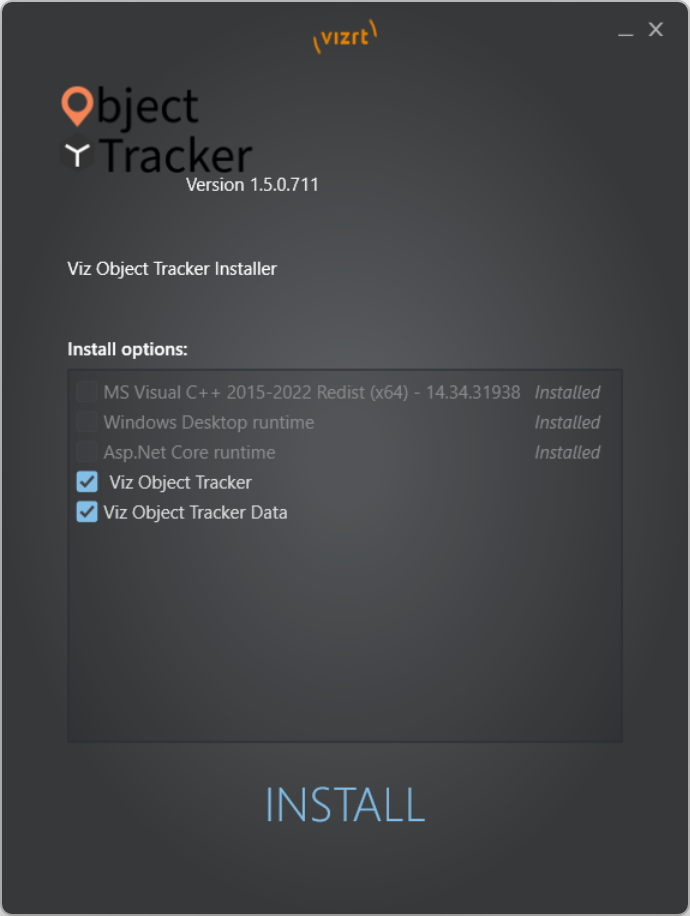
Accept the license terms to continue the installation.
Then the installer will copy all the necessary files.
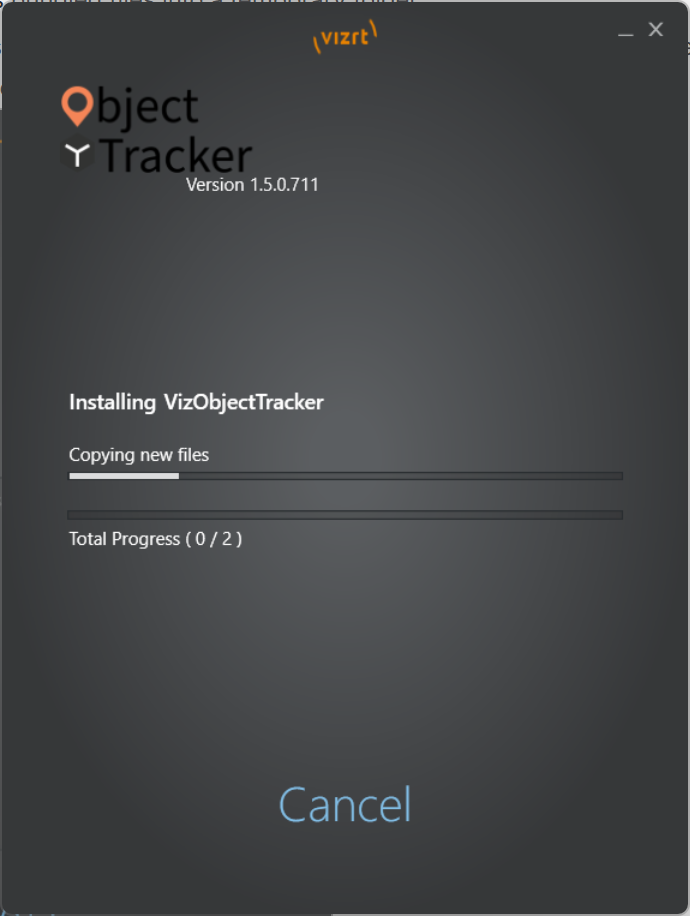
Press Install/Finish to complete installation (and, if the other installer was found alongside it, to chain into that one automatically).
Once installation finishes, Object Tracker starts automatically, and shows up with a green light in the icon tray.
The installer adds Object Tracker into the Startup Apps so it starts up automatically after logging in.
Icon Tray
Right click the icon tray to get a context menu.
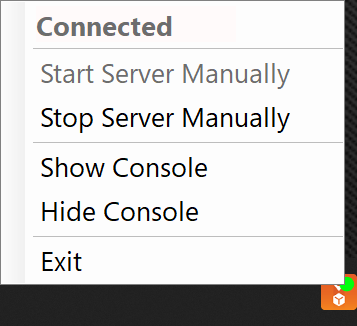
Connected/Disconnected: Indicates whether the Object Tracker is running.
Start Server Manually: Starts the service in case it has stopped.
Stop Server Manually: Stops the service.
Show Console: Visualizes the console with debugging information.
Hide Console: Hides the console.
Exit: Stops the service and closes the icon tray.
First Power up
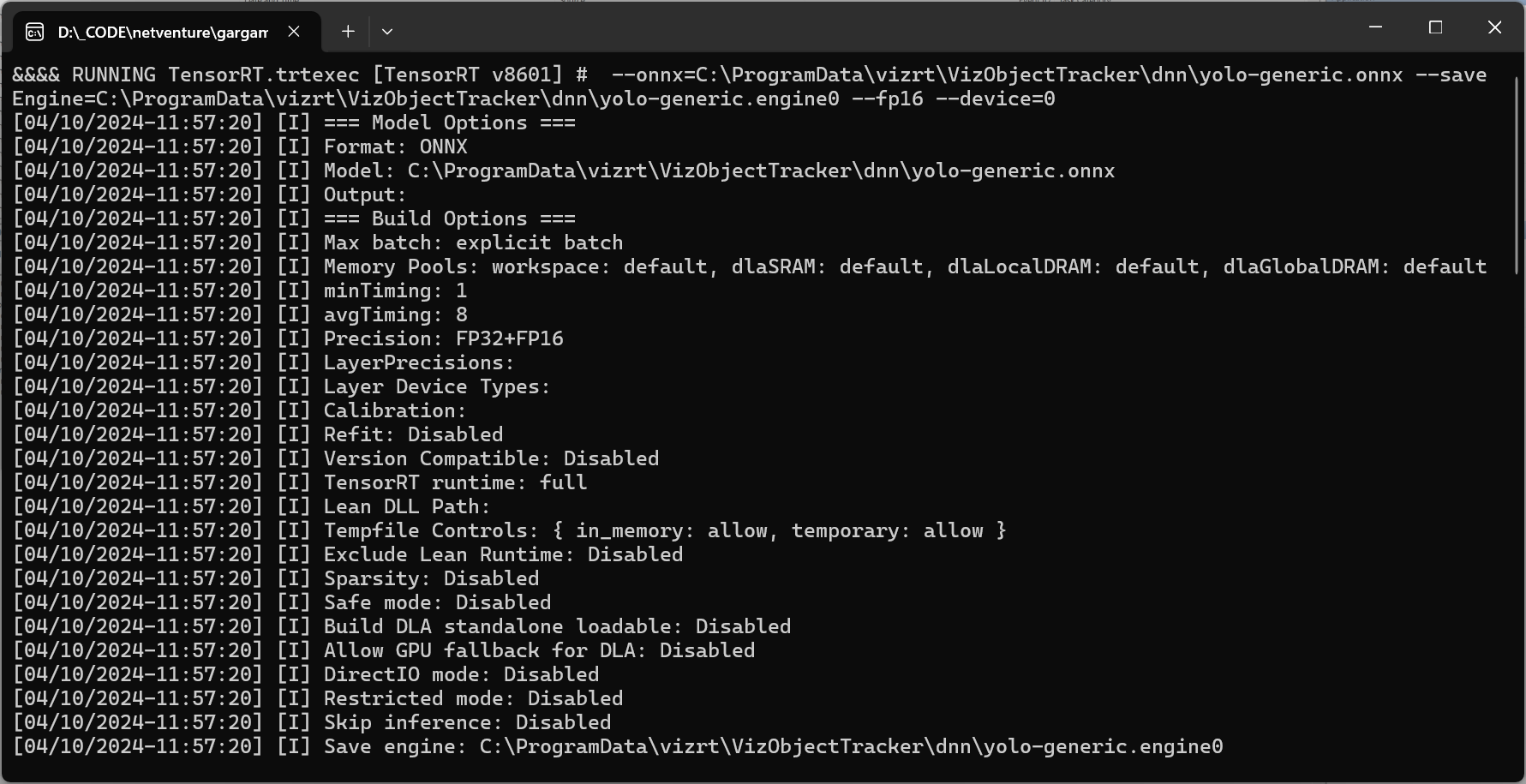
Once both Viz Object Tracker and Viz Object Tracker Data are installed (see Installer above — Data provides the engine builder), Viz Object Tracker automatically compiles the model into a GPU-specific engine for every CUDA-capable graphics card in the workstation the first time it starts. This takes a few minutes per graphics card.
Before compiling the model for a GPU, the installer waits (up to 60 seconds) for that GPU's utilization to drop to 3% or below. TensorRT's build-time tactic/kernel selection is timing-sensitive, so if something else is actively using the GPU during compilation, it can pick a meaningfully slower tactic set for that engine. While it waits, it lists which process(es) are currently using the GPU so you can close them — closing other GPU-heavy applications before this step is recommended for the best-performing engine. If the GPU is still busy after 60 seconds, compilation proceeds anyway.