
The Glow plug-in makes the lit faces of objects glow.
Note: This plug-in is located in: Plugins -> Container plug-ins -> Global
Compatibility Note: This plug-in has been deprecated in the Viz Engine Render Pipeline. It can be replaced with emissive colors and blooming effects.
Supported Pipelines | |
|---|---|
Classic Render Pipeline |
|
Viz Engine Render Pipeline |
|

Glow Properties (Classic Render Pipeline)
Blur Width: Sets the width of the blur (the size of the glow).
Strength: Sets the intensity/strength of the glow.
Object Strength: Sets the intensity/strength of the glow on the faces of the object.
Draw Texture: Uses the selected Texture for the Glow Effect. When a multi-textured object is used, use the Unit drop down box to select which of the textures to use.
Use Color: Changes the color of the glow when set to
On. If set toOff, the glow is based on the Color (Material and Texture) of the Object.Textured: Applies the Texture, or Textures, of the object on the glow.
Glow Properties (Viz Engine Render Pipeline)
Blur Iterations: Defines how often the blur effect is applied.
Intensity: Sets the intensity/strength of the glow.
Object Intensity: Sets the intensity/strength of the glow within the object.
Enable Auto Prioritization: Enables Viz Engine to organize rendering of the glow effect automatically for this object.
Priority: Sets the priority number used to organize rendering of the glow effect.
Enable Color Tint and Color: Enables and defines a certain color for the glow effect.
Note: For all properties except Blur iterations, a material must be applied first.

Using Priority to Optimize Rendering Performance
Rendering Glow effect in Viz Engine Render Pipeline requires multiple passes (i.e. GPU draw calls), and users are encouraged to minimize such rendering passes based on scene design.
In the typical situation where the number of glowing geometries is limited (i.e. less than 5 - 10), enabling Auto Prioritization is recommended to let Viz Engine group the glowing geometries based on their locations on the screen and minimize the number of passes automatically.
However, if a crowd of glowing geometries is expected, Auto Prioritization should be turned off, and Priority number is supposed to be assigned manually, which hints Viz Engine at mapping the geometry onto the rendering pass. The users are encouraged to group glowing geometries with the Priority number to limit the number of passes. Note that the Priority number is unrelated to the order the base geometries are rendered (i.e. geometries before glowing).
Without Auto Prioritization, two geometries are dedicated to the same rendering pass if and only if the following conditions are satisfied:
The Priority numbers are identical.
The following properties are identical:
Blur Iterations
Object Intensity
For any geometries dedicated to the same rendering pass, the Glow effect for them is rendered at once, and it results in the loss of light bleeding when there is an overlap in a camera view. Thus, it is strongly recommended to consider such trade-off during scene design.
These are example cases where a single rendering pass for multiple glowing geometries definitely benefits:
A group of glowing geometries that are supposed to be a single bigger geometry (e.g. a rigid structure or a tree).
A group of glowing flat geometries that lie on the same plane (e.g. 2D arrows on a football field).
A repetition of glowing geometries (e.g. aligned arrows or particle sprites).
Separated Rendering Passes | Same Rendering Pass |
|---|---|
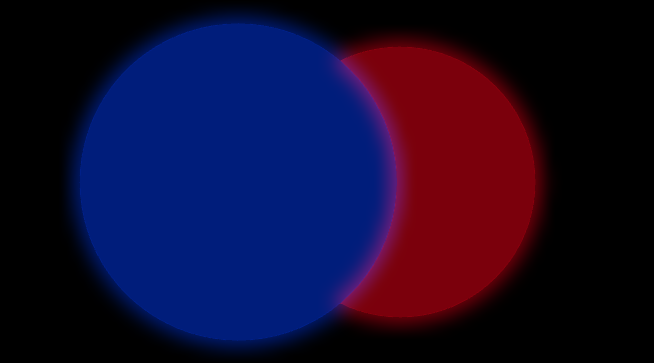 | 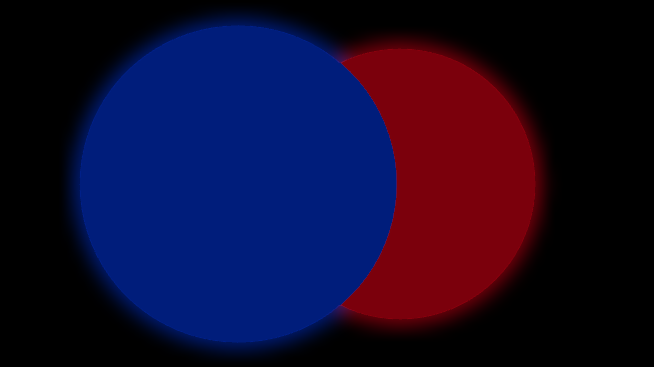 |
Recommendations
If the geometries are supposed to be a single bigger geometry, always group their containers and assign the Glow plugin to the parent container. This deliberately assigns them with the same Priority number, and thus the same rendering pass.
Given the coplanar overlap of flat geometries (e.g. same-depth camera-facing circles),
If one geometry glows and the another is not, make sure that the non-glowing one is rendered first. This could be achieved by either placing the container holding the glowing geometry after (or beyond the bottom of) the container holding the non-glowing geometry in the scene tree or using Z-Sort Priority plugin. And if neither of them is possible:
Depending on the selected render sequence, if the non-glowing geometry is a full-screen image (e.g. a talent), set it as a background or foreground of the scene.
Migrate it to other layer. This is either the one listed in Layer plugin (only work for multi-layer render sequences) or the scene layer (i.e. Back, Main, Front).
Lift up the non-glowing geometry by tweaking its position to separate the depth.
If both geometries glow and have the same properties, assign them the same Priority number as suggested in the previous section. In this case, they are spatially attached, and glowing without light bleeding at the connecting edge is expected as a normal phenomenon in the real world.