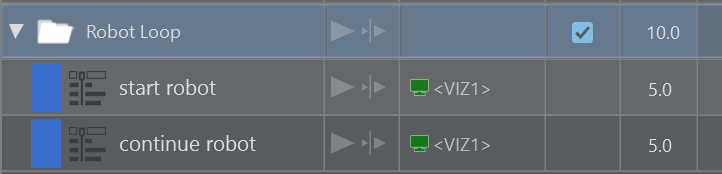
You can add individual actions in a rundown and play the rundown either manually or automatically by defining timing on single playlist elements.
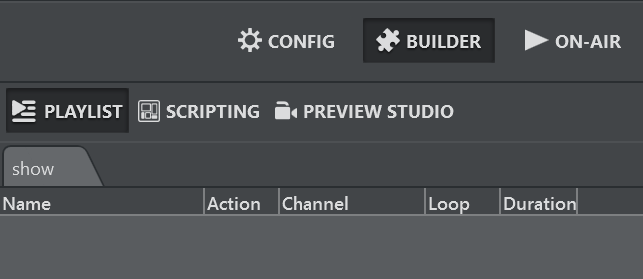
The Playlist is at the top right of the UI in both Builder and On-Air mode.
Adding Actions to the Playlist
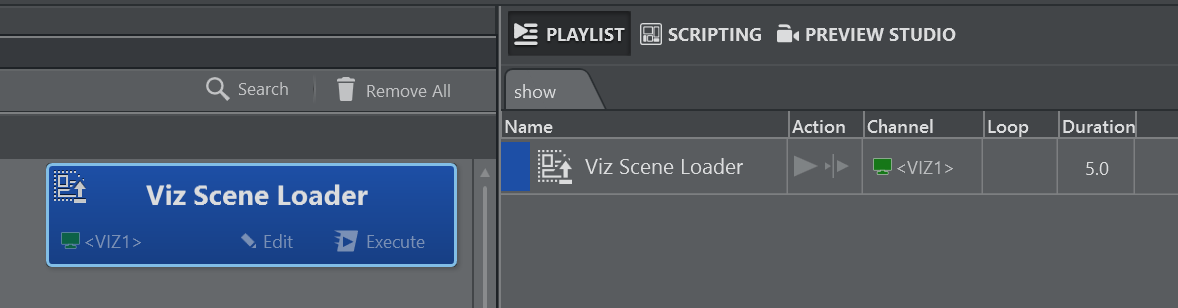
To add actions to the playlist, drag and drop an action from the action canvas into the playlist while holding in the SHIFT key.
Working with the Playlist
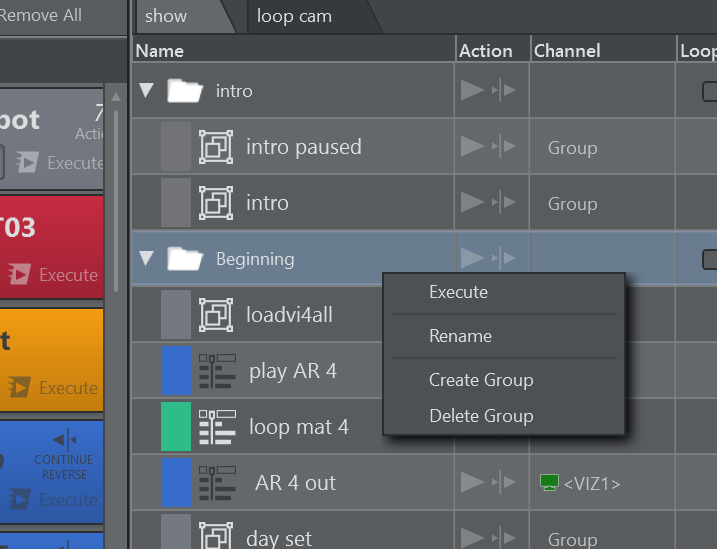
Right-click on the playlist to make the context menu appear.
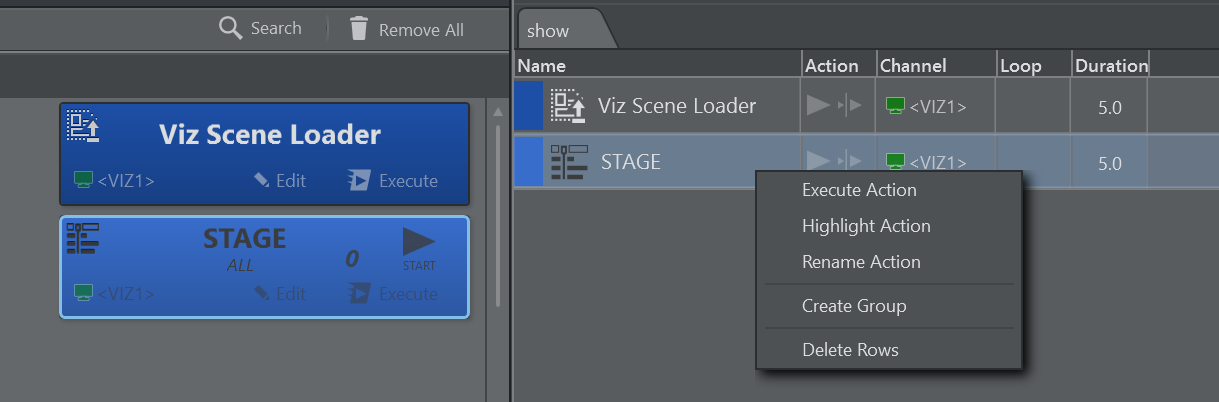
Execute Action: Executes the currently selected action.
Highlight Action: Highlights and brings into view the action on the action canvas.
Rename Action: Renames the selected action.
Create Group: Creates a logical group above the selected row.
Delete Rows: Deletes the selected rows.
When opening the context menu on a group and selecting Execute, all child items are executed in order.
Use drag and drop to move actions around the playlist. The indicator shows if the action will be inserted before, after or into a group.
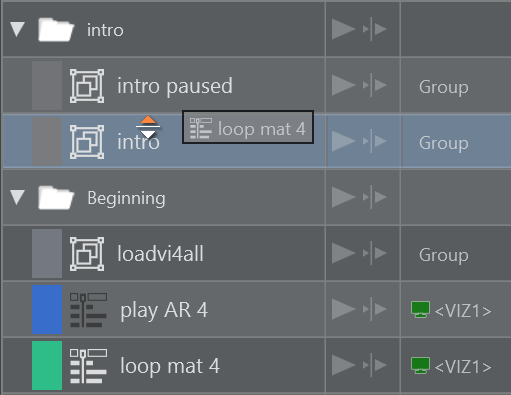
The orange triangle shows where the dragged item is dropped when released.
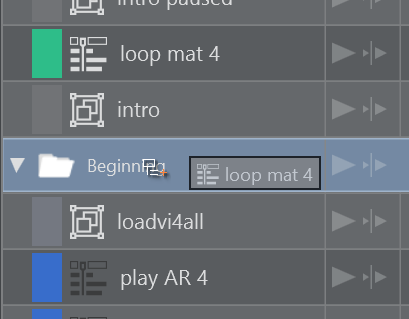
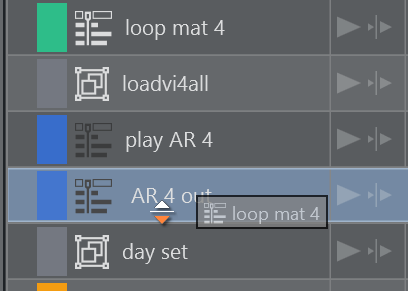
Drop inside a group: When dragging over a group item, the cursor icon shows whether the item is going to be dropped inside the group.
Drop under or above the group: Moving the cursor further to the left allows you to drop under or above the group.
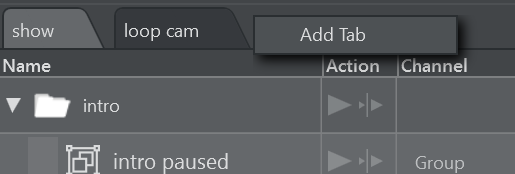
Add a new playlist: Right click on an empty space in the playlist tab area.
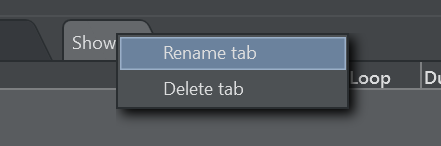
Rename or delete a tab: Right-click on an existing tab.
Using the Playlist
A selected playlist element can be executed using the Execute Action shortcut (default F5) or by double clicking the element. A separate system shortcut (default ENTER key) may be used to execute the current element and advance to the next element in the playlist. A green triangle shows the element that was executed most recently.

For template action items, the shortcuts for continue, update, out and preview work as well.

The buttons play and continue can be used directly on template items to trigger Execute and Continue respectively.
Duration and Loops
The very last column on a playlist element contains a duration (default 5.0) representing the time in seconds that the playlist waits before executing the next element. The default duration can be changed under Playlist in General Settings.

Use the panel at the bottom to play the playlist:

Play: Starts the playlist from the top and stop interrupts playout.
Loop: Loops the playlist indefinitely when checked.
Duration: Indicates the duration of one single run.
Auto Preview: Executes any selected playlist item on the preview channel, when checked.
Information: When the playlist has been scheduled for automatic playout, all modifications made on the playlist are ignored for the playout. The playlist must be stopped and played again in order to reflect any changes.
Groups can also be checked for looping. The elements within the group are then executed indefinitely until the stop button is pressed.