
The Virtual Set panel is only available if the Virtual Set option is installed. This panel makes it possible to set up and save configurations for virtual sets.
For information about the parameters, see the Viz Virtual Studio User Guide.
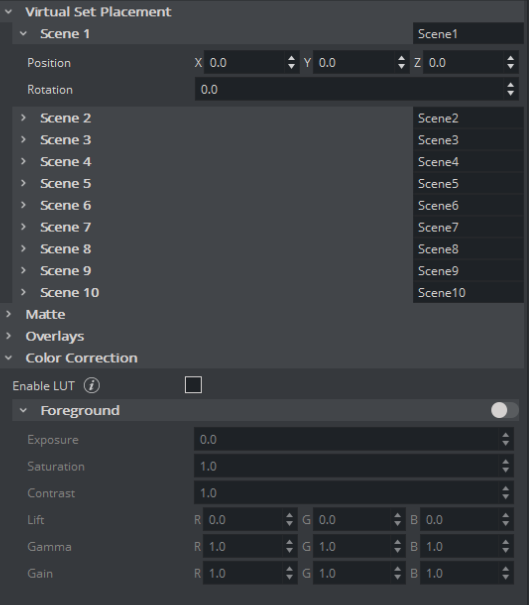
Scene: Sets the camera view offset in the selected Scene.
Virtual Blue Screen: Check and view settings:
Hold-out Matte: Allows chroma keying and color correction only in the cyc area (as set in Viz Virtual Studio) if set to
On. The trash matte is not applied.Display Mode: Sets the Trash Matte visibility.
Draw cyc/co-cyc: Selects the Trash Matte.
Sample Geometry: Sends sample cyc/co-cyc geometry to the Viz Engine.
Overlays
Head Up Display: Shows either the Camera parameters or the Chroma Keyer head up display in the Scene Editor when set to
On. Removes the Head Up Display when set toOff.Center Shift Cross: Shows or hides the Center Shift Cross in the Scene Editor.
Color Correction: Adding color correction options for XR use cases.
Enable LUT: activates the support of external Cube files for color correction, sent from Viz Tracking Hub. This is mainly used to tint an AR engine to match a Videowall.
Foreground: When using the Multi-Layer External XR this feature allows manual color adjustements of the Foregound Image. This only works in combination with an active LUT file.