The Genlock tab holds the settings that put Viz Mosart into frame accurate execution, select the clock source the machine runs on, and store the measured latency of each controlled device. Open it in AV Automation under Devices > Properties > Genlock.
This page describes the fields on the tab. For what frame accuracy does, and for the steps that switch it on and off, see Frame Accurate System Operations.
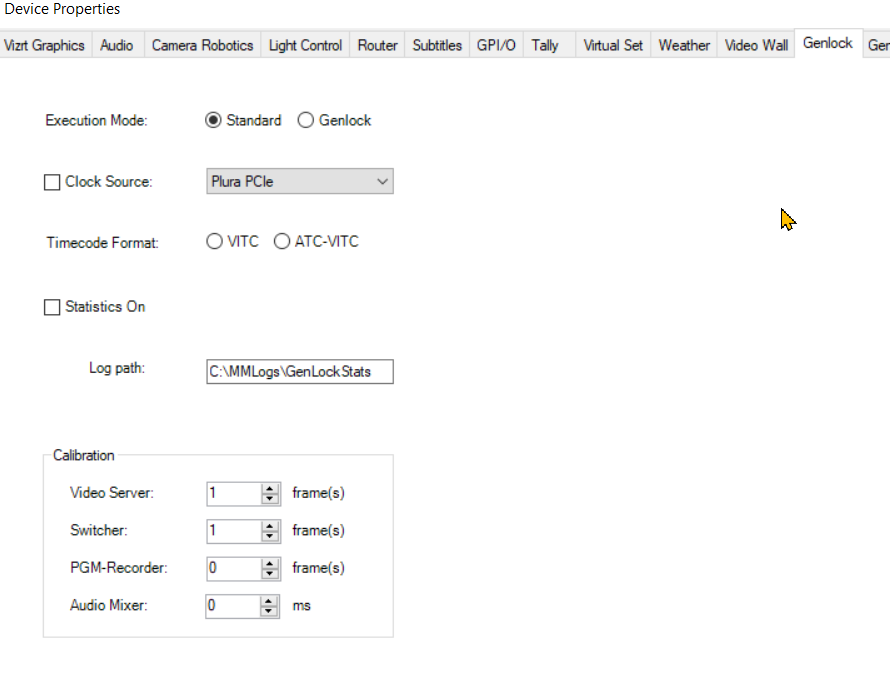
Execution Mode
Sets how Viz Mosart executes templates during a show.
Value | What it means |
|---|---|
Standard | Classic execution. Viz Mosart compensates only for delays in the playout video server. With a clock source selected, timecode from that source is written in the Viz Mosart logs generated from AV Automation. Without a clock source there is no timecode in the logs, and no statistics can be gathered. |
Genlock | Frame accurate execution of Viz Mosart templates during a show. Viz Mosart compensates for the calibrated latency of each controlled device. A clock source is required. If none is selected, Viz Mosart falls back to Standard execution mode with no timecode. |
Default: not documented.
Info: Genlock execution mode also needs a calibrated system and a dedicated template set. See Frame Accurate System Operations.
Clock Source
A check box with a list of sources. Select the check box, then pick the clock the machine runs on.
Value | What it means |
|---|---|
Plura timecode reader card | The default. Genlock and timecode come from a Plura card in the Viz Mosart server machine, main and backup. Vizrt has verified the Plura PCI 3G with digital genlock (SDI), and supports digital VITC and ATC-VITC timecode. |
PTP | Available from Viz Mosart 5.15.0. Windows disciplines the system clock to a PTP grandmaster, so no card is needed in the server machine. See PTP Setup. |
Default: Plura timecode reader card. Whether the check box itself is selected by default is not documented.
Points to keep in mind:
Genlock execution mode requires a clock source. The combination of Genlock and no clock source is not allowed, and Viz Mosart drops back to Standard execution mode.
In Standard execution mode a clock source is optional, and it only adds timecode to the logs.
Viz Mosart falls back to its internal clock source if it detects that the selected clock source is inaccurate.
After changing Clock Source, restart AV Automation for the change to take effect.
On a PTP system, the External clock is local time setting decides whether timecode carries local wall clock time (True) or UTC (False). It must match the convention used by the video server and the recorder. See PTP Setup.
PTP clock source status
With PTP selected, the genlock status bar at the bottom of AV Automation reports the state of the clock source. Hover over it for details.
Color | Meaning |
|---|---|
Orange | Viz Mosart is validating the PTP clock source. Normal at startup, because validation needs 100 consecutive good frames, about 4 seconds at 25 fps. The tooltip shows progress. |
No color, the default gray | PTP is locked and running normally. |
Yellow | PTP is running, but something needs attention. For example, W32Time lost PTP discipline, or jitter is elevated. Check the tooltip. |
Red | The PTP clock source failed to start, or it is unhealthy. |
Calibration
The four fields in the Calibration box hold the measured latency of each controlled device. Viz Mosart issues each command that much earlier, so every device acts on the same frame. Measure the values with the tests in Device Calibration and enter them here.
Field | What it compensates for | Unit | Default | Measured by |
|---|---|---|---|---|
Video server command latency | The time the video server takes to respond to a play command and start playing. | Frames | 1 frame | Test A2, or test B2 where no video recorder is available |
Switcher command latency | The time the video switcher takes to respond to a cross point switch command. | Frames | 1 frame | Test A3 |
PGM-Recorder latency | The sum of the in-out latencies of the video switcher, any downstream gear in the PGM output path, and the video recorder. Applies to Story Recorder only. | Frames | 0 frames | Test A4 |
Audio mixer command latency | The time the audio mixer takes to respond to a fader command. | Milliseconds | 0 ms | Test A6 |
[IMAGE PLACEHOLDER - Calibration box] Close-up of the Calibration box on the Genlock tab, with the four latency fields labeled.
Two calibration tests have no field on this tab. Test A1 measures recorder in-out latency, which you subtract when working out the video server value in test A2. Test A5 checks audio and video lip sync on the PGM output, which belongs to the machine room setup.
Note: Every video server port used for clip playout through Viz Mosart must have the same command latency. Viz Mosart cannot perform frame accurately with ports whose latencies differ.
Statistics On and Log path
These two fields gather clock source statistics that show how reliable the genlock and timecode signals are.
Statistics On: starts and stops the measurement. Execution Mode must be Genlock, with a clock source selected. Collection stops on its own once 10,000 samples have been gathered. Viz Mosart takes one sample per frame, so how long that takes depends on the frame rate: about 6 to 7 minutes at 25 fps, about 5 and a half minutes at 29.97 fps, and roughly half those times at 50 and 59.94 fps. Clear the check box to stop earlier. The AV Automation status bar shows an indicator while collection is active. Default: not documented.
Log path: the folder the statistics files are written to. Default: C:\MMLogs\GenLockStats.
Viz Mosart writes three files to the log path. Send all three to Vizrt Support:
GenLockStats_FrameClock_<uid>.csv: the statistics for the Mosart frame clock.GenLockStats_ExternalCS_<uid>.csv: the statistics for the configured external clock source.GenLockStats_Summary_<uid>.txt: a readable summary that carries the conclusions. Support finds this one the most useful of the three.
[IMAGE PLACEHOLDER - Statistics on] The AV Automation status bar indicator shown while clock source statistics are being collected.
Tip: Toggle statistics with the keyboard shortcut Ctrl+Shift+I in AV Automation, without opening the Genlock tab. Send the resulting files to Vizrt Support, who analyze them and report back.
See also
Frame Accurate System Operations: what frame accuracy gives you, the Execution Mode and Clock Source combinations, and how to activate frame accurate operation.
Device Calibration: the tests that measure the four latencies entered in the Calibration box.
PTP Setup: setting up the PTP clock source, from Viz Mosart 5.15.0 onward.