
ControlProtoList is an more advanced plugin based on the Control List plugin.
What it does
Control List gives you a list where every row is the same. ControlProtoList lifts that restriction: you design several prototypes, and each row is a copy of one of them. A results list can mix a scoreline row with a photo row; a map can mix a pin with a polygon. Or think about the maps usecase where you want to have different prototypes for e.g. Major cities, Capitals, Counties and so on.
The rule that makes it work: all prototypes must expose the same control fields. They can look completely different, but a row has to be fillable the same way whichever prototype it came from. If one prototype exposes a headline and a picture, they all do.
Scene structure
The plugin expects a particular shape. Three things matter: a ControlObject at the top of the scene, a group whose children are the prototypes, and the container carrying ControlProtoList.
Scene tree (Example):
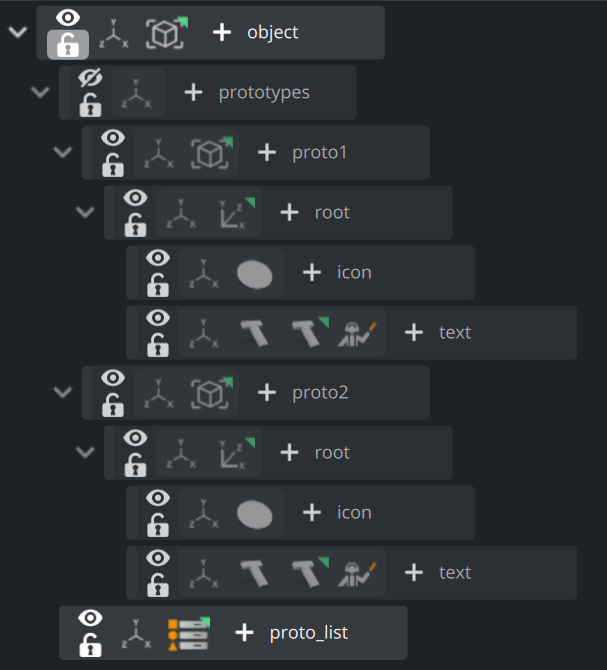
Rules for the prototypes group
Each prototype must carry a ControlObject of its own. A child without one is quietly skipped and never appears as a choice.
The container name is the prototype name. It is what the operator picks from the dropdown, so name them for people:
Headline,Photo,Quote.Order matters. The first child is the default: every new row starts as a copy of it.
Put the group outside the list. Its controls stay out of the template because the plugin reads them, rather than the scene registering them.
Once the plugin has scanned it, the prototypes group is switched inactive so it does not render. That is the plugin housekeeping, not something you broke.
Setting it up
The order below is the part worth memorizing — most problems with this plugin come from doing step 3 too early or not at all.
Build the prototypes first
Create the group, build each prototype under it, put a ControlObject on each one and add the control plugins for the fields a row needs. Finish this before you touch the list.
Add ControlProtoList to the list container
Drop the plugin on the container that will hold the rows, and give it a Field Identifier — that is the name the list appears under in the template.
Point Prototypes at the group, then press Refresh
Drag the prototypes group onto the Prototypes parameter. Refresh makes the plugin scan it and build the list of choices. Press it again any time you add, rename, remove or restructure a prototype — the plugin does not notice on its own.
Add rows
Add Row appends one row, always a copy of the first prototype. Clear Rows empties the list.
Give each row its prototype
Use the prototype dropdown on the row. Switching replaces the row with a copy of the chosen prototype, keeps its position, and carries the field values across.
No Refresh, no choices. Until the scan has run, the dropdown is empty and every row you add is a copy of the same prototype with no way to change it.
Working with rows
Rows are real containers below the list, named row_0, row_1 and so on in order. The plugin renumbers them whenever the list changes, so the names always run without gaps — do not rely on a particular row keeping a particular name.
Adding
Adding always produces a copy of the first prototype. That is by design: creating the row and deciding what it is are two separate actions, and the second one is the dropdown.
Switching a row's prototype
The row is rebuilt from the other prototype in the same position, and the values already typed into its fields are carried over. Because all prototypes expose the same fields, nothing is lost in the swap.
Removing
There is no per-row delete button. Clear Rows empties the list, and a control client shortens it by sending fewer rows than before.
The minimum and maximum only apply when their Custom checkbox is ticked.
Leave Custom Maximum off and the list runs to the built-in ceiling of 65,536 rows, whatever number is sitting in the Maximum box.
Parameters
The first three are specific to ControlProtoList. The rest are the standard list parameters it inherits from ControlList.
Plugin parameters | ||
Parameter | Default | What it is for |
|---|---|---|
| — | The group container whose children are the prototypes. Drag the container onto it. |
| prototype | The field identifier of the choice column. Change it if |
| Prototype | The label the operator sees above the dropdown. |
| — | The name the whole list appears under in the template. |
| — | The label for the list itself. |
| off | Enables the minimum row count below. |
| 0 | Applies only when Custom Minimum is on. |
| off | Enables the maximum row count below. |
| 65536 | Applies only when Custom Maximum is on. Adding stops once the list is full. |
| on | Whether the operator may add and remove rows at all. |
| off / 0 | How many rows the template offers up front. |
Buttons
Refresh — re-scans the prototypes group. Press it after any change to the prototypes.
Add Row — appends one row, a copy of the first prototype.
Clear Rows — removes every row.
What the operator sees
In Trio, Pilot or Template Builder the list appears under its Field Identifier, and each row carries the fields your prototypes expose plus one extra: the prototype dropdown, labelled with your Prototype Field Description.
The dropdown is a closed list — it offers exactly the prototypes that were discovered, in the order they sit in the group, and nothing else can be typed into it. Adding a row from the client behaves the same way it does in Artist: a copy of the first prototype, which the operator then changes if they want a different one.
Worth checking before handover
If a field appears on some rows and not others, the prototypes have drifted apart. Every prototype needs the same field identifiers, or the template will look inconsistent as soon as an operator switches a row.
Driving it externally
Two things are worth knowing if you script against the plugin or debug a newsroom integration.
Setting a field on one row
Fields inside a row — including the prototype column — are addressed through the scene's ControlObject with a WITH clause naming the list and the row index.
Set the prototype of the second row
<scene>*TREE*<container>*FUNCTION*ControlObject*in SET WITH items INDEX 1 ON prototype SET proto2items is the list's Field Identifier, 1 the zero-based row, and prototype the choice column's field name.
Replacing the whole list
A control client does not usually go row by row. It sends the complete list as one payload, naming a prototype and the field values for each row, and the plugin reconciles what exists against what arrived — adding, switching and removing rows as needed. Sending fewer rows than last time is how rows get removed.
Reading values back
Ask the scene for its control data rather than querying a row field directly. The scene's data returns one payload per row, each carrying that row's prototype and field values — which is also exactly what the operator's client sees.
When something looks wrong
The prototype dropdown is empty: The scan has not run, or it found nothing. Press Refresh. If it stays empty, check that Prototypes really points at the group and that the prototypes are its direct children.
One prototype never appears in the list: It has no ControlObject. Prototypes without one are skipped. Check the container name too — an unnamed container cannot be offered.
Every row comes out as the same prototype: That is what adding does. Rows are created from the first prototype and changed afterwards with the dropdown. If the dropdown will not change them, the scan has not run.
I repointed Prototypes at another container and nothing changed: If the new container cannot be found, the plugin keeps the prototypes it already had rather than emptying the list. Check the container is still in the scene, then press Refresh.
Adding rows stops before the number I set: The maximum is being applied — but only if Custom Maximum is ticked. If it is off, the ceiling is 65,536 and something else is stopping you.
A row lost its content after switching prototype: Values are carried across by field identifier. If a field is named differently on the two prototypes, there is nowhere to put the value. Align the field identifiers across all prototypes.
See also: