
Exposes a table of repeating rows to external control systems. Each row is a sub-ControlObject; each cell is a Control* plugin (ControlText, ControlImage, etc.) under that sub-ControlObject.
By following some design conventions when designing the table in Viz Artist, Viz Trio shows a table editor to the user.
This editor supplies a more effective way for filling tables than having one tab field for each table cell.
Note: This plug-in is located in: Plugins -> Container plug-ins -> Control
This page contains the following topics and procedures:
Overview
ControlList turns a set of child sub-ControlObject containers into a structured table that newsroom systems (Viz Trio, Viz Pilot, MSE) can populate with data. It:
Discovers rows: Detects child sub-ControlObjects via namespace binding and registers them as rows.
Exposes a table schema: Generates VDF/XML type information describing columns (field names, types, min/max).
Manages row visibility: Shows/hides rows based on the exposed count. Rows are pre-existing containers that get activated or deactivated, not dynamically created.
Routes data: Receives data via the parent ControlObject's
inprotocol and dispatches values to individual cells viaINDEXaddressing.
Key concept: ControlList does not clone or create containers at runtime. The scene designer pre-creates enough row containers (sub-ControlObjects). ControlList shows/hides them based on the data received.
Scene Tree Structure
Container "object" └─ ControlObject (root) │ └─ Container "Scoreboard" └─ ControlList (field_id: "scores") │ ├─ Container "Row1" │ └─ ControlObject (sub, namespace: "scores") │ ├─ ControlText (field_id: "team") │ └─ ControlNum (field_id: "pts") │ ├─ Container "Row2" │ └─ ControlObject (sub, namespace: "scores") │ ├─ ControlText (field_id: "team") │ └─ ControlNum (field_id: "pts") │ └─ Container "Row3" (hidden if only 2 rows needed) └─ ControlObject (sub, namespace: "scores") ├─ ControlText (field_id: "team") └─ ControlNum (field_id: "pts")Quick Start
Under the root ControlObject, create a group container for the list.
Add ControlList to that container and set a Field Identifier (for example,
scores).Create child containers, one per row. Each must have a sub-ControlObject with a namespace matching the ControlList's field ID.
Under each sub-ControlObject, add Control* plug-ins (ControlText, ControlImage, ControlNum, etc.) with unique
field_idvalues. These are the columns.Duplicate the row containers to create as many rows as your maximum needs.
Optionally set Custom Number of exposed Rows to control the initial visible count.
Parameter Reference
Identity
Parameter | Default | Description |
|---|---|---|
Field Identifier | auto | Field ID used by the parent ControlObject for addressing (for example, |
Description | empty | Human-readable description of the list field. |
Show Only in Expert Mode | Off | Hides this field from non-expert UIs in Viz Trio / Viz Pilot. |
Row Count
Parameter | Default | Description |
|---|---|---|
Custom Number of exposed Rows | Off | When on, the exposed row count is set manually. When off, it is derived from the number of sub-ControlObjects. |
Number of exposed Rows | 0 | How many rows are visible/active. Only editable when Custom Number of exposed Rows is on. Range: 0–65 536. |
Mutable Number of Rows | On | Allows external systems to dynamically change the visible row count. When data arrives with a different number of rows, the count adjusts automatically. |
Custom minimum Number of Rows | Off | Enables a user-defined minimum row count. Only active when Mutable is on. |
Minimum Number of Rows | 0 | Lower bound on visible rows. Only editable when both Mutable and Custom minimum are on. |
Custom maximum Number of Rows | Off | Enables a user-defined maximum row count. Only active when Mutable is on. |
Maximum Number of Rows | 65 536 | Upper bound on visible rows. Only editable when both Mutable and Custom maximum are on. |
Actions
Action | Description |
|---|---|
Refresh | Triggers a full rebind. Re-scans the container tree for sub-ControlObjects and re-syncs the row/namespace list. |
Field Addressing
ControlList uses INDEX-based addressing to route commands to individual cells. The syntax is:
WITH <list_field_id> INDEX <row> ON <cell_field_id> SET <value>Examples
# Set team name in row 0...ControlObject*in SET "WITH scores INDEX 0 ON team SET Yankees"# Set points in row 2...ControlObject*in SET "WITH scores INDEX 2 ON pts SET 42"# Get team name from row 1...ControlObject*in SET "WITH scores INDEX 1 ON team GET"# Focus a cell for preview highlighting...ControlObject*in SET "WITH scores INDEX 0 ON team FOCUS"# List all fields in a row...ControlObject*in SET "WITH scores INDEX 0 LIST" Zero-based indexing: Row indices are zero-based. INDEX 0 addresses the first visible row, INDEX 1 the second, and so on.
Data Serialisation
GET Response (XML)
When the parent ControlObject's GET_MODEL or a direct GET is called, ControlList serialises visible rows as XML:
<entry> <element description="Row 1"> <entry name="data"> <entry name="team">Apaches</entry> <entry name="pts">40</entry> </entry> </element> <element description="Row 2"> <entry name="data"> <entry name="team">Eagles</entry> <entry name="pts">35</entry> </entry> </element></entry>Schema (LIST Response)
The type schema describes the table structure for newsroom templates:
<field name="scores" type="list"> <mincount>0</mincount> <maxcount>7</maxcount> <schema> <field name="team" type="richtext"/> <field name="pts" type="integer"/> </schema></field>Row Management
How Rows Work
Rows are pre-existing sub-ControlObject containers in the scene tree.
ControlList shows the first N rows and hides the rest by setting containers inactive.
When data arrives with a different number of
<element>nodes than the current count, and Mutable is on, the exposed count adjusts automatically.The count is clamped between Minimum and Maximum Number of Rows if those constraints are enabled.
⚠️ Pre-create enough rowsControlList cannot create new containers at runtime. If your data has 10 items but you only created five row containers, only five are visible. Always pre-create rows up to your maximum expected count.
Interaction with ControlObject
Interaction | Description |
|---|---|
Field registration | Each sub-ControlObject registers its fields upward through the namespace binding. ControlList intercepts these and builds compound paths (for example, |
Data dispatch | The parent ControlObject's |
VDF model | ControlList contributes its schema (field names, types, min/max counts) to the parent ControlObject's |
Namespace propagation | Sub-ControlObjects use their namespace prefix to propagate field IDs upward through the ControlList to the root ControlObject. |
Tables and Preview Points
A table scene might be hard to read if you need to show a large table with many rows (for example, 20) and/or columns. In such cases it is not uncommon to only show a subset of the information (for example, five rows), and rather animate the scene to show the next five rows and so on.
However, in such a situation, while editing table data in Viz Trio, you cannot use a basic jump to Key Frame event for preview, as this only shows the Key Frame that relates to the table’s Field identifier (for example, 3), and not the rows or columns of the table.
To enable operators to preview the data in the scene, it is therefore possible to add a preview point that extends to the next starting point (for example, the next five rows of the table), using the table’s (Control List) Field identifier in addition to the row number.
So, if the identifier of Control List is 03, you have to define tags with names 03.0, 03.5, 03.10 and 03.15 (zero based row index) for Viz Trio to detect the tags and jump to them on focusing the according rows in Viz Trio’s Control List table editor.
Basic jump to Key Frame: When adding Key Frame events (stop points, tags,...) and giving them the name of a control plug-in identifier, Viz Trio jumps the time-line to that Key Frame event when selecting the tab field with that identifier.
Extended jump to Key Frame: If the Key Frame event name is
3_005and there is a control list with identifier3, then Viz Trio jumps the time-line to that Key Frame event. In this case when the sixth row of the table is focused.
To Design a Table Scene
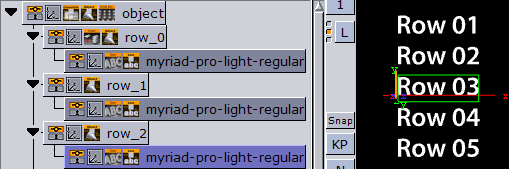
To design a table scene that is correctly interpreted by Control List, there are some design conventions that need to be followed:
Add a group as the root container for the table. Give it a descriptive name such as
table.Add Control List to the table group container.
Add a new group as a Sub-Container to the table container. This container is the design for the rows in the table. Give it a name such as
row_1.Add Control Object to the newly added row container.
As Sub-Containers of the row container, add text containers with backgrounds to form the design for a single table row with the required number of columns.
Each of the text containers must get a Control Text and the field identifiers for each must be set from 1-n depending on how many columns the table should have.
The Description property in Control Text is picked up by Control List and used as column headers.
When the single row looks as it should, duplicate it to make the needed total number of table rows.
Arrange the rows
Grid Arrange can be used to automate this task.
Add Grid Arrange to the table container, and set the number of rows to the same as above and press ENTER.
Set the row offset and press ENTER.
The table item of the scene is ready and when imported into Viz Trio and read, the table tab-field is shown with a special table editor. When imported into Viz Template Wizard, a template with a custom table editor is generated.
Example: Election Results Table
Container "object" └─ ControlObject (root, TL enabled) │ └─ Container "Results" └─ ControlList (field_id: "results", max rows: 8) │ ├─ Container "Party1" │ └─ ControlObject (namespace: "results") │ ├─ ControlText (field_id: "party") → "Democrats" │ ├─ ControlNum (field_id: "seats") → 218 │ └─ ControlImage (field_id: "logo") → <UUID> │ ├─ Container "Party2" │ └─ ControlObject (namespace: "results") │ ├─ ControlText (field_id: "party") → "Republicans" │ ├─ ControlNum (field_id: "seats") → 212 │ └─ ControlImage (field_id: "logo") → <UUID> │ ├─ Container "Party3" ... (pre-created, hidden if unused) ├─ Container "Party4" ... └─ ... up to Party8Populate from an automation system:
WITH results INDEX 0 ON party SET "Democrats"WITH results INDEX 0 ON seats SET 218WITH results INDEX 1 ON party SET "Republicans"WITH results INDEX 1 ON seats SET 212WITH results INDEX 2 ON party SET "Independents"WITH results INDEX 2 ON seats SET 5Technical Notes
Row indices are zero-based.
Row visibility is controlled by setting containers active/inactive, not by creating or destroying scene tree nodes.
When Mutable Number of Rows is on and XML data arrives with fewer
<element>nodes, excess rows are automatically hidden.All sub-ControlObjects must use the same namespace (matching the ControlList's field_id) for proper row registration.
Each row should have identical column structure (same field_id values) for consistent schema generation.
The Refresh action should be invoked after manually adding or removing row containers in the scene tree.
Parameter enable/disable logic is cascading: min/max count fields are only editable when both Mutable and their respective Custom flags are on.
See Also