Every template in Template Builder is based on one or more Viz Artist scenes in Graphic Hub. The scenes decide the graphics that are played out, and the control plugins in the scenes decide the fields of the template. Scenes are added to a template, and grouped by concept, in the Scene Manager.
Note: The Graphic Hub containing your scenes is specified through the graphic_hub_url setting in Pilot Data Server.
How scenes and templates connect
A template stores the list of scenes it uses. Each scene in the list belongs to a concept, and is either a variant of that concept or a state in a transition logic layer. When the scenes change, Template Builder generates the fields of the template again from the control plugins in the scenes.
Concepts and variants
Concepts group content, for example by show or graphics package. A concept must exist before it can be used in a template. Templates can belong to several concepts, so one template can be shared across concepts. Within a template, each concept has its own scenes.
See Concept Manager to learn how to create a new concept.
Term | Description |
|---|---|
Concept | A group of scenes in the template. The concept of a data element selects which scenes are used to play it out. |
Variant | One scene of a concept, in a template without transition logic scenes. A variant is named by its Description, which must be unique within the concept. |
Layer | A transition logic layer. A transition logic template holds its scenes per layer. |
State | One object scene in a layer, shown by its state label from Viz Artist. |
Background scene | The transition logic master scene that the object scenes play in. |
Transition logic scenes and layers
A transition logic (TL) scene is an object scene that plays inside a background scene. In Viz Artist, each TL scene is assigned to a layer and has a state label. Template Builder reads the layer, the state label and the background scene from the control model of the scene:
The scenes of a TL template are grouped by layer. A template with more than one layer is a combo template.
In each concept, a layer holds one scene per state. Every concept must have the same number of states in each layer.
All TL scenes of a concept must use the same background scene.
A TL scene without a layer cannot be added. Set the layer in Viz Artist.
Modern TL requires Viz Engine 4.3 or later. A TL scene whose control model was made by an earlier Viz Engine must be updated before it can be added, see Update the control model of a scene.
See Transition Logic and Combo Templates for how TL scenes are designed and played out.
Fields generated from the scenes
Each control plugin in the scenes becomes a field of the template. When several scenes have a field with the same name, they become one field, with the settings from the first scene. Template Builder also adds these fields:
Field | Added for | Description |
|---|---|---|
| All templates | The Concept choice, with a Variant sub-choice. Stores the concept and variant of a data element. |
| TL templates, one per layer | A choice of the states of the layer, and |
| All templates except video-wall templates | Title and Auto generated title of a data element. |
When the scenes change
When you click Apply in the Scene Manager, Template Builder generates the fields from the new set of scenes and merges them into the template:
Change | Result |
|---|---|
A scene adds a field that the template does not have | The field is added. |
A field is no longer in any scene | The field is removed. |
A field changed in the scene | The field is updated. |
A field was added in Template Builder, not from a scene | The field is kept. |
A concept has no scenes | The concept is discarded when the template is saved. |
Data elements store the concept and variant, and for TL templates the state of each layer, that they were created with. On a template that has been saved:
Changing the Description of a variant deletes all data elements that use the variant. The Scene Manager shows the warning Changing this value will delete all associated data elements that use this scene variant.
Removing a variant deletes all data elements that use it. The Scene Manager asks for confirmation before it removes a scene that was saved in the template.
Getting started: your first template
Before you start, create the concept in the Concept Manager, and check that the scenes are in Graphic Hub.
Open Template Builder. The Templates page lists the existing templates.
Optional: select the concept in the All concepts filter. The new template starts with this concept.
Click Create new (tooltip Create a new template), or press Alt+N. The Scene Manager opens with the title Create New Template.
If the concept is not listed under Concepts, click Add Concept, select the concept in the Add new concept dialog and confirm.
Click Add Scene. The Add Scene dialog shows the folders and scenes in Graphic Hub.
Browse to the folder, or search. Select one or more scenes with Ctrl+click or Shift+click, and click Add. A scene that cannot be added has an error icon; its tooltip gives the reason.
For scenes that are not TL scenes, enter a Description for each variant. New scenes are named
Default,Variant 2,Variant 3and so on.To add more concepts, repeat steps 4 to 7. Each concept needs its own scenes.
Click Create New. The template opens as Untitled Template, with the fields generated from the scenes.
Click Save on the toolbar. In the Save new template dialog, enter the template name and click Save.
The Scene Manager
The Scene Manager edits the concepts and scenes of a template. The concept list is on the left, and the scenes of the selected concept are on the right. Changes are applied to the template when you click Create New or Apply. Discard closes the Scene Manager without changes.
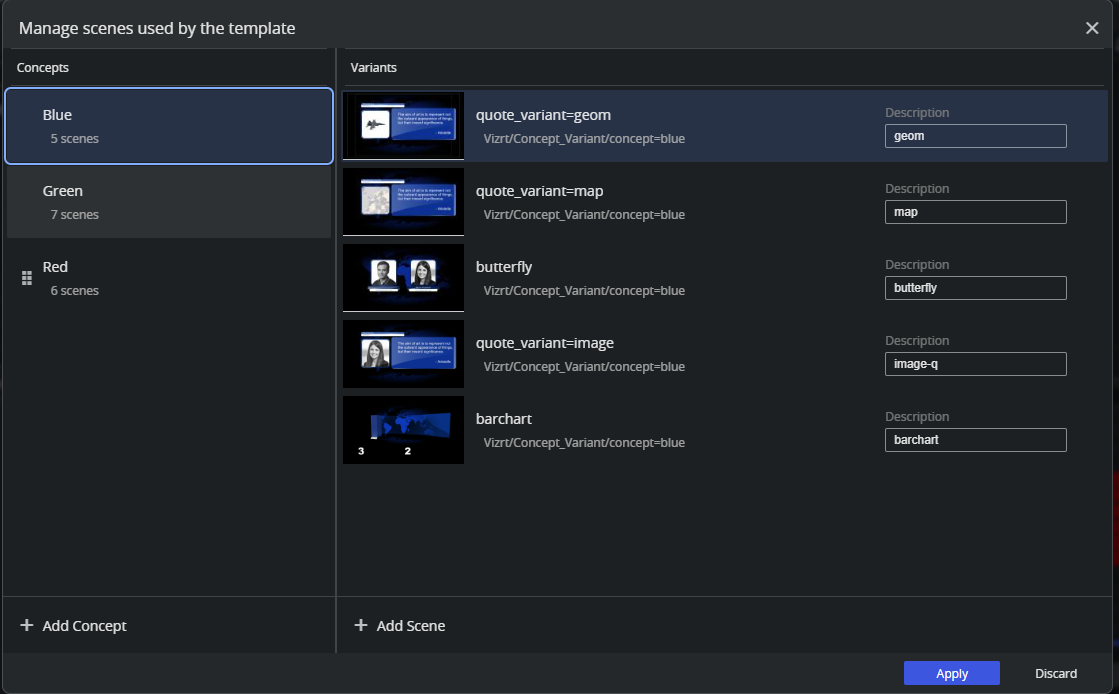
Open the Scene Manager
Opened from | Dialog title | Buttons |
|---|---|---|
Create new on the Templates page | Create New Template | Create New, Discard |
Scenes on the toolbar of an open template (tooltip Edit the scenes used by this template) | Manage scenes used by the template | Apply, Discard |
Scenes is disabled in run mode.
Create New and Apply are disabled while the template has no scenes, while Reimport from new scene path is open, and while a concept or scene breaks a rule (There are problems in the current scene configuration). See Rules for combining scenes.
Older templates can have scene references without a link to Graphic Hub. The Scene Manager then first shows Some scene references should be updated with links to the graphic hub, with the status of each scene. Update all, or Update followed by the number of links found, adds the links. Skip opens the Scene Manager without them.
Concepts
The concept list shows the concepts of the template and the number of scenes in each. Click Add Concept to add a concept: the Add new concept dialog lists the concepts that are not in the template yet. Drag a concept by its handle to reorder the list (tooltip Drag to reorder).
Icon | Meaning |
|---|---|
Visibility off | The concept is inactive: This concept is not visible in other applications. You can change this in the concept manager. |
Warning | Concepts with no scenes are discarded when saving the template. |
Error | The concept breaks a rule. The tooltip gives the reason. |
Right-click a concept for these actions:
Action | Description |
|---|---|
Replace | Opens Replace Concept. Select a concept that is not in the template. The scenes of the concept are moved to the selected concept. |
Duplicate | Opens Duplicate Concept. Select a concept that is not in the template. All scenes of the concept, in all layers and with their variants, are copied to the selected concept. The copies use the same scenes in Graphic Hub. |
Reimport from new scene path | Points the scenes of the concept to the same scenes in another Graphic Hub folder. Disabled for concepts without scenes. See Move a concept to a new scene folder. |
Remove | Asks Remove the concept "…" and all scenes mapped to it? This cannot be undone., then removes the concept and its scenes from the template. |
Scenes
The scene list shows the scenes of the selected concept. Scenes that are not TL scenes are listed under Variants. TL scenes are listed per layer, under Layer: and the layer name. Each row shows the thumbnail, the scene name, the Graphic Hub folder and the Description.
Setting | Description |
|---|---|
Description (variants) | The name of the variant in the Variant field. Must be unique within the concept (Description must be unique.). |
Description (TL scenes) | The state label from Viz Artist. Read-only. |
Click Add Scene to add scenes to the selected concept, see Scene browser.
Double-click a scene to replace it.
Drag a scene by its handle to reorder the scenes of a group.
Click Refresh Scene on the thumbnail to refresh the scene, as Refresh below.
Right-click a scene for these actions:
Action | Description |
|---|---|
Refresh | Re-reads the scene, its control model and its thumbnail from Graphic Hub. The stored scene path, concept and variant are kept. The refresh is refused when the scene type or TL layer has changed, or when a scene that is not a TL scene has moved to another folder: The scene has changed fundamentally, so it cannot be used. You should replace the scene. Refresh does not generate the control model through Preview Server; use Update Scene in the scene browser for that. |
Duplicate | Adds a copy of the scene to the concept. Disabled when the copy would break a rule, for example a TL state that is already used in the layer. |
Replace | Opens Replace Scene to select one scene for this row. A variant keeps its Description. |
Remove | Asks for confirmation, then removes the scene from the concept. |
On a template that has been saved, changing the Description of a variant or removing a variant deletes all data elements that use the variant. The confirmation reads Removing a variant on an existing template will delete all associated data elements.
Scene browser
Add Scene opens the scene browser as Add Scene, and Replace opens it as Replace Scene. It opens in the folder of the selected scene, or else in the folder of the scenes of the concept, or else in the folder you last added scenes from.
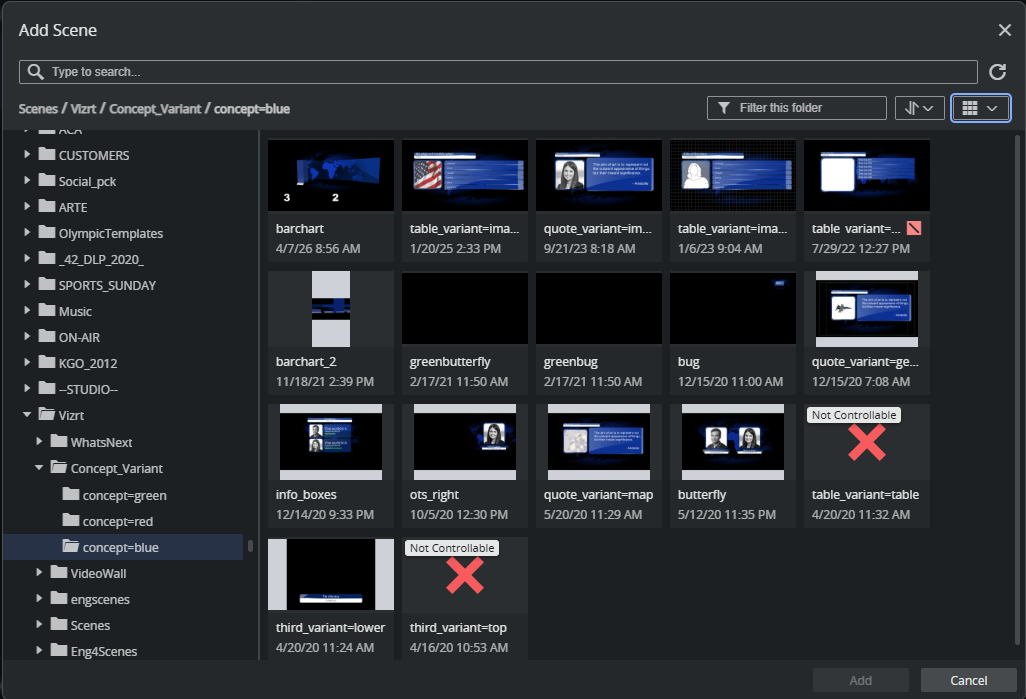
Control | Description |
|---|---|
Folder tree | The Graphic Hub folders. Recently Updated, above the tree, shows the scenes updated in the last week. |
Type to search... | Searches Graphic Hub for scenes and folders. Press Enter to search. The results are shown under Search Results. |
Filter this folder | Shows only the items in the current folder that match the text. Not available for search results. |
Sort order | The sort order of the current folder. Not available for search results. |
View mode selector | Grid view with large thumbnails, Grid view with medium thumbnails, Grid view with small thumbnails (default) or List view with small thumbnails. The selection is kept for the next time. |
The thumbnail of a scene shows Transition Logic, Video Wall or Not Controllable (no control model) when it applies.
A scene that cannot be added has an error icon. The tooltip gives the reason, see Rules for combining scenes.
When adding, select several scenes with Ctrl+click or Shift+click. The selection is checked as a whole. When replacing, select one scene.
Click Add or Replace, or double-click the scene. Folders cannot be selected together with scenes (Only scenes can be selected.).
Update the control model of a scene
A scene needs an update when it has no control model, when its control model is out of date, or when it is a TL scene whose control model was made by a Viz Engine earlier than 4.3. An out-of-date scene cannot be added: The scene is out of date. Refresh it from the preview server before adding it.
In the scene browser, right-click the scene and select Update Scene.
Preview Server generates the control model, and Template Builder saves it to Graphic Hub (Updated scene '…' and saved its control model to the Graphic Hub.).
Add the scene.
Update Scene is only in the menu for scenes that need an update. Without a Preview Server it is disabled: No preview server is configured, so this scene cannot be updated.
Rules for combining scenes
The scene browser does not add a scene that breaks one of these rules. A concept or scene that already breaks a rule has an error icon, and Apply is disabled until it is fixed.
Rule | Applies to | Message |
|---|---|---|
TL scenes and other scenes cannot be mixed. | The whole template | TL scenes cannot be combined with non-TL scenes. |
Video-wall scenes and other scenes cannot be mixed. | The whole template | Video-wall scenes cannot be combined with non-video-wall scenes. |
The scenes of a concept come from one folder. | Scenes that are not TL scenes, per concept | The scene is not in the same folder as existing scenes in the concept. |
The descriptions of the variants of a concept are unique. | Variants, per concept | Description must be unique. |
All TL scenes of a concept use the same background scene. | TL scenes, per concept | The background scene does not match existing background scenes in the concept. |
A TL scene has a layer. | TL scenes | Cannot add '…'. No TL layer has been specified for the scene. Update in Viz Artist. |
A state is used once per layer. | TL scenes, per concept | The state of the scene is already used in the … layer. |
Every concept has the same number of states in each layer. | TL scenes, all concepts | Same number of TL scenes needs to be assigned to the same layer in each concept. |
The control model of a new scene is up to date. | Scenes being added | The scene is out of date. Refresh it from the preview server before adding it. |
Move a concept to a new scene folder
Reimport from new scene path points the scenes of a concept to scenes with the same names in another Graphic Hub folder. The scenes and subfolders in the new folder must have the same names as in the original folder. Combined with Duplicate, this gives a copy of a concept that uses a copy of the scenes, while the original concept and its scenes are unchanged. Use it, for example, to move a TL template from Template Wizard to new scenes without rebuilding its layers and states.
Copy the scenes of the concept to a new folder in Graphic Hub.
Create the new concept in the Concept Manager.
Open the template and click Scenes.
Right-click the original concept, select Duplicate, and select the new concept.
Right-click the new concept and select Reimport from new scene path. The first step shows the Original concept path and the scenes of the concept. Click Next.
Select the new folder in the folder tree and click Next.
The last step shows the Original concept path, the New concept path and the status of each scene, see the table below. When a scene shows Update scene, click it to generate the control model through Preview Server.
When every scene has a model, click Finish. The scenes of the concept now point to the new folder.
Click Apply, then save the template.
Back returns to the previous step. On the first step, it closes the wizard without changes.
Status | Description |
|---|---|
Locating scene... | The scene is being looked up in the new folder. |
Model found | The scene was found, with a control model. |
No control model | The scene was found, without a control model. Finish is still possible. |
Scene missing | No scene with this name in the new folder. Finish is disabled. |
Error: and a message | The scene or its control model could not be read. |
Open an existing template
The Templates page lists the templates in Pilot Data Server.
In an open template, click the Home button (tooltip Back to templates) to show the templates.
Use the All concepts and All tags filters to filter templates, and Show all to show only active or only inactive templates. You can also narrow the search by entering the template name in the Type to search... field.
Double-click a template to open it.
Right-click a template for Rename, Deactivate template or Activate template, and Delete.