An HTML panel can be added to the template as part of the template customization workflow, giving you full control through custom scripting and logic when building the template. The panel is displayed inside an iframe and needs to be hosted on an external web server. Inside the custom HTML panel, the use of the PayloadHosting API connects your panel to the fields of the template.
See samples/html_panels/README.html under the Template Builder installation folder for samples and more details.
An HTML panel can exchange messages with the template script (payloadhosting 2.3.0 or later). See Communicating with the Template Script.
Adding an HTML Panel
The HTML panel can only be added to custom layout tabs. HTML panels added to the auto-generated All tab in earlier versions are still shown in the field tree, where they can be edited, renamed and deleted.
Adding a HTML Panel to the Custom Layout Tabs
For the Custom Layout tabs, the UI components like HTML panels and HTML fragments, are not part of the field tree on the left. They are placed in the custom layout tab, and are listed in the component tree, which is opened with Toggle component tree at the right end of the tab row. See Template Layout.
To add an inline HTML panel into a custom layout tab, follow these steps:
Create or select a custom layout tab.
In the middle toolbar, click the Add HTML panel to current view button.
Enter an ID for the panel.

Select the panel in the form or in the component tree to show its properties in the Field Properties window:
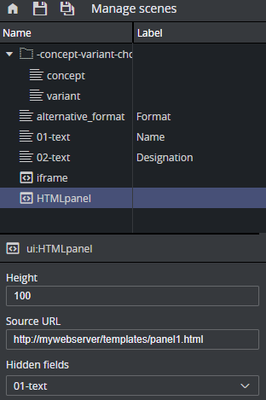
Adjust the size of the HTML panel shown in the fill-in form using the Height field.
In Source URL, enter the web address.
The Hidden fields drop-down list allows you to hide available fields in the fill-in form.
Using Environment Variables in URLs
When adding URLs to a template, either a full page custom HTML template URL or an URL to an HTML panel inside an iframe, the URL can contain environment variables. These variables can be set as URL parameters to the application, or picked up from the application's built in variables. For example, if the URL to the application is http://mypds:8177/app/pilotedge/pilotedge.html&$version=v1, then the value of URL parameters starting with the dollar sign are available inside the application, and can be used for instance when specifying URLs to HTML panels like this: {$}http://mywebserver/templatepanels/{$version}/mypanel.html.
Therefore, the full URL used by the application is http://mywebserver/templatepanels/v1/mypanel.html. This way, the Viz Pilot templates using HTML panels or full custom HTML pages can for instance switch to another version by changing the URL parameter to the application.
See Using Environment Variables for full description of this mechanism.
Browser Caching
You may experience browser caching behavior when trying to update and display changes in the custom HTML template in Template Builder, this is standard behavior. Template Builder does not control caching resources included in the HTML file itself.
To prevent caching:
Ensure the URLs to the resources are unique upon reload.
Optionally configure the web server serving the resources to send Expiry headers set to 0.
Disable caching on the browser side.
See also
Custom HTML Templates with examples of how to use custom HTML templates.