Viz Arc 3.1.0
Release Date: 2026-08-19
These are the release notes for Viz Arc version 3.1.0. This document describes the user-visible changes that have been made to the software since Viz Arc 3.0.0.
New Features
Virtual Camera Flight (VCF)
Viz Arc introduces Virtual Camera Flight (VCF), a new way to create and play back smooth virtual camera moves inside a Viz Engine scene. On a visual, top-down map of the studio, operators drop camera positions where they want them, aim them by dragging, gliding, or hard-cutting the On Air camera between them. No hand-scripting of camera animations is needed, as Viz Arc builds and manages the underlying director rig automatically. VCF also blends between a real, tracked camera and the virtual camera, so a shot can start on the live tracked feed, fly out to a virtual framing and return again. Camera moves can be fired live or sequenced as rows in the Viz Arc playlist for scripted playout, and the complete VCF screen, stage map, Engine preview, shot library and playlist are available both in the desktop application and in the web interface.
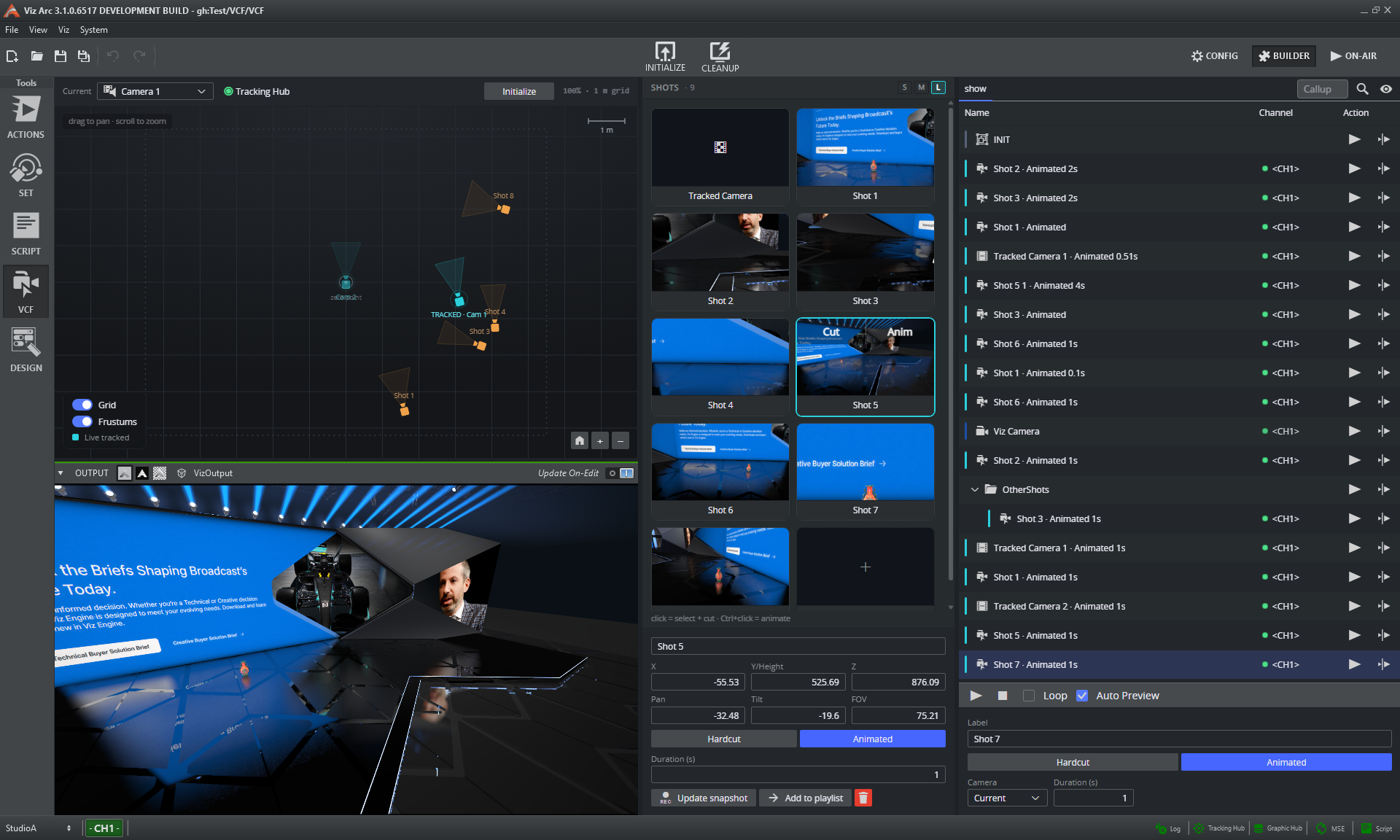
Note: Virtual Camera Flight requires Viz Engine version 5.6 or newer.
Transition Logic
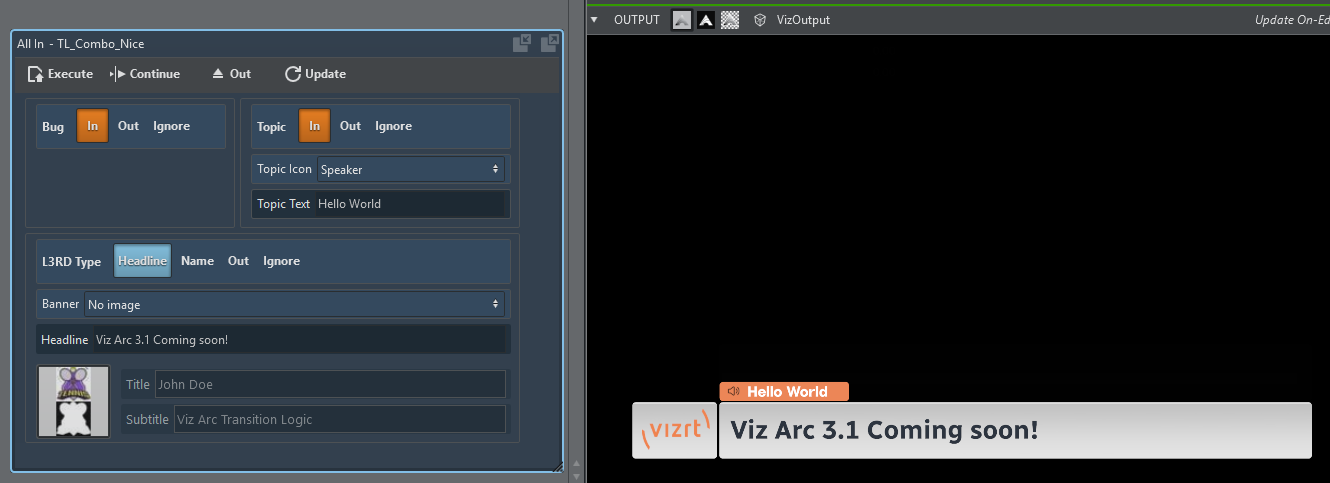
Viz Arc now supports Transition Logic: Templates can be created from one or multiple foreground scenes, letting independent layers (lower thirds, bugs, tickers) animate in and out without interfering with each other. Playout is handled through Media Sequencer, with the MSE channel selectable per template, and shown in the playlist's Channel column.
Layer Plug-in
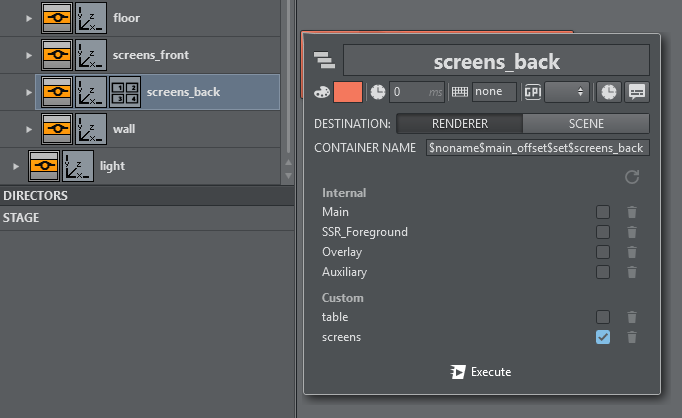
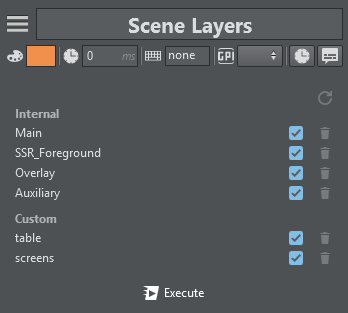
Two new actions integrate Viz Arc with the Viz Engine compositing layers: The Layer action toggles which of the scene's layers (built-in and custom) a plugin-carrying container contributes to, created by dragging the container straight from the scene tree, while the Scene Layers action switch the visibility of whole compositing layers scene-wide.
SuperChannels
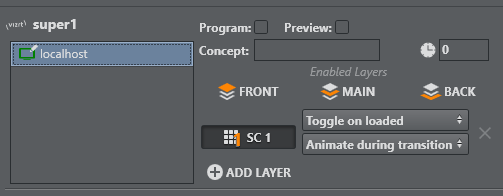
Viz Arc now drives Viz Engine SuperChannels, including full support for Viz Arc templates. Graphics are prepared on the hidden, pending side and taken On Air with a seamless transition (even complete scene changes without a visible loading frame) with the animation start configurable to run during the transition, after it, or manually. The new SuperChannel action additionally loads images, live inputs, web pages or clips, offers direct toggle/clear control.
HTTP Request Action
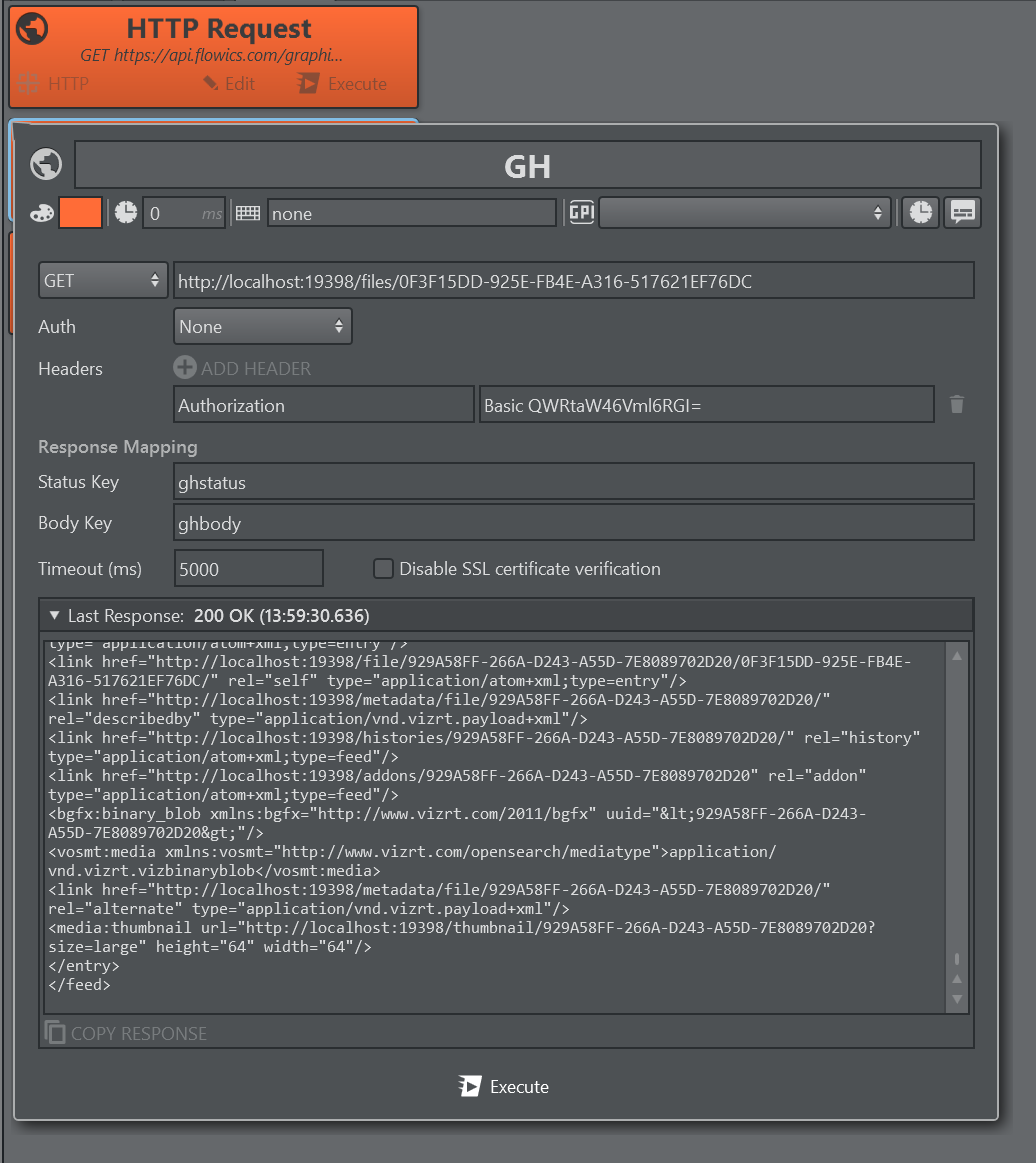
The new HTTP Request action calls external web services and REST APIs directly from the action canvas. It supports GET, POST, PUT, PATCH and DELETE, custom headers, a request body with selectable content type, Basic and Bearer authentication, and a configurable timeout. Requests are fully dynamic: ${key} placeholders in the URL, headers and body are replaced with live Data Map values at execution time, and the response can flow straight back, with the status code and response body written to Data Map keys of your choice, ready to drive templates and other actions. The result of the last request is shown right on the action, so operators see at a glance whether the call succeeded.
REST Template Execution
Load, fill and play out templates entirely via the Viz Arc REST Service: Full script support with all callbacks, all template types (Viz, Unreal, Flowics, Independent), and Execute/Continue/Update/Out routed through the active profile. Includes a web view for browsing, filling and executing templates directly in the browser.
MSE Playlist Integration
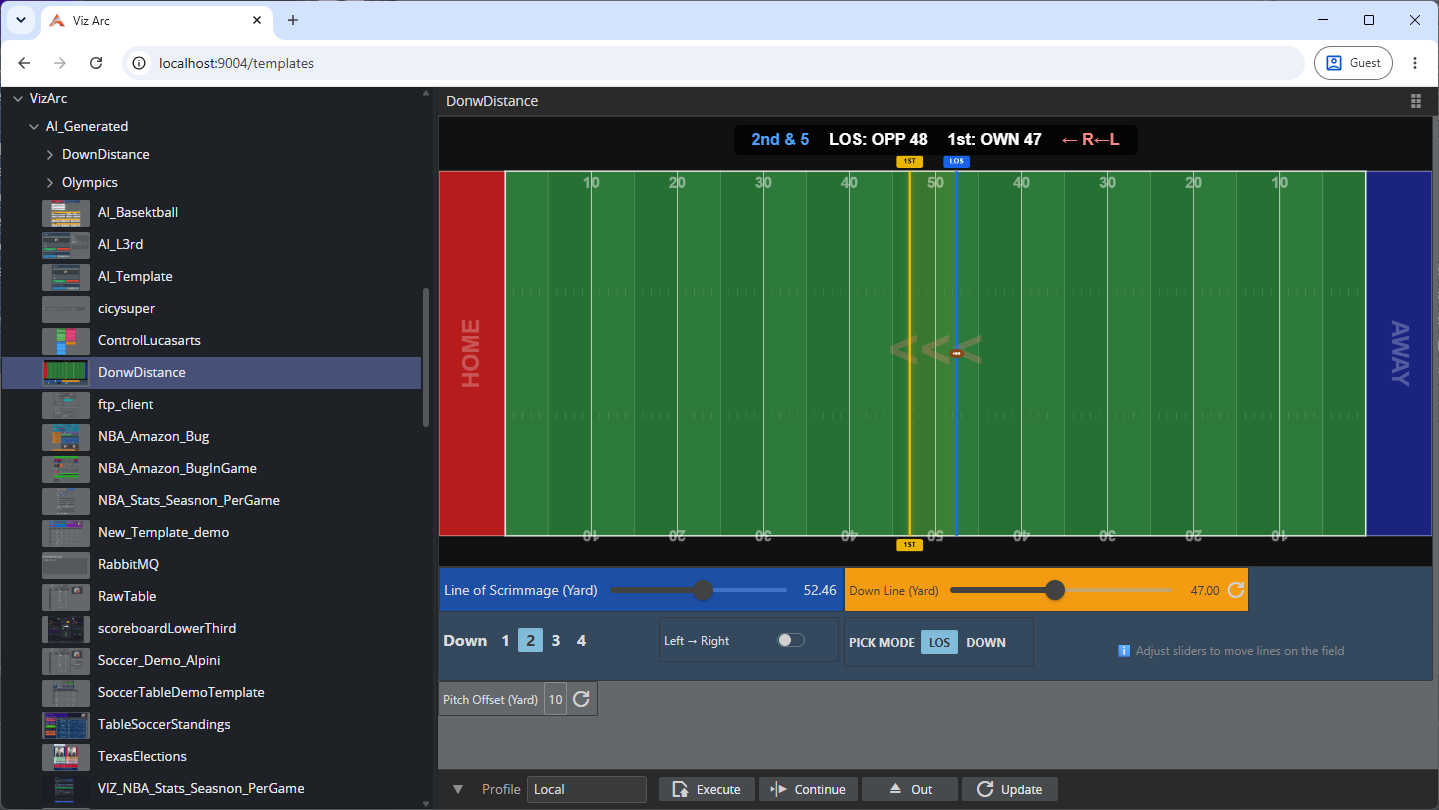
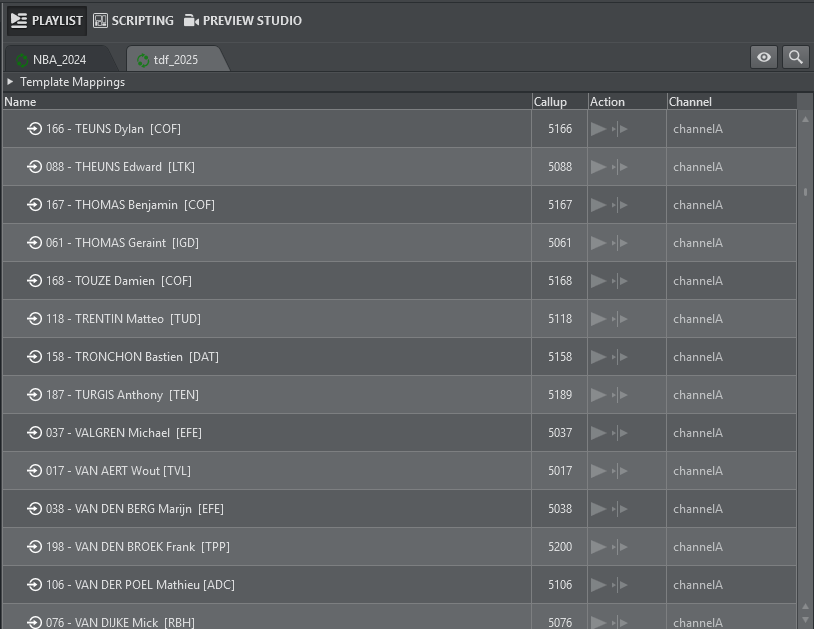
Media Sequencer Engine (MSE) shows open tabs in the Viz Arc playlist: Pages appear as rows with their page number as a Viz Trio-style callup code, play out through mapped Viz Arc template actions. New pages can be created by dragging a template payload onto the tab. Also available in the web playlist.
Stream Deck Plugin for Precision Keyer Control
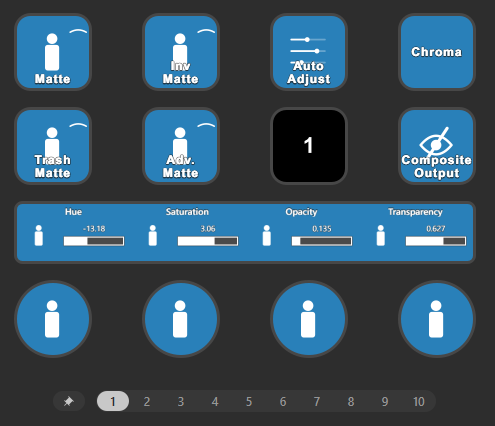
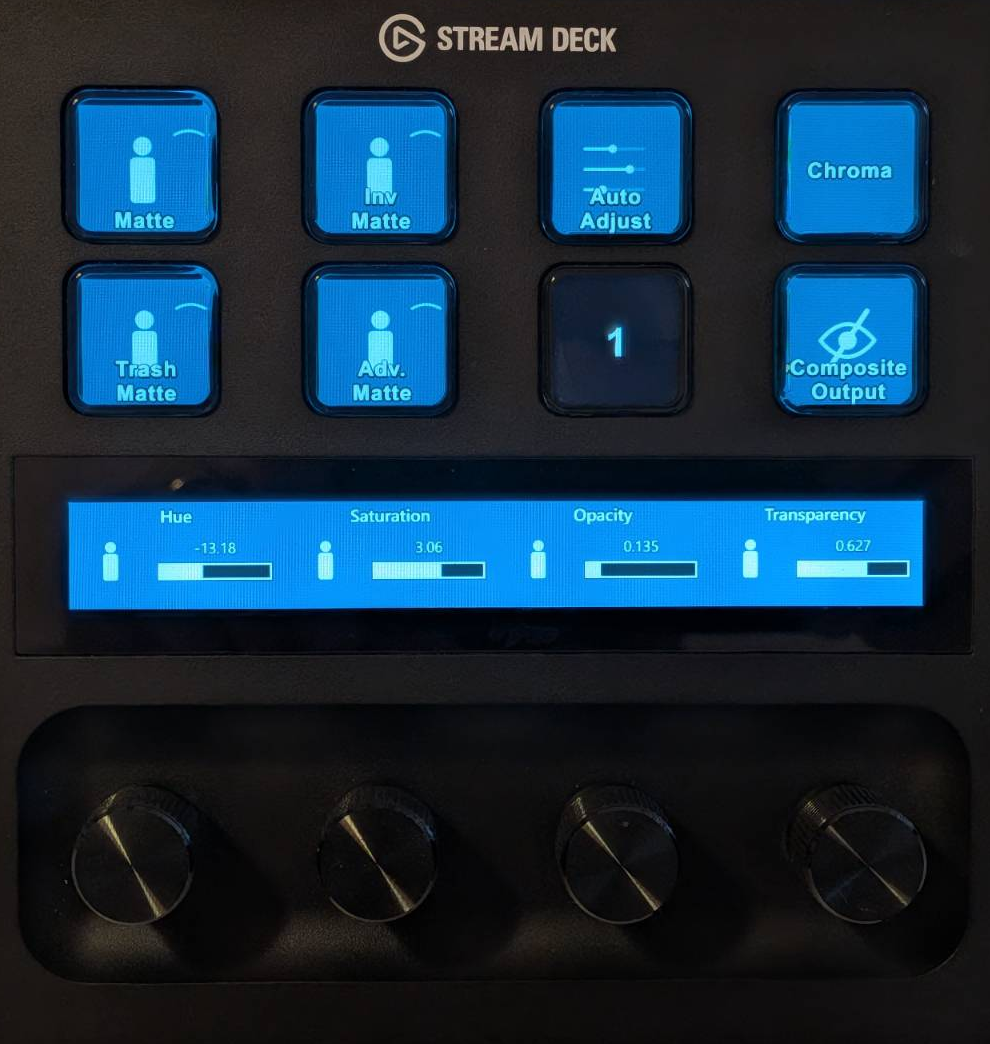
The new Precision Keyer plug-in puts Chroma Keyer control on Stream Deck dials: Numeric, vector and enum properties are tuned by turning an encoder, with keys for toggles, preview modes and one-press Auto Adjust. Live Keyer adjustments with the feel of a hardware panel.
AI Improvements
The Viz Arc MCP server can now create and manage complete playlists: an AI assistant builds playlists from your templates: Adding items, filling each item's payload with the right data, renaming, reordering, grouping, duplicating and setting durations. Describe the desired rundown ("build a playlist for tonight's match from this fixture list") and the assistant assembles it in Viz Arc, ready for playout.
New template inspection tools let the assistant read a template's field and payload structure, so generated payloads match the template exactly: No guessing at field names.
The assistant can now verify its own work visually: A snapshot tool captures the template layout as an image, and a layout-analysis tool reports overlapping parameters, misalignments and clipped labels, the AI fixes what it finds and checks again, converging on a clean, operator-ready template.
Longer scripts can be applied to templates from file, making AI-driven script generation robust for real-world script sizes.
DWG Reader
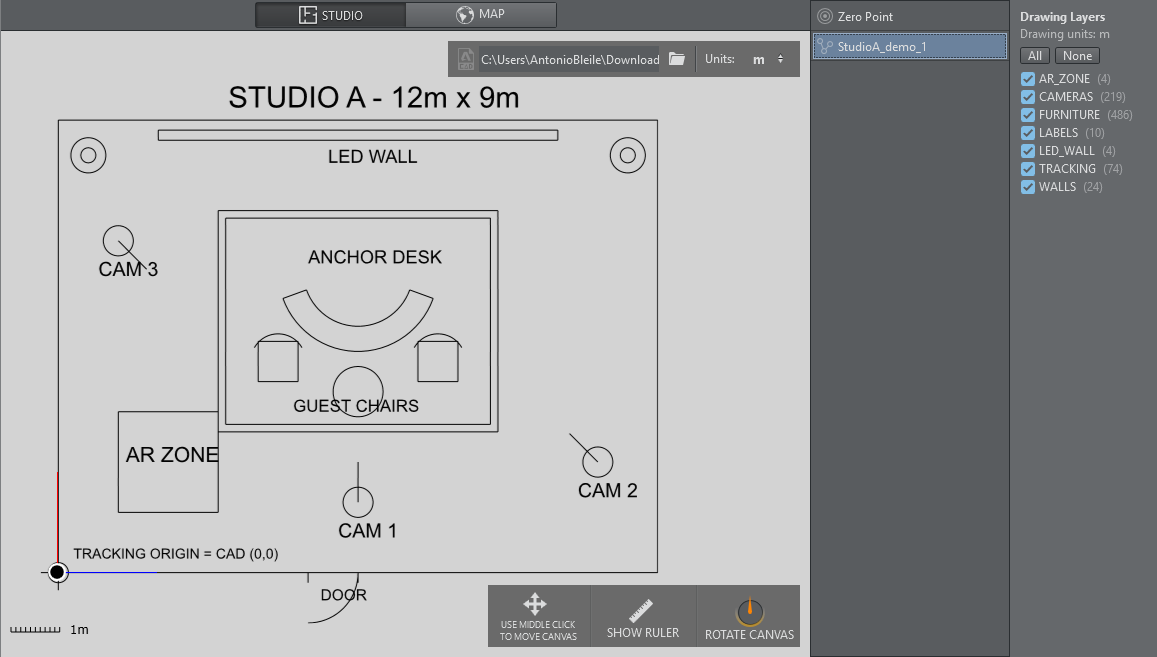
Studio floor plans can now be imported directly from DWG files (alongside DXF), with extended geometry support for arcs, circles, ellipses and curved polyline segments, plus rendered text labels. Drawing units and CAD layer visibility are respected, so plans arrive looking like the original.
Project Storage on Graphic Hub
Saving and opening projects has been streamlined, and very large projects now store reliably on Graphic Hub. The new Compress GraphicHub project content option (off by default) compresses large project content before upload, keeping it under the Graphic Hub size limit. Speeding up typically saves a ~40 MB project as only a few MB. Compressed projects are opened transparently everywhere, including the REST and web interfaces.

Note: Projects saved with compression enabled cannot be opened by older Viz Arc versions.
System Settings and Shared Configuration
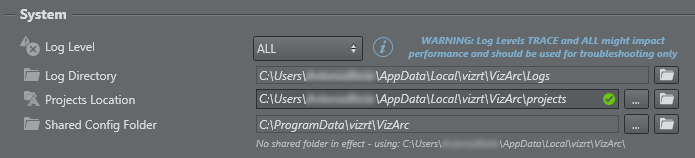
The new System settings group brings Viz Arc's housekeeping into one place: the log level written to disk is selectable (from ALL down to OFF), the projects location is freely configurable, and an optional Shared Config Folder lets every Windows user on the machine work with the same profiles and configuration (ideal for multi-operator machines and shift handovers). Logs always stay per user on the local machine, and Reveal buttons open the relevant folders directly in Windows Explorer.
Live Log Panel
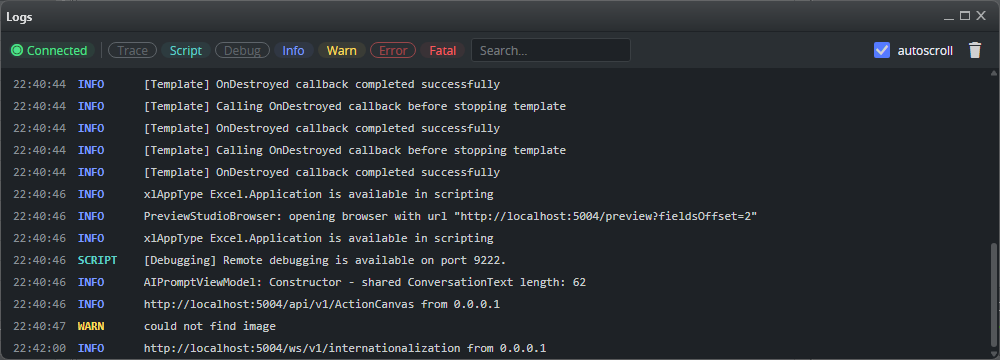
Viz Arc can now show its log live inside the application: A docked panel along the bottom of the main window (or a floating window for multi-monitor setups) displays incoming data, Engine communication and script output as it happens, without opening the log file on disk. Every line belongs to a color-coded channel (errors, warnings, info, script output and more) that can be filtered with one click, and the Log button in the status bar turns red when an error arrives while the panel is closed. The same live log is also available in the web interface under /logs, so it can be followed from a browser on another machine.
SRDI
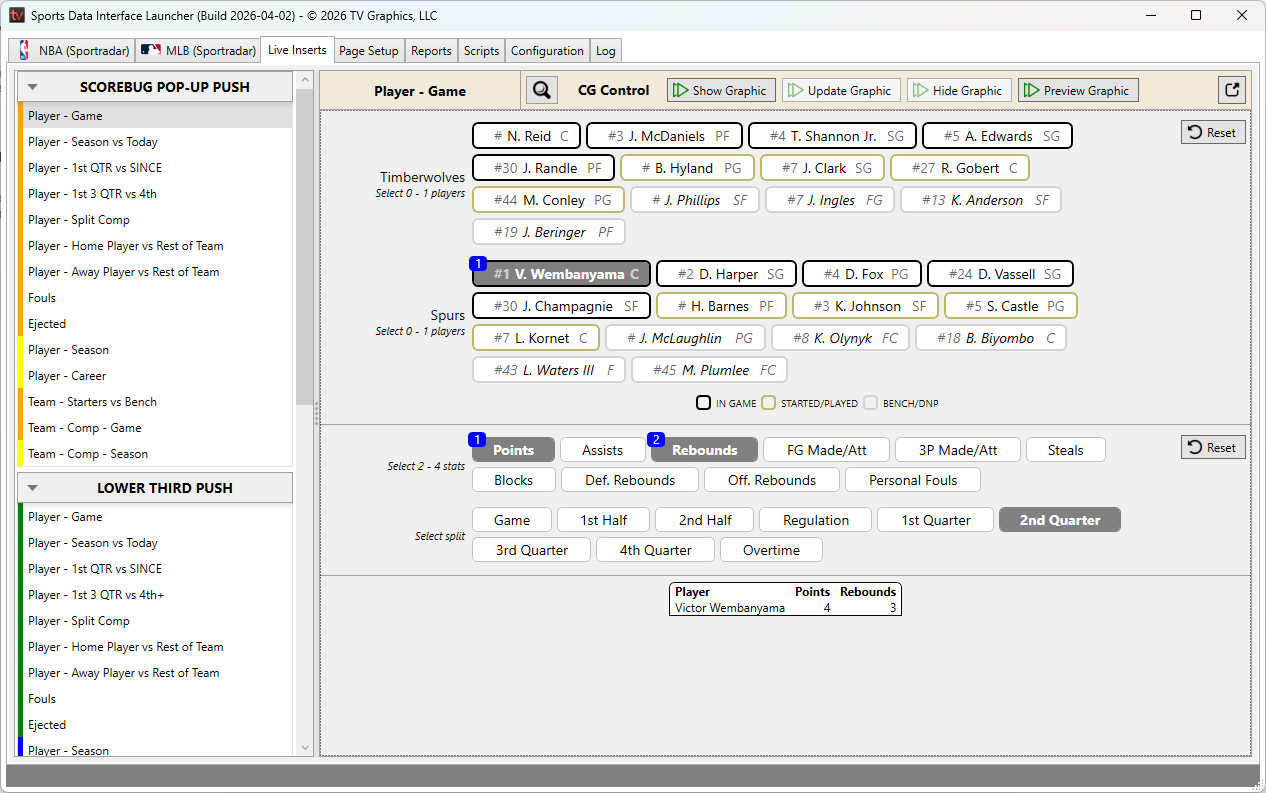
SRDI TV Graphics integration: SRDI sports data systems now push commands and field data directly into Viz Arc via their TV Graphics (EGC) output: Data lands in the Data Map to drive templates, and can optionally trigger the matching action automatically. Setup is a single port in the Third Party Systems settings.
Web Preview via H264 or MJPEG
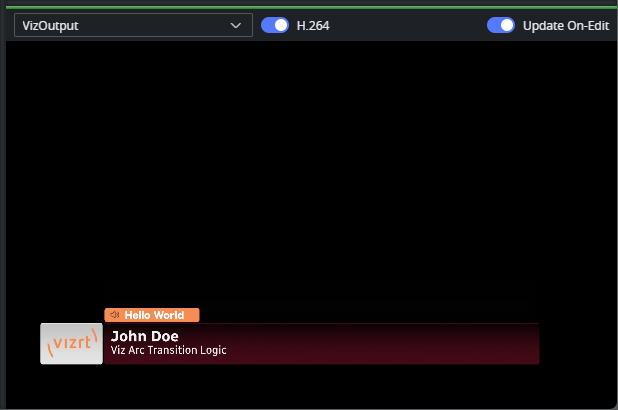
The web interface now streams a live preview of the Viz Engine output running locally on the Viz Arc machine: Hardware-accelerated, low-latency H.264 where the browser supports it, with automatic MJPEG fallback everywhere else. No extra software, servers or firewall ports, it all runs in-process over the existing web connection.
Director Start from CURRENT
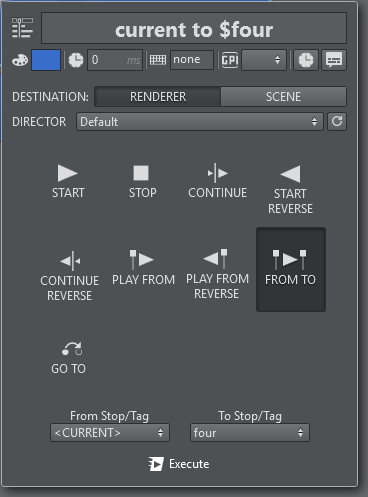
Viz Director Action now allows you to start an animation from the ‘current’ time position of a director or the stage.
Playlist Improvements
Callup codes: Every playlist element can carry a numeric callup code, working like page numbers in Viz Trio. Type the code in the recall box or directly on the numeric keypad and press ENTER to jump to the element (or numpad ENTER) to select and execute it in one step. New elements are numbered automatically from 1000, and codes are editable in the new Callup column.
External controllers: Callup codes are available to external controllers too. The REST endpoint
executeByCallup/{code}serves Stream Deck, Companion and any other automation client.Configurable columns: Playlist columns can be shown or hidden individually (Callup, Type, Channel, Action buttons, Loop, Unit, Duration), and the configuration is stored with the project.
The web playlist matches up: Live play state and selection, the Channel column, and playlist item payloads that can be edited directly in the browser.
OCR Improvements
The OCR widget has had a broad pass over recognition quality, live source handling and the configuration UI.
Improved recognition. The recognition engine has been updated, with better accuracy on digits: figures that could previously be misread, such as a nine read as a four, and longer multi-digit numbers, are now resolved correctly.
Live source handling. A refresh button picks up video sources that appear after the widget was opened, the NDI stream reconnects when the widget is reopened or when the stream only becomes available after Viz Arc has started, and choosing a source that is not reachable leaves the widget responsive.
Faster ROI tuning. Adjustment values can be changed with the arrow keys or the new stepper buttons, every value has a reset button, and the settings expanders become active as soon as the first frame arrives. Sliders preview fill or key according to the ROI type.
Confidence at a glance. A confidence bar sits with each ROI's settings, and a halo behind the ROI configuration icon reflects the current confidence value.
Layout. The splitter keeps its proportions, name and value columns share the width evenly, and the Full and Warped views keep independent aspect ratios with ROI handles that follow a change of warped scale. Both expander states are restored the next time Viz Arc opens.
Script Improvements
Template parameters can now be styled from script and the parameter properties: Font color, font style (Bold, Italic, Underline), font size, and a per-parameter background color via
GetParameter('name').Color.New Radio parameter type, and dropdowns/radios gained an optional Value As Index mode:
.Value/GetParameterValue()then return the selected index instead of the label, with the new.SelectedTextalways providing the label.Full payload scripting for templates and playlists:
GetTemplatePayload()/SetTemplatePayload()read and apply template states, and the newOnSetPayloadcallback lets a script take over payload handling completely – withBaseSetPayload()to reuse the built-in restore. JSON and VDF payload formats are auto-detected.Playlists can be built from script: Create action and payload items programmatically (for example, generating a complete rundown from a fixture list with one button press).
New
ThisActionaccessor: A template script can address its own action (Read its name and tile color, change it, execute or preview itself, or add itself to the playlist).Scene control:
SetSceneFullpath()repoints a Viz template to a different scene at runtime and reverts to the authored scene when cleared.The template canvas background is scriptable: Background color, background image and the image's position and size.
The new SuperChannel, Layer, Scene Layers and HTTP Request actions are fully accessible from script, like every other action type.
Transition Logic templates expose their layer alternatives to scripts:
SetLayerAlternative(),GetLayerAlternative()andClearLayerAlternative()select which scene alternative each layer plays.
Director Template Import (Experimental)
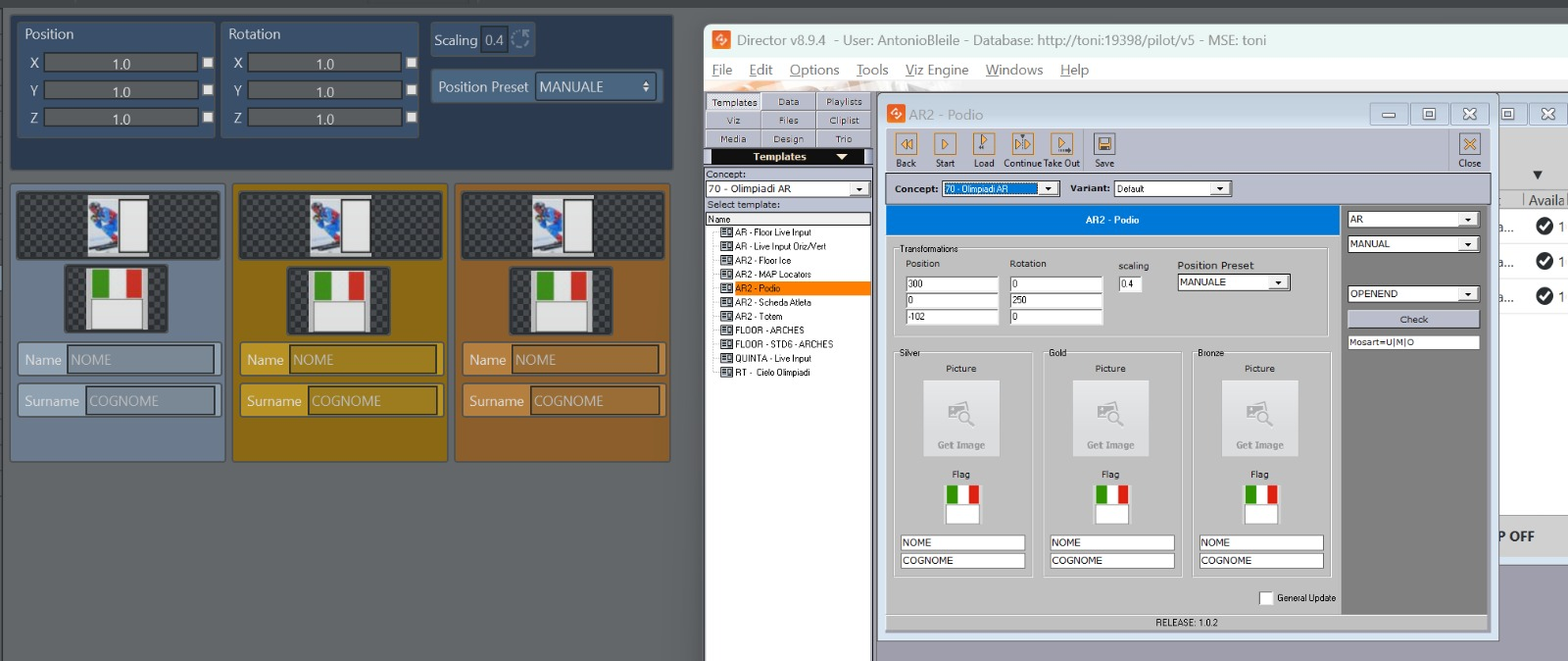
Existing Viz Director templates can be imported and converted into native Viz Arc templates. The parameter UI, control-object links and the template script are carried over, with warnings for anything needing manual review. A head start for migrating Template Wizard content instead of rebuilding it.
Fixed Issues
MediaService did not reconnect after its connection settings were changed (ARC-339).
Data Map keys containing a colon were treated as flattened JSON (ARC-385).
A template could not be created from an empty Viz Engine Renderer scene (ARC-832).
FROM TO now plays the selected frame range, so a custom start or end frame is honoured on execute (ARC-833).
Actions behind embedded templates were drawn in the wrong z-order (ARC-928).
Renaming a keyer preset scrolled the dialog in the web view (ARC-933).
Entering empty or non-numeric text in a double parameter produced an error (ARC-942).
A triplet's per-axis enabled flags were not honoured in the web interface (ARC-965).
The REST service did not read the configuration before starting the Graphic Hub service and fell back to localhost (ARC-977).
Drag and drop did not work inside a WebView script parameter (ARC-978).
A template button gave no visual feedback when pressed in the web interface (ARC-980).
WebSocket endpoints failed to connect when served over HTTPS (ARC-982).
The web image endpoint returned full-resolution images instead of thumbnails (ARC-985).
Creating a template through MCP opened the current template without creating the new one (ARC-989).
The template web view did not refresh when switching between the Arena and Action views (ARC-993).
The REST action executer failed to find an action by id when the project contained actions with empty names (ARC-998).
The double slider produced values with excessive decimals and now follows the step size (ARC-1000).
A non-local MQTT broker could not be used to push topic updates (ARC-1005).
A "Director on Execute" saved in 2.x was lost on load, so Execute and Continue triggered the whole stage (ARC-1009).
Searching projects and templates only matched items that had already been expanded (ARC-1011).
Templates imported through the import wizard could not be used until Viz Arc was restarted (ARC-1013).
A JSON path generated from a property containing a space was not quoted (ARC-1015).
Crash files were no longer generated (ARC-1018).
Importing a project silently failed when the Graphic Hub timeout elapsed (ARC-1025).
Saving a project to Graphic Hub could fail with "Session no longer valid" (ARC-1030).
With "Update When Focused" enabled, parameter updates sent from the web interface were dropped while the desktop template was not focused (ARC-1033).
Creating an image action from a ControlImage browsed scene assets instead of image assets (ARC-1034).
The Graphic Hub browser became progressively slower the longer it ran (ARC-1036).
Navigating to a bookmark in the web Graphic Hub browser could leave the view empty (ARC-1048).
OCR bounding-box edges appeared and disappeared depending on the zoom level (ARC-1051).
Selecting an invalid NDI source in the OCR widget froze Viz Arc on script stop or exit (ARC-1052).
Drag and drop from the Viz Arc MOS panel to Viz Pilot Panel stopped working (ARC-1054).
The Graphic Hub tree view reloaded whenever a project was opened or cleared (ARC-1055).
Dragging Graphic Hub items to the top or bottom of the tree did not scroll the view (ARC-1056).
Dragging items between Graphic Hub and local storage could lose data if the write failed (ARC-1061).
Save As showed no busy indicator, and opening a project refetched the whole Graphic Hub (ARC-1062).
A crash while a Graphic Hub project was open could overwrite the original project (ARC-1083).
Playlist row identifiers were regenerated on project load, breaking Stream Deck, REST and script references to a specific row (ARC-1089).
Several scripting fixes: MIDI send return value, Table.MinimumRows, ToggleButton checked colours, TakeTracker index base, GetDirector and SetDirector from an action script, negative double-slider minimum, and toggle-button GetParameterValue (ARC-1111).
Several MCP template operations reported success without applying the change (ARC-1122).
The seven-segment ROI showed the wrong parameters, and the Full and Warped expanders did not restore their state (ARC-1138).
The OCR script did not reconnect when the NDI stream was unavailable at startup (ARC-1149).
Cloning a template did not register it for project unload, so cloned script instances could stay active across project loads (ARC-1150).
Breaking Changes or Deprecated Functionality
The Loupedeck plug-in shipped in this version, is not compatible with Loupedeck Software versions lower than 6.1.4.22646. If upgrading is not possible, it is recommended to continue with the old plug-in, since it is still compatible with this version.
You must upgrade the external Stream Deck plug-in shipped with this version in order to continue to use the external Stream Deck control. Old Stream Deck profiles continue to work with the new plug-in.
The default file location for the configuration and log files, is no longer in C:\ProgramData\vizrt\VizArc. The location of those files is in %localappdata%\vizrt\VizArc and depends on the logged user.
Known Issues
When using Bing Maps, you need to provide your own Bing Maps API key.
When using the Viz Arc Engine Service with different privileges than the Viz Engine, the rendered Unreal image might not get updated in Viz Engine. Make sure both processes are started with the same user privileges.
Compatibility Notes
Viz Arc 3.1.0 is compatible with:
Product | Version |
|---|---|
Viz Engine | 3.12 and newer, Viz Engine 5.x Virtual Camera Flight (VCF) requires Viz Engine 5.6 and newer. |
Viz Virtual Studio | 1.1.0 and newer |
Unreal Engine | 5.3.x, 5.5.x, 5.6.x, 5.7.x, 5.8.x |
Graphic Hub REST | 2.5.0 and newer Support for File Collection file types (Unreal Projects) requires version 2.9.2. |
Loupedeck | 6.1.4.22646 and newer |
Companion Module | v5.0.0 and newer Companion Software |
Media Sequencer | For the Viz Mosart integration, 5.5 and newer. Otherwise 5.1.3 and newer. |
Viz Mosart | 5.3 and newer |
Coder | 2.3.1 and newer |
Viz Pilot Data Server | 9.0 and newer |
Viz Pilot Edge | 3.0 and newer |
Media Service | 2.3.3 and newer |
Viz One | 7.1.0 and newer |
Viz Object Tracker | 1.5 and newer |
Viz Arena | 5.1.0 and newer |
Documentation
Documentation for Viz Arc is available at the Vizrt Documentation Center:
Support
Support is available at the Vizrt Support Portal.