This section describes the various actions in Companion module for Bitfocus.
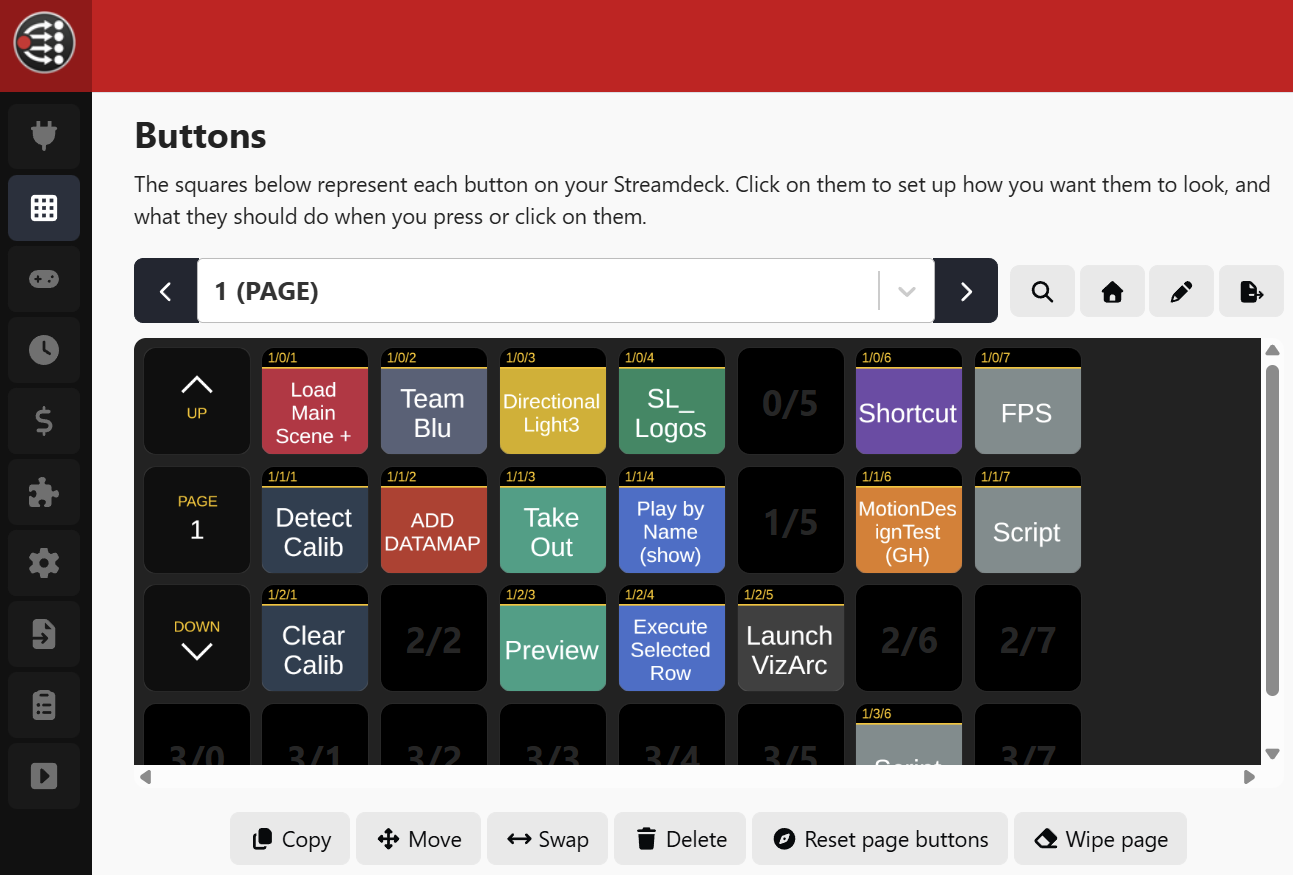
Note: Most actions require Viz Arc to be running.
Note: The companion app doesn't allow you to load or fill data dynamically. Therefore, it's very important to press the blue Learn values button every time you select a filter.
Action - Execute
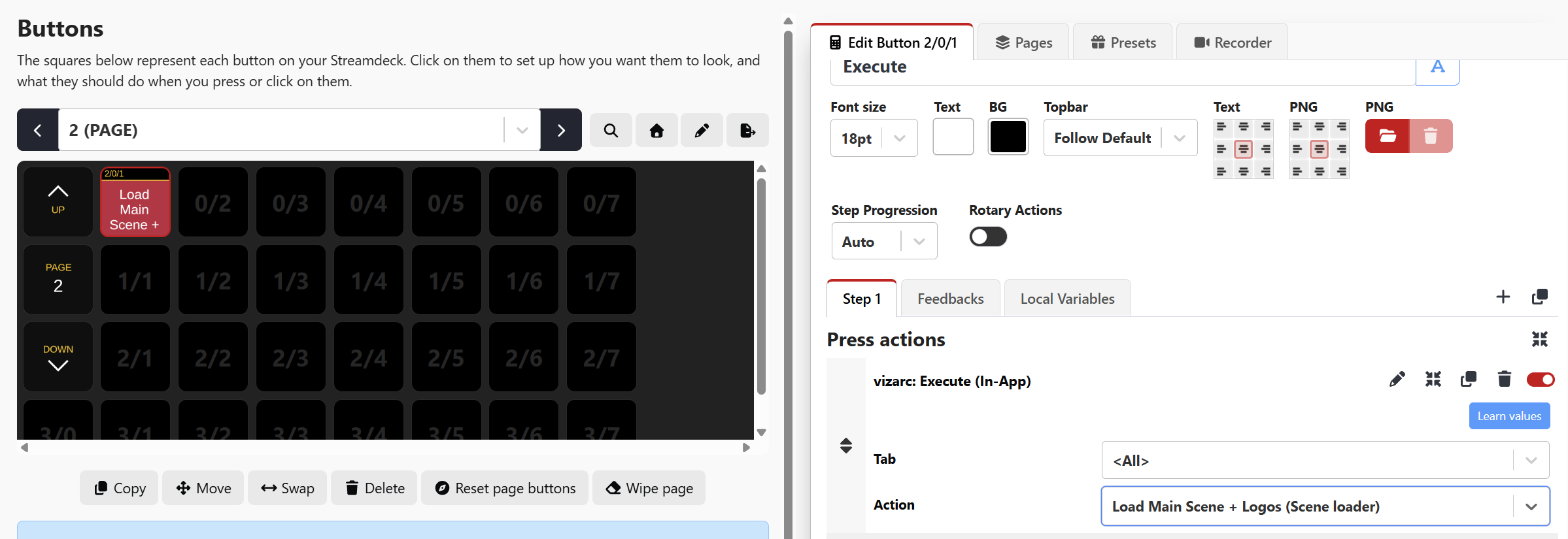
Drag and drop the Execute action to any of the page buttons. The action lets you select an Action from the currently loaded project by selecting any of the actions.
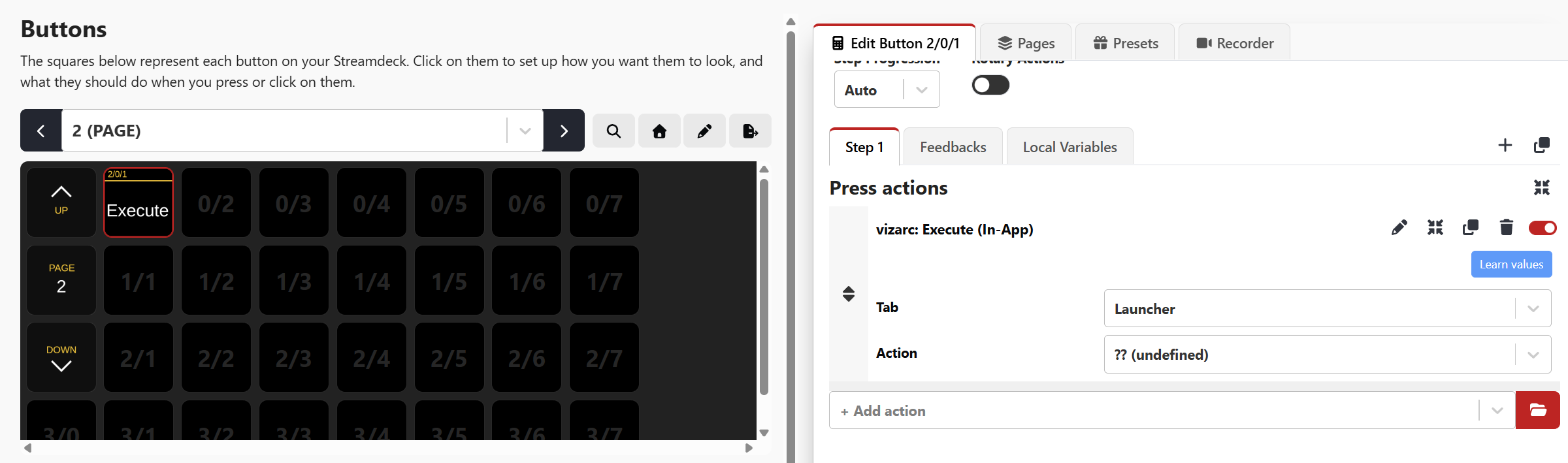
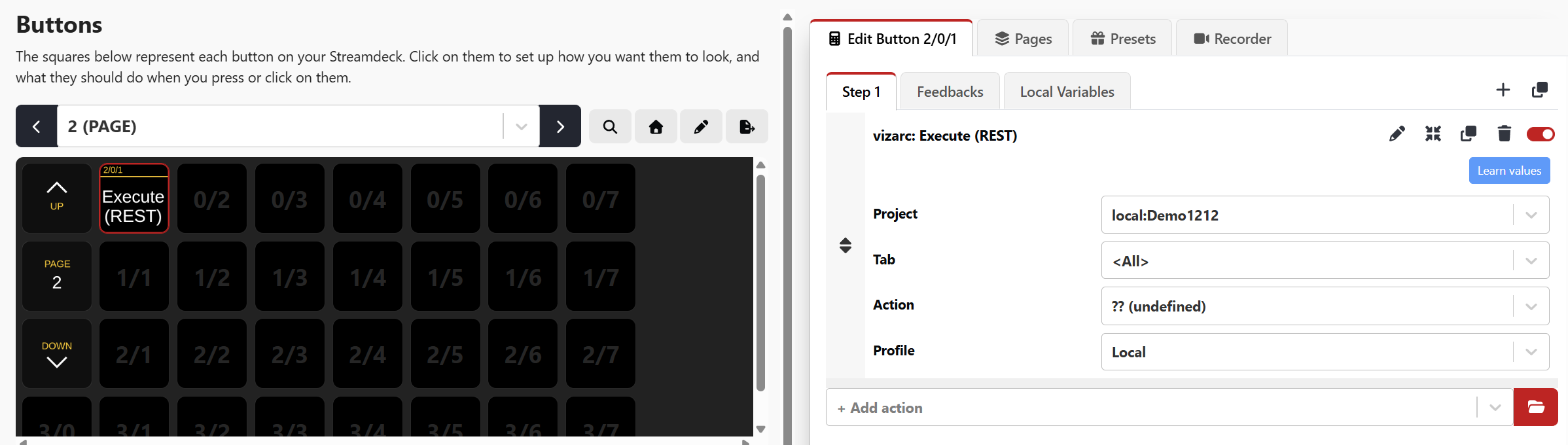
The button turns black if there is an incorrect configuration. Try to open the action, click the Learn values button and check the configuration.
Action - Execute (REST)
The Execute REST Action allows you to launch Viz Arc actions using the REST service which does not require Viz Arc to be running.
You need to specify a project, an action and a profile on which to execute the action.
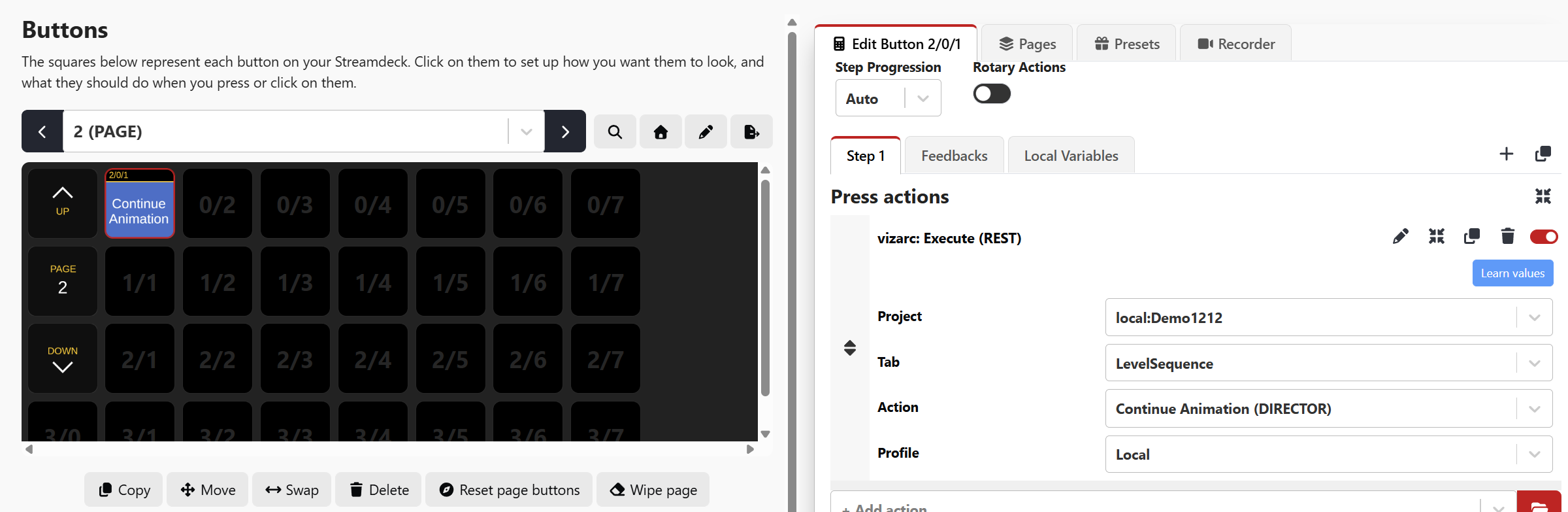
The button turns black if there is an incorrect configuration. Try to open the action, click the Learn values button and check the configuration.
Arena
The Arena action lets you execute Viz Arena related macros.
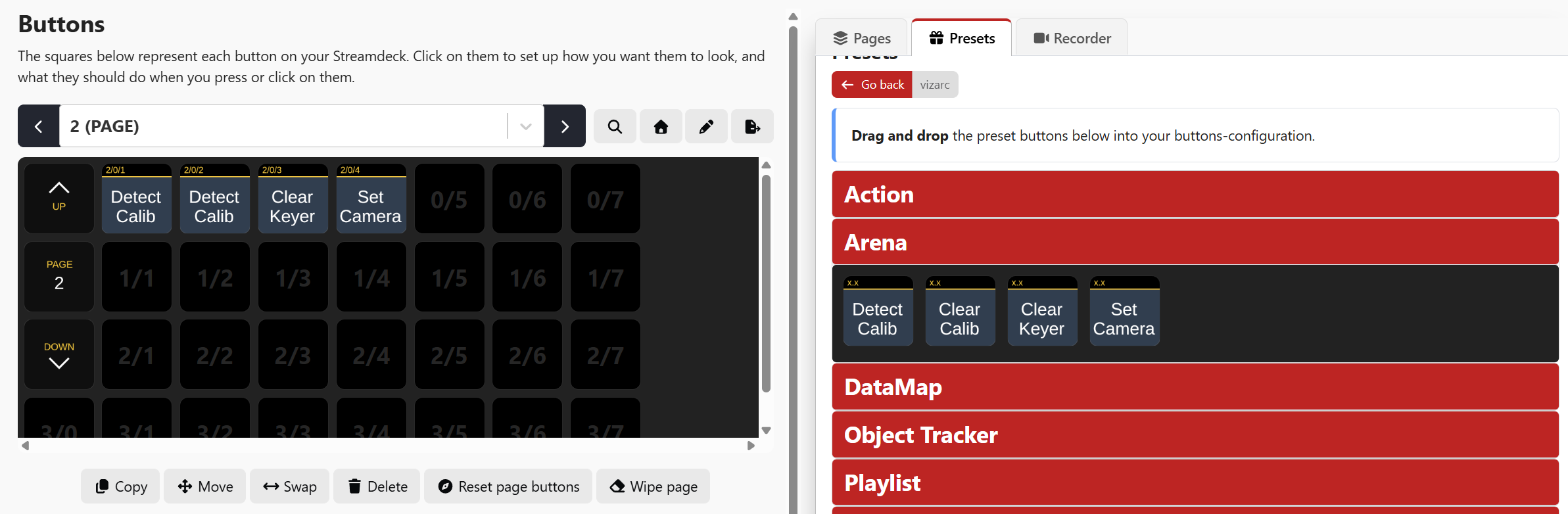
Detect Viz Arena Calibration: Detects the calibration of the current image, equivalent of pressing the shortcut D in Viz Arena.
Clear Viz Arena Calibration: Clears the calibration, equivalent of pressing the BACKSPACE button in Viz Arena.
Clear Viz Arena Keyer: Clears the Keyer, equivalent of pressing C in Viz Arena.
Set Viz Arena Camera: Selects the current camera for both Viz Arena preview and program feeds.
Refer to the Viz Arena Integration documentation for more information.
DataMap
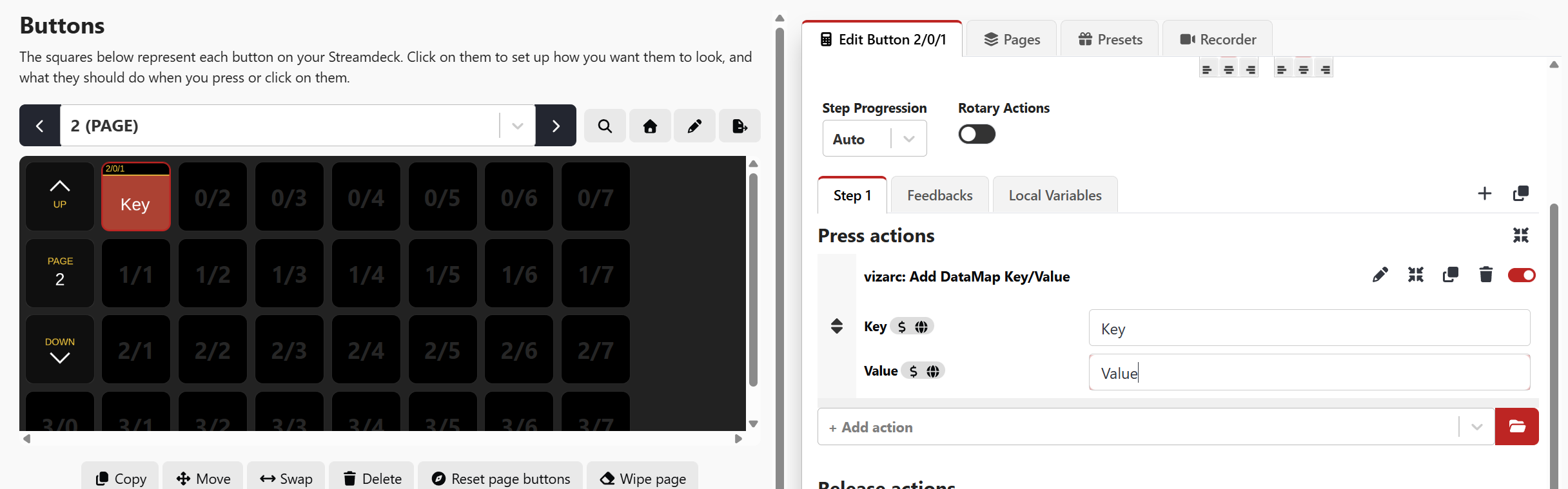
The DataMap action allows you to set a Viz Arc DataMap variable.
Object Tracker
The Object Tracker action lets you execute Object Tracker related macros.
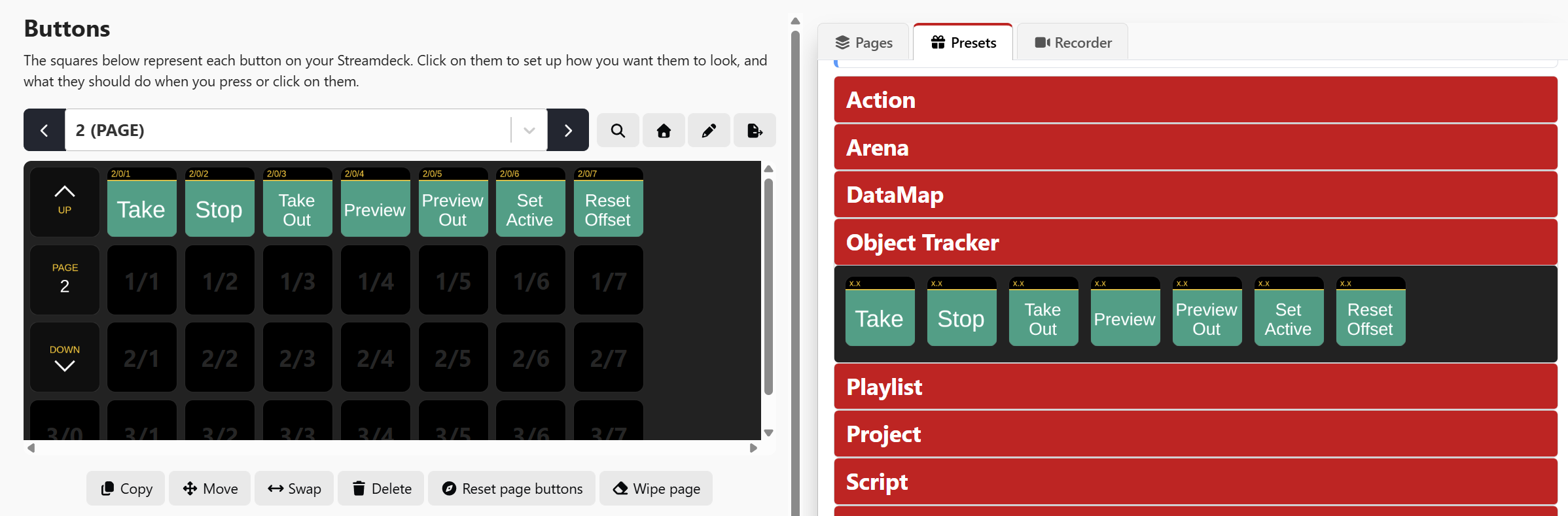
Take Tracker: Takes all active trackers On Air.
Take Out Tracker: Takes all active trackers Off Air.
Preview Tracker: Previews all active trackers.
Preview Out Tracker: Previews out all active trackers.
Stop Tracker: Stops all active trackers.
Set Active Tracker: Selects the currently active tracker by index, starting at 1.
Reset Pointer Offset: Resets all pointer offsets.
Refer to the Viz Object Tracker manual for more information.
Playlist
The Playlist action lets you control various aspects of Viz Arc's playlist.
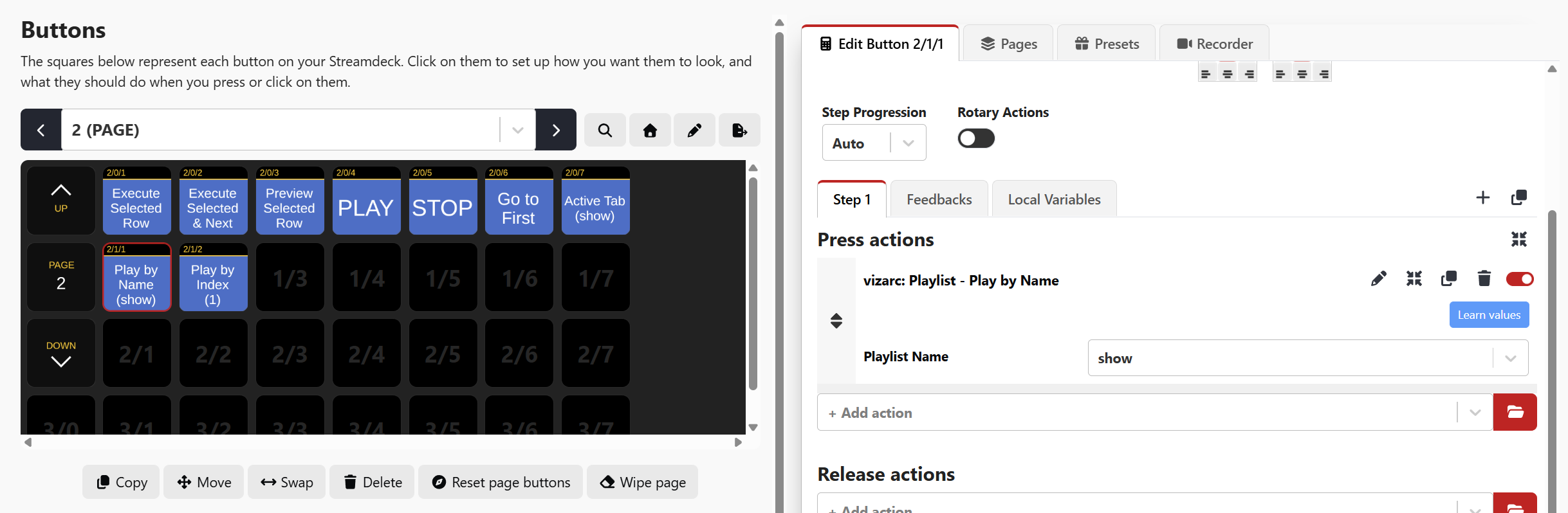
Execute Selected Playlist Row: Plays the currently selected playlist element.
Execute Selected Playlist Row And Next: Plays the currently selected playlist element and advances to the next playable playlist element.
Preview Selected Playlist Row: Previews the selected playlist element.
Go to First: Selects the first playlist element.
Play Current Playlist: Plays the currently selected playlist from the selected item on.
Stop Current Playlist: Stops the currently selected playlist.
Play Playlist By Name: Selects and plays the playlist by the specified name. If the name is ambiguous, it plays the first occurrence.
Play Playlist By Index: Selects and plays the playlist specified by the given index, where 0 is the first playlist.
Change Active Tab: Selects the tab by the specified name.
Refer to the playlist to learn more about Viz Arc's playlist functionality.
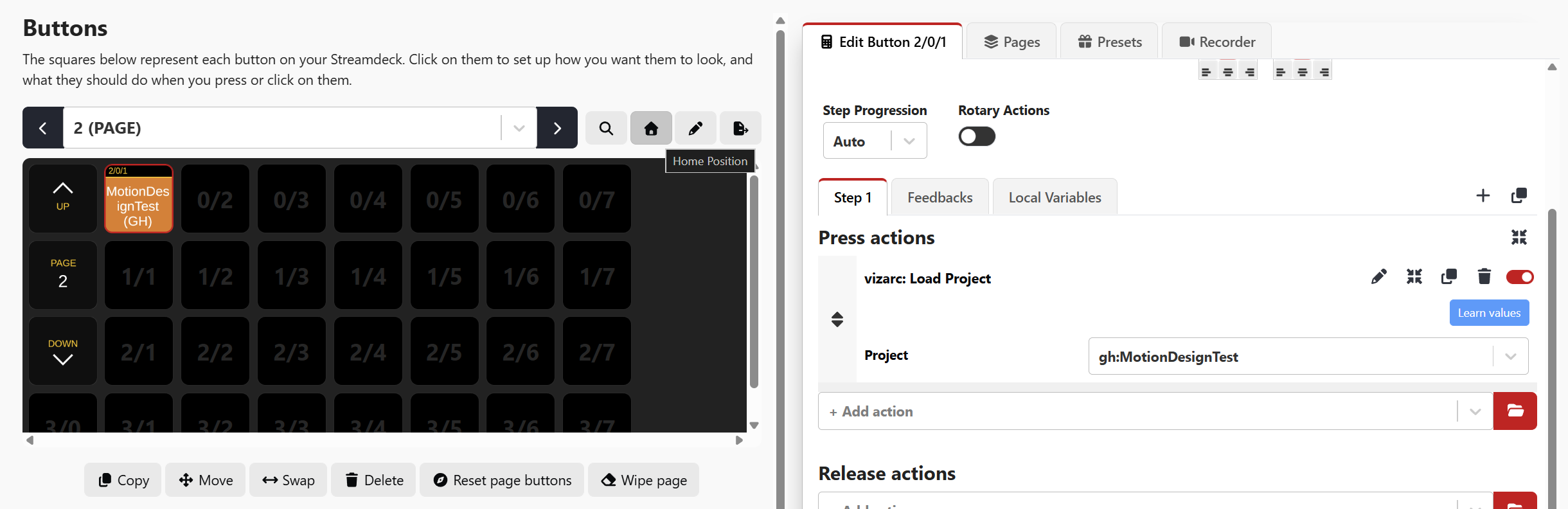
Load Project
The Project Loader allows to load a project from Graphic Hub or a local file based project. Select a project to be loaded from the drop down menu.
Script Callback
The Script Callback action triggers Viz Arc script functions that may be defined in the global script or a template.
The Payload can be any string passed to the script method.
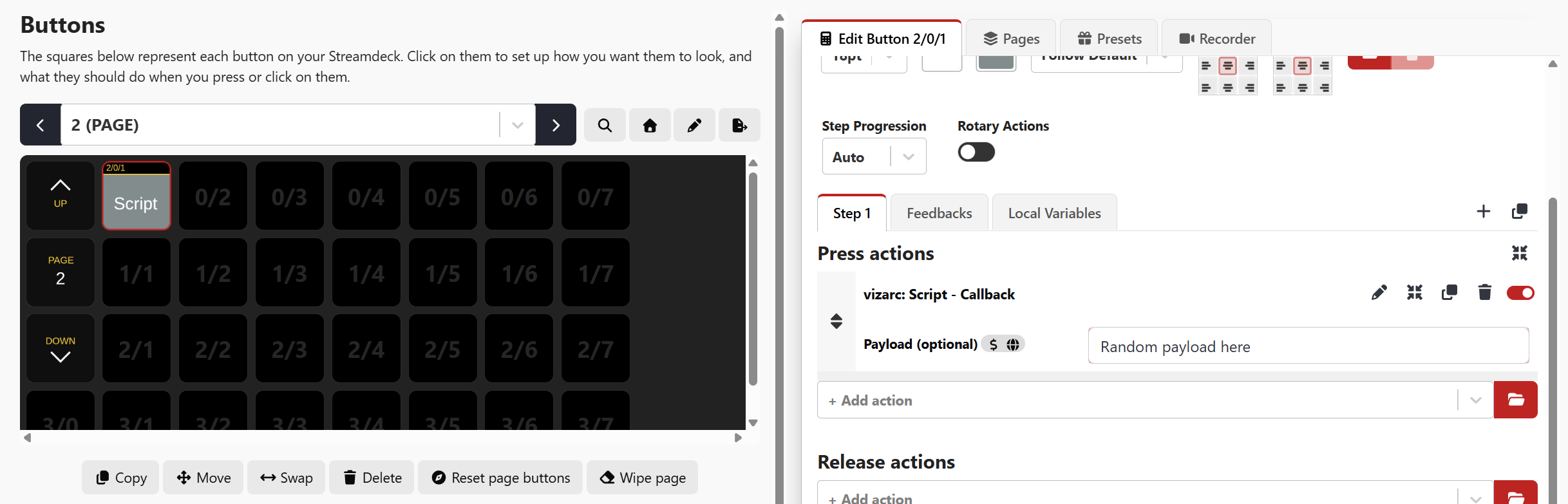
A sample Viz Arc script might look like this:
Viz Arc Script Sample
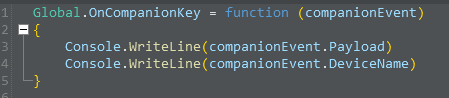
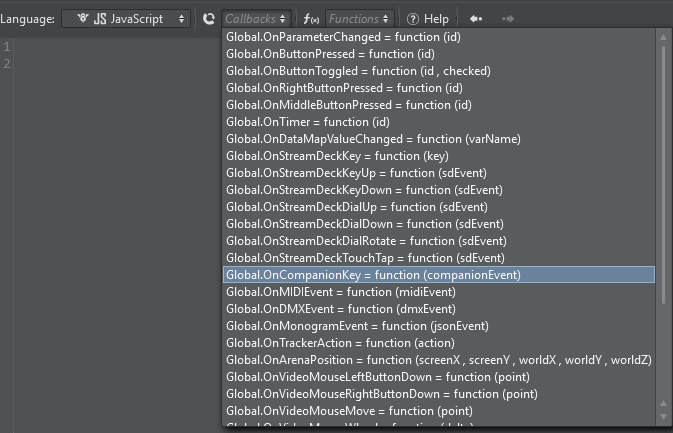
The available script callback is OnCompanionKey.
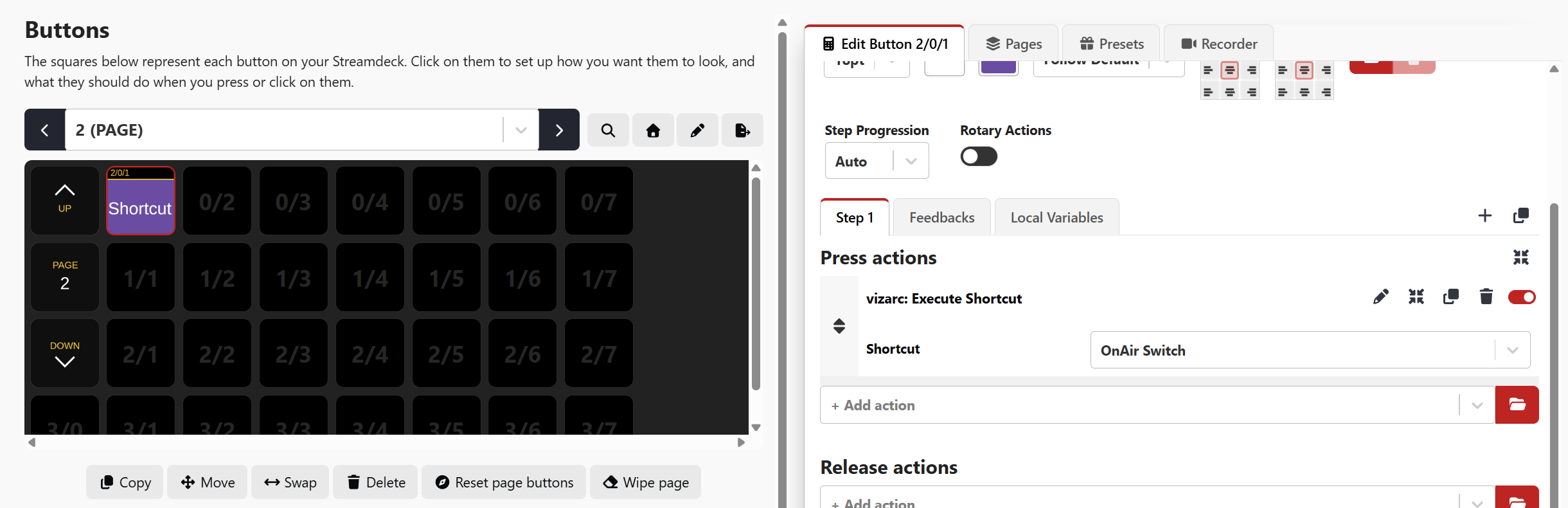
Shortcut
The Shortcut action lets you execute Viz Arc's shortcuts.
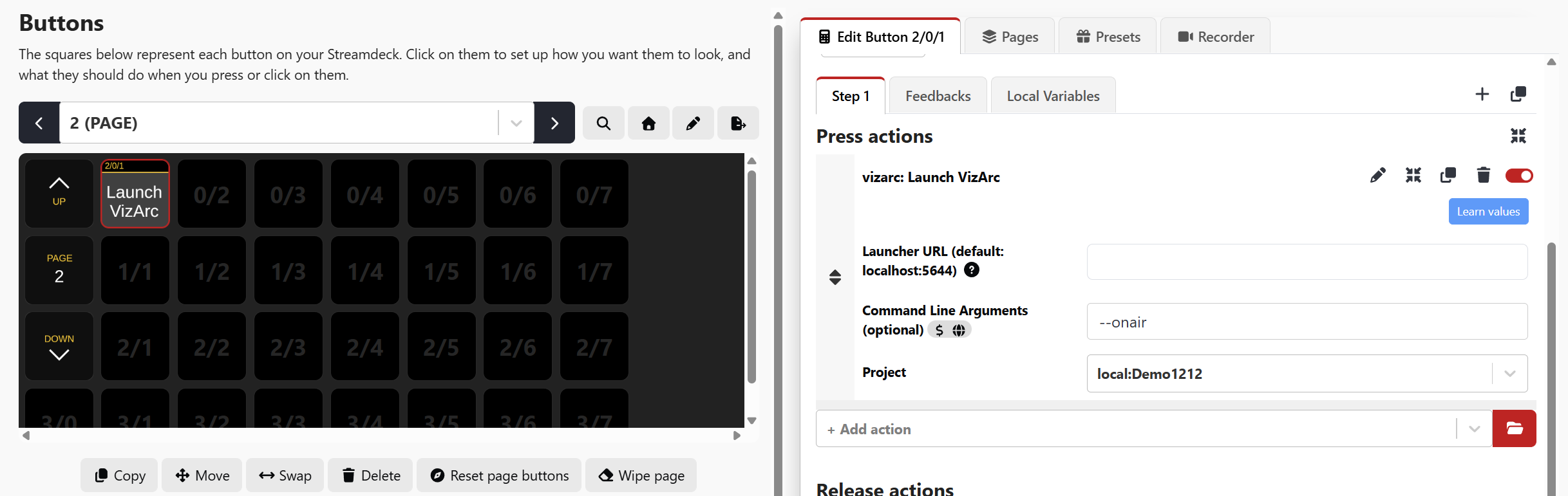
Viz Arc Launcher
With the Viz Arc Launcher, you can start Viz Arc in case it is not running with a specific project with optional command line arguments.
This plug-in relies on an installed Viz Arc Unreal Loader service. Change the Launcher address to a different host/port if the Unreal Launcher and Viz Arc are installed on a remote host.
You can also change Command Line Arguments.
Action Feedbacks Tab
The Feedback tab contains a list of all feedback related to that action. They can be disabled or enabled as desired.
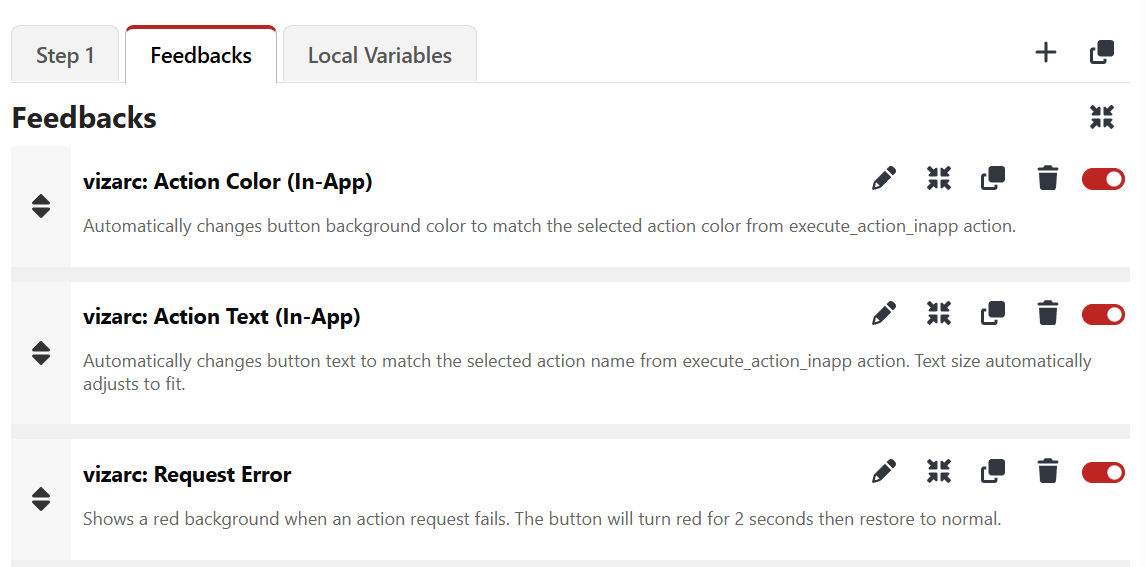
Request Error feedback: Once the Viz Arc Action to be executed has been selected, pushing the button executes the action only if Viz Arc is running and the project from which the action originates is currently opened. If the action cannot be found or Viz Arc is not running, the background starts to blink red.
Logs
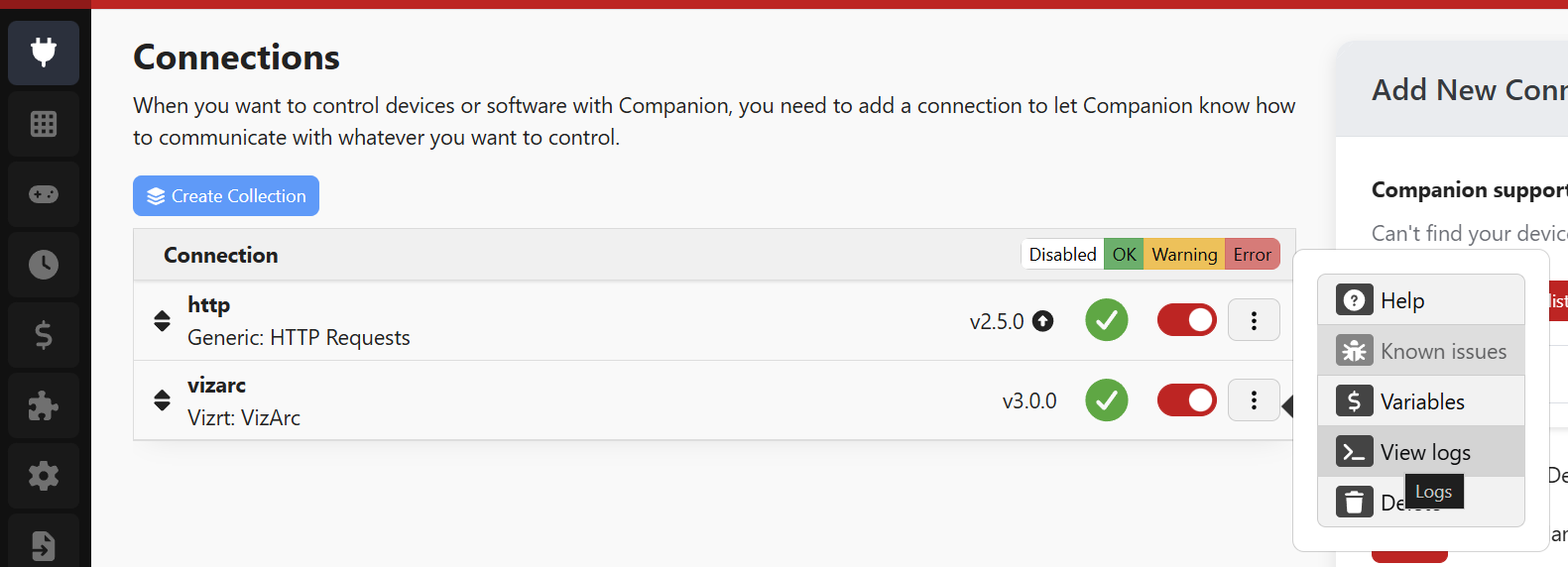
In the Connection tab, you can view the Logs which can be very useful for finding any problems related to the action configuration.