The Main menu contains the following sections:
File
All Project creation and management related actions are found in this menu.
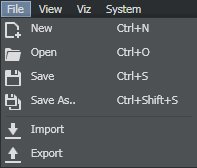
New (CTRL + N): Creates a new blank project.
Open (CTRL + O): Opens existing project.
Save (CTRL + S): Saves the current project.
Save As (CTRL + SHIFT + S): Saves project with a different name.
Import: Imports a Viz Arc archive (.arc file).
Export: Exports a Viz Arc archive (.arc file).
Note: The same operations are also available from the Project toolbar:
Projects
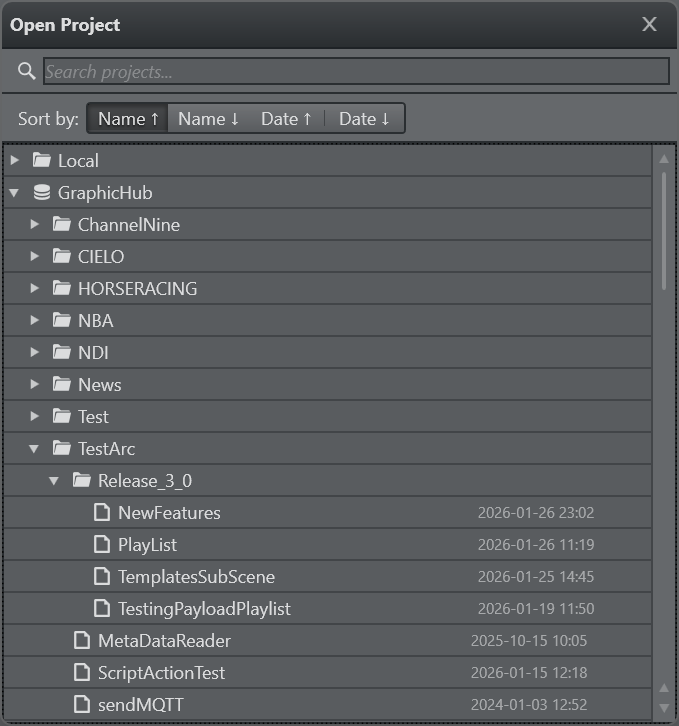
Projects can be located on the local file system or on Graphic Hub. When opening a project you can choose where to load it from, selecting from either the Graphic Hub tab and the Local tree view item.
Note: Local storage does not allow the creation of subfolders.
You can organize your projects in folders only on the Graphic Hub.
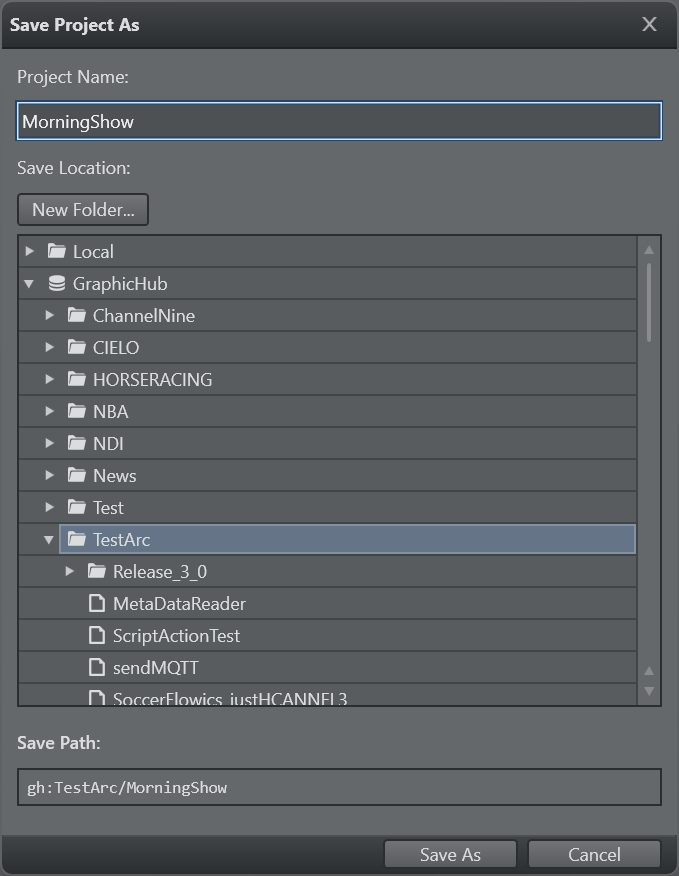
When saving a project, you can choose whether to store it locally or on Graphic Hub by selecting the respective tree node. On the bottom part of the window the Save Path indicates where the project will be stored when clicking Save As. The prefixes gh: or local: indicate whether the project is stored on the Graphic Hub or on the local file system.
View
This menu lets you switch between the four main views when working in Builder mode. Depending on the configuration, the Tracking and Arena panels may be available as well. The Multizone Keyer and Precision Keyer views are available when such actions are present in the current project.
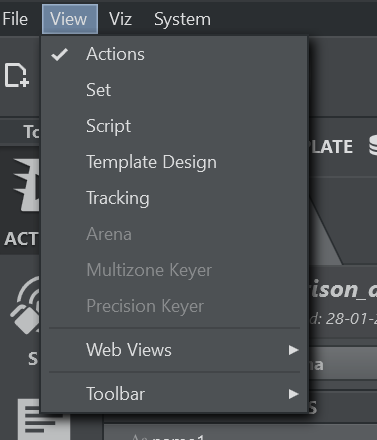
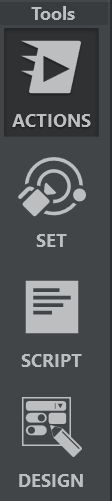
Actions: Switches to the Actions view in the main window.
Set: Switches to the Set view in the main window.
Script: Switches to the Script view in the main window.
Template Design: Switches to the Template Design view to create or edit templates.
Tracking: Switches to a dedicated view for the Object Tracker.
Arena: Switches to a view for Viz Arena integration.
Multizone Keyer: Switches to a view where the Multizone Keyer can be operated more efficiently.
Precision Keyer: Switches to a dedicated view showing all Precision Keyer actions within the project.
You can also switch between views using this toolbar:
Web View
The web view sub-menu opens the respective view in a web browser.
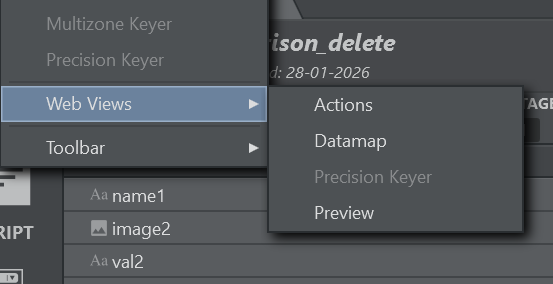
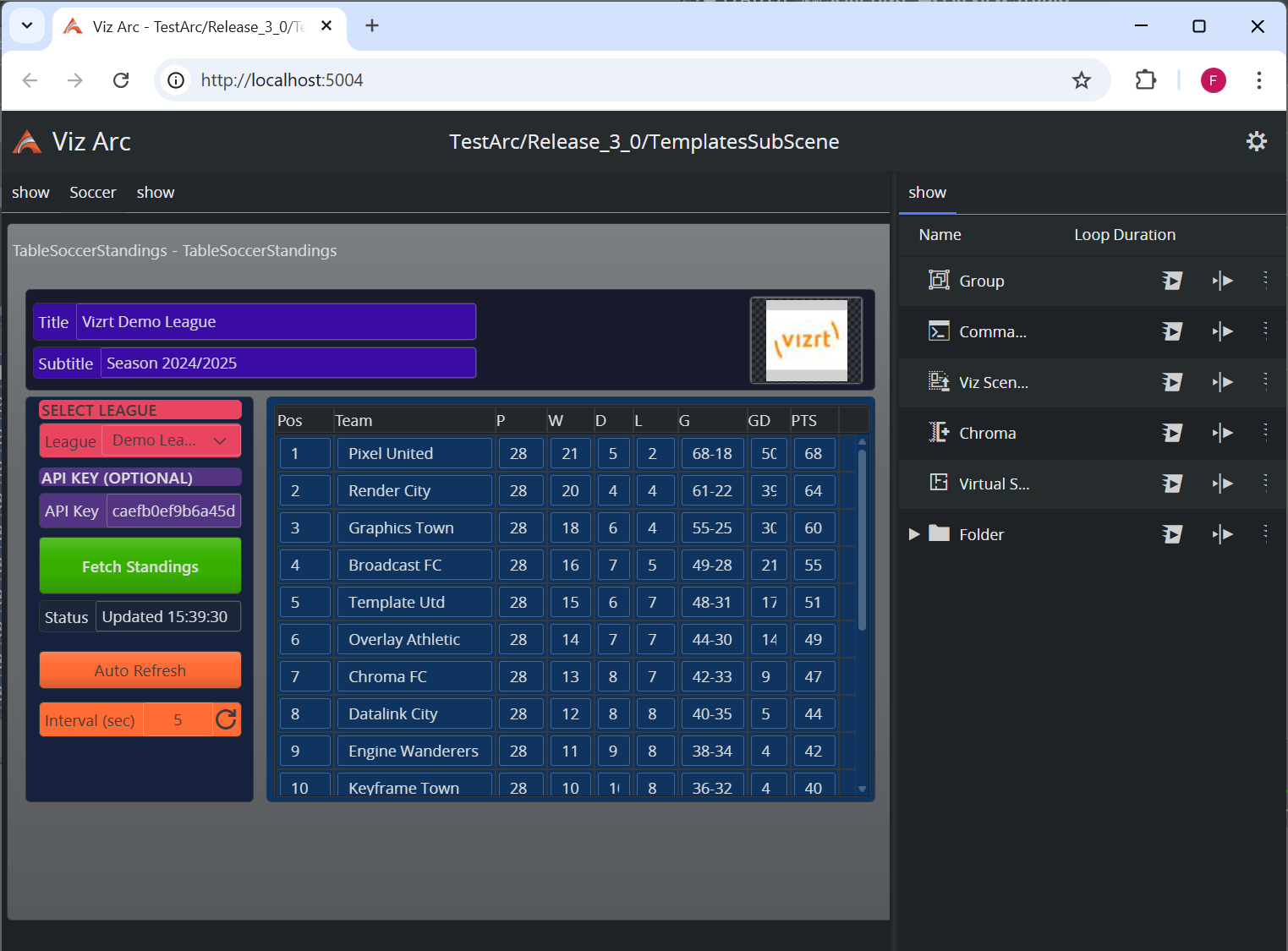
When selecting Actions, a browser opens http://localhost:5004/. From there you can trigger actions or use embedded templates. You cannot modify any actions through the web view, nor can you load different projects.
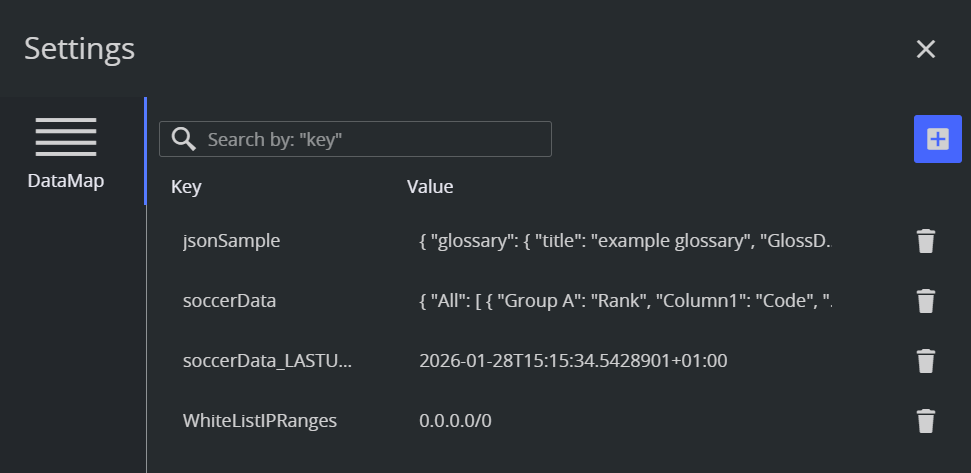
When selecting DataMap or by clicking on the wheel  in the action web UI opens the DataMap editor. From here, you can manually modify, delete or create DataMap key/value pairs.
Viz
This menu contains actions relating to Viz systems.
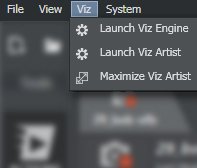
Launch Viz Engine: Launches Viz Engine.
Launch Viz Artist: Launches Viz Artist (if licensed).
Maximize Viz Artist: Switches to the Viz Artist window.
System
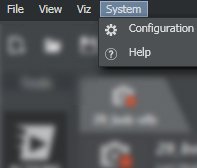
Configuration: Opens the configuration section in a new window.
Help: Opens the present manual.
Note: The configuration panel can also be opened by clicking at the top right.