Cross animations are used in Transition Logic scene design to animate one object in and another out. The example below shows a lower third that has an alpha cross fade fading from a two lines of text to a one line of text.
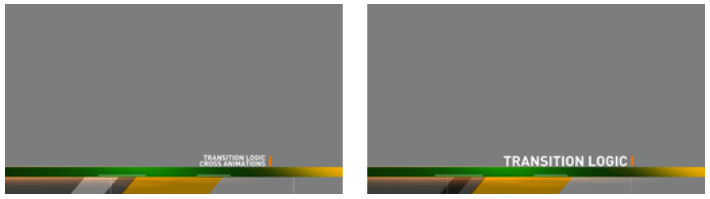
Cross animation directors are added by the Toggle plug-in. The directors are always tagged with the letters AX and BX. AX and BX holds the cross animation and effect used to animate from one object to another. The default cross animation is a one second cross fade of the alpha value.
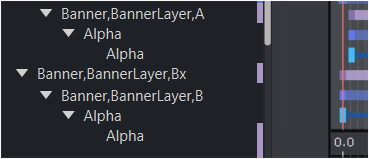
Animation and effect length can be changed by adjusting the director’s animation and effect(s) on the stage. In addition it is also possible to remove or add effects (for example, material, position and scaling).
Custom Transitions
The default AX/BX cross-fade is a one second alpha dissolve. You can replace it with any animation:
Transition Style | What to Animate on AX/BX |
|---|---|
Slide | Position X or Y (e.g. slide from off-screen left to center) |
Scale | Scale from 0 to 1 (grow in) or 1 to 0 (shrink out) |
3D Flip | Rotate on Y-axis from -90° to 0° (flip in) |
Wipe | Animate a crop mask or stencil |
Dissolve + Blur | Combine alpha with a Blur plugin (blur out, sharpen in) |
Important: AX and BX must ALWAYS be identical! Toggle may load content on either the A or B side. If AX and BX have different animations, the transition looks inconsistent depending on which placeholder is active. Always duplicate changes from AX to BX (or vice versa).
Editing the Cross-Fade
Open the Stage and expand the layer director (for example,
BannerLyr).Select
BannerLyr,AX. This is the A-side cross-fade director.Delete the default alpha keyframes.
Add your custom keyframes (position, scale, rotation, blur, etc.).
Copy the exact same keyframes to
BannerLyr,BX.Do not edit
BannerLyr,AOorBannerLyr,BO, these are auto-managed by the Toggle plug-in for object scene animations.