Overview
This document extends the official Scripting documentation with production-ready examples covering Shared Memory, material control, animation dispatch, shader integration, and common pitfalls.
Most of the examples detailed here are written in an easy and understandable form for programing beginners. Some are basic, while others are more advanced and specific for their use case. More efficient code structures and improvements are possible. To explain the described terms and definitions, this section shows some source code examples and explains the important steps and commands.
This section contains information on the following topics:
- Overview
- Language Essentials
- Property Path Guide
- Mouse Events
- Shared Memory (SHM)
- Example: SHM → Text Update
- Example: SHM → Visibility Toggle
- Example: SHM → Animation Dispatch
- Example: Alpha Fade Over Time
- Example: Data-Driven Team Colors
- Example: Calculate the Days of a Week and Month
- Update a Scene Using a Text File
- Scale and Transform Animation
- Shader Integration
- Common Mistakes
- API Quick Reference
Language Essentials
VizScript is a VB-like language compiled and executed inside Viz Engine. Scripts live on containers or at scene level.
Key Callbacks
Callback | Triggered when |
|---|---|
| Scene load / script compile |
| Every rendered frame (≈ 50/60 Hz) |
| A registered SHM key changed |
| A registered SHM key was deleted |
| Mouse hover in/out (interactive mode) |
| Mouse click (interactive mode) |
Type Casting
VizScript is weakly typed at the SHM boundary. Always cast explicitly:
Cast | Use |
|---|---|
| To String |
| To Integer |
| To Double |
| To Boolean |
Container References
' The container this script lives on "this"' Find any container by name (scene-wide search)Scene.FindContainer("Background")' Navigate the treethis.ParentContainerthis.ChildContainerthis.NextContainer' Guard: always check FindSubContainer succeededdim c as Containerc = this.FindSubContainer("Label")If c.VizId > 0 Then ' safe to use cEnd IfInitializing Scripts
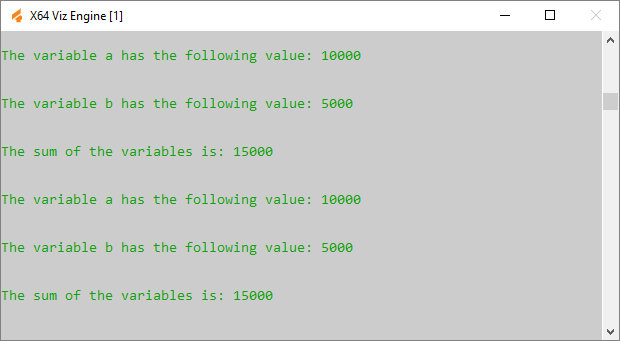
This example declares and defines two variables with a value. In the main procedure OnInit() those two variables and their addition are output to the console using Println.
Callback procedures like OnInit() are used to initialize scripts.
sub OnInit()'Declaration of the variables dim a as Integer a = 10000 dim b as Integer b = 5000 'Start of the main procedure sub OnInit() 'Executing the commands println "\n" println "The variable a has the following value: " & a println "\n" println "The variable b has the following value: " & bprintln "\n" println "The sum of the variables is: " & a + b 'End of the main procedure end subResult output to the Viz Engine console:
Exposing Parameters
This script example creates a custom editor for filling in index and alpha values. The index value decides which container does not receive the alpha value, whereas the alpha value is set for all other containers.
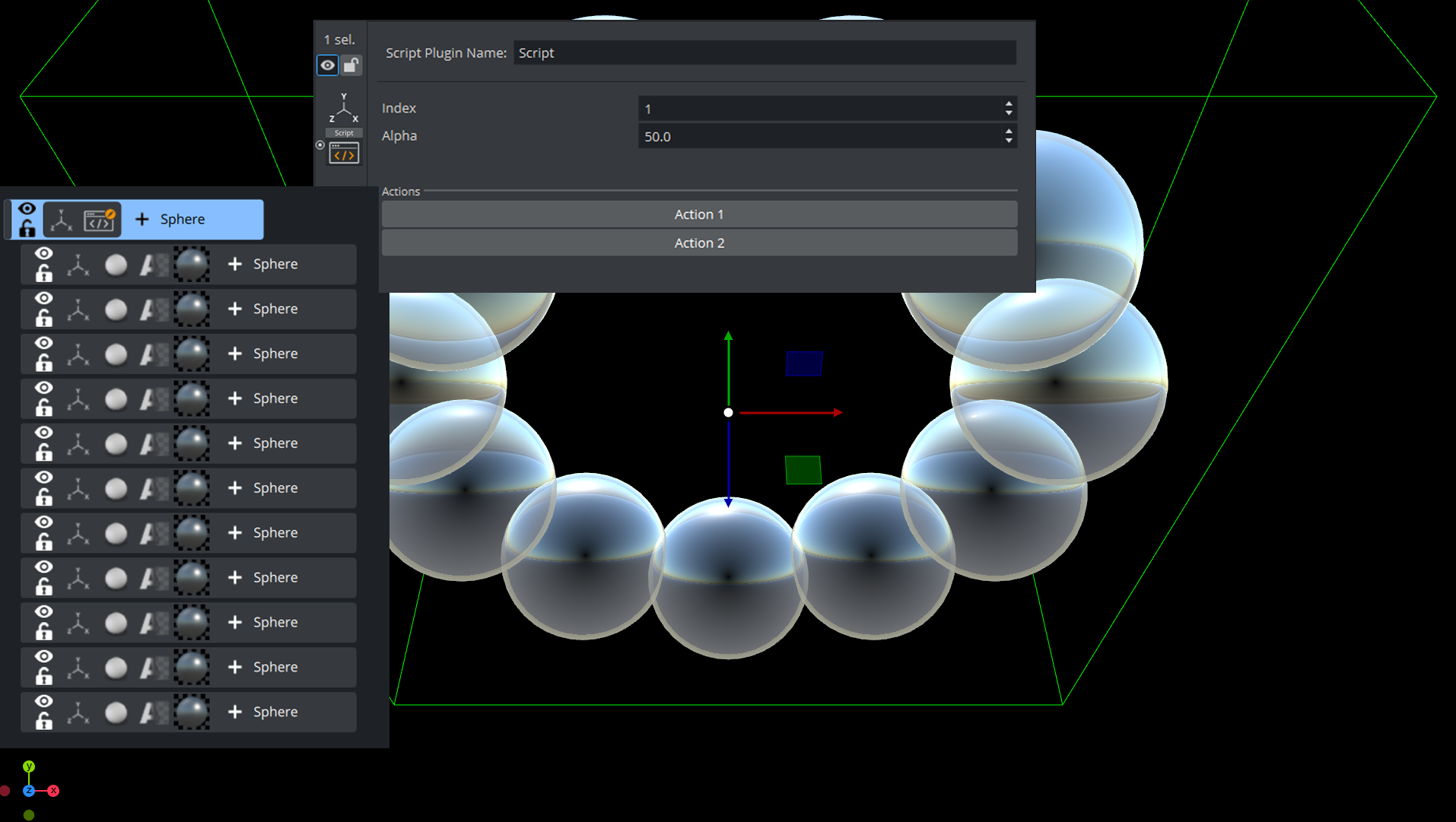
sub OnInitParameters() RegisterParameterInt("index", "Index", 1, 1, 7) RegisterParameterDouble("alpha", "Alpha", 50.0, 0.0, 100.0) RegisterSpacer("space", 30) RegisterSeparator("sep", "Actions") RegisterPushButton("action1", "Action 1", 1) RegisterPushButton("action2", "Action 2", 1)end sub sub OnExecAction(buttonId as Integer) dim c as Container dim i, index as Integer dim a as Double index = GetParameterInt("index") a = GetParameterDouble("alpha") i = 1 c = ChildContainer do while c <> null if i = index then c.alpha.value = 100.0 else c.alpha.value = a end if i = i + 1 c = c.NextContainer loop end subProperty Path Guide
Viz Engine exposes scene properties through three access methods: TCP commands, VizScript, and DataPool. Each has its own path syntax addressing the same underlying data. This chapter explains how paths are constructed, how to translate between the three systems, and how to resolve plugin parameters.
Scene Tree Structure
SCENE (root) └── TREE (scene root container) ├── $Background │ ├── $BG_Image │ └── $BG_Color ├── $Content │ ├── $Header │ │ └── $HeaderText │ └── $Body │ ├── $Row1 │ └── $Row2 └── $Foreground └── $LogoContainers are addressed by name (prefixed with $ in TCP, plain in VizScript) or by index (#n, 1-based).
TCP Command Path Syntax
The universal pattern:
MAIN_SCENE*TREE*$<ContainerName>*<PROPERTY> <ACTION> [<VALUE>]The * character is the path delimiter. Segments can be combined freely:
Component | Syntax | Description |
|---|---|---|
Scene reference |
| Currently loaded main scene (underscore, not |
Tree root |
| Root of the container hierarchy |
Container by name |
| Name lookup (case-sensitive) |
Container by index |
| Child index, 1-based |
Property |
| Property node access |
Sub-property |
| Nested property |
Common TCP Property Paths
What | TCP Path Suffix | Example Value |
|---|---|---|
Position XYZ |
|
|
Position X only |
|
|
Rotation |
|
|
Scaling |
|
|
Visibility |
|
|
Alpha |
|
|
Diffuse color |
|
|
Text content |
|
|
Plugin parameter |
|
|
Examples
' By name - nested path through hierarchyMAIN_SCENE*TREE*$Content*$Header*$HeaderText*GEOM*TEXT SET "Breaking News"' By index - 1st child of TREE, then 2nd child, then 1st childMAIN_SCENE*TREE*#1*#2*#1*GEOM*TEXT SET "Title"' Mixed - name and index combinedMAIN_SCENE*TREE*$Content*#1*$HeaderText*GEOM*TEXT SET "Mixed path"' Read a propertyMAIN_SCENE*TREE*$Header*POSITION GETMAIN_SCENE*TREE*$Header*ACTIVE GETMAIN_SCENE uses underscore. Always write MAIN_SCENE (with underscore), never MAIN*SCENE (with asterisk). The asterisk is the path delimiter and would break the command.
VizScript Property Access
VizScript uses dot notation on object references. Container names are plain strings without the $ prefix.
Finding Containers
' Scene-wide search by name (depth-first, returns FIRST match)dim c as Containerc = Scene.FindContainer("HeaderText")' Relative: search children of a specific containerdim child as Containerchild = this.FindSubContainer("Label")' Tree navigationdim parent as Containerparent = this.ParentContainerdim first as Containerfirst = this.ChildContainerdim next as Containernext = this.NextContainer' Scene rootdim root as Containerroot = Scene.RootContainerFindContainer vs FindSubContainer
Scene.FindContainer("X") searches the entire scene tree (depth-first). this.FindSubContainer("X") searches only descendants of the current container. Use FindSubContainer when you know the relative position. It is faster and avoids name collisions.
Property Dot-chains
dim c = this' Transform propertiesc.Position.X = 100.0c.Position.Y = -50.0c.Rotation.Z = 45.0c.Scaling.X = 2.0' Visibilityc.Active = True' Material (see chapter 7 for full coverage)c.Material.Color = cColor(1,1,1) ' CColor - diffusec.Material.Alpha = 0.5 ' Double - transparencyc.Material.Specular.Red = 1.0c.Material.Emission.Green = 0.1c.Material.Shininess = 0.8' Geometry / textc.Geometry.Text = "Breaking News"Plugin Parameters from VizScript
dim c = this' Access a function plugin by namedim fn as PluginInstancefn = c.GetFunctionPluginInstance("ControlText")' Read / write parameters by namefn.SetParameterString("value", "Hello World")dim val as Stringval = fn.GetParameterString("value")' Access geometry plugindim gp as PluginInstancegp = c.GetGeometryPluginInstance()gp.SetParameterDouble("width", 200.0)' Access another container's SCRIPT plugindim sp as PluginInstancesp = this.FindSubContainer("F1").ScriptPluginInstancesp.SetParameterDouble("topTransition", 0)Batch Plug-in Updates
' Collect plugin instances into an array for bulk operationsdim arrows as Array[PluginInstance]arrows.Push(this.FindSubContainer("ArrowFill").GetGeometryPluginInstance())arrows.Push(this.FindSubContainer("Cylinder").GetGeometryPluginInstance())dim i as Integerfor i = 0 to arrows.Size - 1 arrows[i].SetParameterDouble("Point1X", 10.0) arrows[i].SetParameterDouble("Point1Y", 20.0)nextDataPool Path Syntax
DataPool uses dot-separated paths. Container names appear without the $ prefix:
DataPool.Scene.<ContainerName>.<Property>DataPool Path | Equivalent TCP Path |
|---|---|
|
|
|
|
|
|
|
|
|
|
Cross Reference
These three code blocks do exactly the same thing: Set the X position of a container named "Header" to 100.
TCP
MAIN_SCENE*TREE*$Header*POSITION*X SET 100.0VizScript
dim c as Containerc = Scene.FindContainer("Header")c.Position.X = 100.0DataPool
DataPool.Scene.Header.Position.X = 100.0More cross-references
Operation | TCP suffix | VizScript | DataPool |
|---|---|---|---|
Set text |
|
|
|
Visibility |
|
|
|
Alpha |
|
|
|
Plug-in param |
|
|
|
Naming Rules and Escaping
Container names should use alphanumeric characters and underscores only.
The
*character is reserved as the TCP path delimiter, never use it in container names.The
$prefix is required only in TCP paths. VizScript and DataPool use plain names.Spaces in names are supported but may break TCP commands, avoid them.
FindContainerreturns the first match (depth-first). Use unique names to avoid ambiguity.Always guard
FindSubContainerresults:If c.VizId > 0 Then.
Mouse Events
Example: Set
This script example shows how to use a ‘mouse event’” to set an object’s alpha value with OnEnter and OnLeave.
sub OnEnter() alpha.value = 100.0 end sub sub OnLeave() alpha.value = 50.0 end subExample: Start, Stop and Reverse
This script, when added to a container, allows an animation to be started with the click of a mouse button over an object (for example, rectangle). Press again and it stops. Press again and it continues from the point it stopped.
dim my_dir = stage.FindDirector("Default") sub OnLButtonDown() if my_dir.IsAnimationRunning() then my_dir.StopAnimation() else my_dir.ContinueAnimation() end if end subWith the script detailed below, start an animation and let it run until a stop point. Click again and it runs in reverse:
dim my_dir = stage.FindDirector("Defult") sub OnLButtonDown() menu.ContinueAnimation() if my_dir.reverse == true then my_dir.reverse = false else my_dir.reverse = true end if end subExample: Grow and Shrink
With this script added to a Container an object grows when the mouse is hovering over the object and conversely. In this case, the center of the object is set to the lower right corner to let it grow out from that center.
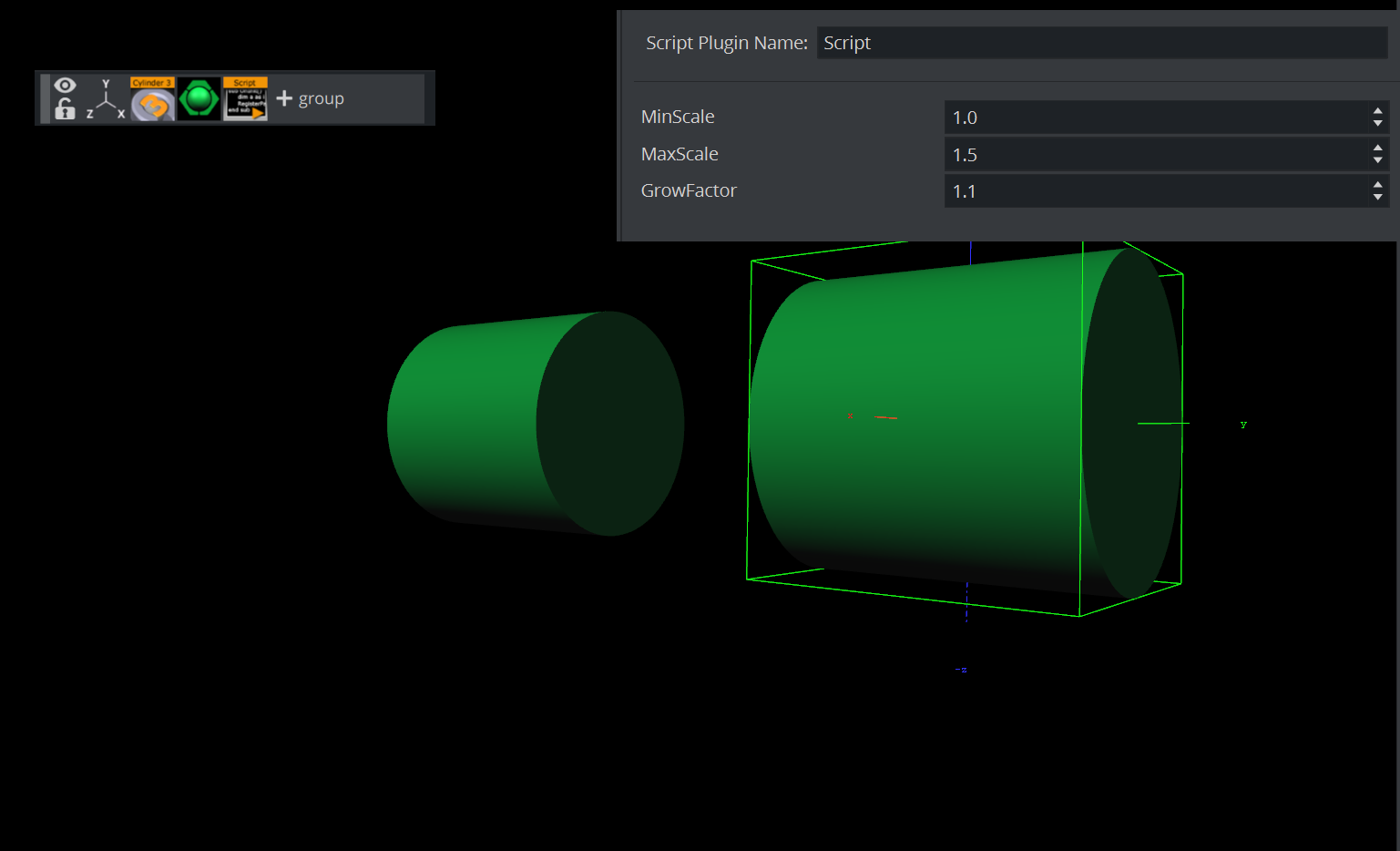
dim growing as Boolean = false sub OnInitParameters() RegisterParameterDouble("min", "MinScale", 1.0, 0.0, 10.0) RegisterParameterDouble("max", "MaxScale", 1.5, 0.0, 10.0) RegisterParameterDouble("fac", "GrowFactor", 1.1, 1.0, 10.0) end sub sub OnEnter() growing = true end sub sub OnLeave() growing = false end sub sub OnExecPerField() dim min = GetParameterDouble("min") dim max = GetParameterDouble("max") dim fac = GetParameterDouble("fac") if growing then scaling.xyz *= fac if scaling.x > max then scaling.xyz = max else scaling.xyz /= fac if scaling.x < min then scaling.xyz = min end if end subSimple Gesture Recognition
This example script can be used to detect a drawn square on the screen:
dim gRecognizer as gesturerecognizer sub OnInit() gRecognizer.handlepatterns = true gRecognizer.addhandler(scriptplugininstance) end sub sub OnGesture(gesture As Gesture) if gesture.patternid == PATTERN_SQUARE then println("This is a square") end if end sub sub OnTouchTrace(trace as Trace, touch as Touch) gRecognizer.addtrace(trace) end subNote: Some gesture patterns need to be checked for their alignment as well, for example up, down, left, and so on. For this you can activate the CheckPatternOrientation property in the gesture recognizer object.
Shared Memory (SHM)
Shared Memory is the primary data transport between external systems (Viz Trio, Media Sequencer Engine, automation) and VizScript. Three scopes exist:
Scope | Object | Visibility |
|---|---|---|
Scene |
| Current scene only, cleared on scene unload |
Engine |
| All scenes on this Viz Engine instance |
Distributed |
| All Viz Engines in the cluster (network sync) |
Reading and Writing
' WriteScene.Map["score_home"] = CStr(3)' Read (returns String - cast as needed)dim val as Stringval = Scene.Map["score_home"]dim score as Integerscore = CInt(val)Change Callbacks
Sub OnInit() ' Listen to a specific key Scene.Map.RegisterChangedCallback("score_home") ' Listen to ALL keys (wildcard) Scene.Map.RegisterChangedCallback("*")End SubSub OnSharedMemoryVariableChanged(map as SharedMemory, mapKey as String) If mapKey = "score_home" Then dim val as String val = map[mapKey] ' ... update visuals End IfEnd SubPerformance: Wildcard callbacks ("*") fire on every SHM write across the registered scope. Use specific keys in production. Always call UnregisterChangedCallback(key) if you no longer need notifications.
Multi-value Strings
' Store CSV: "Arsenal,3,Chelsea,1"Scene.Map["match_data"] = "Arsenal,3,Chelsea,1"' Parsedim raw as Stringraw = Scene.Map["match_data"]dim parts as Array[String]raw.Split(",", parts)' parts[0] = "Arsenal", parts[1] = "3", etc.Persistence
' Save SHM map to Graphic Hub (blocks renderer - use sparingly)Scene.Map.SaveToDb("path/to/snapshot")' RestoreScene.Map.LoadFromDb("path/to/snapshot")Warning: SaveToDb and LoadFromDb block the render thread. Never call them during live On Air output. Use them only during scene setup or offline prep.
Example: SHM → Text Update
The most common VizScript pattern: bind a Shared Memory key to a text geometry so external data appears on screen.
dim shmKey as StringSub OnInit() shmKey = "headline" Scene.Map.RegisterChangedCallback(shmKey) UpdateText()End SubSub OnSharedMemoryVariableChanged(map as SharedMemory, mapKey as String) If mapKey = shmKey Then UpdateText() End IfEnd SubSub UpdateText() dim val as String val = Scene.Map[shmKey] If val = "" Then Exit Sub End If dim c as Container c = Scene.FindContainer("HeadlineText") c.Geometry.Text = valEnd SubPatternOnInit → register + immediate read; OnSharedMemoryVariableChanged → re-read on change. Both delegate to a shared UpdateText() so the logic is never duplicated.
Example: SHM → Visibility Toggle
Remote show/hide of a container via distributed Shared Memory. Each container uses this.Name as its SHM key, so the same script works on any container without modification.
Sub OnInit() VizCommunication.Map.RegisterChangedCallback(this.Name) ' Set initial value if it doesn't exist If VizCommunication.Map[this.Name] = "" Then VizCommunication.Map[this.Name] = CStr(True) End IfEnd SubSub OnSharedMemoryVariableChanged(map as SharedMemory, mapKey as String) If mapKey = this.Name Then this.Active = CBool(map[mapKey]) End IfEnd SubDrop this script on any container. The container's name becomes the SHM key automatically. From any Viz Engine in the cluster, write VizCommunication.Map["LogoPanel"] = "False" to hide it.
Example: SHM → Animation Dispatch
Map integer SHM values to different Director animation states. Production pattern from a multi-studio broadcast environment.
Sub OnInit() VizCommunication.Map.RegisterChangedCallback("vizrt/" & this.Name)End SubSub OnSharedMemoryVariableChanged(map as SharedMemory, mapKey as String) If mapKey = "vizrt/" & this.Name Then dim val as Integer val = CInt(map[mapKey]) Select Case val Case 0 ' Hide: jump director to frame 0 this.GetDirector().Show(0) Case 1 ' Show: jump director to frame 3 this.GetDirector().Show(3) Case 2 ' Animate in: jump to start, play forward this.GetDirector().Show(0.02) this.GetDirector().ContinueAnimation() Case 3 ' Animate out: jump to end, play reverse this.GetDirector().Show(3) this.GetDirector().ContinueAnimationReverse() End Select End IfEnd SubDirector API at a Glance
Method | Effect |
|---|---|
| Jump timeline to time (seconds) |
| Play forward from current position |
| Play backward from current position |
| Play from the beginning |
| Pause at current position |
Material and Color Control
VizScript controls material appearance through the CColor type and the container's Material property.
Set Diffuse Color
Sub SetDiffuse() dim c as Container c = Scene.FindContainer("Background") dim col as Color col.Red = 0.2 col.Green = 0.4 col.Blue = 0.8 col.Alpha = 1.0 c.Material.Color = colEnd SubConvert 0-255 RGB to Engine Range
Sub SetColorFromRGB() dim r as Integer = 255 dim g as Integer = 128 dim b as Integer = 0 dim c as Container c = Scene.FindContainer("Highlight") dim col as Color col.Red = CDbl(r) / 255.0 col.Green = CDbl(g) / 255.0 col.Blue = CDbl(b) / 255.0 col.Alpha = 1.0 c.Material.Color = colEnd SubSpecular, Emissive and Shininess
Sub SetAdvancedMaterial() dim c as Container c = Scene.FindContainer("GlossPanel") ' Diffuse white dim col as Color col.Red = 1.0 col.Green = 1.0 col.Blue = 1.0 col.Alpha = 1.0 c.Material.Color = col ' Specular highlight c.Material.Specular.Red = 1.0 c.Material.Specular.Green = 1.0 c.Material.Specular.Blue = 1.0 ' Emissive glow c.Material.Emission.Red = 0.1 c.Material.Emission.Green = 0.05 c.Material.Emission.Blue = 0.0 ' Shininess: 0.0 (matte) → 1.0 (mirror) c.Material.Shininess = 0.8End SubMaterial Property Map
Property | What it controls | Range |
|---|---|---|
| Diffuse color (base appearance) | CColor (0.0–1.0 per channel) |
| Transparency (classic materials) | 0.0 (invisible) – 1.0 (opaque) |
| Highlight reflection color | CColor |
| Self-illumination glow | CColor |
| Specular tightness | 0.0 – 1.0 |
Example: Alpha Fade Over Time
Smoothly fade a container out by decrementing alpha each frame in OnExecPerField.
dim fadeAlpha as Doubledim fadeActive as BooleanSub OnInit() fadeAlpha = 1.0 fadeActive = FalseEnd SubSub StartFade() fadeAlpha = 1.0 fadeActive = TrueEnd SubSub OnExecPerField() If fadeActive = False Then Exit Sub End If fadeAlpha = fadeAlpha - 0.02 If fadeAlpha < 0.0 Then fadeAlpha = 0.0 fadeActive = False End If dim c as Container c = Scene.FindContainer("FadePanel") dim col as CColor col = c.Material.Color col.Alpha = fadeAlpha c.Material.Color = colEnd SubFrame rate: At 50 fps, decrementing by 0.02 per frame gives a ~1 second fade. Adjust the step value to control speed.
Example: Data-Driven Team Colors
Parse a CSV color string from an external data source and apply it to a container's material. Production pattern from VizArena sports graphics.
dim SEPARATOR_COLOR as StringSub OnInit() SEPARATOR_COLOR = ","End SubSub ApplyColorFromData(container as Container, colorString as String) ' Expected format: "R,G,B,A" where each value is 0-255 dim colorComponents as Array[String] colorString.Split(SEPARATOR_COLOR, colorComponents) If colorComponents.Size = 4 Then dim noggi as Container noggi = container.FindSubContainer("Noggi") If noggi.VizId > 0 Then dim c as Color c.Red = CDbl(colorComponents[0]) / 255.0 c.Green = CDbl(colorComponents[1]) / 255.0 c.Blue = CDbl(colorComponents[2]) / 255.0 c.Alpha = CDbl(colorComponents[3]) / 255.0 noggi.Material.Color = c noggi.Material.Alpha = CDbl(colorComponents[3]) / 255.0 End If End IfEnd SubMaterial.Alpha
On classic (V3) materials, Material.Color.Alpha and Material.Alpha are separate. Set both for transparency to work correctly.
Example: Calculate the Days of a Week and Month
This script example calculates the day of the week and the number of days of the month:
DIM smap AS Array[String] smap.size = 7smap[0] = "Sun"smap[1] = "Mon"smap[2] = "Tue"smap[3] = "Wed"smap[4] = "Thu"smap[5] = "Fri"smap[6] = "Sat" function CalcDayOfWeek(iYear AS Integer, iMonth AS Integer, iDay AS Integer) AS String DIM dt AS DateTime dt.year = iYear dt.month = iMonth dt.dayofmonth = iDay dt.normalize() CalcDayOfWeek = smap[dt.dayofweek] end function function CalcNumOfDaysOfMonth(iYear AS Integer, iMonth AS Integer) AS IntegerDIM dt AS DateTime dt.year = iYear dt.month = iMonth+1 dt.dayofmonth = 0 dt.normalize() CalcNumOfDaysOfMonth = dt.dayofmonthend function sub OnInit()DIM dt AS DateTime dt.year = 2019 dt.month = 2 dt.dayofmonth = 23 println("Date: " & CalcDayOfWeek(dt.year, dt.month, dt.dayofmonth) & ", " & dt.year & "" & dt.month & "" & dt.dayofmonth) println("Days: " & CalcNumOfDaysOfMonth(dt.year, dt.month)) end subUpdate a Scene Using a Text File
This script example updates a Scene from a text file.
dim timer,limit as integer timer = 0 sub OnInitParameters() RegisterInfoText("Text File Grabber 1.0" & chr(10) & chr(10) & "Grabs text file and puts optional prefix/suffix around the contents of the text file." & chr(10) & "Filename supports paths with drive letters and UNC paths." & chr(10) & chr(10) & "Text in \"Default Text\" box is used if file specified in File box cannot be opend or accessed." & chr(10) & chr(10) & "Listens to scene map variable \"text_update\" -- text files are re-read when this variable changes.") RegisterFileSelector("file", "File", "c:\test", "1.txt", "*.*") RegisterParameterString("default","Default text","",40,50,"") RegisterParameterString("prefix","Prefix (optional)","",40,50,"") RegisterParameterBool("prefixIfNull","Include prefix if file not found",FALSE) RegisterParameterString("suffix","Suffix (optional)","",40,50,"") RegisterParameterBool("suffixIfNull","Include suffix if file not found",FALSE) RegisterParameterInt("updateFields","Auto-Update interval (fields)",300,60,999999999999) RegisterParameterBool("debug","Debug output to console",FALSE) end sub sub OnParameterChanged(parameterName As String) 're-populate text when a parameter changes if parameterName <> "updateFields" then UpdateText if parameterName = "updateFields" then limit = GetParameterInt("updateFields") end if end sub sub OnExecPerField() timer = timer + 1 if timer >= limit then if GetParameterBool("debug") then println "Timer limit reached" UpdateText timer = 0 end if end sub sub OnInit() Scene.Map.RegisterChangedCallback("text_update") limit = GetParameterInt("updateFields") UpdateText end sub sub OnSharedMemoryVariableChanged(map As SharedMemory, mapKey As String) if mapKey = "text_update" then UpdateText end if end sub sub UpdateText() geometry.text = GetTextFile() end sub function GetTextFile() as string dim content, path as string path = GetParameterString("file") if GetParameterBool("debug") then println "File path: " & path if System.LoadTextFile( path, content ) then if GetParameterBool("debug") then println "Successfully loaded file" content.trim if len(GetParameterString("prefix")) > 0 then content = GetParameterString("prefix") & " " & content if len(GetParameterString("suffix")) > 0 then content = content & " " & GetParameterString("suffix") else if GetParameterBool("debug") then println "Could not load file; using default text" content = GetParameterString("default") if GetParameterBool("prefixIfNull") then content = GetParameterString("prefix") & " " & content if GetParameterBool("suffixIfNull") then content = content & " " & GetParameterString("suffix") end if GetTextFile = content if GetParameterBool("debug") then println "Returning '" & GetTextFile & "'" end functionScale and Transform Animation
Pop-in with Ease-out
dim scaleT as Doubledim scaleActive as BooleanSub OnInit() scaleT = 0.0 scaleActive = False dim c as Container c = Scene.FindContainer("PopItem") c.Scaling.X = 0.0 c.Scaling.Y = 0.0 c.Scaling.Z = 0.0End SubSub PopIn() scaleT = 0.0 scaleActive = TrueEnd SubSub OnExecPerField() If scaleActive = False Then Exit Sub scaleT = scaleT + 0.04 If scaleT > 1.0 Then scaleT = 1.0 scaleActive = False End If ' Ease-out: 1 - (1-t)^2 dim inv as Double inv = 1.0 - scaleT dim eased as Double eased = 1.0 - inv * inv dim c as Container c = Scene.FindContainer("PopItem") c.Scaling.X = eased c.Scaling.Y = eased c.Scaling.Z = easedEnd SubBounce Effect (Overshoot and Settle)
dim bounceT as Doubledim bounceActive as BooleanSub StartBounce() bounceT = 0.0 bounceActive = TrueEnd SubSub OnExecPerField() If bounceActive = False Then Exit Sub bounceT = bounceT + 0.03 If bounceT > 1.0 Then bounceT = 1.0 bounceActive = False End If dim s as Double If bounceT < 0.6 Then s = (bounceT / 0.6) * 1.15 Else dim remainder as Double remainder = (bounceT - 0.6) / 0.4 s = 1.15 - 0.15 * remainder End If dim c as Container c = Scene.FindContainer("BounceItem") c.Scaling.X = s c.Scaling.Y = sEnd SubShrink and Hide
dim shrinkT as Doubledim shrinkActive as BooleanSub ShrinkAndHide() shrinkT = 0.0 shrinkActive = TrueEnd SubSub OnExecPerField() If shrinkActive = False Then Exit Sub shrinkT = shrinkT + 0.05 If shrinkT > 1.0 Then shrinkT = 1.0 shrinkActive = False dim c as Container c = Scene.FindContainer("DismissItem") c.Active = False Exit Sub End If dim s as Double s = 1.0 - shrinkT dim c as Container c = Scene.FindContainer("DismissItem") c.Scaling.X = s c.Scaling.Y = s c.Scaling.Z = sEnd SubPosition and Rotation
' Move a containerdim c as Containerc = Scene.FindContainer("Slider")c.Position.X = 120.0c.Position.Y = -50.0c.Position.Z = 0.0' Rotatec.Rotation.X = 0.0c.Rotation.Y = 0.0c.Rotation.Z = 45.0 ' 45° around Z axisShader Integration
Viz Engine's shader system changed significantly between V3 and V4. VizScript interacts with shaders differently depending on the pipeline.
Classic Render Engine Pipeline (V3)
In the Classic Render Engine Pipeline, shaders are plugin DLLs assigned to containers. VizScript accesses shader parameters through the plugin system, just like any other function plugin:
' Access a V3 shader plugin parameter via the container's function stack' (shader must already be assigned to the container in Viz Artist)dim c as Containerc = Scene.FindContainer("EffectPanel")' Shader params are accessed like plugin params - ' use the TCP command interface from external control,' or set material properties that the shader reads.Viz Engine Render Pipeline (V4)
In the Viz Engine Render Pipeline, shaders are GLSL programs managed in the Workspace. They use @registerParameter annotations to expose parameters. VizScript can control the visual result through the Material Definition properties:
' V4: Control material properties that the shader readsdim c as Containerc = Scene.FindContainer("PBRPanel")' Diffuse / base colordim col as Colorcol.Red = 0.8 col.Green = 0.2 col.Blue = 0.1 col.Alpha = 1.0c.Material.Color = col' For advanced PBR shader parameters (roughness, metallic, etc.),' use TCP commands from the automation layer:' MAIN_SCENE*TREE*$PBRPanel*MATERIAL*MATERIAL_DEFINITION SET ROUGHNESS_FACTOR -0.3' MAIN_SCENE*TREE*$PBRPanel*MATERIAL*MATERIAL_DEFINITION SET METALLIC_FACTOR 0.8V3 → V4 Shader Migration
Aspect | Classic Renderer (V3) | Viz Engine Renderer (V4) |
|---|---|---|
Implementation | Plugin DLLs (C/C++) | GLSL shaders in Workspace |
Assignment |
|
|
Parameters | Plugin-defined |
|
Script access | Plugin API / TCP | Material properties + TCP |
Lighting | Fixed-function + per-plugin | Integrated PBR / Phong |
Controlling Texture Renderers from Script
Texture renderers (clip players, scene views, preprocessing) are Workspace objects. VizScript can control playback and texture assignment indirectly via Shared Memory or TCP commands triggered by the automation layer. Direct VizScript API for Workspace objects is limited, use the TCP command interface for advanced shader parameter manipulation.
Common Mistakes
Mistake | Symptom | Fix |
|---|---|---|
Using | Compile error or numeric addition | Use |
Inline variable initialization |
| Declare and assign separately: |
Using | Compile error (does not exist) | Use |
Using | Compile error (does not exist) | Use bracket syntax: |
Forgetting to register SHM callback |
| Call |
Wildcard callback in production | Performance degradation, hundreds of calls per frame | Register specific keys, not |
Not checking | Null reference crash | Guard with |
Setting only | Container still opaque (classic materials) | Also set |
Calling | Renderer freeze / dropped frames | Only use during offline scene setup |
Color values 0–255 instead of 0.0–1.0 | White or clipped colors | Divide by 255.0: |
API Quick Reference
Shared Memory
Method / Property | Description |
|---|---|
| Read/write scene-scope SHM |
| Read/write Viz Engine-scope SHM |
| Read/write distributed SHM (cluster-wide) |
| Subscribe to changes ( |
| Unsubscribe from changes |
| Persist SHM to Graphic Hub (blocks renderer) |
| Restore SHM from Graphic Hub (blocks renderer) |
Container
Property / Method | Description |
|---|---|
| Current container |
| Show/hide (Boolean) |
| Container name (String) |
| Object ID (0 = invalid/not found) |
| World position |
| Euler rotation (degrees) |
| Scale multiplier (1.0 = default) |
| Text content (text geometry only) |
| Diffuse color (Color) |
| Transparency (Double, classic materials) |
| Specular highlight (Color) |
| Self-illumination (Color) |
| Specular tightness (Double) |
| Find child by name |
| Parent in tree hierarchy |
| Director controlling this container |
| Scene-wide search by name |
| Top of the scene tree |
Director
Method | Description |
|---|---|
| Seek to time position (seconds) |
| Play from beginning |
| Pause at current position |
| Resume forward |
| Resume backward |