The Pools Inspector, introduced with Artist 5.6; is an overview of which resources are currently allocated. This includes assets like Textures, Fonts, Geometries, scenes etc.
The content might not be in real-time, therefore it is recommended to press the refresh button on the top to get an updated view.
Icon View | Table View |
|---|---|
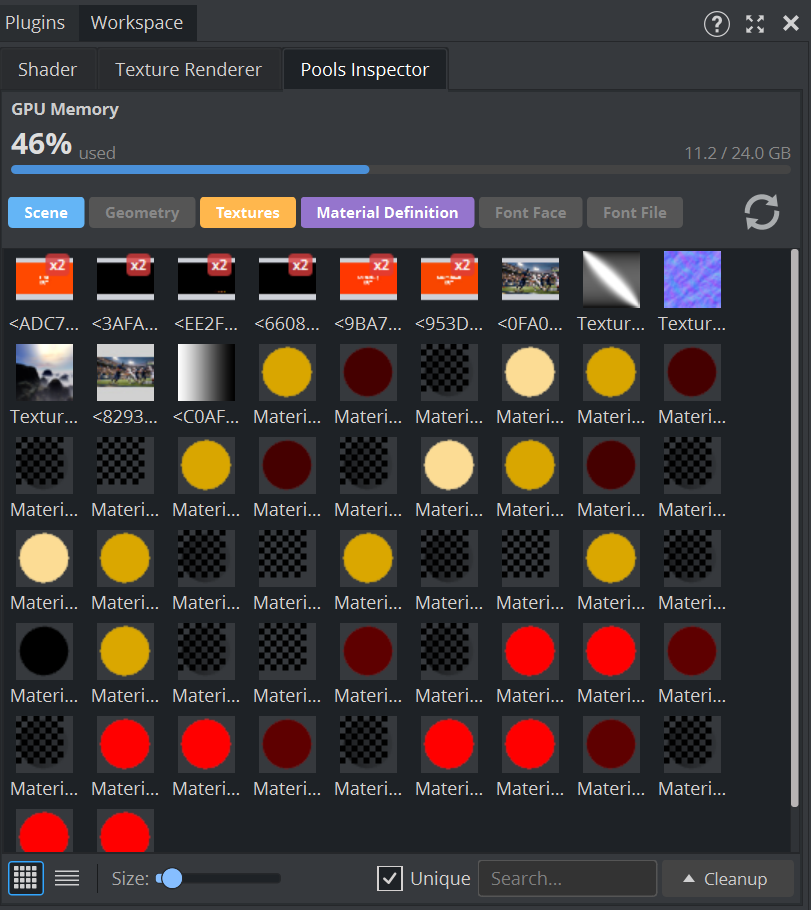 | 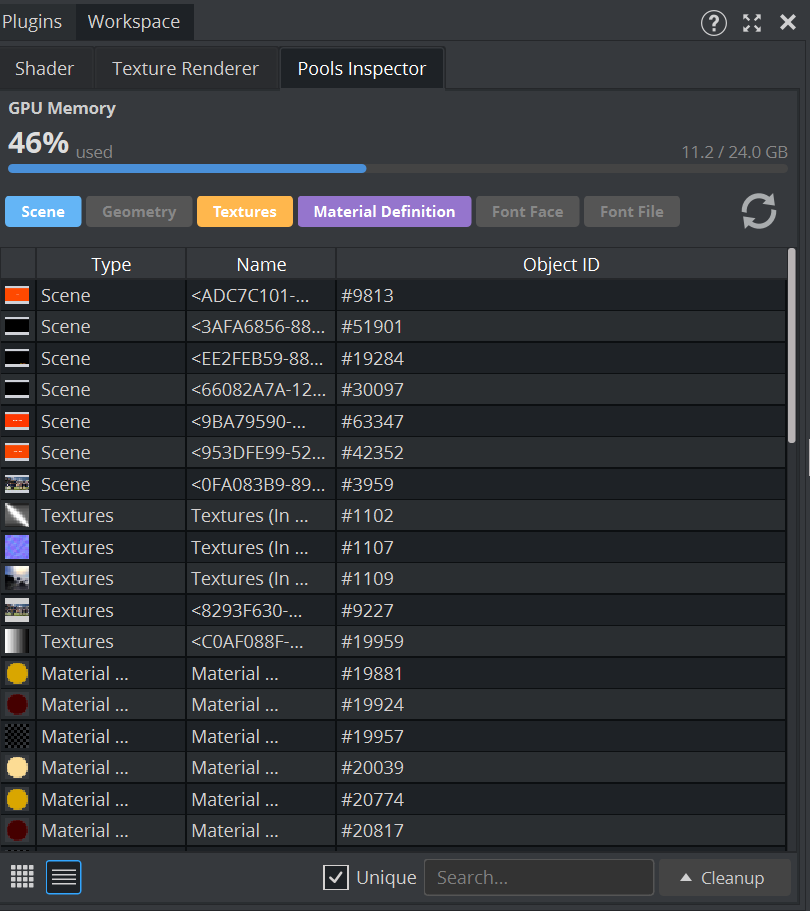 |
On top of the Pools inspector a progress bar shows the current usage of the GPU memory. This is the available memory on your current Graphics board.
The type of asset can be chosen by clicking on the colored labels, either click on single items or if you ALT+click only this selected type will be shown.
Choose between an icon based overview (size can be changed) or a more detailed view as list.
If a resource is allocated more than once (e.g. in multiple scenes) it will show up in the pool more than once, but is allocated only once. This will be indicated with a small red badge on top (like the first row in the sample above). Use the Unique button to merge them into a collection.
If resources are listed but not needed anymore, you can use the Cleanup function to clear certain pools.
Right clicking on an entry allows you to located the resource in the scene tree or (if available) in the asset view.