The newly introduced Welcome Screen in Viz Artist offers the user to easily continue the latest work or to start something new by using some template.
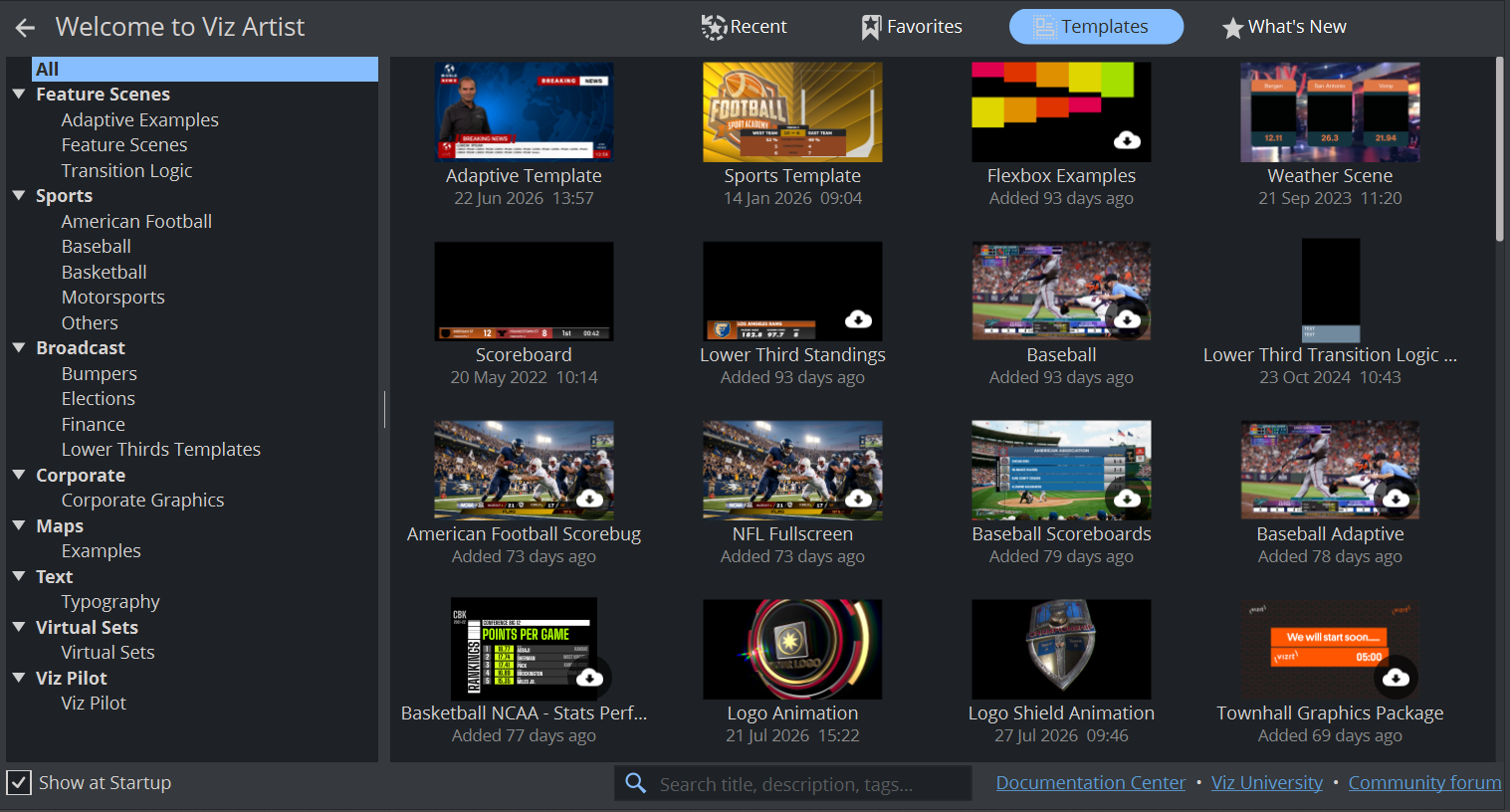
The Welcome Screen is part of the Asset View and is opened by clicking on the Artist icon.
If will be shown by default. If you do not want to show this every time, uncheck the “Show at Startup”
The Screen shows 4 categories.
Recent:
A list of your recently opened scenes. Click on one and continue your work immediate without browsing your Graphic Hub.
Favorites:
If you have scenes marked as favorites, they will show up here
Templates:
See Using Templates
What’s New:
Shows a summary of this versions highlights and new features. Same as New in Viz Artist
On the bottom you’ll find links to the Documentation Center, Viz University and the Communiy Forum.
Using Templates
Starting with Viz Artist 5.6 we are offering Templates, Example scenes and Starter Sets. These files are hosted by vizrt and are continuously updated.
The library offers learning scenes, examples as well as scenes showcasing new features (e.g. the new maps capabilities).
Templates in this library are provided by vizrt as starting points for your productions. You may freely use, modify, and adapt them within your organization and projects. Redistribution or resale of the templates as standalone assets is not permitted.
A single entry does not necessarily mean a single scene, it can also be a whole set of various scenes, for example a whole Transition Logic package.
Once new items are available for download, they will be marked. The library does a version check and disables library items not compatible with your version.
Note: Template library requires an active internet connection
Downloading

If a template shows the download icon, you are able to download it. Items which are already on your Graphic Hub can be opened immediately.
The files are being served by a CDN and stored locally as archive first, then imported into your current Graphic Hub.
After the download has finished, the file(s) will be imported in your Graphic Hub and you are able to load them immediately by clicking on it.
Templates are stored inside a Template Folder on your Graphic Hub. However some used fonts will be stored in Fonts
Searching
All Templates are linked with various Keywords and Tags. E.g. if you search for “Scoreboard” or “Lower Third” all items with these tags will show up.