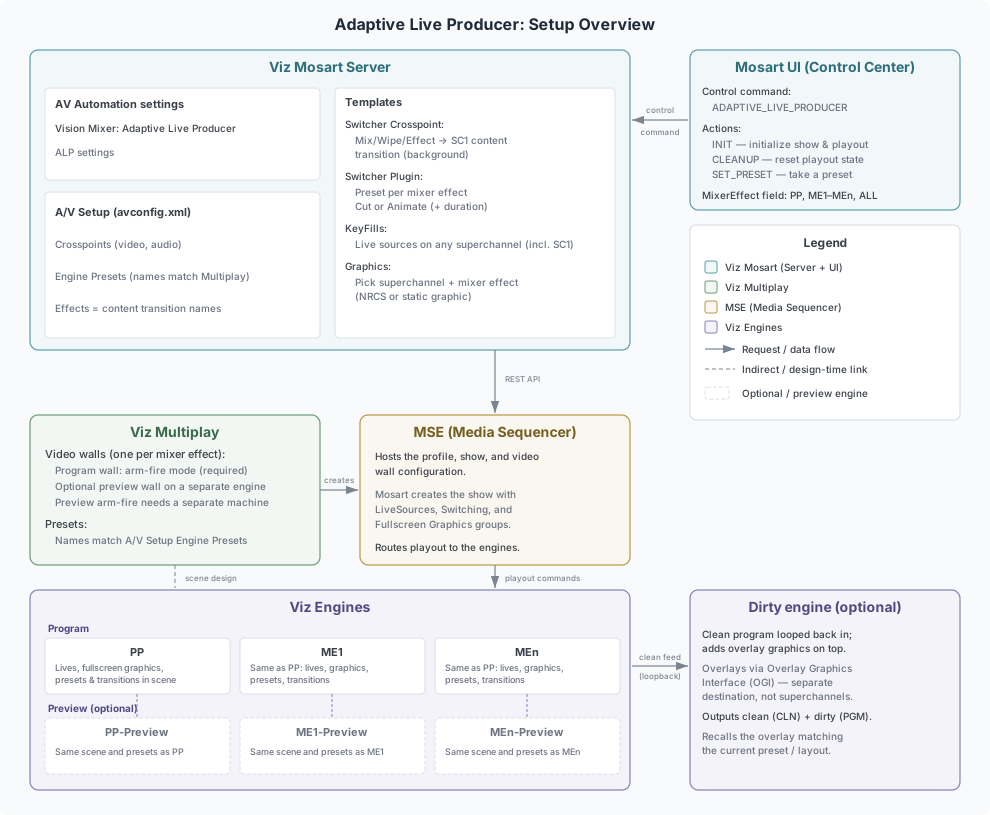
This is an end-to-end setup for Adaptive Live Producer (ALP). Follow the sections in order. The setup spans Viz Engine, Viz Multiplay, the Media Sequencer (MSE), and Viz Mosart.
Key Concepts
Viz Mosart drives Adaptive Live Producer using the same vision-mixer concepts it uses for a traditional hardware switcher. Knowing how those concepts map to ALP makes the rest of the setup easier to follow.
Mixer Effect
In a traditional switcher a Mixer Effect (M/E) is an independent mixing stage that produces one output. In ALP each Mixer Effect maps to a Viz Engine instance.
PP (Program/Preset) is the main program output; ME1, ME2, … are additional outputs.Main output and Keyers
Superchannels are the content layers inside a rendering engine. They are the equivalent of the buses and keyers of a traditional switcher:SC1 is the background (the program/background bus)
SC2…SCn are the keyer / key-fill layers drawn on top.
Layout
A preset is the on-screen layout of the superchannels (the DVE box layout). Selecting a preset is the equivalent of recalling an E-MEM / snapshot that arranges the boxes on a traditional switcher.
Info: Superchannel 1 is the background by role, not necessarily by look. Mosart treats SC1 as the background bus, and commands such as the Switcher Crosspoint always target SC1. The scene you design for a mixer effect can still carry its own main background, with every superchannel (SC1 included) acting as a keyer on top of it. In that case SC1 is not the visual background; it is simply the layer that background-targeting commands land on. Design the scene with this mapping in mind: whatever a Switcher Crosspoint drives goes to SC1.
ALP concept | In Mosart | Traditional switcher equivalent |
|---|---|---|
A Viz Engine with the Preset Plugin enabled (is using superchannels) | Mixer effects: PP, ME1, ME2. | A Mix Effects (M/E) bank, the row or bank of source-selection buses on a vision mixer that are mixed into a single output. One M/E groups a program bus (what is on air), a preview bus (what is cued next) and one or more key buses (keyers layered on top); a larger switcher has several M/E banks. |
Superchannel SC1 | Background content controlled using:
| Program / background bus of a M/E. |
Superchannels SC2…SCn | KeyFill SCn, n >= 1 | Keyers / key-fill buses. |
Superchannel visibility | Only with preset change using:
| Keyer visibility. |
Preset (1Box, 2Box, …) | DVE layout controlled via Switcher Plugin | E-MEM / snapshot of the DVE layout. |
Content transition: none | Mix 0 on a Switcher Crosspoint. | Hard cut of the source, on the program (background) bus or on a keyer fill. |
Content transition: custom or shader | Mix/Wipe rate > 0. | An animated source change. On the background, a mix from the preview bus to the program bus of the M/E. On a keyer, an animated source change, as supported by some switchers. |
Prerequisites
Component | Minimum version |
|---|---|
Viz Engine | 5.5.2 |
Viz Multiplay | 0.0.0.44610 beta |
Viz Mosart | 5.15.0 |
MSE | MediaSequencer.BundleInstaller-0.0.0.33515-Beta |
Note: All Viz Engines in the setup must run the same version and share the same presets, content transition directors, and superchannel count.
Setup Overview
Before you build the setup, plan it around your production needs:
How many mixer effects (outputs) do you need? PP is the main program output; add ME1, ME2, … only when you need additional independent outputs. Each mixer effect is a separate Viz Engine instance, so more outputs means more engines.
Do you need preview, and for which outputs? Preview is optional and decided per mixer effect. A preview output needs its own engine, and cue-time transitions only replicate on preview when that engine runs on a separate machine. See Preview setup below.
Do you need a clean and dirty output? If you must deliver a clean feed (without overlay graphics) alongside the dirty program feed, plan a second (dirty) engine per output that adds the overlays. See Clean and Dirty Output.
Size the engines. Decide the number of superchannels and live sources, and make sure every engine that serves a mixer effect, shares the same scene, presets and content transitions.
Info: No separate M/E is needed to build a DVE box layout. On a traditional switcher, a DVE / box layout is built on its own M/E and then projected into program (M/E-in-PP).
In ALP, the MSE arm-fire workflow together with the A/B (program/preview) role of each superchannel, lets you compose and take a DVE layout directly on PP.
Only add an additional mixer effect (ME1, ME2, …) when you purposefully need a separate independent output, and not when just building a DVE.
Engine Configuration
Scene cleanup
By default, Viz Engine automatically frees (cleans up) scene content held on a superchannel sub-channel once it is no longer active. In an ALP setup this auto-cleanup conflicts with the A/B background-loading workflow. When a new graphic scene, or a high-res/compressed image, is loaded on the inactive sub-channel (in preview/background) while program is on air, the engine can free content that is still in use, producing a freeze frame in Program while the new scene or picture loads from the data drive or Graphic Hub.
To disable automatic superchannel scene cleanup
On every Viz Engine in the ALP setup, set the following in the engine configuration (
VizEngine-*.cfg):
SuperChannelSceneAutoFree = 0The above setting keeps superchannel content in memory, so background loading does not disturb the program output.
Info: Scenes must be fully initialized before background loading.
Together with SuperChannelSceneAutoFree = 0, this ensures graphics and pictures can be pre-loaded on the background/preview sub-channel without freeze frames in Program.
Viz Engine Scenes
Design or import the Viz Artist scenes that will be used for the engines in the Adaptive Live Producer setup. Each scene defines a set of layouts or presets (1Box, 2Box, 3Box, BigSmall, and so on) with superchannels for live sources and graphics.
Requirements per scene
Same number of superchannels across all engines (PP, ME1, ME2)
Same preset names on all engines
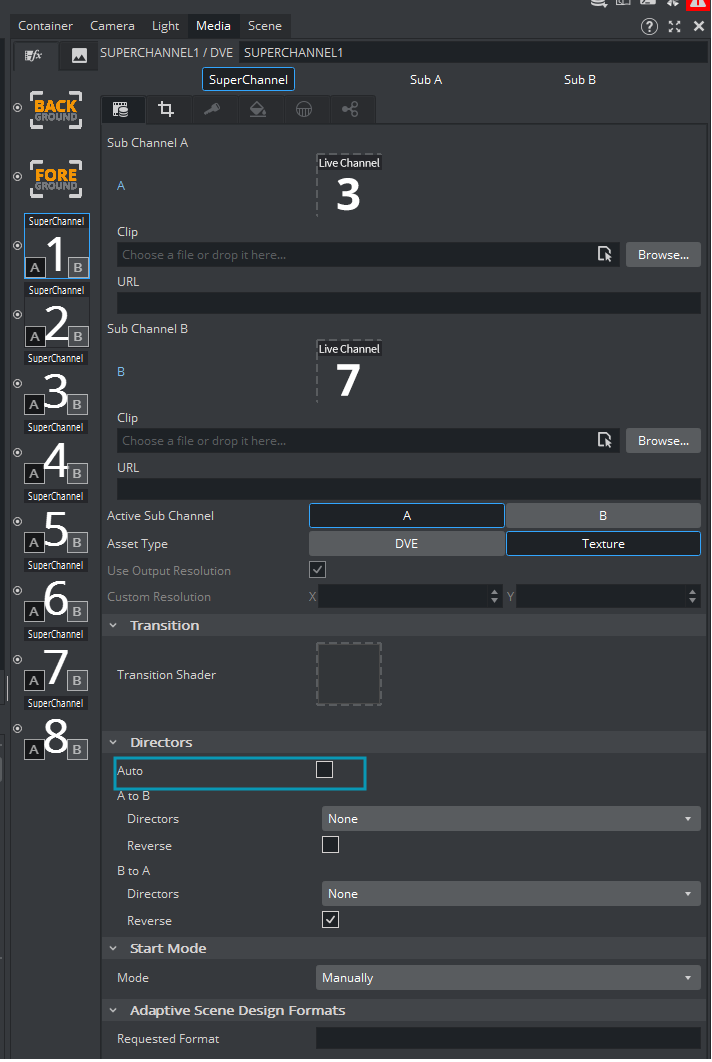
Content transition directors configured in the scene design (for example crossfade, dissolve, bookflip). These directors drive animated transitions between content on a superchannel.
The Auto property on the Directors of each superchannel must be off to allow Mosart control the content transitions.
Mixer Effect Setup
Each Mixer Effect is configured with Viz Multiplay’s Profiles configuration, for now. In the Viz Multiplay profile configuration, you set up a Mixer Effect as a video wall, the Viz Multiplay object that controls a Viz Engine's superchannels. The video wall terminology belongs to Viz Multiplay; in ALP, one video wall is one Mixer Effect.
Create a profile with connections to each Viz Engine.
Create video walls for the main output (PP) and any secondary outputs (ME1, ME2, and so on).
Each video wall corresponds to a Mixer Effect in Mosart (PP, ME1, ME2).
Name the video walls as you desire (it does not have to be PP, ME1 etc.)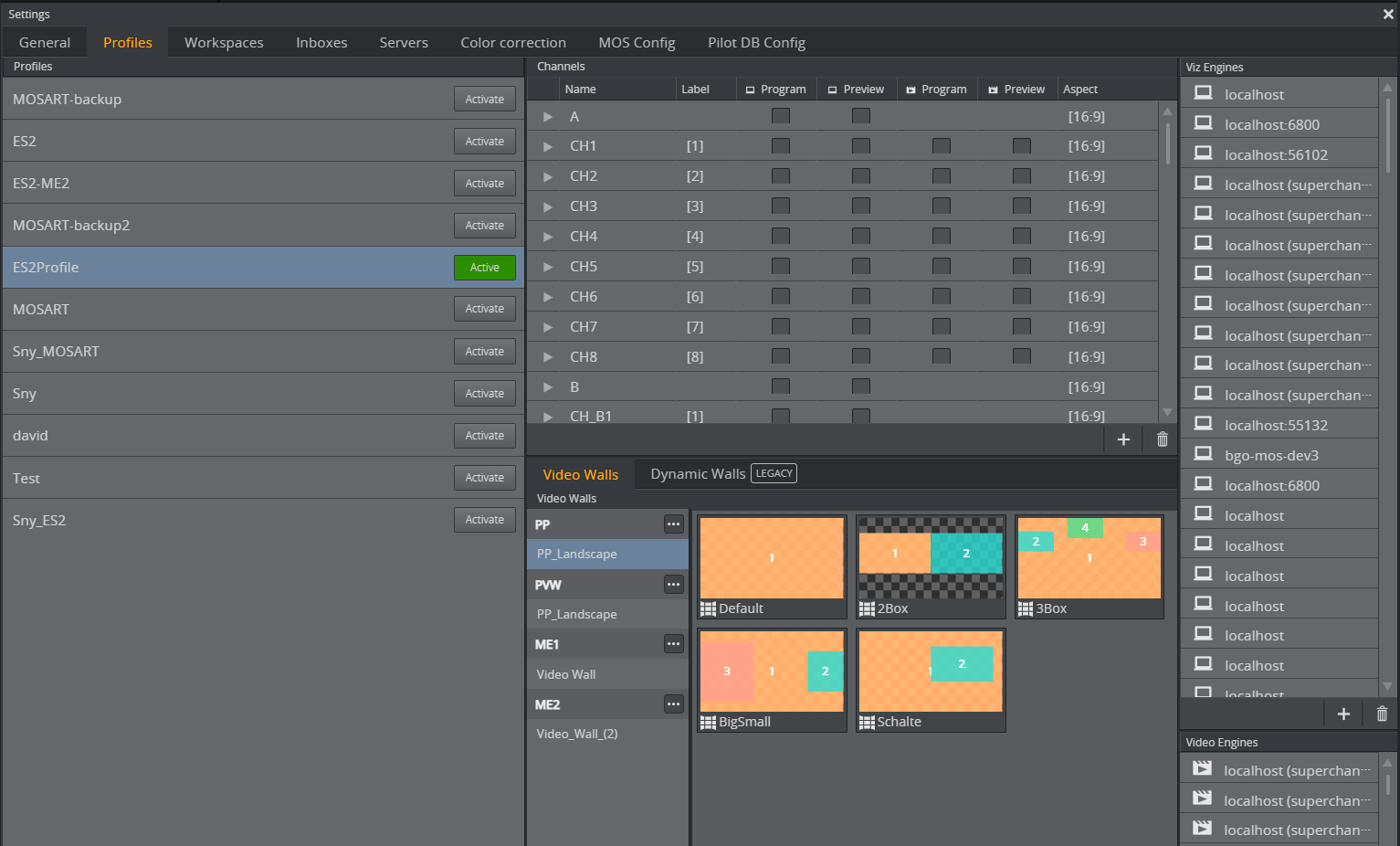
Verify that Arm-fire workflow is enabled and configure the required number of superchannels.
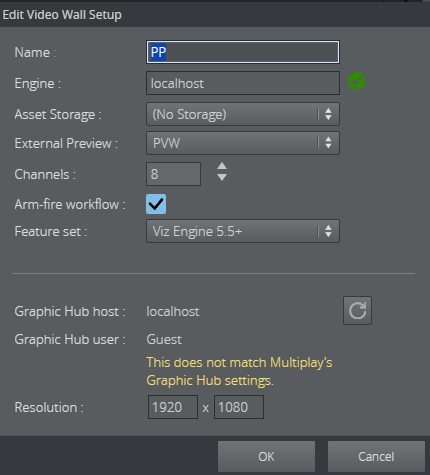
For each video wall, optionally configure a preview wall for preview output on a separate engine and link to it from the program wall.
For the preview wall, do not select Arm-fire workflow if the preview is configured on the same machine as the main output. See details in section Preview Setup.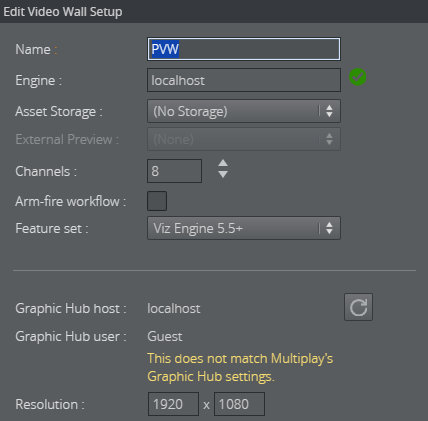
Create scenes for each video wall. Set the same scene in the matching preview wall.
Create presets in the scene using Viz Multiplay or Viz Artist:
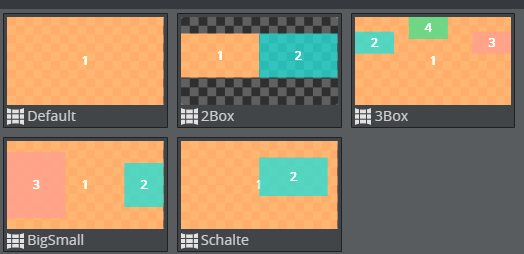
Note down the profile, video wall and scene names from Viz Multiplay to configure them later in Viz Mosart.
Mosart creates the show and playlist structure on the MSE during initialization, so there is no need to create them beforehand with Viz Multiplay.
Preview Setup
Preview is optional. When a preview wall is configured, Viz Mosart cues the next look to a separate engine so operators can see it before taking to program.
How preview behaves depends on where the preview engine runs.
Info:
The Arm-fire mechanism enables transitions in Preview.
Viz Mosart applies cue-time preset and content transitions through the arm-fire workflow.
A preview wall can use arm-fire only when its engine runs on a separate machine from the program engine.
To define Preview on a separate machine (recommended)
Run the preview engine on a different machine from the program engine.
In Viz Multiplay, configure the preview wall as a full video wall in arm-fire mode, with the same scene and presets as its program wall, and select it as the preview wall of the program video wall.
With arm-fire on both walls, Mosart replicates the cue-time preset and content transitions on preview, so preview matches what program will show.
To define Preview as a second instance on the same machine
When the preview engine is a second Viz Engine instance on the same machine as the program engine, arm-fire mode does not work for preview. Preview still shows the cued content, but the transitions applied when cueing a template cannot be replicated on preview - preview uses a plain take with the scene's default transition.
Copy
C:\ProgramData\vizrt\VizEngine\VizEngine-0.cfgand name the copyVizEngine-1.cfg.Create a second shortcut for Viz Engine (or Viz Artist) that starts this second instance, then start both instances on the machine.
In Viz Multiplay, create two video walls for ALP pointing to the same scene — one for program and one for preview.
On the Program video wall, check arm-fire workflow and select the preview video wall as its preview.
On the Preview video wall, do not check arm-fire workflow.
In VDOM Abbreviations and key concepts (the Media Sequencer's data tree, browsable from the MSE home page at http://mse-server:8580/app/vdomconfig/vdomconfig.html) find the main channel for the preview video wall and copy its handler name (for example
viz_background_aad).In the scheduler, find that handler and set the main port for the second engine instance (for example
6800instead of6100). Click Apply.On the following handlers, correct the ports for the superchannels of the second instance (for example starting at
56201). Apply to all.
Note: If the preview video wall is later modified from Viz Multiplay, these manual port changes are overwritten with the defaults and you must redo the steps above.
Viz Mosart Setup
Device setup for Adaptive Live Producer
To configure ALP in Viz Mosart
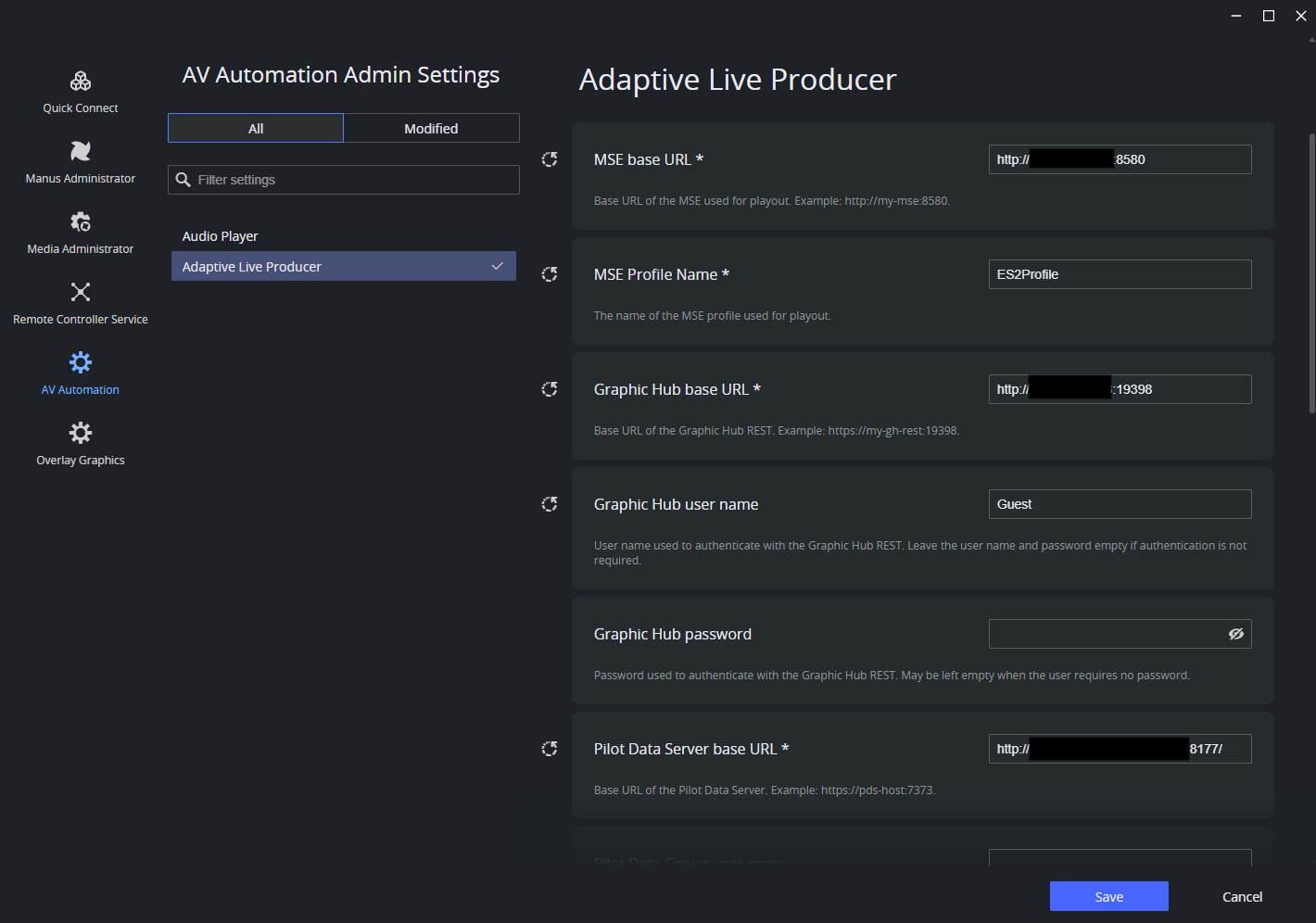
In AV Automation navigate to Devices > Properties > Vision Mixer [tab] select and enable Adaptive Live Producer protocol from and open the Mosart central settings page to configure its properties.
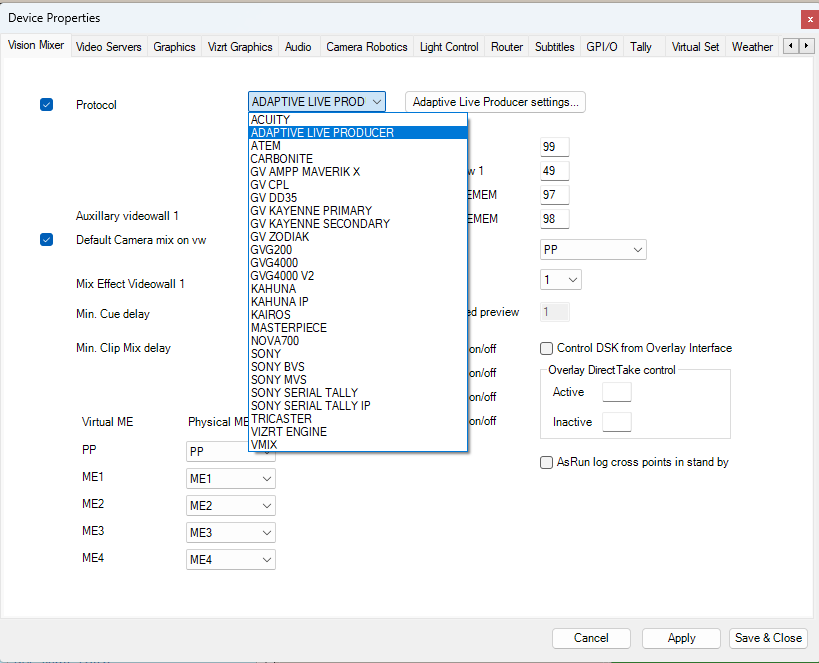
In the AV Automation navigate to Devices > Settings.
In the combined Settings window that opens, select Adaptive Live Producer.
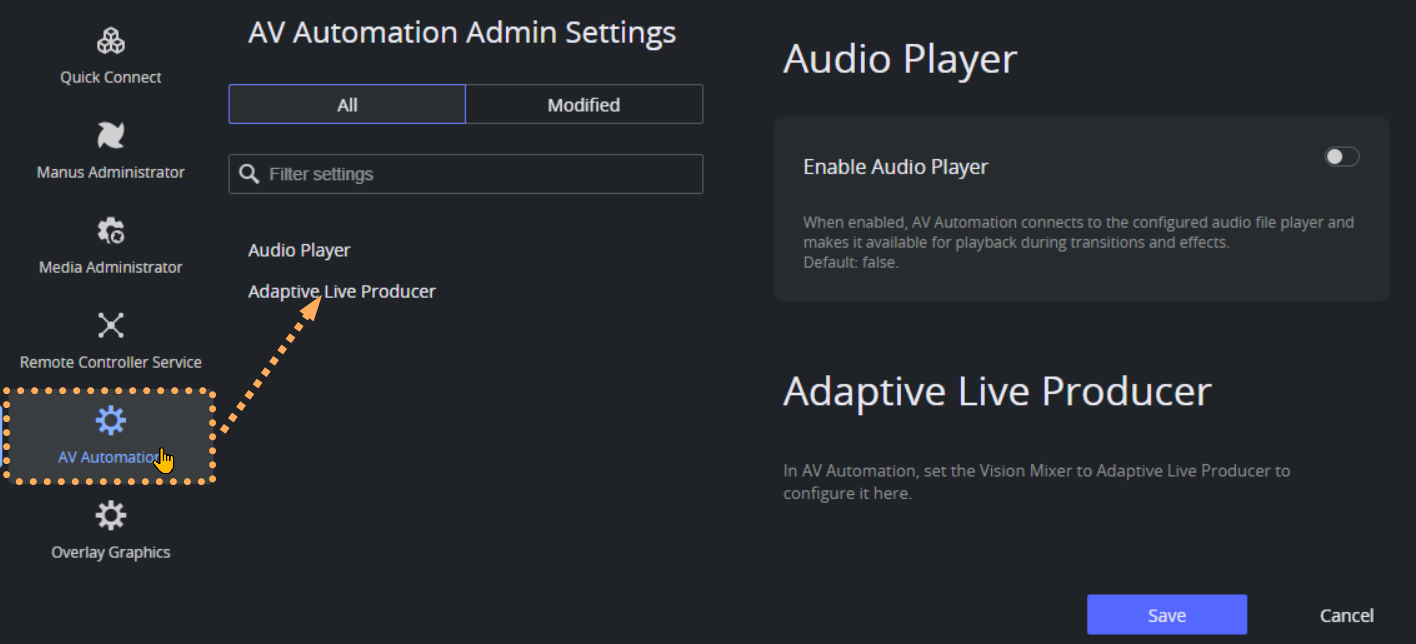
Configure the settings following these guiding values:
Setting | Scope | Description |
|---|---|---|
MSE base URL | Global · required | Base URL of the MSE used for playout. Example: |
MSE Profile Name | Global · required | Name of the MSE profile used for playout (default |
Graphic Hub base URL | Global · required | Base URL of the Graphic Hub REST. Example: |
Graphic Hub user name | Global · optional | User name to authenticate with the Graphic Hub REST. Leave the username and password empty if no authentication is required. |
Graphic Hub password | Global · optional | Password to authenticate with the Graphic Hub REST. May be left empty when the user requires no password. |
Pilot Data Server base URL | Global · required | Base URL of the Pilot Data Server. Example: |
Pilot Data Server user name | Global · optional | User name to authenticate with the Pilot Data Server. Leave the username and password empty if no authentication is required. |
Pilot Data Server password | Global · optional | Password to authenticate with the Pilot Data Server. May be left empty when the user requires no password. |
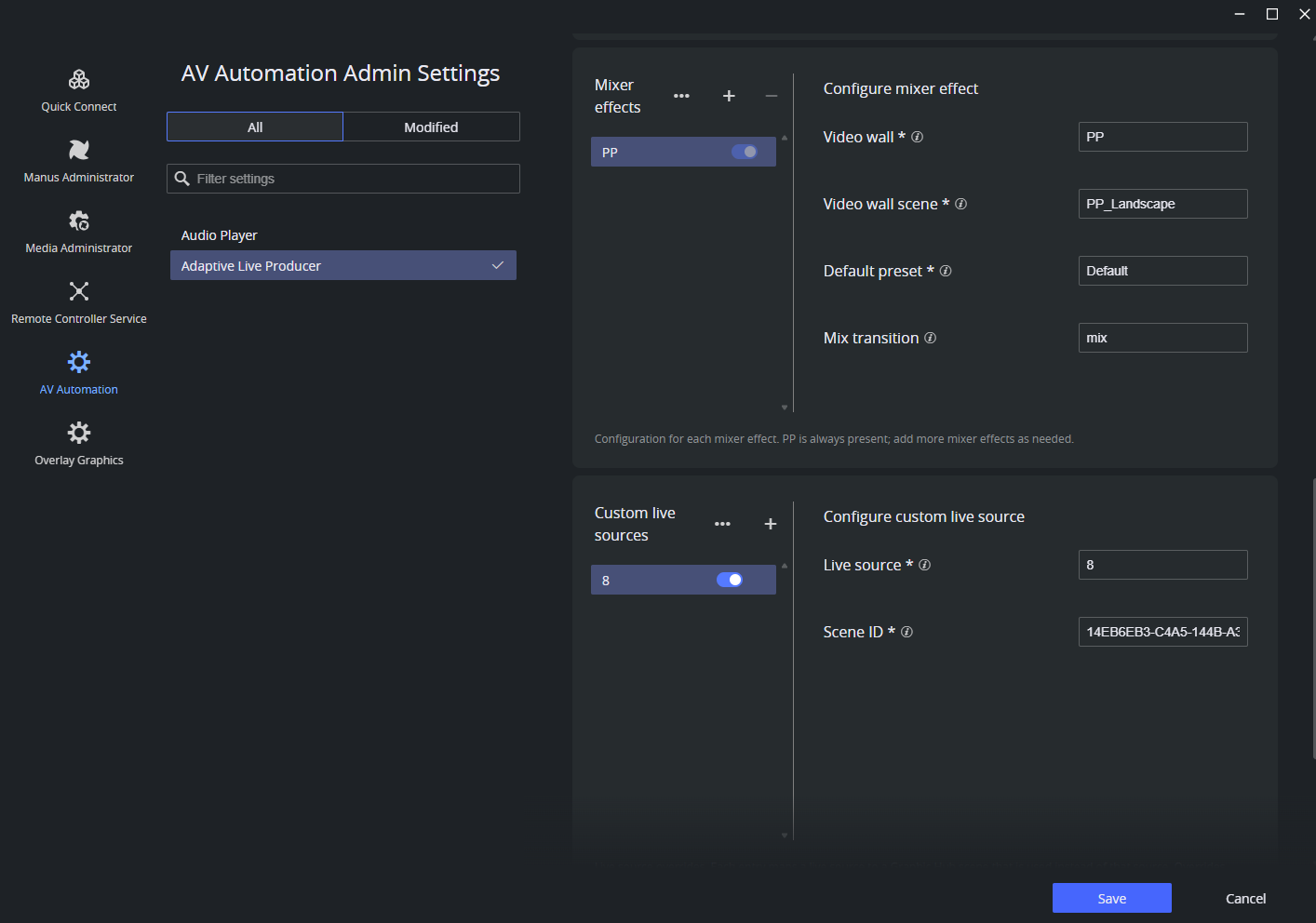
Mixer effects | Per mixer effect · required | PP is always present; add more mixer effects as needed. |
Video wall | Per mixer effect · required | Name or ID of the video wall used by this mixer effect (as created in Viz Multiplay). |
Video wall scene | Per mixer effect · required | Name or ID of the video wall scene used by this mixer effect (as created in Viz Multiplay). |
Default preset | Per mixer effect · required | Preset used as the default when no Switcher Plugin command is added on a Mosart template. |
Default transition | Per mixer effect · optional | Transition name used for Mix and Wipe with rate > 0 transitions on the background (SC1). If empty, the whatever transition is currently used on the scene is used. |
Custom live sources | Optional | Use this when a live input needs more than a plain video texture, for example a branded frame, a border, a rotation, or any other treatment built into the scene design. |
Live source | Custom live source · required | The live source number the override applies to (1 to the number of live sources). |
Scene ID | Custom live source · required | UUID of the Graphic Hub scene to use instead of that live source (for example, for branding). |
Mixer effects is an expandable list: PP is always present, add ME1, ME2, … as needed.
Custom live sources are an optional list that applies to every mixer effect.
To set-up graphics for Adaptive Live Producer
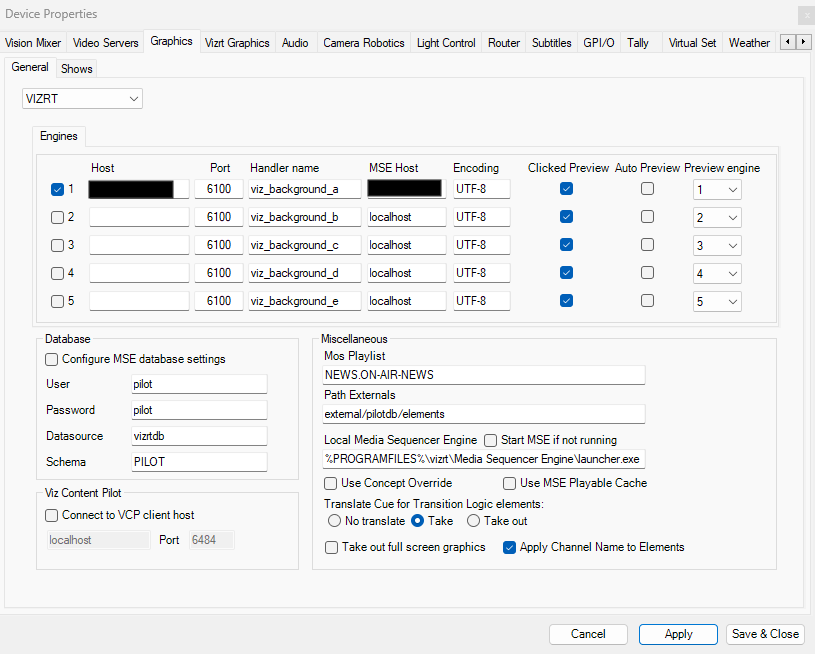
Enabling the Adaptive Live Producer switcher in AV Automation also lets the graphics driver play out fullscreen graphics directly on the superchannels.
In AV Automation navigate to Devices > Properties > Graphics [tab], follow the guidelines in the screenshot below.
Info: In addition, the standard fullscreen graphics configured under Device Properties > Graphics[tab] keep working as before; their output is fed into ALP as a live input.
A/V Setup for Adaptive Live Producer
In AV Automation navigate to Devices > Devices > A/V Setup and select a tab:
Configure Audio Config
Configure Video Config sources.
Configure the Engine Presets list. Preset names must match those created in Viz Multiplay and Viz Artist.
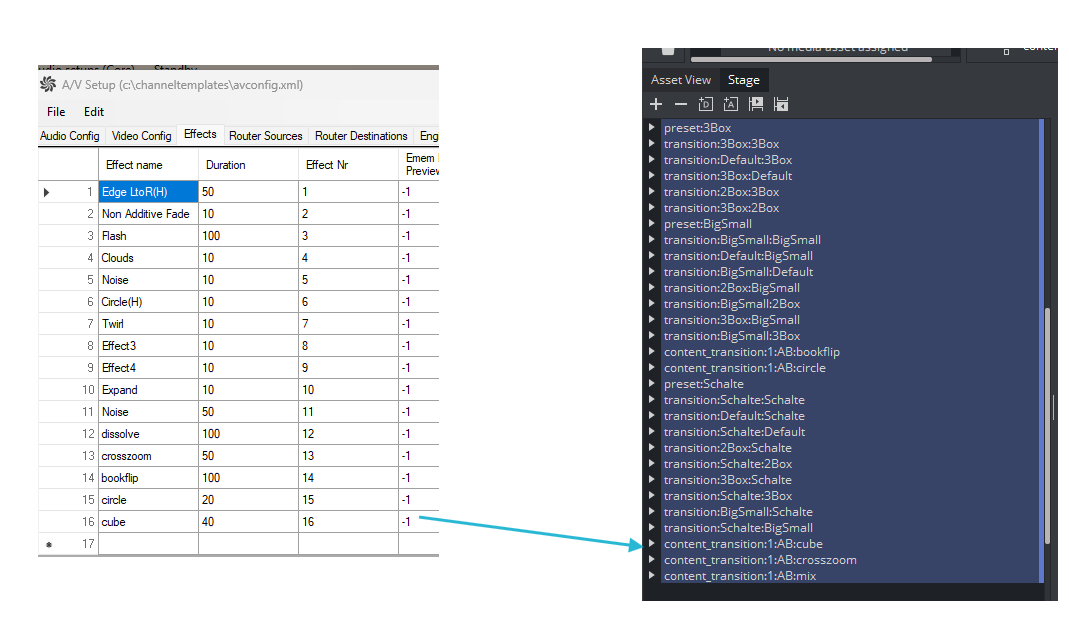
Configure Effects. Each effect name must match a content transition short name in the Viz Engine preset scenes (for example bookflip, dissolve).
All engines (PP, ME1, and so on) must use the same content transition names; the design of each transition can differ per engine.
Both custom and shader transitions are supported.
Verify the Connection
At this stage you can confirm only the connection. In the AV Automation status panel, the ALP (vision mixer) connection should show as connected, reflecting the connection to the Media Sequencer.
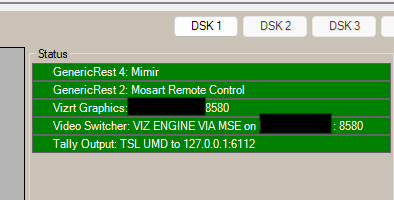
A full functional test (cue and take a camera with the default preset, transitions, a DVE with keyfills, and fullscreen graphics) needs templates.
Build those first, then run the end-to-end checks described on Templates and Show Design section Verify the full chain.