Viz Mosart is Vizrt's powerful suite of tools for studio automation, production assistance, and advanced graphics control. It enhances consistency and efficiency in live and as-live production, so that even complex shows can be run error-free from a single operator position.
Viz Mosart controls devices flexibly according to templated sets of repeatable actions, automating control according to stories prepared in a rundown, and enabling creative manual intervention whenever needed.
This document lists all important changes since Viz Mosart 5.13.
Info: The feature set of Viz Mosart version 5.14 is largely backward compatible with earlier 5.x and 4.x versions and, for most operations, even earlier Viz Mosart versions. Sometimes it is necessary to deprecate older functionality, as described below in Deprecations.
Viz Mosart 5.14.3
Release Date: 2026-06-03
This 5.14.3 is a maintenance release with no added features to the software since Viz Mosart 5.14.2.
Server Administration
Remote Control Service (RCS) Authentication
OpenID Connect (OIDC) authentication is now supported by RCS for incoming requests, effectively providing a centralized authentication between and the Mosart server and Mosart REST API clients like external keyboard panels, custom apps or the Mosart Web Apps 3.0.
When this authentication method is enabled, the REST API external user authenticates toward their inhouse identity provider (for example Keycloak), with RCS then validating the resulting JWT for each SignalR and REST call, ignoring any existing shared-API key authentication method. This method is enabled on the Mosart server side by editing the fileRemoteDispatcherServiceConfig.xmlfile, as described in the Viz Mosart Administrator Guide (MOSART-14292).
Note: Be aware that turning on this authentication method will break existing REST API integrations.
Viz Mosart 5.14.2
Release Date: 2026-04-03
This 5.14.2 is a maintenance release with no added features to the software since Viz Mosart 5.14.1.
Video Clip Playout
Clip Status
Improved: The TriCasterSearch driver for Media Administrator, introduced in version 5.14.0 had a known issue where the InfoBin DDR could fill up with an increasing number of clips, with the same clip(s) being added several times.
The driver is now improved, this issue should no longer occur. Whilst improving the driver, we have also removed an unnecessary setting Domain (MOSART-14403).Fixed: When using the TriCasterSearch driver (see previous point) in Media Administrator, there was an issue where the Clip Description in the Viz Mosart GUI would not align with the field mapping in Newsroomsettings in Manus Administrator, but instead show the clip’s objID, typically the same as clip_hirespath. This issue was due to an unconditional overwrite of the clip’s Description in the TriCasterSearch driver. This code has now been changed to avoid this overwrite (MOSART-14450).
Improved: The TriCaster Quick Connect feature introduced in version 5.10.0 has been extended to also include an option for Clip Status connection; to configure Media Administrator to use the new TriCasterSearch driver (MOSART-14430).
Viz Mosart 5.14.1
Release Date: 2026-03-24
This 5.14.1 is a maintenance release with no added features to the software since Viz Mosart 5.14.0.
Lighting
Fixed: For GrandMa3 and ETC Eos, the two OSC lighting drivers introduced in Viz Mosart 5.13.0, the drivers could incorrectly send commands to the lighting devices even if they had been put in Standby or the Viz Mosart server was idle. This issue has now been resolved (MOSART-14412).
Viz Mosart 5.14.0
Release Date: 2026-03-09
Version 5.14 of Viz Mosart is packed with some great features and improvements, with a focus on usability, automating frame-accurate pre-production, and extending the suitability of Viz Mosart for use cases away from the primary studio. Highlights include:
Video switching: support for vMix and Blackmagic ATEM.
Audio: ability to automatically discover and loop clips in the Viz Mosart Audio Player, plus added support of TASCAM mixers.
Pre-production: frame-accurate story recording and publishing using TriCaster®.
GFX control: improved overlay visibility in the PGM/PVW area, and configurable double-click asset control.
API: further deepening to include ability to list on-air graphics and take a template by its ID.
UX: an additional modifier key to double the number of keyboard shortcuts, and improved usability and robustness of Template Router.
As always this release is also packed with fixes and improvements to maximise productivity and efficiency.
Switching
Video Switchers
New: Added support for the Blackmagic Design ATEM video switcher. See the Administrator Guide for further details (MOSART-13504).
New: Added support for StudioCoast’s vMix video switcher. See the Administrator Guide for further details (MOSART-14172).
Don't forget every Viz Mosart license is entitled to a Tricaster®Mini-S subscription at no additional cost. Contact your account manager for more details.
Crosspoint Control
Improved: The SET_CROSSPOINT command that is available from Templates, from Keyboard Shortcuts and from the Remote Control REST API, has been extended to fully support all ME buses, in that it now also accepts KEY5 and KEY6 (MOSART-14226).
Improved: Destination Panel crosspoints set to hidden were still being displayed to users in the GUI’s Crosspoint dropdown list. This has now been resolved (MOSART-13463).
Video Clip Playout
Clip Players
GV AMPP
Improved: For video clip playout from a GV AMPP system we have improved the player node handling so that cue/play commands are sent directly to the clip player nodes rather than through the GV AMPP platform. This reduces the latency of cue/play commands (MOSART-14197).
Fixed: AV Automation regularly checks the state of all player nodes on configured GV AMPP servers. It was discovered that this check would take manually controlled player nodes out of manual control. The state checking has been improved so that it only applies to player nodes under Viz Mosart's control. This was also fixed in maintenance release 5.13.4 (MOSART-14179).
Improved: In relation to GV AMPP clip player status checking, the implementation has also been improved in several ways, including the use of ping command instead of a getstate command, as recommended by GV (MOSART-14082).
Fixed: Users of video clip playout from a GV AMPP system have reported sporadic clip load failures, with Viz Mosart log files reporting timeouts. A bug has been found where command responses would be incorrectly rejected, leading to these timeout reports. This bug has now been fixed, so that all valid responses are accepted, and the sporadic clip load failures should no longer occur. This was also fixed in maintenance release 5.13.2 (MOSART-14181).
Clip Cueing and Playout Control
Fixed: If a video clip that was cued on a video server port got a new in-point from the NRCS, the cue position would not be updated accordingly on the actual video server port, whilst in the Viz Mosart GUI it looked like the clip had been repositioned. This issue has now been fixed. This fix does not apply to clips in the currently on-air story (MOSART-13458).
Fixed: For video server devices in Viz Mosart templates, the setting TRIGGER START is available for loading a clip but delaying the actual playout until a trigger command is received. However, such a trigger command has not been available for a long time, making the feature of limited use. In this version of Viz Mosart the trigger command has been made available by introducing a TRIGGER_START control command, which can be recalled from templates, direct takes or keyboard shortcuts. See the Administrator and User Guides for details (MOSART-14270).
Clip Status
New: When using TriCaster for video clip playout, clip status has had to be done through the Vizrt Media Service, which had to be installed on the TriCaster, and then configured for use in Viz Mosart’s Media Administrator. With this version of Viz Mosart, Media Administrator can instead get the clip status directly from the TriCaster, through Viz Mosart’s TriCasterSearch driver for Media Administrator. This simplifies the setup with Viz Mosart and TriCaster. See the Administrator Guide for more information (MOSART-8353).
Info: In some cases, the InfoBin DDR may get filled-up with an increasing number of clips, with the same clip(s) being added several times. If this slows down operations or leads to other issues, it is recommended to go back to using Vizrt Media Service instead of TriCasterSearch.
Audio
Audio Mixers
New: Added support for TASCAM Sonicview 16 audio mixer, using the Ember+ protocol. See the Administrator Guide for further details (MOSART-14309).
Improved: As part of introducing the TASCAM audio mixer driver, the Lawo Ember+ driver and the Stagetec Ember+ driver have been slightly reworked (MOSART-14157). This has changed some configuration settings and added some new ones. To take advantage of these changes, it is recommended to fetch the latest versions of the configuration files AudioMixerLawoEmberPlus.xml or AudioMixerEmberPlus.xml, respectively, after upgrading to version 5.14.0. The files are located in the folder ConfigurationFiles in the Viz Mosart Server’s installation folder.
If, in your present configuration, any of the following settings have been changed from the default, you have to apply the same changes to the new copied file:Lawo (AudioMixerLawoEmberPlus.xml)
HeedParameterChangesFromMixer (default true) has been replaced by IgnoreParameterChangesFromMixer (default false). If you have changed HeedParameterChangesFromMixer to false, and want to retain the same behaviour, you need to use true for IgnoreParameterChangesFromMixer.
TimeoutInvoke (default 10000) has been replaced by TimeoutLoadSnapshot (same default). If you have changed the value of TimeoutInvoke, you need to do the same change to TimeoutLoadSnapshot.
VerifyInvocationResults (default true) has been replaced by VerifyLoadSnapshot (same default). If you have changed the value of VerifyInvocationResults, you need to do the same change to VerifyLoadSnapshot.
Stagetec (AudioMixerEmberPlus.xml)
If you have changed TimeoutGetDirectories to a value greater than 2000, do the same change in the new AudioMixerEmberPlus.xml.
Fixed: When the Audio Mixer is set in Standby in Viz Mosart, no commands will be sent to the audio mixer. But still, in the Audio Panel and the connected external audio panel, faders would move, giving the false impression that fader levels would be changed on the audio mixer. This caused confusion and uncertainty for the operator. This issue is now been fixed, faders will no longer move when the Audio Mixer is in Standby (MOSART-12661).
Audio Players
New: The Viz Mosart Audio Player now automatically detects new audio files as they are moved into the configured watch folder, so it is no longer necessary to restart the Audio Player after new audio files are added (MOSART-14225).
New: In the Template Editor, you can now configure an Audio Player device to loop the audio file (only works for the Viz Mosart Audio Player) that it is set up to play. See section Audio Player in the Viz Mosart Administrator Guide (MOSART-14228).
Audio Panel
Fixed: When using a MakeProX external audio panel, operator fader movements could be intermittently ignored, making the panel appear unresponsive during busy shows. This was caused by a legacy workaround for a different panel type that incorrectly suppressed fader input. This issue has now been resolved (MOSART-14298).
Graphics
Vizrt Graphics
Improved: In Viz Mosart 5.4.0, we included by default the option to directly edit graphics that had been added to the rundown through the Viz Pilot Edge NRCS Plugin. In some cases it is undesirable to offer this to the user, so in this version we have made it possible to disable this type of editing, based on the graphic's associated MOS ID. This editing permission is set in Newsroomsettings on the Viz Mosart Server. See MOS ID Mapping in the Viz Mosart Administration Guide section Newsroom Settings Editor for details (MOSART-14194).
Fixed: In some cases the Media Sequencer's default.xml would steadily grow in size. The cause has been identified and corrected, so that the file no longer grows uncontrollably (MOSART-7198).
Fixed: If a macro control command was sent to a destination with multiple graphics engines, the macro would only be recalled on the first engine. The macro is now correctly recalled on all engines in the destination (MOSART-13294).
Viz Flowics Graphics
New: System administrators can now Quick Connect to Viz Flowics for easier and faster setup of HTML graphics control. Similar to what was introduced for TriCaster® in version 5.10.0, with a few steps you can configure both full screen and overlay graphics handlers for Viz Flowics graphics. For more details, refer to the latest Viz Mosart Administration Guide (MOSART-13978).
ORAD Graphics
Fixed: For full screen graphics controlled from AV Automation, setting the handler into Standby did not block commands from being sent to the graphics engine. This issue has now been fixed (MOSART-11560).
Lighting
Improved: The two OSC drivers introduced in Viz Mosart 5.13.0, for GrandMa3 and for ETC Eos have been modified to use OSC protocol version 1.1, using SLIP framing, instead of version 1.0 (MOSART-14324).
Video Walls
Improved: The Watchout video wall driver has been extended to also support the commands halt, kill and gotoControlCue (MOSART-10263).
Camera Robotics
Fixed: When using the DEVICE_STANDBY control command for ROBOTIC_CAMERA to set specific robotic cameras in or out of Standby, not all configured robotic cameras were accepted by the command, and it was not clear which would be accepted, and which not. This issue is now fixed, so that every configured robotic camera can have its Standby state controlled (MOSART-10778).
Rundown and Story Handling
Rundown Operations
Improved: It is now possible to run a manual show from Viz Mosart even with no rundown loaded to start with. In a case of emergency, where there is no connection to the NRCS, Viz Mosart may be used in a switcher-like way, manually taking cameras, lives, clips, etc. to air. However, for this to work, you would need to first have a rundown loaded in Viz Mosart. With no connection to the NRCS, this can be cumbersome, so to ease operations we have removed this restriction in this version of Viz Mosart. Now, after starting Viz Mosart with no rundown loaded, simply do a Take Next, and a temporary rundown with just one item (containing the first template in the active template set - most often a Camera template) will appear, and this item is taken to air. (The Take Next can of course also be done from the Remote Control API, not just from a keyboard shortcut.) From now on, the operator can go on with the show, taking items manually, as is always possible from Viz Mosart (MOSART-14319).
Improved: From the Viz Mosart GUI it has been possible with a keyboard shortcut control command ITEM_UPDATE_FIELDS, to update the source assigned to a newsroom tag for the item in Preview or in Program. In this version of Viz Mosart we have made this control command also available from a template. See Control Commands in Templates in the Viz Mosart Administrator Guide for details. This feature is also available via the Remote Control REST API, either as the item_update_fields control command, or preferably through the dedicated Update source item in preview or program command (MOSART-14290).
Improved: Enhanced the parsing of MOS objects received from the NRCS by introducing a replacepattern field mapping attribute, which can be used to insert one or more values fetched from a MOS object (using the regex attribute) into a static text for further use in Viz Mosart (MOSART-14289).
Fixed: When connecting the Viz Mosart GUI to the server over SignalR (port 55167), the GUI could fail to activate the server connection if the rundown contained a large number of items. The operator would see the GUI appear to connect but then hang or disconnect during activation, preventing show control. This issue has now been resolved (MOSART-14288).
Fixed: In version 5.13.0, when adding or removing rundowns from the Viz Mosart GUI's Arrange rundown menu, the stories in the rundowns would appear in the wrong order. Only a Reload Rundown would correct the order of stories. Stories now appear in the correct order without requiring a reload. This was also fixed in maintenance release 5.13.1 (MOSART-14178).
Fixed: In response to reports of story items loaded in Preview not always getting taken to air if you do several Take Next operations in quick succession, we have fixed this issue for the situation where your on-air template had Continue points, with or without a Cue Next Item Index set. In this situation, instead of cueing the next template, Viz Mosart recued the current template, resulting in the wrong template being taken to air. For this scenario, the next template is now correctly cued and taken to air (MOSART-13033).
Improved: There have been some rare cases where, when advancing to a story item with an Effect transition, the transition is not fully executed on the video switcher, so that the affected item is not put to air. The cause of this abnormal behaviour is still under investigation, so supplementary logging at default level was added in version 5.10.0. To further ascertain program behavior, minor additional logging at default level has been introduced in this version (MOSART-14193).
Story Recorder - New Clip and EDL Workflows
Building on existing frame-accurate show recording capabilities, Viz Mosart 5.14 introduces new output workflows for story-level clip production and extended EDL generation. See the Story Recorder section of the Viz Mosart User Guide and setup instructions in section Story Recorder Mode of the Viz Mosart Administrator Guide for more information. Currently this feature is only available when using TriCaster or Harmonic Spectrum as video server.
Story clip production and publishing
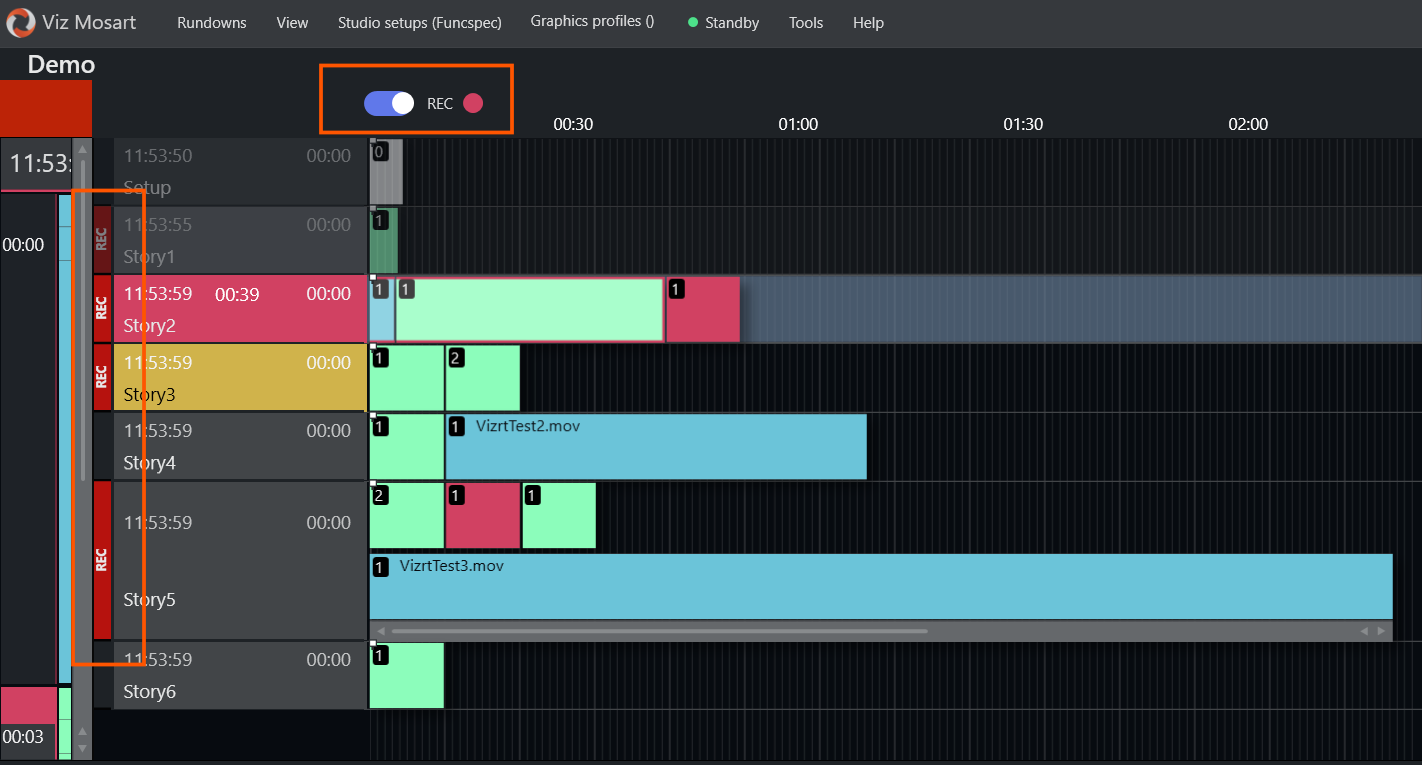
Stories marked for recording in the NRCS (Saga offers built-in integration) are now individually recorded and published as clips, either during a live broadcast or in an offline pre-recording session. Clip output is now additionally supported for both Mimir and Vizrt’s TriCaster, with optional publishing to online platforms. Stories tagged for recording are visualized directly in the Viz Mosart main UI with a REC indicator.
Show clip production with Pause and Retake
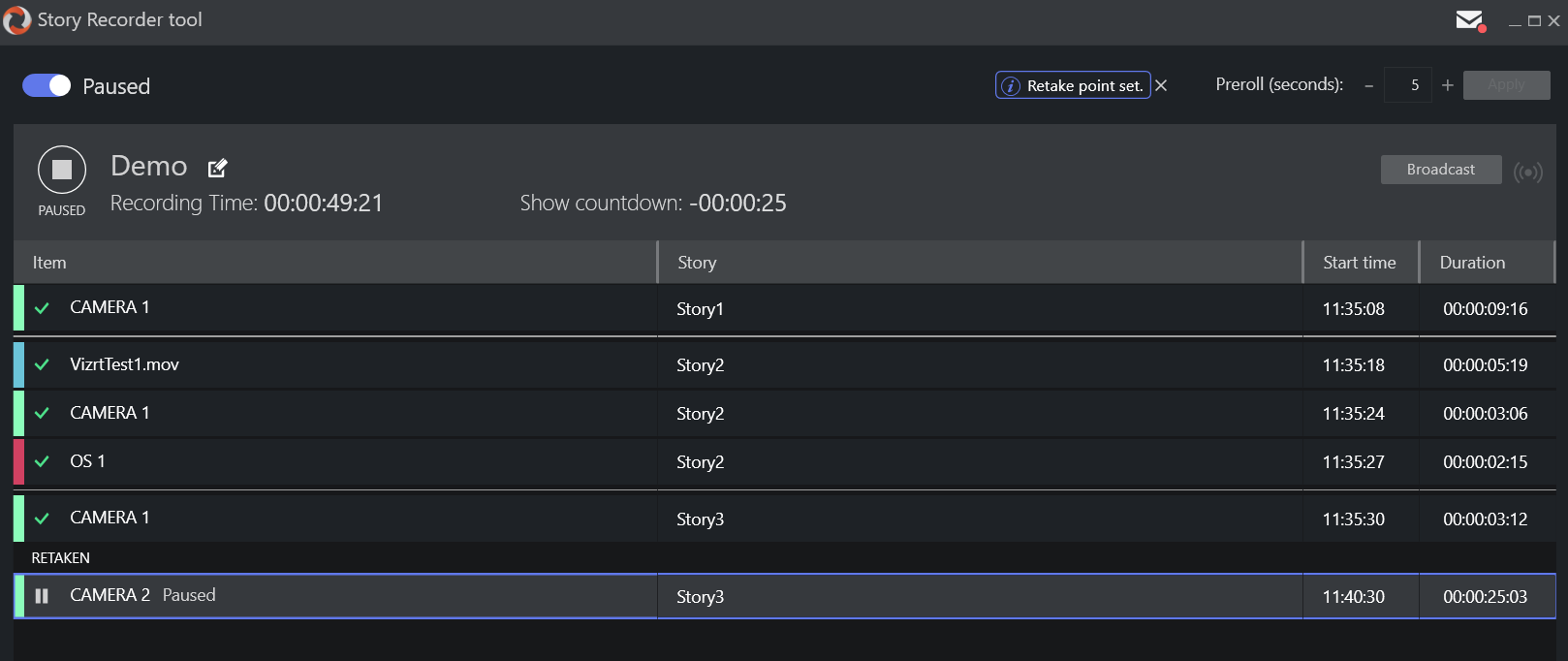
The Vantage EDL workflow supports full show-level recording with pause, retake, and backtracking. Previously available with Harmonic Spectrum as video server, this workflow has now been extended to also support TriCaster. At the end of the show, the EDL is broadcast to a Watch folder monitored by the Vantage transcoder and used to stitch recorded segments into a single, final show clip.
Recording folder
Improved: It is now possible to specify a dedicated folder for the recordings. Earlier this was hardcoded to be the same as the playout directory. The recording directory is configured on the Server Port setup in AV Automation’s Device Properties for Video Servers - see screenshot below (MOSART-14220).

Mosart EDL output
A new JSON-format EDL output generates the Edit Decision List on item, story, or show-level. These files can be used for issue investigation, post-processing, or third-party integrations.
Settings migration
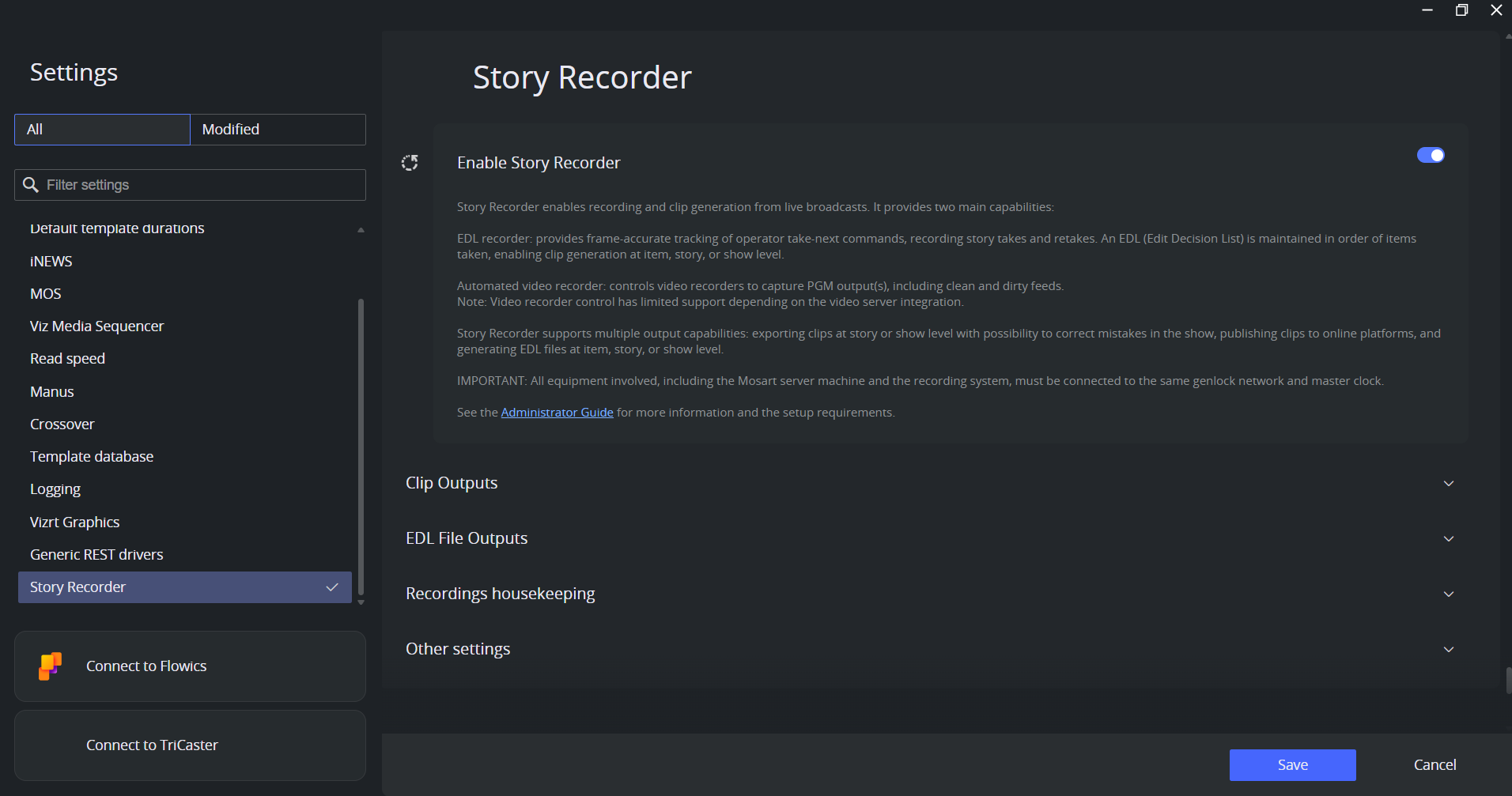
Story Recorder configuration has been consolidated into the single-point Settings menu, a centralized UI for managing all output workflows and their parameters.
Frame accuracy
All Story Recorder workflows rely on genlock-synchronized, frame-accurate control of studio equipment, ensuring precise cuts and transitions.
This release includes significant improvements to Viz Mosart's timecode handling, genlock diagnostics, and frame accuracy - particularly for Story Recorder EDL generation.
UTC/Local time handling - Added two new settings to control how Viz Mosart handles timecode time references:
Use local time (
UseLocalTimein Manus Administrator Settings) - Determines whether Viz Mosart internally uses Local Time or UTC. Default is false (UTC). This affects internal timecode initialization, Story Recorder EDL calculations, and start-of-media computations.External clock source is local time (
ExternalClockIsLocalTimein the Genlock tab in AV Automation’s Device Properties) - Specifies whether the external clock source outputs local time or UTC. When the external clock and Viz Mosart use different time references, Viz Mosart now automatically converts between them, eliminating time zone offset errors in EDL calculations.
Plura PCIe improvements - Improved Plura VITC handling with additional configurable settings and better detection of timecode interrupt issues. Enhanced statistics collection for interrupt counts, register read failures, and VITC line range validation to help diagnose external clock source problems faster.
Genlock diagnostics - Added automatic genlock analysis that runs diagnostics on the external clock source and generates a health report covering interrupt delivery, timecode validity, and signal quality. The statistics summary file now includes a guide explaining how to interpret the genlock statistics, making it easier for support and engineers to assess the health of the genlock setup on site.
Genlock and clock source management in AV Automation - Improved the genlock and clock source status display in AV Automation. Clock source settings can now be applied without a full restart, including reactivation of the external clock and switching between clock sources. Added an Internal clock source option for testing purposes — note that the internal clock will drift over time and should not be used in production environments where frame-accurate timecode is required.
See Frame Accurate System Operations for more information.
Template Management
New: The utility TemplateSetEditor included in the Viz Mosart Test Suite for managing template sets in a Viz Mosart Template Database, has been enhanced with a capability of changing an existing template set from Private to Shared, and vice versa. For details, see the section TemplateSet Editor Commands under Database Maintenance in the Viz Mosart Administrator Guide (MOSART-14189).
NRCS Connectivity
Fixed: The Viz Mosart GUI would not show that Manus Administrator was connected to the backup NRCS. This connection status now correctly displays (MOSART-12440).
Remote Control API
Improved: The Remote Control API has been extended with some new functions. These are all documented in the Swagger documentation, as described in the Mosart Remote Control REST API section of the Viz Mosart Administrator Guide.
Ability to get a list of on-air graphics (MOSART-14227).
Possibility to take a template by its ID (MOSART-14210).
Server Administration
New: We have introduced Manus Administrator as a Windows Service, (MosartManusAdminService), as an alternative to the Manus Administrator console application. The service is by default stopped, and has to be started manually. If changes to the settings are needed, these still have to be done in the Manus Administrator console application, after having first stopped the Manus Administrator service.
Alternatively, the service settings can be changed from AV Automation > Devices > Settings (MOSART-14202).
User Experience
Configurable Double-click
New: For assets in the Media Pool, it is now possible to use double-click to recall the preferred action, instead of having to right-click and then select the action. These double-click options are Edit (for last-minute changes to Viz Pilot Edge graphics), Preview or Take (MOSART-14236).
Keyboard Layouts and Shortcuts
New: In addition to the traditional keyboard shortcuts modifier keys Ctrl, Shift and Alt, you can now also use Caps Lock as modifier key, doubling the number of possible shortcuts. This feature is enabled through the GUI setting Use Caps Lock as modifier key, located under General Settings > User interface > Keyboard (MOSART-14235).
New: Added support for French Swiss keyboard layout (MOSART-14268).
Improved: Various key-mappings for the English UK keyboard layout have been corrected (MOSART-14169).
Improved: It is now possible to select a keyboard layout with an underscore character in its name, which was previously not accepted (MOSART-12157).
Improved: You may now have PACKAGE templates automatically bound to keyboard shortcuts. For video clip templates, this was previously only available for FLOAT and VOICEOVER templates (MOSART-11130).
Fixed: When using identically named grouped stories in multiple rundowns loaded at the same time, rather than populating with the story currently on air, Bind to NCS keyboard shortcuts could be incorrectly filled (typically with a mix of story items from all the loaded rundowns). This issue has now been fixed (MOSART-12585).
Notifications and Display
Improved: Since Viz Mosart 4.0, the PGM/PVW window’s views of overlay graphics on-air or in preview has had a fixed size, limiting the views to only showing 2-3 elements. In this version of Viz Mosart this restriction has been removed so that it is now possible to resize the views (MOSART-10205).
Improved: Added a Notification message in the GUI warning the operator that Verbose logging is active in a Viz Mosart application. In some cases, typically while investigating an issue, Verbose logging is turned on in one or more Viz Mosart applications. Once the investigation is complete, Verbose logging should be turned off, since on-air operation with Verbose logging enabled is not recommended. Because turning off Verbose logging is easily overlooked, this Notification has been added in the GUI to alert the user of this undesirable state (MOSART-13591).
Fixed: In version 5.13.0, when a Floating window was active, the main UI would incorrectly display UNFOCUSED at the top of screen. This was purely a display issue - even while displaying UNFOCUSED in this situation, the GUI was actually not unfocused, and keyboard shortcuts would still be accepted whilst a Floating window was in focus. The incorrect UNFOCUSED indication is no longer shown. This was also fixed in maintenance release 5.13.3 (MOSART-14183).
Quick Access Panel
Fixed: The Quick Access Panel (QAP) had an issue where, when setting Box width to 2x or higher, some story elements would be outside the visible area of the QAP. This issue has now been fixed (MOSART-12908).
Rehearsal Mode
Improved: The Rehearsal entry in the GUI's Rundown menu had inconsistencies in the use of font color and check marks, both when using control commands to activate or deactivate Rehearsal mode, and when Rehearsal mode was turned on from a different GUI. These issues have now been fixed (MOSART-11329, MOSART-14208).
Template Router
Fixed: When controlling video clip playout through the Template Router, after switching to the backup Viz Mosart Server, it was no longer possible to control the video clip playout through the Template Router. This now works correctly after a server switch (MOSART-14015).
Fixed: In the Template Router floating window, if you had a clip playing on a video port, and then set the clip to loop, the Template Router would not show the expected Playing and looping for the video port; instead it would show Cued and ready to begin looping, even though the clip was in fact playing and looping. The Template Router now correctly shows the expected Playing and looping status (MOSART-14200).
Fixed: When opening and closing the Template Router window or restarting the GUI, the button positions could become misaligned. The solution is to no longer limit the button positions to always be within the borders of the Template Router. Note that this change may result in buttons being located outside the visible area of the Template Router (MOSART-10402, MOSART-10403).
Fixed: After assigning video clips to templates inside the Template Router, if you then resized the Template Router window or minimized and maximized the Viz Mosart GUI, the clip assignment would be cleared. These issues have now been fixed (MOSART-13840).
Info: Clip assignments on templates will, by design, be cleared if you open and close the Viz Mosart GUI’s General Settings, since this triggers a full refresh of the GUI views. Opening the General Settings is not recommended during on-air operations.
Web Views
Improved: For the Timeline - Web view and the Story script - Web view introduced in Viz Mosart 5.4.0, you can now refresh the view by right-clicking on it and selecting Refresh (MOSART-14251).
Known Limitations
With the introduction of TriCasterSearch for clip status retrieval in version 5.14.0 (see Clip Status), it has been found that in some cases the InfoBin DDR may get filled up with more and more clips, typically with the same clip(s) being repeatedly added. The consequences of this are unknown, but it may potentially slow down operations or lead to other issues (MOSART-14403).
Workaround: Go back to using Vizrt Media Service instead of TriCasterSearch.
Deprecations
Recent notable changes
5.12.0: the legacy Showmaker Windows application is no longer supported. The new Showmaker (currently in early access mode) is part of the Mosart Web Applications (Mosart Web Apps Showmaker).
5.11.0: the MMTrio executable is no longer included.
5.10.0: It is expected that users of Viz Mosart have now migrated to the Combined Manus Administrator introduced in Viz Mosart 5.2.0. From this version of Viz Mosart, the two original iNews and MOS versions of Manus Administrator are deprecated.
Changes in this version
The Keyable Timing Display is now deprecated, and is no longer included in the Viz Mosart Timing Display installer.
The installer for ActiveX NRCS plugin is no longer included, since the ActiveX NRCS plugin was deprecated in the previous Viz Mosart version. Customers will need to use the HTML-based plugin (Mosart Web Apps NRCS Plugin).
Upcoming changes
In a future version of Viz Mosart (version TBC), support for the Viz Mosart Timing Display client application will be deprecated. Customers are encouraged to migrate to the HTML-based timing display (Mosart Web Apps Timing Display). Vizrt is continuing to strengthen the web-based architecture which serves this timing display, and to enhance its functionality where customer experience exposes use cases which are not yet fully satisfied.
In a future version of Viz Mosart (version TBC), the Keyboard Shortcut Editor (legacy) in the Viz Mosart GUI will be deprecated, to be fully replaced by the new improved Keyboard Shortcut Editor. This new editor is already available in parallel to the original one in the Viz Mosart GUI. Customers are encouraged to start using this new editor, since Vizrt will continue to enhance its functionality, based on customer experience and feedback.
Installation and Upgrade
Installing for Current user only or for Anyone who uses this computer
Normally, Viz Mosart applications are installed for Anyone who uses this computer, but in some situations it is preferable to install for Current user only. If you have a previous installation for Anyone who uses this computer and then install for Current user only, Windows' Apps & Features will show two installations of the application, both the previous one and the new one, and you will also see two shortcuts on your desktop. This is a feature of Windows, but could lead to confusion with subsequent updates.
A recommendation to avoid this particular situation is to uninstall the previous Viz Mosart application before installing the new one.
Warning: When installing to Current user only, the executables are, by design [*], installed in the folder %ProgramFiles(x86)%\Mosart Medialab, and not in a location dedicated to the Current user (normally %localappdata%\Programs).
This means that if a user no longer needs to start Viz Mosart applications, do not uninstall the applications for that user only, since you will then effectively uninstall it for all users!
Instead, simply remove the application shortcuts for that user.
[*] The various Viz Mosart applications shall normally always be on the same version, to ensure compatibility of features. If the Viz Mosart applications were installed under the various users' dedicated locations, then during an upgrade, you would have to repeat the installation of a new version for all Viz Mosart users for that computer. In addition to the time and effort this would require, you risk that some users might miss the upgrade. When one of these users later starts a Viz Mosart application, for example the Viz Mosart GUI, it would no longer be compatible with the commonly upgraded Viz Mosart applications, like the Viz Mosart Server.
Please refer to the Viz Mosart Administrator Guide, section Installation.
System Requirements
Recommendations
For further details, see the Installation > Prerequisites section in the Viz Mosart Administrator Guide.
General
Microsoft .NET Framework 4.8.
Microsoft Visual C++ 2015-2022 Redistributable (both x86 and x64).
Microsoft Edge WebView2 Runtime (x64).
Note: If WebView2 Runtime is not preinstalled, the Viz Mosart GUI and Server installers will attempt an online installation.
If online installation is not possible, WebView2 Runtime has to be installed manually before running the Viz Mosart installers.
Viz Mosart Server
Microsoft Windows Server 2022.
Microsoft Windows Server 2019 (only with Extended Support from Microsoft - until 2029-01-09).
Microsoft Windows Server 2016 (only with Extended Support from Microsoft - until 2027-01-12).
Microsoft Windows Server 2012 R2 (only with Extended Security updates from Microsoft - until 2026-10-13).
Info: WebView2 Runtime version 109 is the last supported version on Windows Server 2012 R2 (version 110 and later will be unavailable).
Viz Mosart client computers (GUI, Audio Panel, Timing Display, Audio Player)
Microsoft Windows 11.
Microsoft Windows 10 (only with the Windows 10 Extended Security Updates program).
Network Bandwidth
1000 Mbps (Gigabit) Ethernet card is required on the Viz Mosart client computer if NDI is used for live preview in the Preview and Program windows.
Upgrade
As a standard procedure, always make backups before upgrading. Please backup all files in the following locations:
C:\channeltemplates
%localappdata%\Mosart_Medialab
%programdata%\Mosart Medialab\ConfigurationFiles
%programfiles(x86)%\Mosart Medialab\<Mosart application>\ConfigurationFiles
All files with extension .exe.config in folders %programfiles(x86)%\Mosart Medialab\<Mosart application>\ where <Mosart application> is the relevant Viz Mosart application (for example Mosart Server, Mosart GUI).
Windows registry settings for:
HKEY_CURRENT_USER\Software\[Wow6432Node\]Mosart Medialab
HKEY_LOCAL_MACHINE\Software\[Wow6432Node\]Mosart Medialab
For the upgrade procedure, see the Viz Mosart Administrator Guide, section Installation.
You will always find the latest updated documentation for Viz Mosart at the Vizrt Documentation Center.
If you do not have Internet access to the above documentation, a quick guide for installation is given here:
Download all relevant Viz Mosart installation files to the preferred location.
The default location is C:\Mosart\Installers. You are advised to make a sub-directory for the installers for a particular version/build containing all the MSI installer-files and any other supplemental files.Stop all Viz Mosart Windows services.
Double-click the installation file, and follow the prompts to complete installation. Note that after completing this step for the Viz Mosart Server and the Viz Mosart GUI, the documentation is available in the installation sub-folder Documentation.
Repeat the above step for all relevant installation files.
As the last steps you may need to start a set of Windows services to make Viz Mosart run properly (not needed after installing the Viz Mosart Server or the Viz Mosart GUI client, these services are started by the installer). The services are configured to automatically start when the computer is started. The safest is to reboot the computer to verify that this automatic start of the services is working.
Installations with Viz Mosart in several galleries
If you have several galleries running an earlier Viz Mosart version, like Viz Mosart 3.x or Viz Mosart 4.x, you can safely upgrade one of the galleries to Viz Mosart 5.x while the others stay on their current version.
Documentation
Latest, continually updated documentation for Viz Mosart 5.14 is available at the Vizrt Documentation Center.
Support
Support is available at the Vizrt Support Portal.
Previous Versions
In accordance with the Vizrt Global Support Handbook section Software Lifecycle, support for older versions of Viz Mosart ends 24 months after a subsequent minor or major version is released.
With this release of Viz Mosart version 5.14, earlier versions will therefore no longer be supported after 2027-03-09.
At the date of this release, Viz Mosart versions 5.5 and earlier are no longer supported.