Create a Viz AI Runner Instance
After installation, AI-Keyer-Standard, AI-Keyer-Wide1, and AI-Keyer-Wide2 tools are automatically discovered by the AI Terminal. Choose one, then:
Create a new configuration with the
 button.
Launch with an existing configuration using the power on/off
 switch.
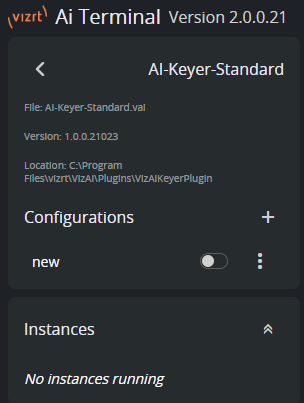
Once the instance is powered on, a Viz AI Runner console becomes visible and its configuration can be opened under Instances.
Input / Output Configuration
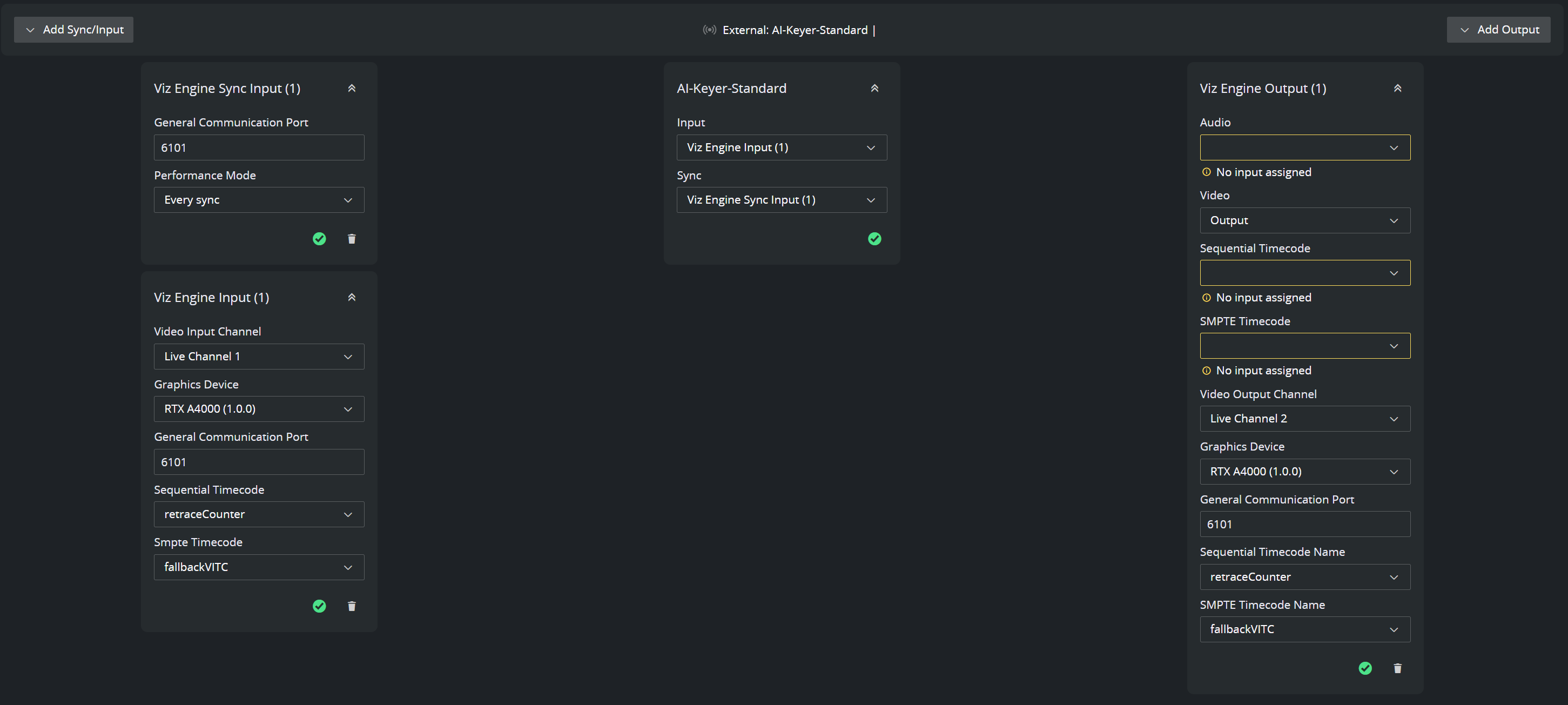
Viz Engine Sync Input
Specify the same value for General Communication Port as configured earlier in Viz Engine Configuration.
Set the Performance Mode to Every sync. If performance problems appear later when starting the tool, this mode can be changed to improve performance.
Viz Engine Input
Set the Video Input Channel to the configured live video source.
The dropdown menu is automatically populated and refreshed every 60 seconds.
In this guide, we assume that Live Channel 1 is the live video input source, as shown in the Viz Engine Configuration section.
Set Graphics device to the device the Viz Engine is running on.
Specify the same value for General Communication Port as configured earlier in Viz Engine Configuration.
Choose the Sequential Timecode and SMPTE Timecode to use (for example, retraceCounter and fallbackVITC, respectively).
AI-Keyer-Standard / Quality
Set the Input to the Video Input Channel configured in Viz Engine Input panel.
Set the Sync to Viz Engine Sync Input.
Viz Engine Output
Set the Video to Output.
Set the Video Output Channel to the configured SHM - SMURF source.
The dropdown menu is automatically populated and refreshed every 60 seconds.
In this guide, we assume that Live Channel 2 is the SHM - SMURF source, as shown in the Viz Engine Configuration section.
Set Graphics Device to the device the Viz Engine is running on.
Specify the same value for General Communication Port as configured earlier in Viz Engine Configuration.
Choose the Sequential Timecode Name and SMPTE Timecode Name to use, as set in the Viz Engine Input panel (for example, retraceCounter and fallbackVITC, respectively)
Note: Entries for Audio, Sequential Timecode and SMPTE Timecode can be left blank.
Note: In rare cases, the Tool Configuration interface stops refreshing the Video Input Channel or Video Output Channel dropdowns, and an empty list is shown. In this case, to force a refresh, please manually close the Tool console and start the configuration again. Parameters already entered remain.
Tool Configuration
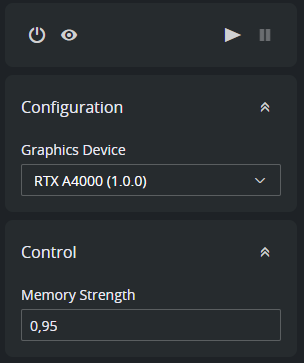
Configuration
Select the Graphics Device that is used by the AI Keyer tool.
Control
Choose the desired Memory Strength value. This value affects how much information is retained into the model “memory” context and is applied immediately.
A value of
0.0is equivalent to running the AI Keyer with no memory (“on-shot” prediction).A value of
1.0is equivalent to running the AI Keyer with the maximum memory context.
Information: Setting a value for the Memory Strength depends on the specific application. A memory strength of 0 helps removing ghosting artifacts that can otherwise appear in the case of fast moving objects or hard-cut scenarios. On the other hand, it can introduce flickering in the produced key, due to lack of temporal context. Similarly, a memory strength of 1.0 helps reducing flickering over temporal sequences, risking introducing ghosting artefacts in fast-moving scenarios. Start with a Memory Strength of 0.95 and only adjust it if needed.
Note: While not running, the Tool periodically contacts Viz Engine to retrieve information. While this operation happens sporadically, to avoid consuming resources make sure to close all Viz AI Runner consoles when not in use.
Verify Configuration
Start the tool using the play button  in the top right corner of the page and verify that no errors are shown. Check the AI Terminal User Guide for proposed actions in case of errors.
If all applications are setup as instructed, a scene designed as in Viz Engine Scene Design displays a correctly keyed talent.
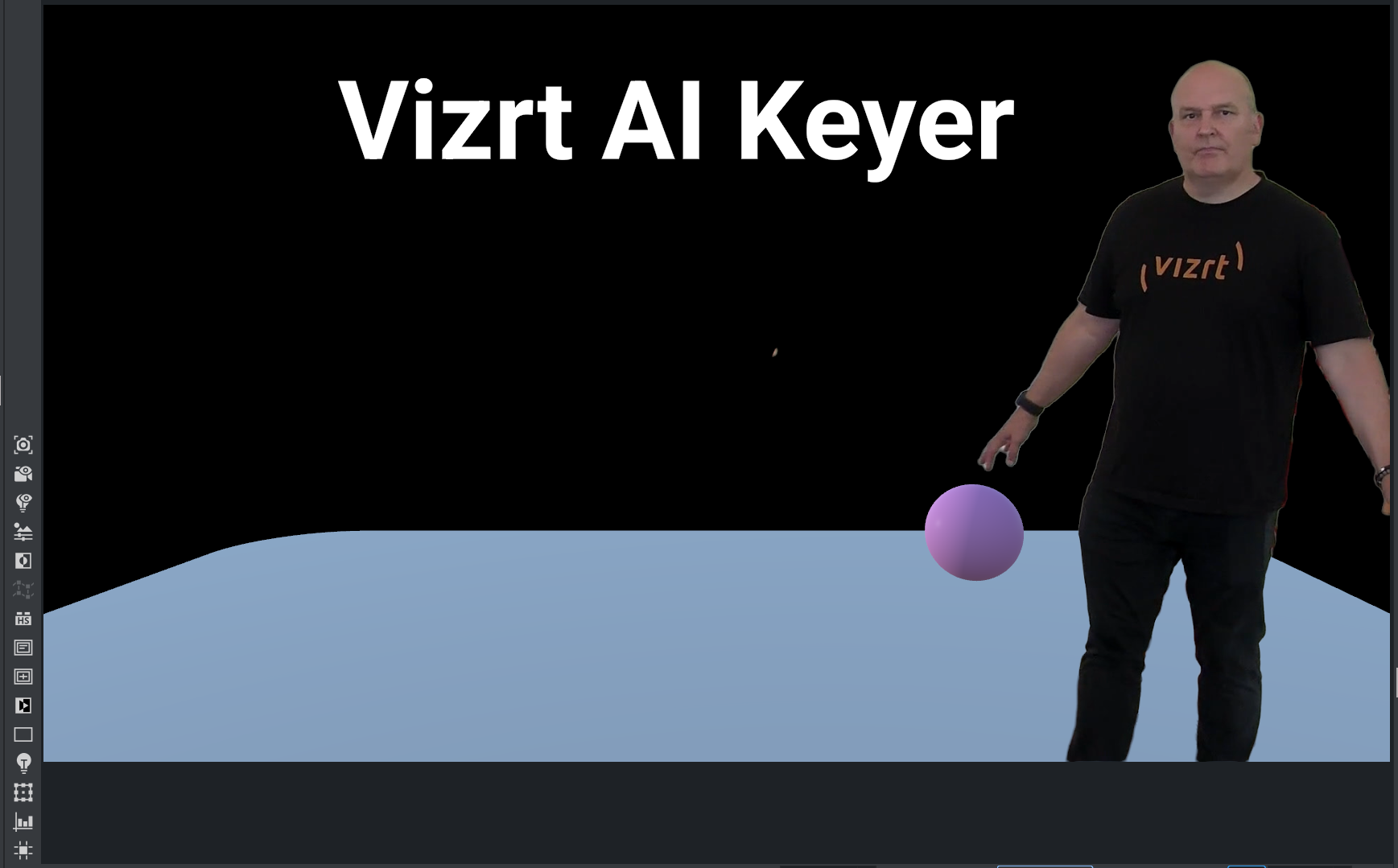
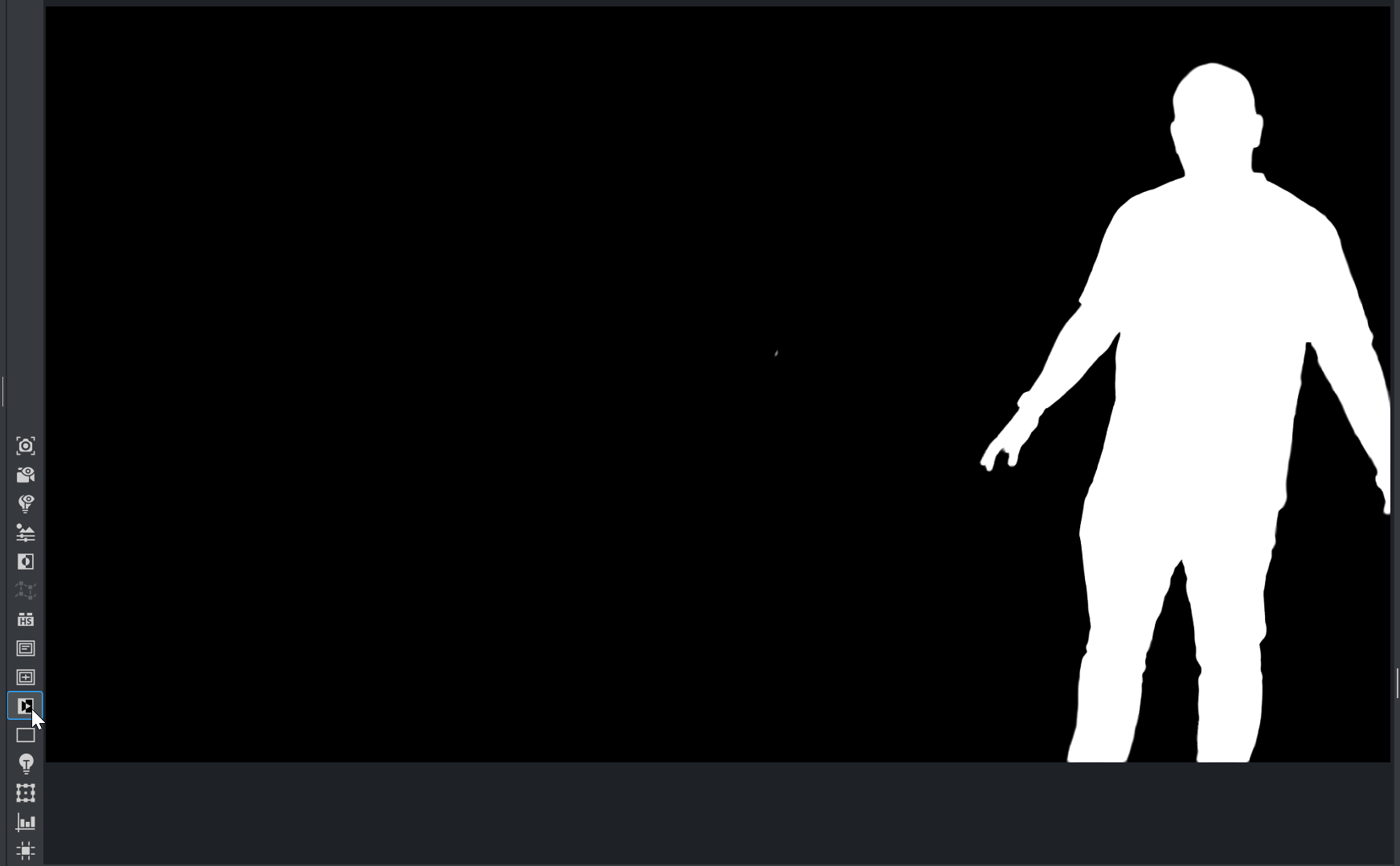
This can be verified by clicking the Key ON/OFF button in the Engine Scene Editor window to preview the incoming key: