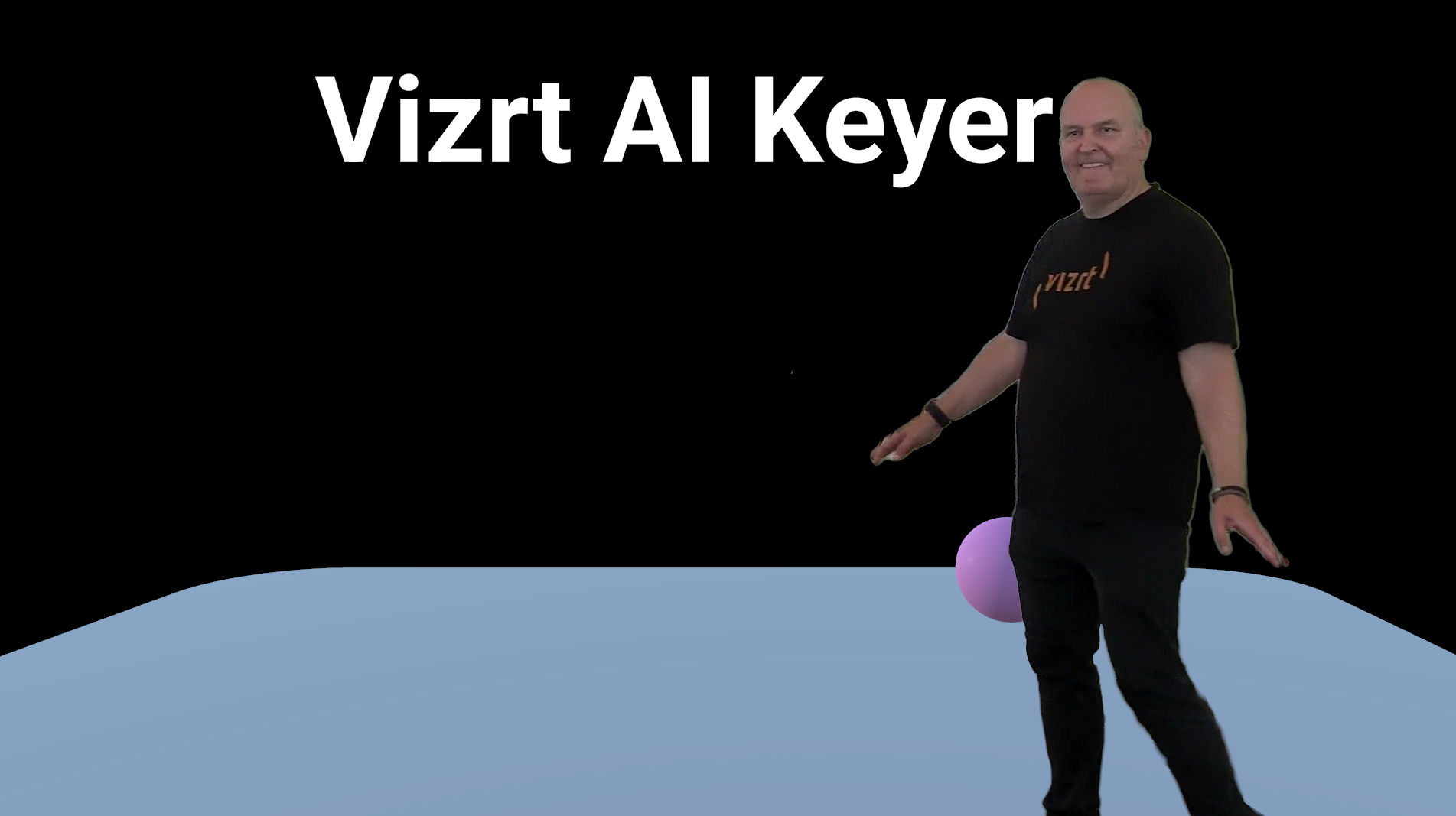
This section describes the steps required to design a Viz Engine scene that can use the AI Keyer capability.
Note: The AI Keyer requires a Precision Keyer and a AI Keyer Greenscreen-less license. Make sure to have these enabled in the Viz Engine Settings > Viz Licenses panel.
Media Tab
Input Sources
Drag the configured video input source and the shared memory SHM - SMURF source into the media Textures.
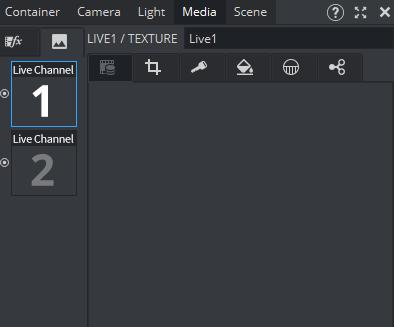
In this guide, we assume that Live Channel 1 is the live video input source and Live Channel 2 is the SHM - SMURF source, as shown in the Viz Engine Configuration section.
Input Source to AI Keyer Aux Setting
Make sure to set the SHM Aux Mode of the source for which a key is required to Send. This source is now also available as input source for the AI Keyer tool.
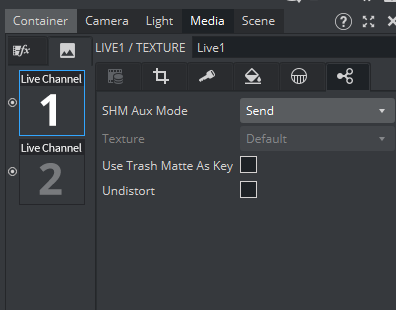
The SHM Aux Mode can be set in the Media > Aux tab of the video input source for which we want an AI generated key. In our example, this is Live Channel 1.
Note: The Input Source needs to be added to the Textures. If you cannot change the SHM Aux Mode, the Channel is likely configured as DVE. Right click on it and select Set to Texture.
SHM - SMURF Input Source Keyer Setting
Configure the Media > Keyer tab of the Live Channel configured as SHM - SMURF as follows:
Set the Keying Mode to Precision - if you want to set the edge/blur/light wrap properties of Precision Keyer on the AI Keyer.
Set the Keying Mode to Linear - otherwise.
Set the Matte Color Mode to AI Keyer.
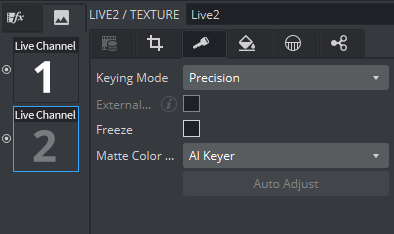
In our example, the SHM - SMURF configured Live input is Live Channel 2.
Note: The Input Source needs to be added to the Textures. If you cannot change the SHM Aux Mode, the Channel is likely configured as DVE. Right click on it and select Set to Texture.
Note: The edge/blur/light wrap properties of Precision Keyer can be applied also on AI Keyer. See the Viz Artist User Guide for a detailed explanation.
Scene Tab
Note: The Scene Tab is independent of the AI Keyer setup. The rest of this guide shows an example configuration of the Scene Tab.
For this example, make sure to set the Scene > Render Engine to Viz Engine Renderer.
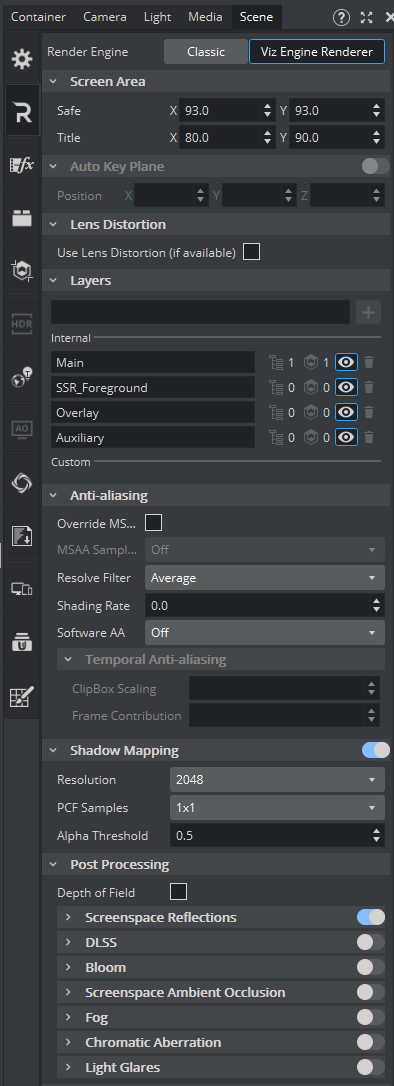
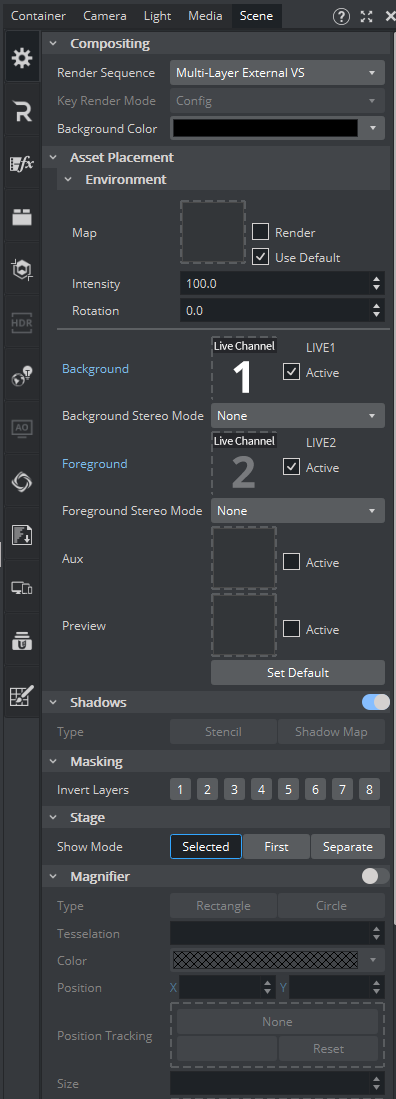
Set the Scene > Render Sequence to Multi-Layer External VS. Drag the original source (Live Channel 1 in this example) to the background and the SHM - SMURF coming from the AI Keyer as the foreground (Live Channel 2 in this example).
You can now start designing the scene with a correctly keyed talent: