Backups capture the state of your VAM installation so it can be restored after data loss, accidental deletion, or a failed upgrade.
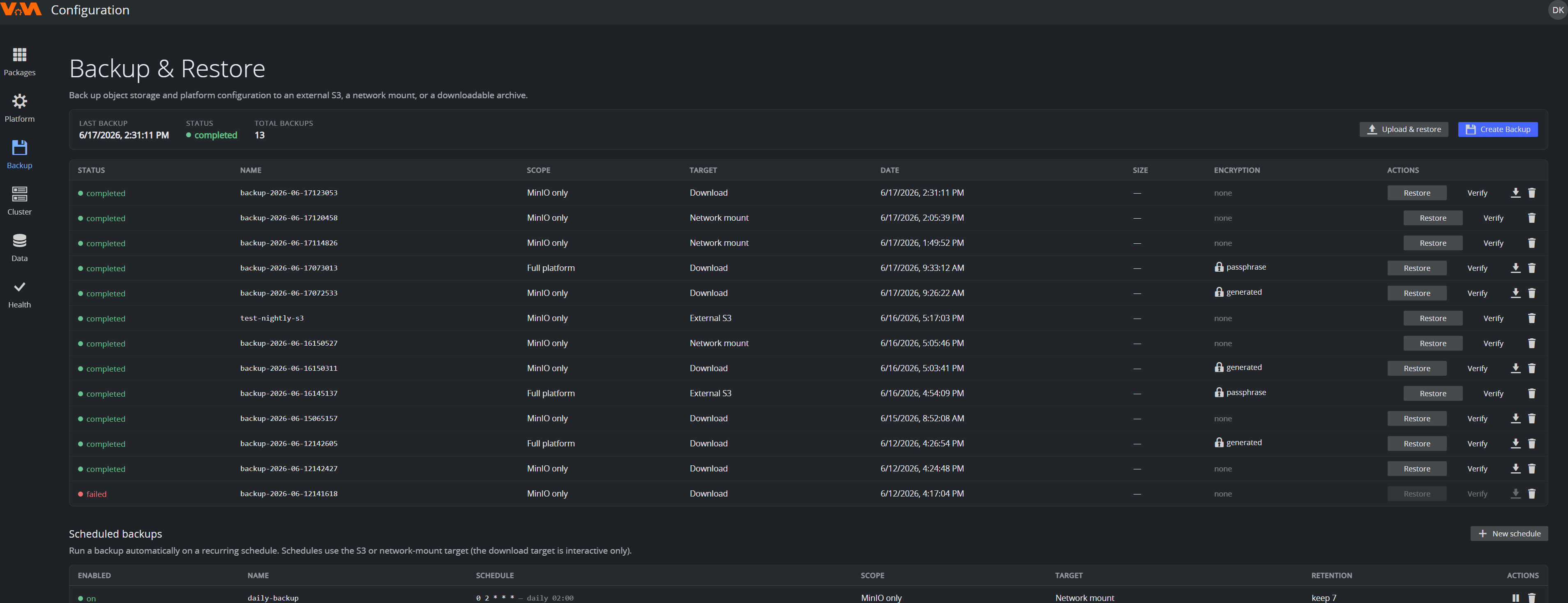
The Backup view lists every backup with its status, scope, target, date, size and encryption, plus a header summary (last backup, status, total count). Unlike earlier versions there is no separate destination to configure first. You choose the scope, target and encryption each time you create a backup.
What a Backup Contains: Choose the Scope
When you create a backup you pick a scope:
- MinIO only: the object-storage (AIStor) data.
- Full platform: object storage plus platform configuration (package configuration, platform settings, trust roots). Users and roles live in your identity provider and are not in scope.
Run a Backup
- Open Backup and click Create Backup.
- Choose the scope (MinIO only / Full platform).
- Choose the target:
- Download archive (small backups only): produces a downloadable archive (interactive only). The archive expires after 2 days, so download it right away.
- Network mount (PVC): writes to an SMB/NFS share mounted into the cluster (see Network-mount target below).
- External S3 / MinIO: an S3-compatible endpoint/bucket.
- Choose encryption: none, a generated key, or your own passphrase. A Full platform backup is always encrypted, so none is not offered for it. Keep generated keys and passphrases safe, because they are required to restore.
- Enter a Backup name and click Create. Live progress is shown, and the new backup appears in the list when done.
Network-Mount Target
The Network-mount target needs a PersistentVolume that points at your SMB/NFS share. The Configuration Service can create the PV/PVC for you from the backup screen. Provide the share path and credentials and it provisions the mount target (the SMB CSI driver must be installed for SMB). After that the share is selectable as a backup target.
Schedule Recurring Backups
In the Scheduled backups section, click New schedule and pick a frequency and retention. Schedules use the External S3 / MinIO or Network mount (PVC) target. The download archive target is interactive-only and can't be scheduled.
Verify a Backup
Verify checks that the backup archive still exists on its target. It does not read the archive and cannot check a network-mount backup. Only a restore proves a backup is usable.
Restore
Restoring replaces the current installation's state. Changes made after the backup was taken are lost, and a restore involves downtime.
From a Backup in the List
- Find the backup and click Restore.
- For a backup on External S3 / MinIO, enter the S3 endpoint, bucket and keys again. For an encrypted backup, enter its passphrase or keyfile contents.
- Review what the restore replaces, then confirm.
- Wait for completion. The Configuration Service may briefly sign you out as services restart. Sign back in afterwards.
From a Downloaded Archive
Use Upload & restore at the top of the page to upload a previously downloaded backup archive and restore it. This is useful when moving a backup between environments. You'll need the encryption key/passphrase if the archive was encrypted.
Full Disaster Recovery (New Cluster)
For a freshly reinstalled cluster, install VAM first. A new installation does not list the backups of the old one. Copy the backup archive from its target to your computer. An encrypted backup is the single file <backup-id>.tar.gz.enc. Restore it with Upload & restore: choose its encryption in Encryption of this archive and enter its passphrase or keyfile contents. An unencrypted backup on External S3 / MinIO or a network mount is a plain copy of the object data, not an archive, so keep encryption on for backups you need for disaster recovery. The installer's own restore covers only the object-storage archives it created itself, see Upgrading > Rolling Back.
Testing Backups
Untested backups are a liability. Verify only shows that a backup's archive still exists. For full confidence, periodically restore a recent backup onto a sandbox installation and confirm key data is present.