PTP Setup
Viz Mosart can derive genlock and timecode from a PTP (Precision Time Protocol) Grandmaster instead of a traditional hardware timecode reader such as a Plura PCIe card. The Windows system clock is disciplined to the PTP Grandmaster through the built-in W32Time PTP provider (ptpprov.dll). Viz Mosart then uses the SMPTE ST 2059-1 epoch to calculate frame boundaries, so no additional hardware is needed.
For the frame accuracy concepts, and for the calibration that Viz Mosart needs whichever clock source you choose, see Frame Accurate System Operations.
Requirements
Windows Version
The PTP provider (ptpprov.dll) is available on:
Windows 10 version 1809 (October 2018 Update) and later
Windows 11, all versions
Windows Server 2019 and later
Verify that the file exists:
Test-Path C:\Windows\System32\ptpprov.dllNetwork
UDP ports 319 and 320 must be open (inbound) on the Viz Mosart machine firewall.
The Viz Mosart machine must have network connectivity to the PTP Grandmaster, or to a PTP boundary clock on the same subnet.
PTP multicast traffic (
224.0.1.129) must be able to reach the NIC on the Viz Mosart machine.If the machine has more than one network adapter, make sure PTP multicast reaches the NIC on the same network as the PTP Grandmaster. PTP is typically carried on the media or production network, not the management network.
PTP Grandmaster
A PTP Grandmaster must be operational on the network. You need to know:
The IP address of the PTP Grandmaster, or of a boundary clock reachable from the Viz Mosart machine.
The PTP domain number used by the Grandmaster. The SMPTE ST 2059-2 default is
127, but many facilities use a different value.
Viz Mosart Version
PTP support requires Viz Mosart 5.15.0 or later.
Supported Deployment Scenarios
Scenario | Viz Mosart runs on | PTP is configured on | Notes |
|---|---|---|---|
Physical machine | The machine itself | Same machine ( | Standard setup. Covered in this section. |
VMware with host PTP | Guest VM on ESXi | ESXi host (Precision Clock) | ESXi passes accurate time to the guest. See the VMware documentation. |
VMware with guest PTP | Guest VM on ESXi | Inside the guest ( | Same as physical. Disable VMware time sync to avoid conflicts. |
Hyper-V | Guest VM on Windows Server | Inside the guest ( | Same as physical. Disable Hyper-V time sync to avoid conflicts. |
The rest of this section covers the physical machine and in-guest ptpprov.dll setup, which applies to all scenarios except VMware with host PTP.
Tip: VMware host PTP setup is recommended for virtual machines. ESXi 7.0 Update 3 and later supports SMPTE ST 2059-2 natively. To use this path, configure PTP on the ESXi host, add a Precision Clock virtual device to the Viz Mosart VM (requires VM hardware version 17 or later), and the Windows guest then receives accurate time from the host automatically. With this approach, PTP multicast does not need to reach the virtual NIC of the VM, because the host handles PTP and the guest reads the virtual clock device. Continue at Viz Mosart configuration below once the VMware setup is complete.
Setting up the Windows PTP Provider
Note: The steps below are based on the official Microsoft W32Time PTP client configuration. See the References section at the end of this page.
Run all commands in an elevated PowerShell session (Run as Administrator).
Step 1: Verify that ptpprov.dll is present
Test-Path C:\Windows\System32\ptpprov.dllThis must return True. If it returns False, the Windows version does not include the PTP provider. See Requirements above.
Step 2: Open the firewall ports
New-NetFirewallRule ` -DisplayName 'PTP Event (UDP 319)' ` -Name 'PTP-319' ` -LocalPort 319 ` -Direction Inbound ` -Action Allow ` -Protocol UDPNew-NetFirewallRule ` -DisplayName 'PTP General (UDP 320)' ` -Name 'PTP-320' ` -LocalPort 320 ` -Direction Inbound ` -Action Allow ` -Protocol UDPNote: If you see "Cannot create a file when that file already exists", the rules are already in place and the message is safe to ignore.
Step 3: Register the PTP provider
Replace <GM_IP> with the IP address of the PTP Grandmaster or boundary clock on your local subnet. Replace <DOMAIN> with the PTP domain number, which is 127 by default.
$ptp = "HKLM\SYSTEM\CurrentControlSet\Services\W32Time\TimeProviders\PtpClient"reg add $ptp /v DllName /t REG_SZ /d "c:\windows\system32\ptpprov.dll" /freg add $ptp /v Enabled /t REG_DWORD /d 1 /freg add $ptp /v InputProvider /t REG_DWORD /d 1 /freg add $ptp /v PtpMasters /t REG_SZ /d "<GM_IP>" /freg add $ptp /v DomainNumber /t REG_DWORD /d <DOMAIN> /freg add $ptp /v EnableMulticastRx /t REG_DWORD /d 1 /freg add $ptp /v DelayPollInterval /t REG_DWORD /d 0x3e80 /freg add $ptp /v AnnounceInterval /t REG_DWORD /d 0x0fa0 /fNote: The PTP domain number must match the Grandmaster. If it is wrong, W32Time silently ignores all PTP packets and never synchronizes.
Understanding PtpMasters. The Windows PTP provider is a listen-only client. It receives PTP multicast but sends no outbound PTP traffic. PtpMasters is a whitelist of source IP addresses: the provider accepts PTP Sync and Announce packets only from IP addresses in this list, and ignores all others. The address does not have to be the actual PTP Grandmaster. In most broadcast facilities, a PTP boundary clock, often the PTP-aware network switch that also serves as the subnet gateway, redistributes time from the Grandmaster to each subnet. Set PtpMasters to the IP address of whichever device sends PTP multicast on your local network.
How the three critical settings work together. PTP multicast packets arrive at the NIC regardless of these settings, because they flow on the network at layer 2 and 3. However, ptpprov.dll does not process them unless all three of the following conditions are met:
EnableMulticastRxis1, which enables the provider to listen for multicast PTP.PtpMasterscontains the source IP address, because the provider accepts PTP only from whitelisted addresses.DomainNumbermatches the PTP domain, because the provider accepts PTP only on the configured domain.
If any one of these is wrong, PTP fails silently and W32Time reports "Local CMOS Clock".
Verify that the registry was written correctly:
reg query $ptpStep 4: Disable competing time providers
Disable NTP and the Hyper-V or VMware time integration service (VMIC) so that they do not compete with PTP. This matches the Microsoft reference configuration for a PTP client.
# Disable NTP client$ntp = "HKLM\SYSTEM\CurrentControlSet\Services\W32Time\TimeProviders\NtpClient"reg add $ntp /v Enabled /t REG_DWORD /d 0 /f# Disable VMIC time provider (safe to run on bare metal)$vmic = "HKLM\SYSTEM\CurrentControlSet\Services\W32Time\TimeProviders\VMICTimeProvider"reg add $vmic /v Enabled /t REG_DWORD /d 0 /fIf NTP or VMIC is still enabled and has a valid source, W32Time may choose it over PTP. The Microsoft reference configuration disables both.
On virtual machines, you may also need to disable time synchronization at the hypervisor level:
VMware: disable Synchronize guest time with host in the VMware Tools settings.
Hyper-V: disable Time synchronization in Integration Services, or run:
Disable-VMIntegrationService ` -VMName "<VMName>" ` -Name "Time Synchronization"Step 5: Restart W32Time
net stop w32timenet start w32timew32tm /resyncStep 6: Verify the PTP lock
w32tm /query /statusExample of a successful PTP lock:
Leap Indicator: 0(no warning)Stratum: 3 (secondary reference - syncd by (S)NTP)Precision: -23 (119.209ns per tick)Root Delay: 0.0001500sRoot Dispersion: 0.0100020sReferenceId: 0x4D505450 (source IP: 77.80.84.80)Last Successful Sync Time: 1/15/2026 10:30:45 AMSource: 192.168.1.100Poll Interval: 10 (1024s)What to check:
Field | Expected | Meaning |
|---|---|---|
ReferenceId |
| ASCII "MPTP". This confirms PTP. |
Source | The Grandmaster IP address, for example | Shows an IP address, not "PTP". |
Stratum | A low number, not 0 | Each hop from the Grandmaster adds 1. See the note below. |
Last Successful Sync Time | A recent timestamp | Confirms active synchronization. |
About Stratum. PTP and NTP use a hierarchy of time sources. A reference clock such as a GPS receiver or atomic clock sits at stratum 0. Any clock synchronized with a stratum 0 clock becomes stratum 1, and so on. The stratum number indicates distance from the reference clock, not the accuracy or reliability of the time. Each boundary clock in the chain adds one level:
Stratum 1: direct sync to a stratum 0 source such as a GPS or atomic clock. Rare.
Stratum 2: syncing to a PTP Grandmaster, which is stratum 1.
Stratum 3: syncing through one boundary clock. This is the common case.
Stratum 4 and above: syncing through multiple boundary clocks.
Stratum 0, reported as unspecified: the PTP provider never engaged. Source shows
Local CMOS Clock. Re-check Step 3 above.
Note: Ignore "(S)NTP" in the Stratum line. W32Time always labels itself as "(S)NTP" regardless of the actual time source, so even when PTP is active the output reads syncd by (S)NTP. This is a display quirk. The ReferenceId field is the only reliable way to confirm PTP discipline.
If the status shows Free Running, Local CMOS Clock, or Stratum 0, see Troubleshooting below.
Viz Mosart Configuration
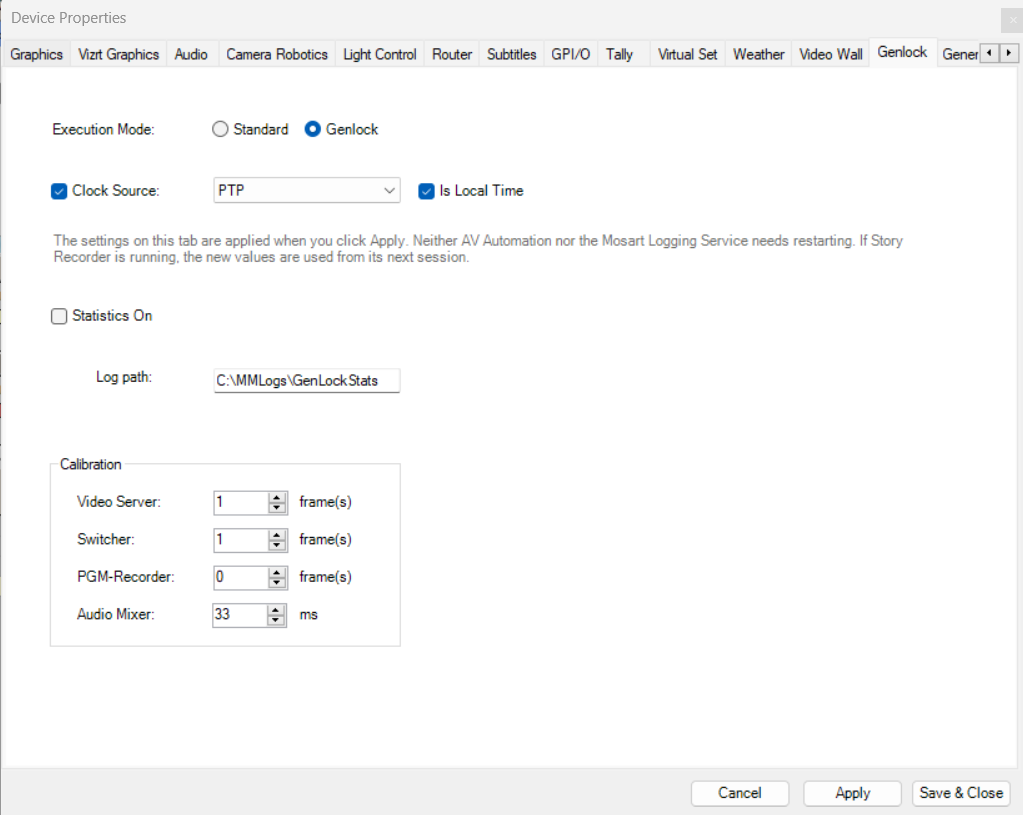
Once the Windows system clock is PTP-disciplined, confirmed with w32tm /query /status, configure Viz Mosart.
Setting | Value | Notes |
|---|---|---|
Clock Source |
| Selects PTP as the clock source. |
Enable Genlock |
| Must be enabled for PTP to function. |
External clock is local time |
|
|
Frame rate | Must match the PTP Grandmaster | For example 25 fps or 29.97 fps. A mismatch causes timecode drift. Frame rate is configured in Manus Settings, not in AV Automation. |
Clock Source, Enable Genlock, and External clock is local time are set in AV Automation. After changing Clock Source, restart AV Automation for the change to take effect.
Verification
Viz Mosart Status Bar
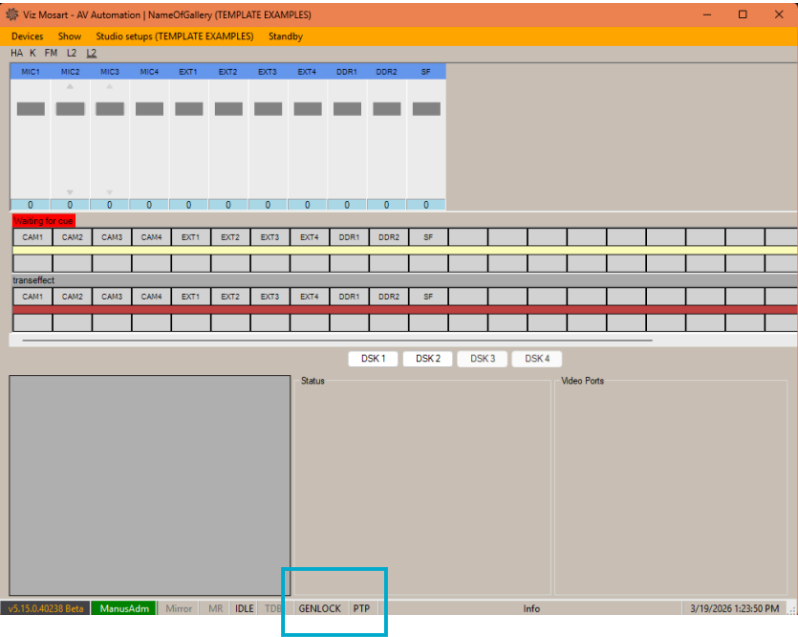
The genlock status bar in AV Automation indicates the current state:
Color | Meaning |
|---|---|
Orange | Viz Mosart is validating the PTP clock source. This is normal at startup, because it requires 100 consecutive good frames, about 4 seconds at 25 fps. The tooltip shows progress. |
No color, the default gray | PTP is locked and running normally. |
Yellow | PTP is running but something needs attention, for example W32Time lost PTP discipline or jitter is elevated. Check the tooltip for details. |
Red | The PTP clock source failed to start or is unhealthy. Check |

Genlock Statistics
Press Ctrl+Shift+I in AV Automation to start collecting genlock statistics. The status bar shows "PTP - STATISTICS ON" while collection is active.
Collection stops on its own once 10,000 samples have been gathered. Viz Mosart takes one sample per frame, so how long that takes depends on the frame rate: about 6 to 7 minutes at 25 fps, about 5 and a half minutes at 29.97 fps, and roughly half those times at 50 and 59.94 fps.
Press Ctrl+Shift+I again to stop earlier and write the results.
Three files are created in
C:\MMLogs\GenLockStats\by default:GenLockStats_Summary_<uid>.txt, a human-readable summary with conclusions.GenLockStats_FrameClock_<uid>.csv, the internal frame execution timing and jitter.GenLockStats_ExternalCS_<uid>.csv, the raw PTP clock source timing, phase shift, and timecode.
Send all three files to Vizrt Support.
Key items to check in the report:
Clock source type should show
PTP (SMPTE ST 2059-1).W32Time PTP Health shows the sync source IP address, stratum, phase offset, and Reference ID. A Reference ID of
0x4D505450confirms PTP discipline.Jitter should be consistently below 2 ms, and is typically within 0.1 ms.
Bad frames should be 0 during stable operation.
PTP Clock Quality in the conclusion section rates the overall quality. "GOOD" means all metrics are healthy.
Checking the PTP Offset Over Time
To monitor the offset between the local clock and the PTP Grandmaster:
w32tm /stripchart /computer:<GM_IP> /samples:10 /dataonlyValues should be consistently small, below 1 ms. Include this output when contacting Vizrt Support about timing issues.
Continuous Monitoring
Viz Mosart checks w32tm /query /status every 60 seconds to verify that the system clock is still PTP-disciplined. If PTP discipline is lost, for example through a network problem or the Grandmaster going offline, Viz Mosart detects this and shows a warning in the status bar within 60 seconds.
Troubleshooting
The PTP Provider is not Active (Free Running or Local CMOS Clock)
The troubleshooting commands below use variables for the long registry paths:
$ptp = "HKLM\SYSTEM\CurrentControlSet\Services\W32Time" + ` "\TimeProviders\PtpClient"$ntp = "HKLM\SYSTEM\CurrentControlSet\Services\W32Time" + ` "\TimeProviders\NtpClient"Is
ptpprov.dllregistered? Verify the registry withreg query $ptp. If values are missing, run Step 3 again.Is the PTP Grandmaster IP address correct? Check with
reg query $ptp /v PtpMasters.Is the PTP domain number correct? This is the most common problem, because the domain must match the Grandmaster. Check with
reg query $ptp /v DomainNumber.Is multicast reception enabled? It must be
0x1. Check withreg query $ptp /v EnableMulticastRx.Is the firewall blocking PTP? Check with:
Get-NetFirewallRule -DisplayName 'PTP*' | Select-Object Name, Enabled, Direction, ActionIs NTP still enabled and overriding PTP? Check with
reg query $ntp /v Enabled. The value should be0x0.Is W32Time running? Check with
sc query w32time.
Stratum 0 or Local CMOS Clock, Meaning the Provider never Engaged
Stratum 0 with Source: Local CMOS Clock means ptpprov.dll never engaged and the PTP provider is not properly configured. Verify:
Network connectivity, using
ping <GM_IP>.That the PTP domain number matches the Grandmaster.
That PTP multicast (
224.0.1.129) can reach the machine. Check the NIC and VLAN configuration.That UDP ports 319 and 320 are not blocked.
The Status Bar shows Yellow and Reports "not PTP-disciplined"
Viz Mosart checks w32tm /query /status every 60 seconds. If the ReferenceId is not 0x4D505450, a yellow warning appears. Fix the Windows PTP configuration first, and Viz Mosart detects the lock automatically within 60 seconds.
The Status Bar shows Red
The PTP clock source failed to start. Check:
That
w32tm /query /statusshows a valid PTP lock, withReferenceId0x4D505450.That Clock Source is set to
PTPand Enable Genlock isTruein AV Automation.That AV Automation was restarted after the settings were changed.
Timecode Mismatch between Viz Mosart and the Recorder
Frame rate. The configured frame rate in Viz Mosart must match the frame rate of the PTP Grandmaster. A mismatch causes progressive drift.
UTC against local time. If the recorder uses local time and Viz Mosart uses UTC, or the other way round, a fixed offset results. Adjust the External clock is local time setting.
Drop-frame. For 29.97 fps and 59.94 fps, make sure both Viz Mosart and the recorder agree on drop-frame timecode.
No PTP Packets reach the Machine
To verify that PTP traffic is arriving, use the built-in Windows packet monitor:
pktmon filter removepktmon start --etw -m real-timeLook for lines containing 224.0.1.129 and port 319 or 320. Press Ctrl+C to stop the capture. If PTP packets appear, traffic is flowing correctly.
Tip: Use an unfiltered capture. The pktmon UDP port filter does not reliably match multicast PTP packets.
If you see PTP packets followed by Drop: DropReason INET: transport endpoint was not found, this is normal before W32Time is configured. It means PTP traffic reaches the machine but nothing is listening on that port yet. Once ptpprov.dll is registered and W32Time is restarted, the drops stop.
If no PTP packets appear:
Verify that you are monitoring the correct NIC. PTP is typically on the media network, not the management network.
Check that the switch forwards PTP multicast to this port, which depends on the IGMP snooping configuration.
Confirm that the Grandmaster is on the same subnet or VLAN.