To ensure reliable operational synchronization between Viz Mosart and the studio equipment that it controls, the system can be calibrated to perform on a frame accurate level of timing precision.
This section introduces:
These pages complete the chapter:
Device Calibration: the tests that measure the latency of each controlled device, and where to enter the values.
Show Design for Frame Accuracy and Story Recorder: how to build templates and shows that run frame accurately.
PTP Setup: how to take genlock and timecode from a PTP grandmaster, from Viz Mosart 5.15.0 onward.
Why Frame Accuracy Matters
There are two areas where frame accuracy in a Viz Mosart controlled system are significant:
Predictable Behavior of Equipment
Unless it is known where in the frame the Viz Mosart command is issued, the response from the equipment will always be arbitrary.
In the figure below, the red bars represent the start of a frame. The outgoing Viz Mosart commands (cmd 1, cmd 2) are now aligned with the start of the frame grid (frame accurate).
Tip: The illustrations in this section are animated. If you are viewing a PDF, we recommend the HTML version of this document, the latest can always be found online from here.
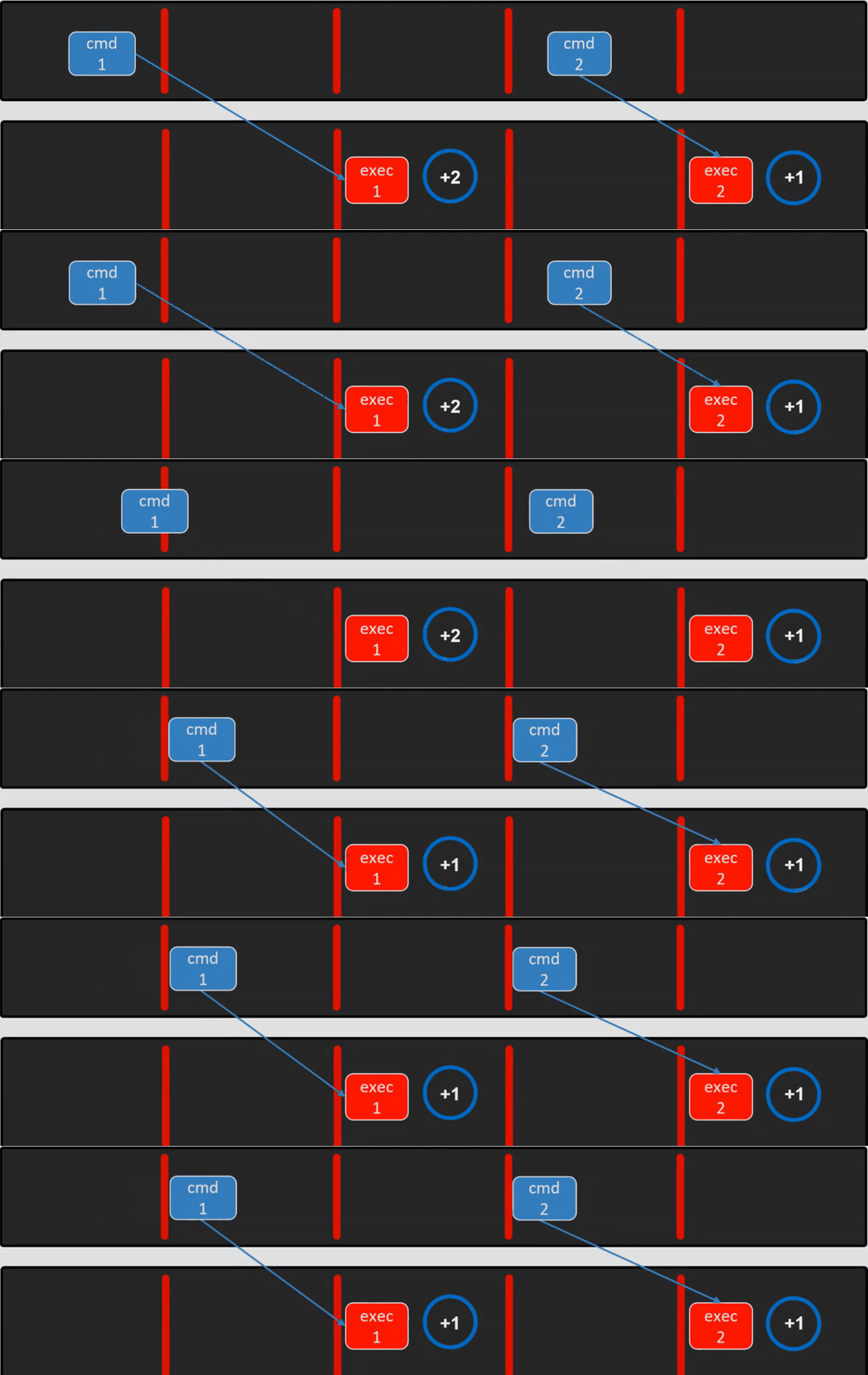
This provides deterministic behavior from the controlled equipment, as the equipment is always given exactly the same amount of time to respond (in the above figure, after one frame).
Without frame accuracy, cmd 1 might be fired already somewhere in the first or second frame above, and the gear will not operate at the anticipated frame, giving unpredictable results.
Latency Compensation
In non-frame accurate systems, Viz Mosart only compensates for delays in the behavior of the playout video server.
With frame accuracy, Viz Mosart can compensate for any latency of the controlled equipment.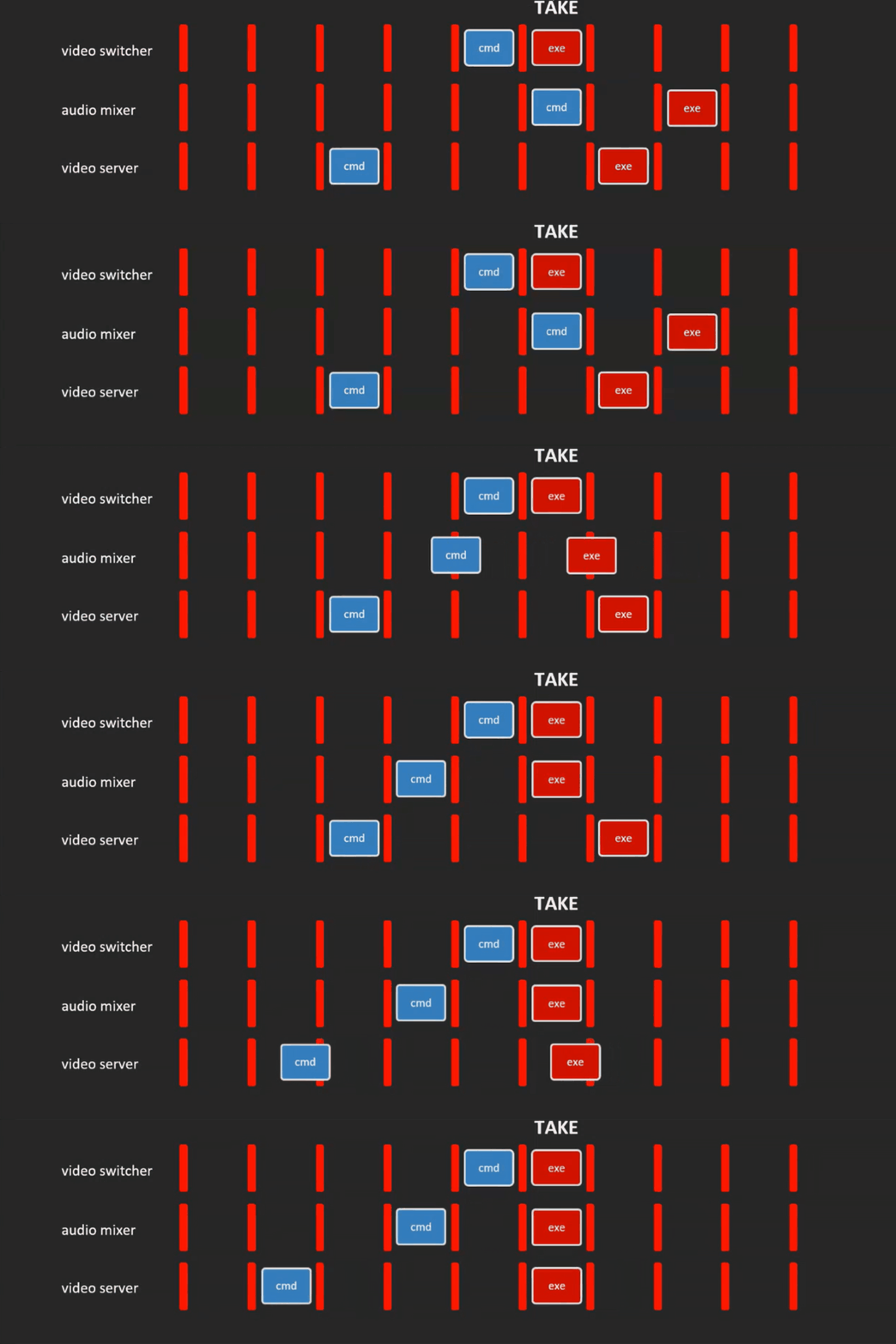
As a pay-off of Predictable Behavior of Equipment, a calibration process can reveal the latency of each piece of gallery equipment.
Viz Mosart can then compensate for these delays, by always executing commands earlier.
In the figure above, the three devices (video switcher, audio mixer and video server) have millisecond latencies of 1, 2 and 3 frames respectively.
After compensating by executing each command specifically earlier, Viz Mosart can now successfully perform the TAKE command, synchronized for all three devices, from the same frame.
Requirements
A clock source on the Viz Mosart server machines (main and backup). Either of the following options provides it:
A Plura timecode reader card, installed on the main and backup Viz Mosart server machines.
This implies that the machine must have a free slot for this type of card.
The card takes digital genlock (SDI), and delivers the traditional digital VITC and ATC-VITC as timecode formats. For the models in use and the firmware each one needs, see Plura card models and firmware.PTP, from Viz Mosart 5.15.0 onward.
Windows disciplines the system clock to a PTP grandmaster, and no additional card is needed. See PTP Setup.
Calibration has been performed.
A dedicated template set.
There will be timing differences for template execution under frame accurate operation. Latencies are automatically compensated for primary events.
Info: Whilst frame accurate operations are being continually developed and improved, not every feature from standard mode may be available or possible in frame accurate mode. This is also why a dedicated template set is essential.
Choosing a clock source
Both clock sources give the same frame accurate behavior. Pick the one that matches the facility:
Clock source | Viz Mosart version | What it needs |
|---|---|---|
Plura timecode reader card | Any supported version | A card in each Viz Mosart server machine, with a genlock feed and a timecode feed wired to it. |
PTP | 5.15.0 or later | A PTP grandmaster on the network. No extra hardware in the server machine. |
On versions before 5.15.0, and in any facility without a PTP grandmaster, a Plura card is the only route to frame accuracy. To use PTP instead, follow PTP Setup. Whichever clock source you choose, Viz Mosart still needs the latency of each controlled device, so run the tests in Device Calibration.
Plura card models and firmware
The card model and its firmware decide whether the video field interrupts arrive in the form Viz Mosart expects:
Card | Minimum firmware | Status |
|---|---|---|
PCL PCIe 3G | 3.16 | Verified. The card generation Viz Mosart has always been used with. |
PCL PCIe LV (v2) | 9.25 | In field use. Firmware 9.22 has an interrupt fault that Plura fixed in 9.25. |
PCL PCIe 3G (v2) | 9.27 | In field use. Firmware 9.22 mislabels the odd and even video field interrupts, so Viz Mosart never accepts the external clock. Plura fixed this in 9.27, tested at 1080i50. |
Enabling Frame Accuracy Operation
For frame accurate behavior, both Viz Mosart and the equipment it controls, require setup of both a genlock and timecode feed.
Genlock Settings
The switcher, video server (playout and recording) and Viz Mosart Server, all require genlock.Timecode Feed
Both the recorder and Viz Mosart Server require a timecode feed.
Info: Story Recorder can be used without having proper genlock setup and a timecode reader card installed on the Mosart Server machine, but only for testing. In this case, the time of the day will be used.
Configuring Viz Mosart for Frame Accurate Operation
Once the system, including all equipment has been calibrated, frame accurate operation can be easily switched on or off.
To activate frame accurate operations
Frame accuracy settings are made in Viz Mosart Central Settings.
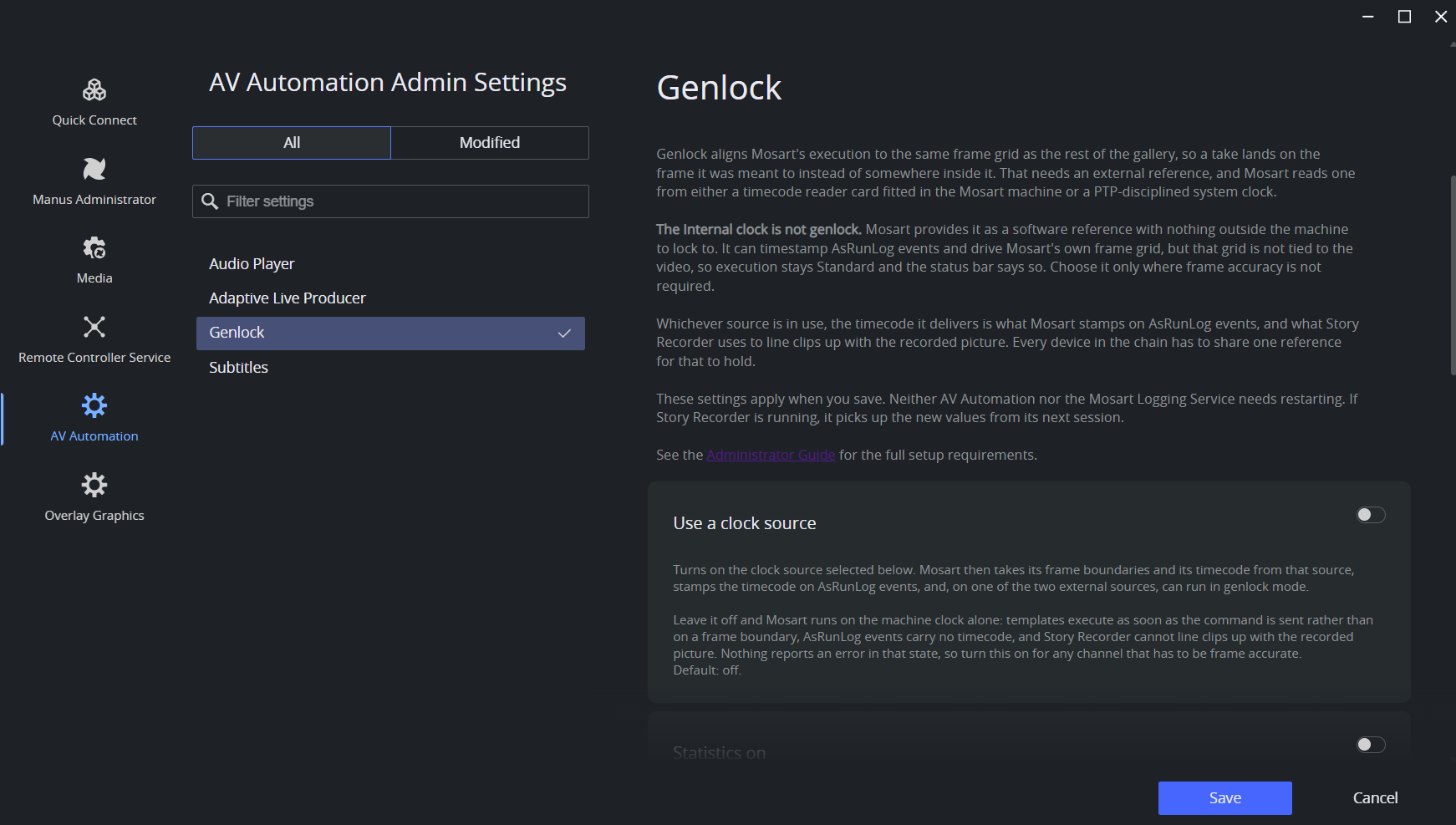
In AV Automation, open Central Settings, then select AV Automation > Genlock. The Genlock tab under Devices > Properties links to the same place.
Set
Use a clock source: switch on, then set Clock source to the clock the machine uses. Plura PCIe is the default. Select PTP if the Windows system clock is disciplined to a PTP grandmaster (Viz Mosart 5.15.0 and later).
Genlock mode: switch on. Genlock needs an external reference, so this is available on Plura PCIe and PTP only, and is hidden while the clock source is Internal.
Calibration: the individual latencies of the gear being controlled, as derived when calibrating the system. Each accepts a value from 0 to 100.
Click Save.
The changes apply immediately if Story Recorder mode is not enabled. There is no need to restart AV Automation or the Mosart Logging Service. If Story Recorder is enabled, the settings are taken into consideration in the next Story Recorder session.
Central Settings can be opened from Manus Administrator and Media Administrator as well, and a save there reaches AV Automation the same way.
Combinations of Genlock mode and Clock source:
Genlock mode | Clock source | Logic |
Off | Not in use | Classic mode. No timecode in the Viz Mosart logs. No statistics can be performed. |
Off | Plura PCIe or PTP | Classic mode. Timecode from the selected clock source is written in the Viz Mosart logs generated from AV Automation. |
On | Plura PCIe or PTP | Frame accurate behavior when executing Viz Mosart templates during a show. Timecode from the selected clock source is written in the Viz Mosart logs, generated from AV Automation. Viz Mosart falls back to the internal clock source if the selected clock source is detected as inaccurate. |
On | Internal | Not possible. The Internal clock is a software reference with nothing outside the machine to lock to, so it cannot drive genlock. Viz Mosart stays in Standard execution and the status bar reports Standard. Genlock mode is hidden while this clock source is selected, and switched off on save. |
On | Not in use | Not allowed. Viz Mosart will fall back to Standard execution mode, with no timecode. |
To deactivate frame accurate operations
In AV Automation, open Central Settings, then select AV Automation > Genlock.
Genlock mode: switch off.
Use a clock source: switch off.
Click Save.
Genlock and Timecode Reliability
Viz Mosart contains a high resolution internal genlock clock as a built-in safety mechanism which takes care of intermittent or lost external genlock and/or timecode signal.
Whenever the external genlock signal drops out or becomes unreliable, Mosart will fallback to the internal genlock clock. Mosart will return to external once the signal is reliable again.
Mosart effectively runs on the internal timecode clock, constantly synchronized to the external clock when available, keeping Viz Mosart in phase.
UTC or Local Time
Timecodes carry a time of day, and a time of day only has meaning together with a convention: UTC or local time. Two settings tell Viz Mosart which convention is in use:
Setting | Location | Meaning |
|---|---|---|
External clock is local time | Central Settings > AV Automation > Genlock | Describes the signal: whether the timecode from the master clock carries local time or UTC. |
Use local time | Central Settings > Manus Administrator > General | Chooses the convention Viz Mosart itself uses for timecodes, including every Story Recorder EDL and render command. |
When the two differ, Viz Mosart converts the incoming timecode to its own convention by adding or subtracting the UTC offset, so Viz Mosart's own clock works with any combination.
The video server sets the rule. Story Recorder computes every mark as the event timecode minus the Start of Media that the video server reports for the recording. That Start of Media is used exactly as delivered; Viz Mosart never converts it. Both values must be in the same convention, which reduces to one rule: Use local time must match the time reference of the master clock that feeds the video server. The rule covers every Story Recorder output: the Vantage and Mosart EDL files, and the render and export commands sent to Mimir and TriCaster.
Master clock output | Use local time | Story Recorder result |
|---|---|---|
UTC |
| Correct marks |
Local time |
| Correct marks |
UTC |
| Every mark offset by the UTC difference |
Local time |
| Every mark offset by the UTC difference |
How a mismatch shows up. Every mark is wrong by the same amount, and that amount equals the difference between local time and UTC (for example, 5 hours when the local time zone is US Eastern). When Story Recorder is enabled, Viz Mosart also logs a warning that the video server time differs from the Mosart time. Treat this as a configuration error; it cannot be calibrated away.
Note: Local time jumps with daylight saving; UTC does not. Facilities that record across a daylight saving change often run the house clock on UTC.
Info: A third setting also named UseLocalTime exists in LogRepositoryConfig.xml. It affects only the timestamps written to the log files, never the timecodes or the marks. Leave it at false so support can correlate the logs with other systems.
Calibrating the System
For Viz Mosart to function in frame accurate mode, a calibration process has been created to better understand the timings associated with the gear being operated.
Contact Vizrt Support for further details.The guide defines six tests that must be executed to detect the latencies (delays) introduced when operating gallery gear, so that Viz Mosart can compensate for these delays and verify equipment reliability.
The tests, the values they produce, and where to enter them are described in Device Calibration.
Timecode Readers
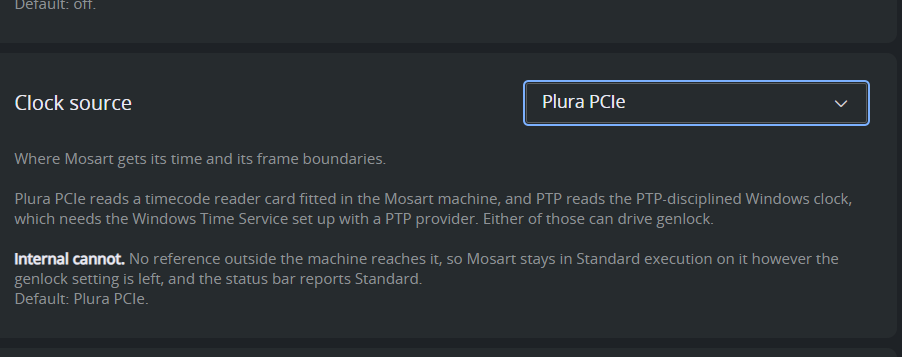
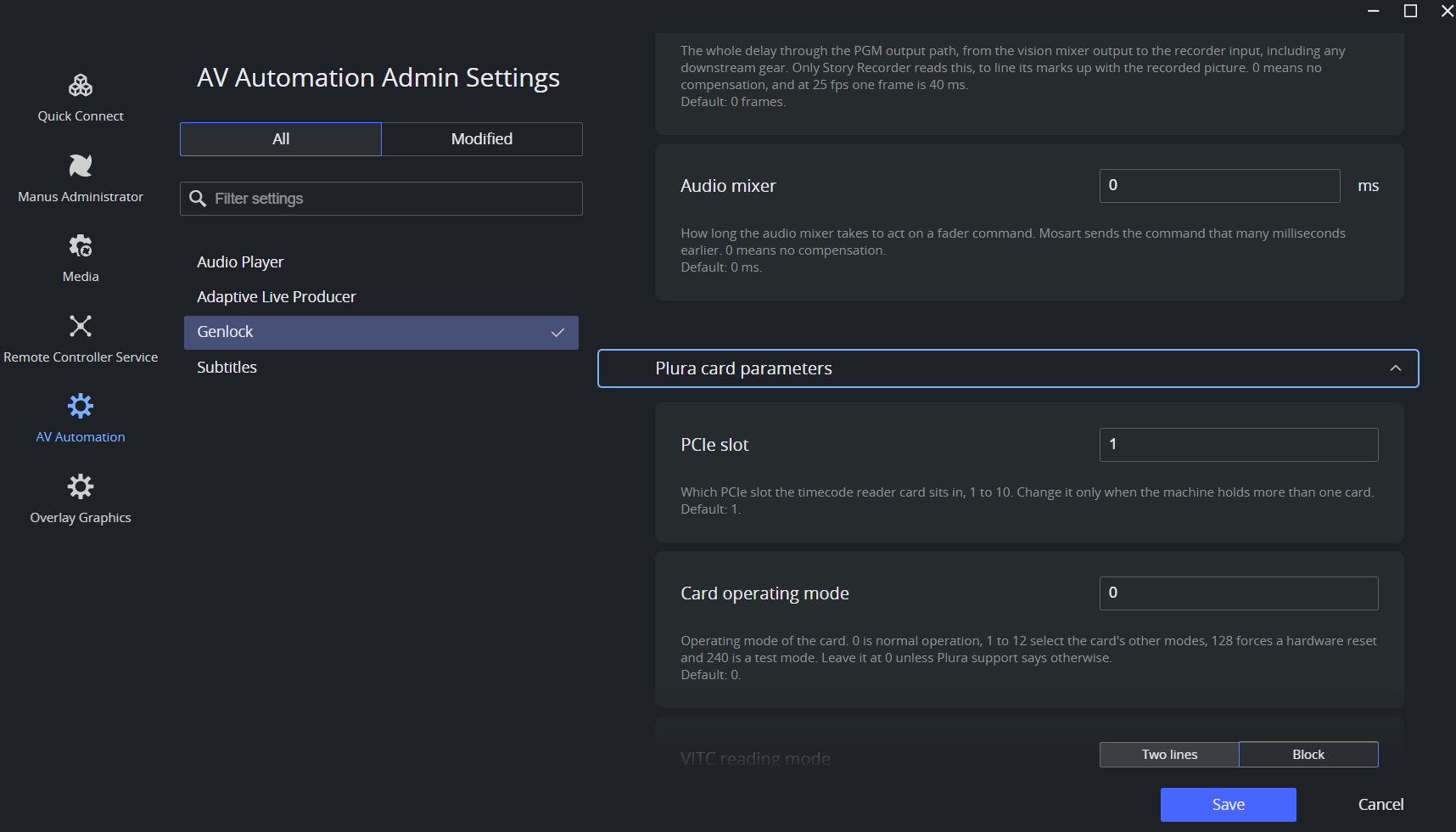
The properties of the Plura timecode reader card are set in Viz Mosart Central Settings, under AV Automation > Genlock, in the Plura card parameters section. The section appears only while the clock source is Plura PCIe.
To configure the Plura timecode reader card
In AV Automation, open Central Settings, then select AV Automation > Genlock.
Expand Plura card parameters and set the PCIe slot, the card operating mode, the VITC reading mode and line range, the reader priority, the timecode frame rate, and whether mid-frame events are raised. The defaults suit a standard installation; change them only when the card is fitted or fed differently.
Click Save. The card is reconfigured without restarting AV Automation.
Gathering Clock Source Statistics for Vizrt Support
Once Viz Mosart is set up for frame accuracy, it is recommended to perform clock source statistics that will verify the reliability of the genlock and timecode signals.
Follow the procedure below, and forward the results to Vizrt customer support, who will perform an analysis and report results.
To start clock source statistic gathering
In AV Automation, open Central Settings, then select AV Automation > Genlock and set:
Use a clock source on, with a Clock source selected.
Genlock mode on.
Statistics on: switch on.
Specify the location where you wish to save the stats in Statistics log path.
Click Save.
Check the indicator in the AV Automation status bar at the bottom of the screen, that statistics are on:
Collection stops on its own once 10,000 samples have been gathered. Viz Mosart takes one sample per frame, so how long that takes depends on the frame rate: about 6 to 7 minutes at 25 fps, about 5 and a half minutes at 29.97 fps, and roughly half those times at 50 and 59.94 fps.
You can stop the statistic measurements earlier by switching Statistics on off, as described in step (1) above.Collect the saved statistics from the location defined in Statistics log path (above). Viz Mosart writes three files. Send all three to Vizrt Support:
GenLockStats_FrameClock_<uid>.csv: the statistics for the Mosart frame clock, driven by the selected clock source (internal or external).GenLockStats_ExternalCS_<uid>.csv: the statistics for the configured external clock source.GenLockStats_Summary_<uid>.txt: a readable summary that carries the conclusions. Support finds this one the most useful of the three. One line is worth checking yourself:IsTcSyncedWithExternal = Trueconfirms that the timecodes are synced with the external source.Falsemeans Viz Mosart is frame-locked but the timecodes come from the PC clock, and every Story Recorder mark will carry a constant offset.
The
<uid>part is a date and time stamp in the formyyyyMMdd-HHmmss, so the highest value is the most recent run.
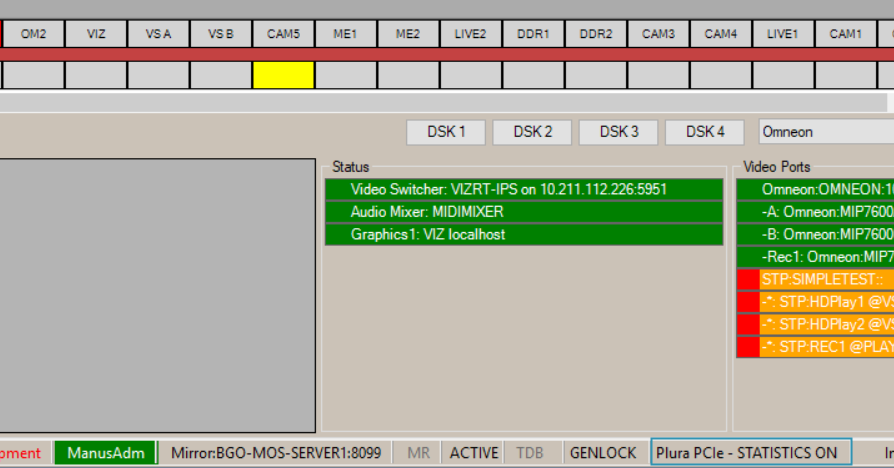
Tip: You can start/stop the clock source statistics by toggling the keyboard shortcut Ctrl+Shift+I directly in AV Automation, without opening Central Settings.
To analyze clock source statistics
This is a complex operation performed by Vizrt Support.
The frame clock (FrameClock) is used internally by Viz Mosart to execute templates frame accurately.
If the external clock source is not reliable (shown in red on the AV Automation status bar), the frame clock is driven by the internal clock source:
If the external clock source is reliable, the internal FrameClock should behave more or less as the external clock source.
This can be seen in MS Excel by comparing the chart generated (in Excel) from GenlockPeriodMs or JitterMs columns inGenLockStats_FrameClock_<uid>.csvfile,
with the chart generated from the same columns inGenLockStats_ExternalCS_<uid>.csv.

Genlock Logging
A new type of logging has been introduced with frame accuracy in Viz Mosart to help identifying problems related to genlock, if this is enabled.
To enable the genlock logging, copy the configuration file GenLogRepositoryConfig.xml from the Viz Mosart installation folder/Mosart Server/ConfigurationFiles to your working folder (Channeltemplates or ProgramData).
Open GenLogRepositoryConfig.xml in an editor and configure it in a similar way as the other type of logging (refer to System Logging). These configurations also include settings about when the logging files shall be purged.
The genlock logging is by default generated in C:\MMLogs\Genlock every time a new show is run in Mosart (whether Story Recorder mode is enabled or not).
A new genlock logging file is generated when a rundown is (re)loaded in Viz Mosart or when the show is paused whilst Story Recorder is enabled.
Tip: Contact Vizrt Mosart Support for assistance with
Statistics analysis
Calibration
Frame Accuracy in Story Recorder
For Story Recorder to provide high quality final shows, frame accuracy is a requirement. SR can also be run with Viz Mosart running in Standard mode, but only for testing.
See also the section Story Recorder of the Viz Mosart User Guide, and Show Design for Frame Accuracy and Story Recorder.
Limitations
Frame accuracy is only available on events driven from primary templates (clips, switcher, audio and full screen graphics), not secondary events (like overlay graphics or accessories).