Where to start
Symptom | Look at |
|---|---|
The Configuration Tool reports a service as offline, or a page does not load at all | Web Apps Configuration Tool, below: the proxy, the web applications service, or the external proxy |
Apps open, but no rundown data or timers arrive | Unable to reach the Viz Mosart Server, and Issues with Mosart Web Server Connecting to the Mosart Server |
Content loads slowly, or only the first 5 to 6 clients work | Slow loading or a client limit in the live apps |
Sign-in problems, an unauthorized-access screen, or saves that fail while the app looks fine | Sign-in and permission issues |
503 or 504 from a studio route | Not a fault in the Web Apps: no Viz Mosart server in that studio's pair is currently on air |
Web Apps Configuration Tool
The Mosart Web Applications Configuration Tool provides you with error or warning messages that assist with common issues.
These messages may include a link to the Viz Mosart web server log files. These temporary log files are saved in C:\Users<username>\AppData\Local\Temp, with names starting with the date they were created, followed by an ID.
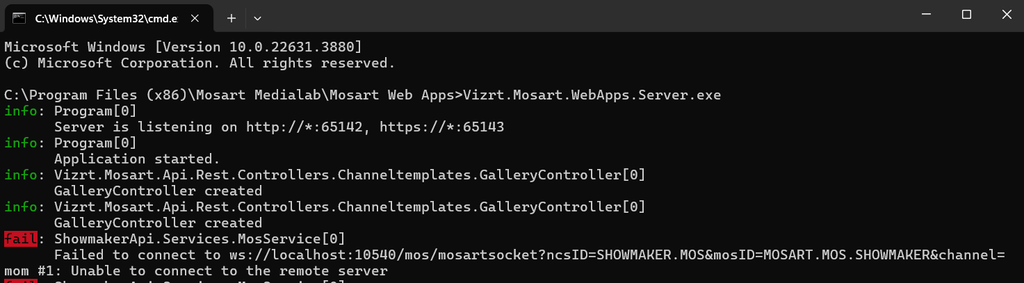
To troubleshoot issues, check the following locations for relevant logs:
Web server logs: By default, these are written to
C:\MMLogs\WebServer. The location is configurable in the web server configuration file:C:\ProgramData\Mosart Medialab\Mosart Web Apps\serverSettings.json.Look for theNLogConfigsetting.Proxy server logs: By default, these are stored at
C:\MMLogs\Mosart Web Proxy.Windows Event Log: Use the Event Viewer to check for system or application-related errors.
Browser logs: To view logs in your browser, press Ctrl+Shift+I (this toggles the Developer Tools panel). Do this while using the Mosart Web Applications Configuration Tool or any browser with a Mosart web application open.
The Mosart Web Proxy Service is not running or is not functioning properly
Review the settings in
The Server Configuration page.
Proxy server logs are located by default at C:\MMLogs\Mosart Web Proxy.The browser logs.
You can investigate your browser logs by typing CTRL+Shift+I (this is a toggle) in the Mosart Web Applications Configuration Tool or the browser where a Mosart web application is open.
Start the Mosart Proxy Service in console
If the Mosart Web Proxy service fails to start and there is little information in either the proxy logs or the browser, you can start Caddy in the console to troubleshoot the problem using the following command. If this is running as a Windows service, stop it first.
C:\Program Files (x86)\Mosart Medialab\Mosart Web Proxy>caddy2.exe run --config "C:\ProgramData\Mosart Medialab\Mosart Web Apps\Caddyfile"Typical situations are where Caddy fails to start because the port (default 55142 for HTTP and 55143 for HTTPS) is already in use by other applications or the certificate and/or the key files configured are not valid:
The Mosart Web Applications Service is not running or is not functioning properly
A common offline error occurs when the Windows service fails to start because its port is already in use. The default port is 65142 for HTTP and 65143 for HTTPS, and it can only be changed in the configuration file at C:\ProgramData\Mosart Medialab\Mosart Web Apps\serverSettings.json.
Note: Any changes to the Viz Mosart web server configuration file (C:\ProgramData\Mosart Medialab\Mosart Web Apps\serverSettings.json) are overwritten when you press Save in the Mosart Web Applications Configuration Tool.
Review the settings in
The Server Configuration page.
Web server related logs written in the Windows Event Log accessible from the error message in the Mosart Web Applications Configuration Tool.
Web server logs written on disk (default location “C:/MMLogs/WebServer“ configurable in the web server configuration file, C:\ProgramData\Mosart Medialab\Mosart Web Apps\serverSettings.json - search for setting NLogConfig).
The browser logs. You can investigate the browser logs by typing CTRL+Shift+I (this is a toggle) in the Mosart Web Applications Configuration Tool or the browser where a Mosart web application was opened for more details.
You can also try restarting the service with the Restart button in the error message in the Configuration Tool.
Start the Mosart Web Applications Service in console
If the Mosart Web Applications service fails to start and there is little information in either the web server logs or the browser, you can start the service in the console to troubleshoot the problem. If this is running as a Windows service, stop it first.
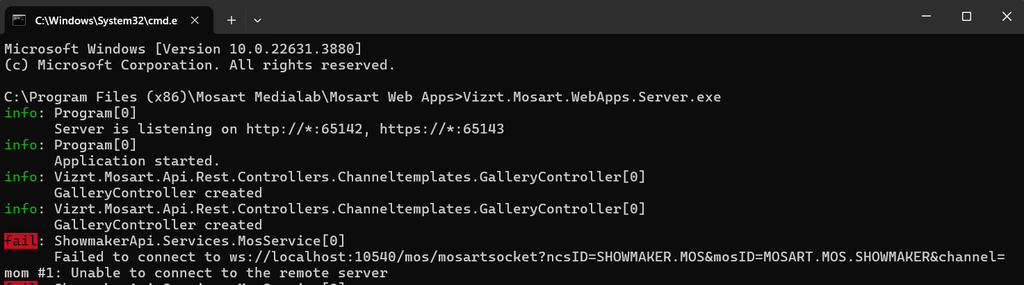
Typical situations are where the web server fails to start because the port (default 65142 for HTTP and 65143 for HTTPS) is already in use by other applications or the certificate and/or the key files configured for HTTPS are not valid.
The External Proxy Service is unreachable or not functioning properly
Review the settings in
The Server Configuration page.
External proxy configurations.
The web server logs accessible from the error message in the Mosart Web Applications Configuration Tool.
The browser logs. You can investigate the browser logs by typing CTRL+Shift+I (this is a toggle) in the Mosart Web Applications Configuration Tool or the browser where a Mosart web application was opened.
Unable to reach the Viz Mosart Server (main or backup)
Some of the Mosart Web Applications might not function as expected. Ensure that the Mosart Remote Control Service (RCS) located on the Viz Mosart server is running. Review the settings in the Server Configuration page, web server log file accessible from the error message in the Mosart Web Applications Configuration Tool or the browser logs for more details. You can investigate the browser logs by typing CTRL+Shift+I (this is a toggle) in the Mosart Web Applications Configuration Tool or the browser where a Mosart web application was opened.
Check the status of the Viz Mosart server
In a browser, paste the URL to the Viz Mosart server status endpoint:
HTTP
http://<mosart-server-host>:55167/status for HTTP
HTTPS
https://<mosart-server-host>:55168/status for HTTPS
Using a Web proxy
http://<webproxy-url>:55142/mosart/main/status
Note: In the first two examples above, replace <mosart-server-host> with the hostname, IP address or the FQDN of your Viz Mosart server.
Info: /status needs no credential, even when the Mosart server runs with authentication enabled, so it stays usable as a health check. The versioned alias /api/v1/status does require one.
You should get a result similar with the following (serverDescription is not available in older Mosart versions):
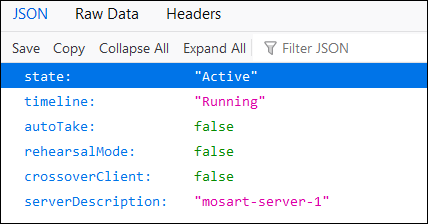
If no response is received:
Ensure that the Viz Mosart server version is compatible with the Viz Mosart Web Applications. Refer to the Release Notes for System Requirements.
orStart Mosart Remote Control Service (RCS) as console to investigate further the issue. If the service is running as Windows service, stop it first.
Typical situations are where RCS fails to start because the port (default 55167 for HTTP and 55168 for HTTPS) is already in use by other applications or the certificate and/or the key files configured for HTTPS are not valid:
Viz Mosart Server version might be incompatible with this version of Viz Mosart Web Applications
Please review the corresponding version Release Notes for product interoperability.
If HTTPS is used, this must be enabled on both Viz Mosart Server and Viz Mosart Web Applications
You may get this warning messages because no updates could be retrieved from Viz Mosart server.
Ensure that the Viz Mosart server version is compatible with the Viz Mosart Web Applications. Refer to the latest Release Notes for System Requirements.
Ensure that HTTPS is used and enabled on both Viz Mosart server and the Viz Mosart Web Applications. Check the settings in the Server Configuration page, Viz Mosart web server log file or the browser logs (CTRL+Shift+I in the Configuration Tool) for more details.
Check the status to the Viz Mosart server as described above.
If the server answers on its status endpoint but requests through the web apps fail with 500 and authentication is enabled, the cause is usually on the Mosart server itself: it cannot reach the identity provider. See the Viz Mosart Administrator Guide, chapter Security in Viz Mosart Ecosystem.
Sign-in and permission issues
These apply when authentication is enabled. The web apps read the user's roles from the token your identity provider issues; roles are never assigned in Viz Mosart. For the full setup and the identity provider requirements, see the Viz Mosart Administrator Guide, chapter Security in Viz Mosart Ecosystem, and the Authentication page.
Symptom | Cause |
|---|---|
A signed-in user gets an unauthorized-access screen | That user holds no role for the app. Assign one in the identity provider. Note that a user with no role does not get a read-only view. |
Everybody is locked out right after enabling authentication | No roles assigned yet, or the role names do not match. The Named Overlays Editor roles are |
An app looks correct, with all its controls, but every save fails | The roles reached the ID token only. They must be present in both the ID token and the access token: the Web Apps server reads the ID token to decide what the app shows, the Mosart server reads the access token to accept or refuse the call. |
An unattended screen, such as a wall display, shows a login page some hours after it was started | The |
The NRCS Plugin stays blank inside ENPS, with no certificate warning | Either the Content Security Policy on the identity provider does not list the ENPS host under |
Mosart Server Settings under Help & Resources is dimmed, or asks for sign-in when opened | The settings editor is not enabled on that Mosart server, or OIDC authentication is enabled and the editor has no browser sign-in. See Configuration Tool. |
An integration that used to work now returns 401 | Expected if it authenticates with the Mosart REST API key: enabling OIDC on the Mosart server switches the key off. |
Slow loading or a client limit in the live apps
If you experience the following issues with the live apps (Rundown Viewer, Smart Panel, Prompter):
The content loads slowly or only partially.
You cannot open more than 5-6 web sessions, meaning that opening the web application in multiple browser tabs or instances fails after 5-6 clients.
These problems may indicate that HTTPS is not properly configured across all relevant components.
In the screenshot below, the 6th Rundown Viewer client displays an error connecting to the Mosart server, while the other clients are functioning correctly:
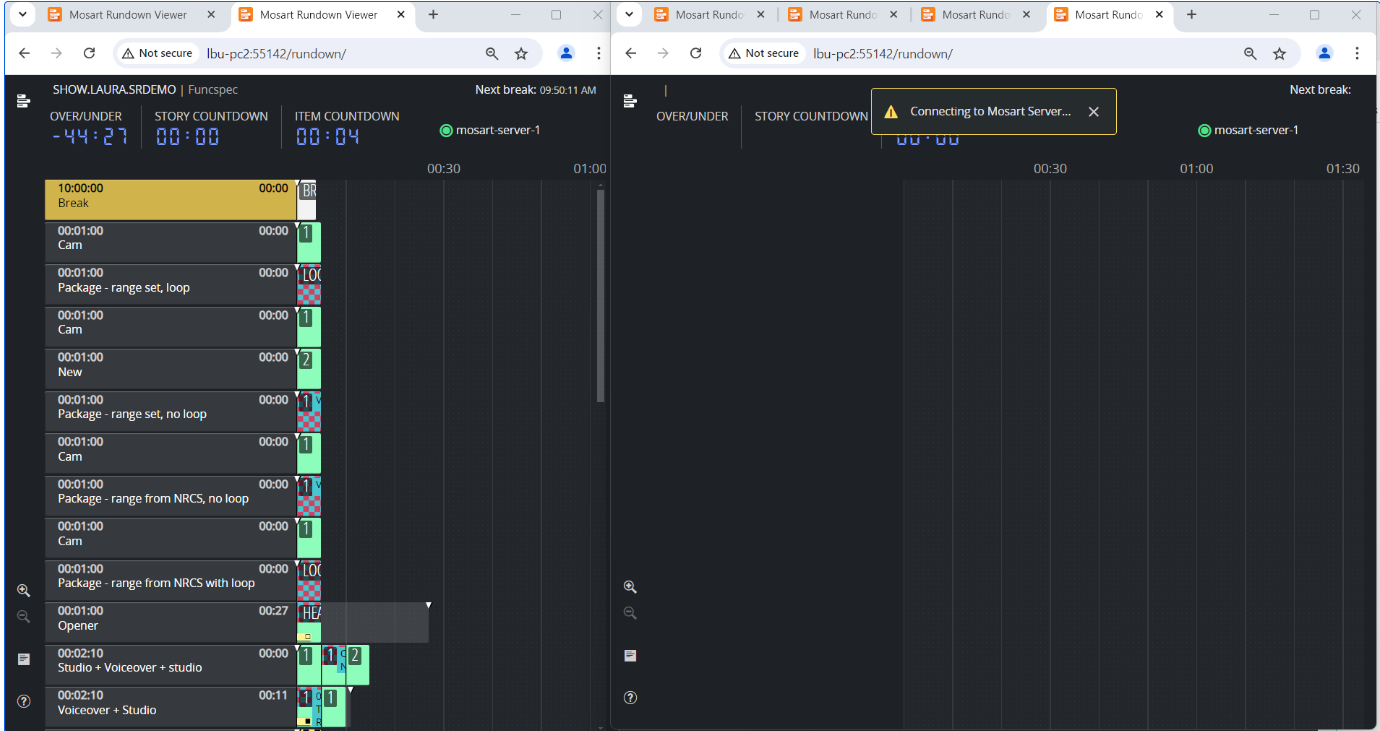
Troubleshooting Steps:
Inspect Browser Logs:
Open the browser's Developer Tools and go to the Network tab.
Inspect some of the URLs. For example, you might see a request URL to the Mosart Server like
http://proxy-server:55142/mosart/mosarthub/negotiate?name=MosartWebUI&negotiateVersion=1.A "307 Temporary Redirect" status code indicates that the resource has been temporarily moved to a different URL. This suggests that the proxy server (Caddy) has redirected the client to use HTTPS instead of the original HTTP request.
Understand the issue:
In this example, the client (the Rundown Viewer in the web browser) initially made a request over HTTP to the Mosart server, but the proxy server redirected it to HTTPS.
This indicates that HTTPS is configured for the Mosart server but not for the Mosart web server and the proxy server.
By default, the Mosart Web Proxy is configured to enforce HTTPS by redirecting HTTP requests to HTTPS before they reach the Mosart server, if the Mosart server is set up with HTTPS.
Fix the problem:
To resolve this issue, enable HTTPS for the Mosart web server and the proxy server (internal or external) using the Mosart Web Apps Configuration Tool.
Issues with Mosart Web Server Connecting to the Mosart Server
Mosart Remote Control Service (RCS)
Issues with Mosart web server connecting to the Mosart Remote Control Service (RCS), may be due to the RCS not automatically detecting the fully qualified domain name (FQDN) of the machine where it is installed.
For enhanced security and connection stability between the Mosart web server and the Mosart Remote Control Service, the setting SignalR allowed origins lets you specify an exclusive list of origins that may access the SignalR service used for communication with the RCS.
To configure it, open the Mosart settings on the Viz Mosart server, from Manus Administrator (type settings in the console), AV Automation or Media Administrator, and go to Remote Controller Service > Security:
Set SignalR allowed origins to a semicolon-separated list of origins, including the fully qualified domain name of your Mosart server, for example
https://app.example.com;https://admin.example.com. Left empty, the auto-detected host names are used.Restart the Mosart Remote Control Service. The setting is marked "Requires restart".
Note: For Mosart applications that rely on SignalR for real-time communication, such as the Rundown Viewer, Smart Panel and Prompter, defining the allowed origins is essential when a failure to recognize an FQDN prevents communication with the RCS.
Info: In earlier versions this value was set as SignalRAllowedOrigins by hand in the RCS configuration file RemoteDispatcherServiceConfig.xml. Use the setting above instead; a value edited directly in the installation folder can be replaced on upgrade.
Firewall Ports
Ensure the default ports have access.
Browser Logs
To investigate browser logs
In failure situations, you can use your web browser to access the Mosart Web Apps directly and further investigate the browser logs.
In the App Launcher, click on a web app to open it in the default browser, or paste the web app link directly into your preferred browser:
Application
Address
NRCS Plugin
http(s)://<your-hostname>:<web-proxy-port>/plugin/?nrcs=ENPS&mosid=mosart
Rundown Viewer
http(s)://<your-hostname>:<web-proxy-port>/rundown
Smart Panel
http(s)://<your-hostname>:<web-proxy-port>/smartpanel
Prompter
http(s)://<your-hostname>:<web-proxy-port>/prompter
Showmaker
http(s)://<your-hostname>:<web-proxy-port>/showmaker/
Named Overlays Editor
http(s)://<your-hostname>:<web-proxy-port>/namedoverlayseditor
Template Editor
http(s)://<your-hostname>:<web-proxy-port>/templateeditor
In a multi-studio installation, add
?studioId=<studio>to open a studio-scoped app against that studio.Type CTRL+Shift+I (this is a toggle) in the browser and inspect the Console tab or the Network tab.