This section walks through the setup steps of a tool:
Installed Tools
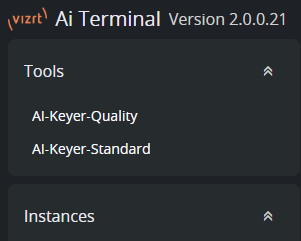
The installed Viz AI tools are listed in the top-left section of the AI Terminal.
Create and Terminate a Tool
Click on a tool to open its configurations.
Click the
 button to go back to the list of installed tools.
Create a new configuration with the
 button.
Launch with an existing configuration using the power on/off
 switch.
The
 button reveals more options to rename, duplicate, or delete a configuration.
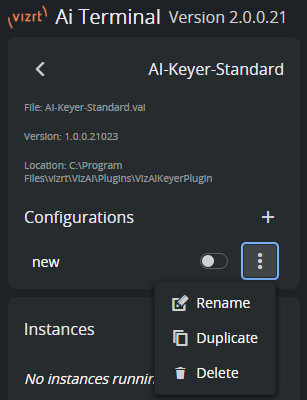
Once started, a new instance pops up below. The instance starts with a console window. Close the newly created window or toggle off the power on/off switch to terminate the tool.
Tool Configuration
Select a tool instance and a view similar to the image bellow is shown:
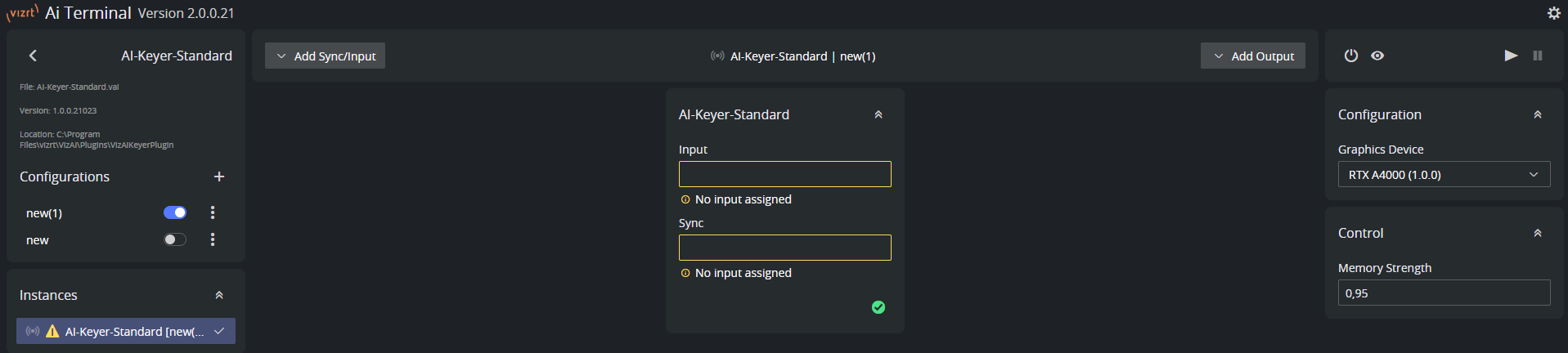
The tool configuration view contains the following:
If an error or warning is present, this is indicated with a corresponding icon in the instances list on the left.
Find the configuration and control options in the right panel. The control options remain editable while the tool is running.
Find the input and output configuration in the center panel. The input and output configuration is further documented in the I/O Modules chapter.
Run and stop the tool with the play and pause buttons on the top of the right panel.
During the configuration, warnings and errors indicate if a parameter is not specified as expected:
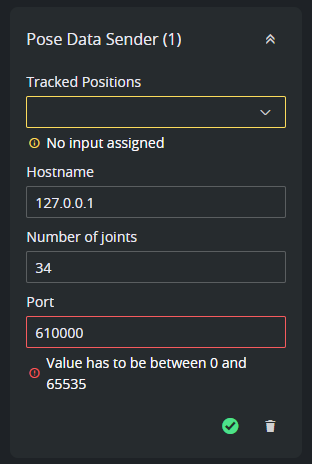
Run and Pause a Tool
If no configuration errors are present, the tool is launched with the play button on the top of the right panel.
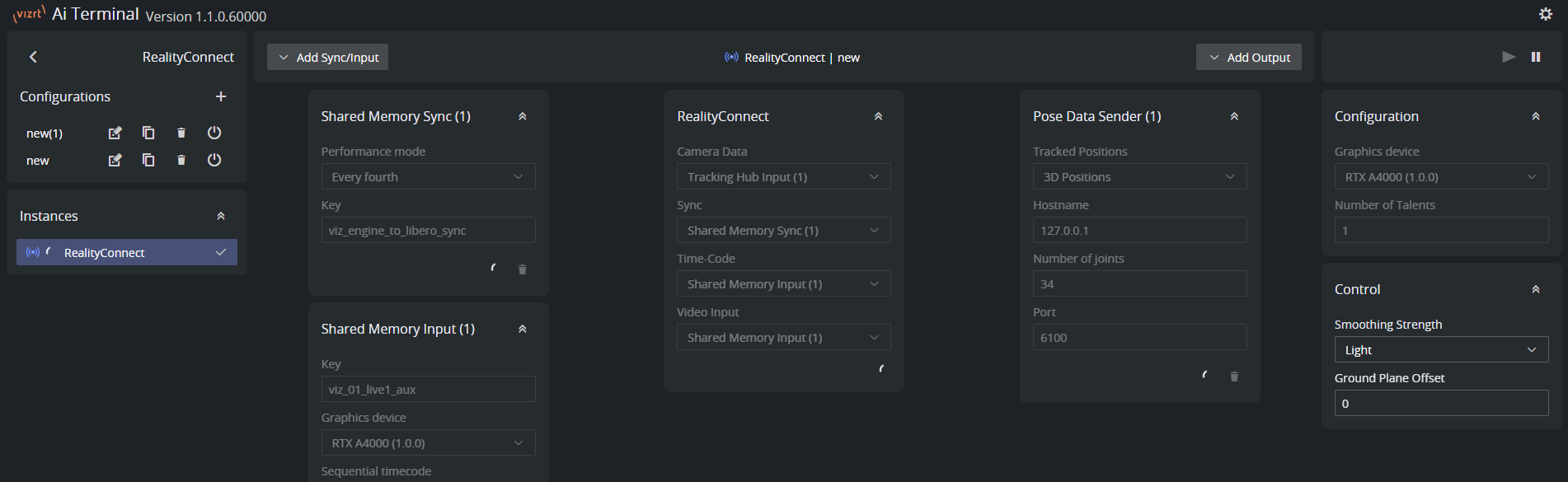
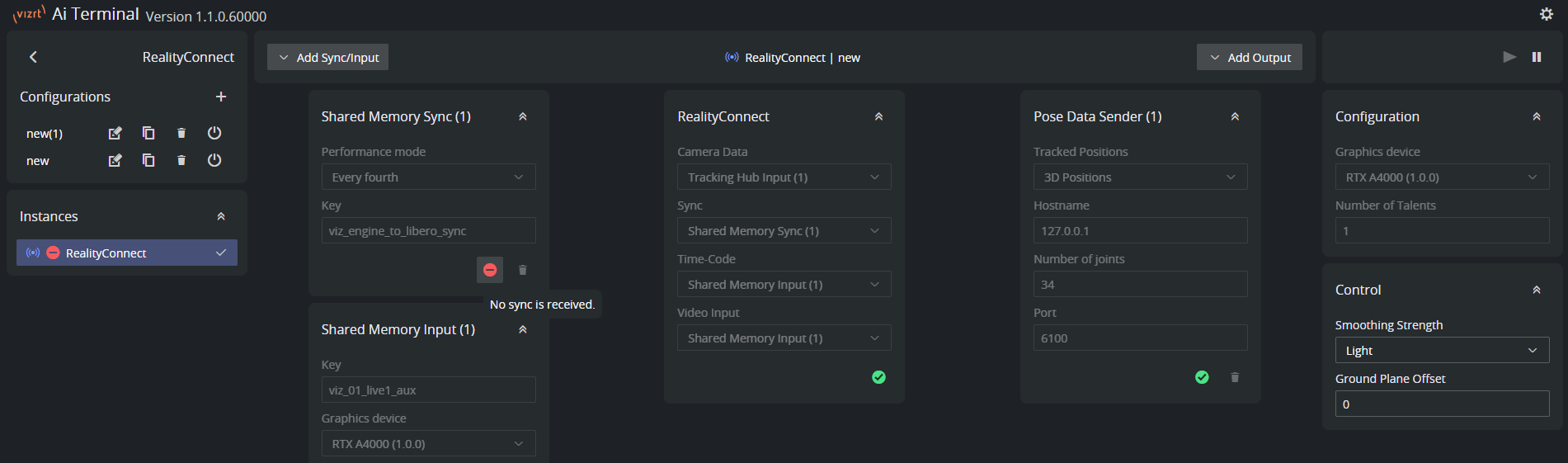
After initialization, which is indicated by spinning wheels, icons indicate the running state for each of the elements. On hover, a tooltip text gives more information about what is causing the error or warning. To change configuration, first pause the tool with the pause button on the top of the right panel and resume the tool after the configuration is changed.
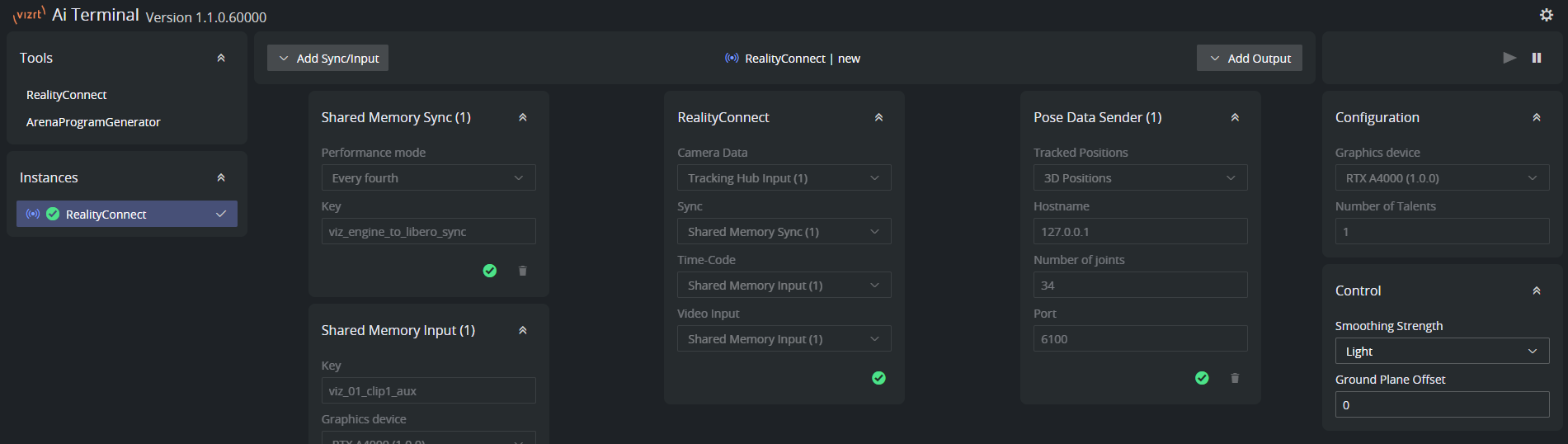
If everything runs as expected, all icons turn into green check marks.
Note: The configuration is automatically stored per tool and configuration and is restored when starting a new instance.
Note: While running, only control parameters and actions are enabled. To change configuration, first pause the instance.
Errors and Warnings
Note: Errors and warnings of the input and output adapters are listed in the I/O Modules chapter.
Severity | Text | Potential Fixes |
|---|---|---|
Error | Tool has failed processing. Revisit the tool's configuration parameters. |
|
Error | Tool failed to setup. Revisit the tool's configuration parameters. |
|
Warning | One or multiple frames were dropped. Consider to choose a different performance mode. |
|