Viz Pilot Edge supports dynamic and advanced customization of the fill-in form through template scripting. Scripts are authored in TypeScript and are compiled on the fly to JavaScript for execution in the browser environment. Both the TypeScript source and the compiled JavaScript are stored in the Viz Pilot backend.
The scripting API provides three main entry points:
The
vizrtobject, gives access to template fields, events, and template-specific data structures.The
appobject, provides application-level functionality.
With these components, template authors can control the appearance and behavior of templates, automate workflow steps, and populate fields with data from external sources.
The following sections cover these topics in more detail:
Script Technology and Security
The scripting language in the template editor is TypeScript. All JavaScript is valid Typescript, so you can choose which language to use inside the editor. However, syntax highlighting and error checking expect TypeScript. The script inside the editor is automatically compiled into JavaScript and stored as both Typescript and JavaScript within the template. When a template script executes in the browser, it runs through the browser’s Web API.
When executing scripts through the browser, security is subject to the browser's default security policies. This includes:
CORS (Cross-Origin Resource Sharing): Requests to external servers may be blocked if the correct CORS headers are not set.
Same-Origin Policy: Scripts can only interact with resources from the same domain unless explicitly permitted.
Sandboxing: If hosted within an iframe, additional restrictions may apply depending on the host’s configuration.
To avoid unexpected issues, ensure that your server is properly configured to allow cross-origin access if needed.
Fetching Data from External Servers
If your script fetches data from external sources (for example, sports statistics or news feeds) and these servers do not support CORS, you must:
Use a proxy server to relay the request.
Make the request through the proxy, which must be configured to handle the external API call and return the data with appropriate CORS headers.
Jump to Preview Point
To refresh the preview or jump to a specified preview point in the current graphics, use the app.jumpToPreviewPoint method with a named preview point as a parameter. Sending an empty string, jumps to the default preview point in the scene.
vizrt.onClick = (name: string) => { if (name === "jump2") { console.log("jumping to preview point 2") app.jumpToPreviewPoint("pilot2") }}Temporary Storage
In some scenarios, temporary storage beyond standard script variables, is useful. This storage functions similarly to a field in the model and can be referenced as a source in a Dynamic Drop-Down.
Using vizrt.$data
A special object, vizrt.$data, is available in scripting. This object acts as a key-value map where you can freely define your own keys (the values must be strings).
vizrt.$data.mykey = "myvalue"In this example, the key mykey is assigned the value "myvalue".
Dynamic Drop-Down Integration
You can use a key in the $data object as a source for dynamic drop-down, for instance $data.mykey, replacing the use of a traditional model field. The source data is not stored in the payload.
vizrt.$data.mykey = "[{"label": "Tottenham Hotspur", "value": "tottenham"}, {"label": "Liverpool", "value": "liverpool"}, {"label": "Manchester City", "value": "mancity"}]"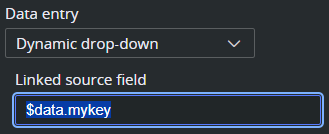
See also Dynamic Drop-Down.
Debugging
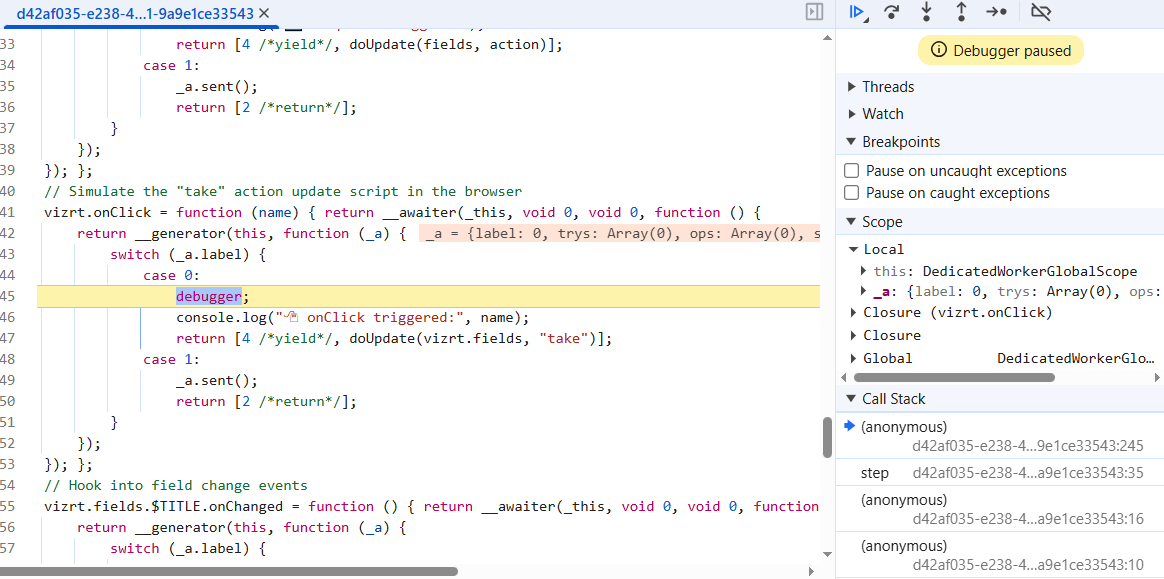
Debugging scripts running in Template Builder can be challenging, as they execute within the embedded browser environment. However, you can force execution to pause at a specific line by inserting the JavaScript debugger statement, but the browser’s Developer Tools must be open for the statement to take effect. When Developer Tools are open and the runtime hits a debugger statement, execution halts and you can inspect the call stack, scope variables and source files.
Example
// Simulate the "take" action update script in the browservizrt.onClick = async (name: string) => { debugger console.log("🖱 onClick triggered:", name); await doUpdate(vizrt.fields, "take");};When this code runs, the browser pauses execution at the debugger line, enabling you to inspect the script using the browser's developer tools.