Field Access
When using the scripting tool in the template, individual fields must be accessed through the global name space vizrt.fields (for example, vizrt.fields.$singleline.value).
Note: Writing $singleline.value instead of vizrt.fields.$singleline.value does not work and results in a compile error.
The script executes when a graphic element is opened or created with the scripted template in Viz Pilot Edge.
In Template Builder, the script is also re-loaded and restarted when there are changes made to it.
By typing vizrt.fields, the editor's autocomplete shows you the available fields to choose from.

You can read and write field values, react to value changes from outside the script, and access the properties error, hidden, readOnly and tip of the vizrt fields.
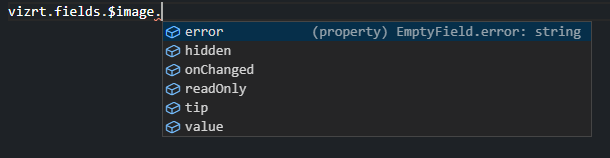
onChanged: A property on fields that you can set as a function. If set, this function is called whenever the value of the field changes and receives the new value as an argument. If not set, it is null.
Note: Changes made to field values by the template script do not trigger the onChanged function.
readOnly: Read and write boolean access, to whether the field should be editable in the form or not. If false , the field and its input elements are editable in the UI. If true , they are read-only and greyed out in the UI, but are accessible, saved and loaded as part of the payload.
hidden: Read and write boolean access, to whether the field should be editable in the form or not. If false , the field and its input elements are present and visible in the UI. If true , they are hidden from the UI but are accessible, saved and loaded as part of the payload.
error: Read and write string access, to an error to display for this field. It overrides other error messages associated with the field when non-empty (e.g. errors due to input length or regex constraints specified in the field definition).
tip: Read and write string access to provide a tip for this field. It overrides the tip specified in the field definition when non-empty.
Note: Dashes cannot be used in TypeScript with the dot syntax. Use vizrt.fields["$01-week"] syntax to access such fields.
Typescript lets you access fields using known names (for example, vizrt.fields["$field_2"]), but does not allow expressing the field names using variables (for example, vizrt.fields["$field_" + num]), as it is unable to determine whether the field name is valid and what type the field is.
This must be used, for instance, when addressing the layers in a Transition Logic combo template, such as: vizrt.fields["$-vizlayer-TL_FS"].
To overcome this, the type checking associated with vizrt.fields can be locally ignored by using the any type. You may do so inline using for example (vizrt.fields as any)["$field_" + num], or storing it as a new variable, as shown in the example below.
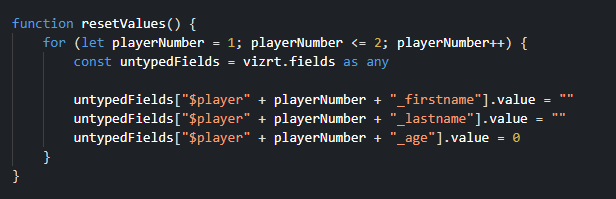
Note: When using an object cast to any, the script editor cannot help you catch errors such as setting a boolean value to a string field, or trying to access a field that does not exist.
List Fields
In TemplateBuilder, a list field represents a repeating set of rows, similar to a table. Even though Viz Artist uses the term ControlList, the underlying VDF field type is simply a list, and each row contains a fixed set of child fields (effectively table columns).
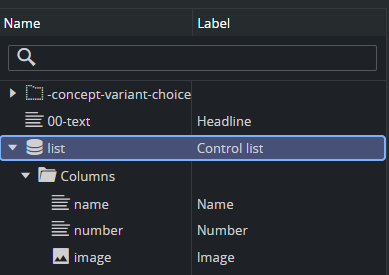
A list field is accessed as follows:
const list = vizrt.fields.$list.value;list now contains an array of rows, and each row exposes its columns as simple child fields:
list[rowIndex].$name.value = "Example";list[rowIndex].$number.value = "123";list[rowIndex].$image.value = createImageAsset("http://example/image.jpg");Field Naming
It is recommended to use clean names without hyphens for column names. Child fields are then accessed directly using:
$name$number$imageetc.
This makes the list behave like a typed table where each row has well-defined columns. If column names contain hyphens (for example, $11-number), you cannot use the dot syntax in TypeScript. Instead, access the field using bracket notation: list[i]["$11-number"].value = "123";.
See Quick Start Examples for a full list example.
Read-only Fields
Map fields are currently supported only for read-access by the scripting API.
Individual properties for the Image and Video fields (height, width, etc.) are read-access only. Changes to those fields must change the entire value.
The following example shows how to retrieve the image height:
vizrt.fields.$ImageInfo.value = "No image info";vizrt.fields.$image.onChanged =() => { vizrt.fields.$ImageInfo.value = 'Image changed'; var v = vizrt.fields.$image.value; if(v != undefined && v.height != undefined) vizrt.fields.$ImageInfo.value = v.height.toString(); else vizrt.fields.$ImageInfo.value = "No image info";}Note: Because images and videos can be undefined, they must be checked before they are used.
Accessing Concepts & Variants
To access information from concept and variants fields, because they contain dashes, you must use square brackets, as shown in the example below.
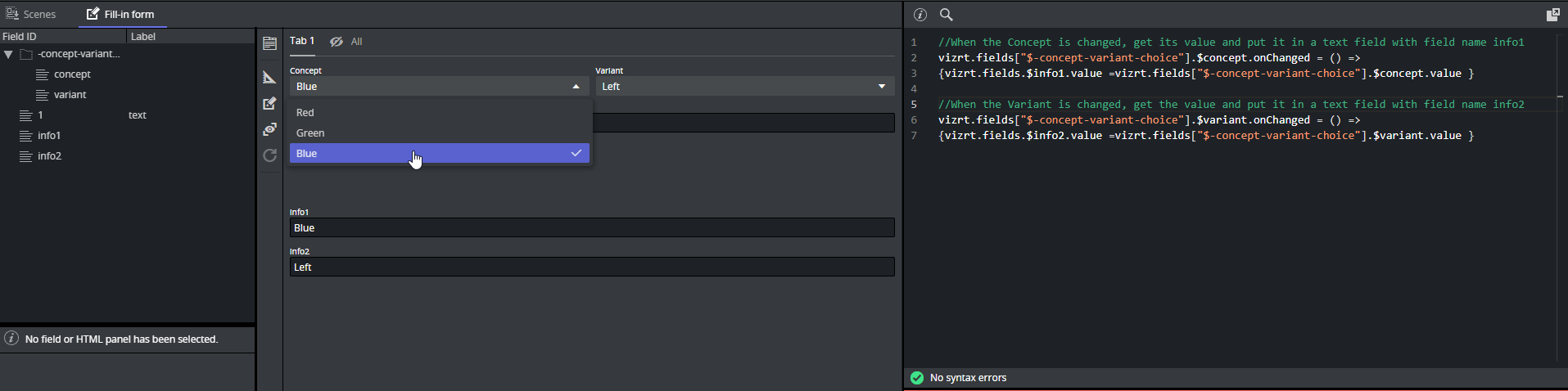
//When the Concept is changed, get its value and put it in a text field with field name info1vizrt.fields["$-concept-variant-choice"].$concept.onChanged = () => {vizrt.fields.$info1.value = vizrt.fields["$-concept-variant-choice"].$concept.value }//When the Variant is changed, get the value and put it in a text field with field name info2vizrt.fields["$-concept-variant-choice"].$variant.onChanged = () => {vizrt.fields.$info2.value = vizrt.fields["$-concept-variant-choice"].$variant.value }Fetching Data From External Sources
Whether on template load, or as a reaction to a field change, you can initiate HTTP, HTTPS or REST calls to fetch values from third-party or external services.
This can be done via the browser's built-in fetch API: https://developer.mozilla.org/en-US/docs/Web/API/Fetch_API.
Info: See the Quick Start Examples section for a short example of a REST call triggered by an onChanged event.
Image Metadata
Every image has some amount of metadata attached to it, and with this field you are able to access this metadata by using the script editor.
You can upload images and the corresponding metadata to asset source servers. By accessing an image's metadata, you can auto-fill the name field within a template or display or hide an image that might be copyrighted.
Note: Image scripting metadata currently works for images retrieved from the following asset source servers: Vizone, Vos, GH and OMS.
How to Use the Image Metadata
If you are using a newly created template, choose any image, and then query that image's metadata in the script editor by querying the image's metadata map. With an existing template that already contains an image created before version 2.4 of Template Builder and Viz Pilot Edge, click on the current image and re-select it from the asset selector, or select another image and then re-select the original one. Once this is done, you can proceed by querying the image's metadata map.
This example checks if imageName has a metadata key named test and then tries to get the value of that metadata key. You can use the script syntax shown below:
let hasMetadataKey: boolean = vizrt.fields.$imageName.metadata.has("test") //true if the metadata contains the key testlet metadataValue: string = vizrt.fields.$imageName.metadata.get("test") //it is set to the value it has in the metadata, otherwise it is undefinedThis code example reacts when a new image is selected. When the image2 field gets assigned a new image, it tries to get the description from the metadata associated with the new image, and set it into the text field img2_txt. If the description does not exist, a message displays explaining it was not found.
vizrt.fields.$image2.onChanged = () => { if (vizrt.fields.$image2.metadata != undefined) { let keyName = "description" let a = vizrt.fields.$image2.metadata.get(keyName) // get the metadata value that has the given key if (a != undefined) { vizrt.fields.$img2_txt.value = a // if the value is not undefined, then set it into a string field within the template } else { vizrt.fields.$img2_txt.value = "The key '" + keyName + "' was not found inside the metadata map" // Alternatively, set it to nothing: vizrt.fields.$img2_txt.value = "" } }}To access the entire metadata list:
vizrt.fields.$03.onChanged = v => { if (vizrt.fields.$03 != undefined && vizrt.fields.$03.metadata != undefined) { vizrt.fields.$metadatalist.value = "" vizrt.fields.$03.metadata.forEach(printCustom) } function printCustom(value: any, index: string){ if (vizrt.fields.$03 != undefined && vizrt.fields.$03.metadata != undefined) { vizrt.fields.$metadatalist.value += index + ": " + vizrt.fields.$03.metadata.get(index)+"\n" } } }Image Metadata XML
An image's metadata is stored within asset source servers in XML format, and the XML metadata structure should follow a simple field-value (key-value) structure. This guarantees that all metadata is correctly mapped and accessible through the script editor.
However, since many image metadata XMLs are disorderly, a parser has been created to handle most XML structures, although this has some consequences that should be made aware of. All these example scripts are based on an image field named "image1".
Empty field-value pairs get added accordingly:
<field name="car"/><field name="color"> <value/></field>// Accessing these can be done using:let a = vizrt.fields.$image1.metadata.get("car")let b = vizrt.fields.$image1.metadata.get("color") // Both a and b will be ""Nested structures get stored based on their hierarchy, with "/" being the parent-child separator:
<field name="access-rights"> <field name="user-rights"> <value>true</value> </field></field>// To access the user-rights value:let a = vizrt.fields.$image1.metadata.get("access-rights/user-rights") // a will then be set to true.Any fields with duplicate names get assigned a unique name with an incrementing suffix:
<field name="file-link-id"> <value>id123</value></field><field name="file-link-id"> <value>id456</value></field><field name="file-link-id"> <value>id789</value></field>Access duplicate names like this using the incrementing suffix:
let a = vizrt.fields.$image1.metadata.get("file-link-id")let b = vizrt.fields.$image1.metadata.get("file-link-id(2)")let c = vizrt.fields.$image1.metadata.get("file-link-id(3)")a will be "id123"b will be "id456"c will be "id789"