Show Clip Production Setup
This workflow records a complete show while the operator pauses, retakes, and backtracks story items. At the end of the show, Viz Mosart writes an EDL (Edit Decision List) to the folder configured for the output, listing the recorded segments that make up the valid show, with the file, in-point and out-point of each. A transcoder picks the file up and renders the final show clip from those segments.
The EDL format is set per output. Viz Mosart currently supports two: Vantage, a Telestream .tsedl file written to a watch folder that Vantage monitors, and Mosart, a JSON EDL written to a local folder, used mainly for troubleshooting and described in Mosart EDL Setup. Further formats may be added in future releases. This page describes the workflow end to end with Vantage as the transcoder.
This page covers step 19 of the Story Recorder Setup Checklist, together with step 7 if you want snippet review. Work through steps 1 to 18 first: they cover the license, the installation order, the frame accuracy setup, the show design, and the video server.
Story Recorder needs frame accuracy in production. You can configure and test this output without genlock, but the marks will not be frame accurate: the in and out points no longer match the recording frame for frame. See steps 8 to 13 of the Setup Checklist.
What you need
On top of the general Story Recorder setup, this output needs:
At least 2 playout ports (for A/B playout of show clips and preroll recordings) and at least 1 recording port (2 recording ports can be used for example for clean and dirty feeds).
A shared network watch folder that both Viz Mosart and Vantage can reach.
A local EDL backup folder on the Mosart Server machine.
Viz Coder (optional) generates short snippet clips around retake cut points for review in the Mosart UI. Only the Coder Worker is needed.
A default media player for
*.mxffiles (for example, VLC) on the machine that runs the Viz Mosart GUI, so operators can open snippet clips.
The folder where the final show clips reside is not controlled by Viz Mosart. This is set on the EDL transcoder side, here Vantage.
For the validated combination of NRCS, recorder and transcoder, and the product versions, see Supported Configurations in Story Recorder Setup.
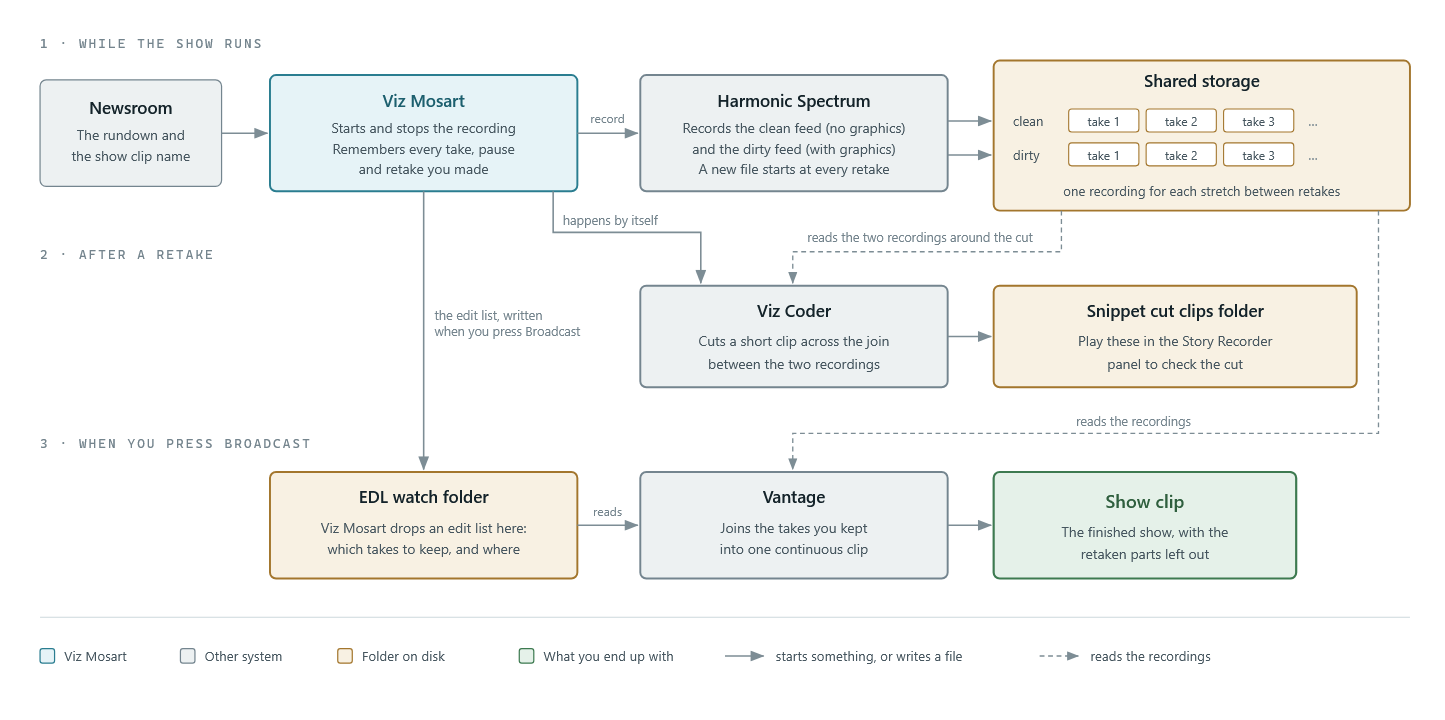
Example: Vantage workflow with Harmonic Spectrum, clean/dirty recording, and snippet review
This diagram shows a specific deployment of the show clip production workflow using Harmonic Spectrum as video server, Vantage as transcoder, and Viz Coder for snippet generation around retake cut points. This configuration requires at least 2 playout ports (for A/B playout of show clips and preroll recordings) and 2 recording ports (for clean and dirty feeds).
Settings
Open the Manus Settings menu and set Enable Story Recorder to true. The remaining Story Recorder settings sections then become available.
Save while Story Recorder is off, and restart the Mosart Logging Service after changing the Clip Outputs devices. See step 25 of the Setup Checklist.
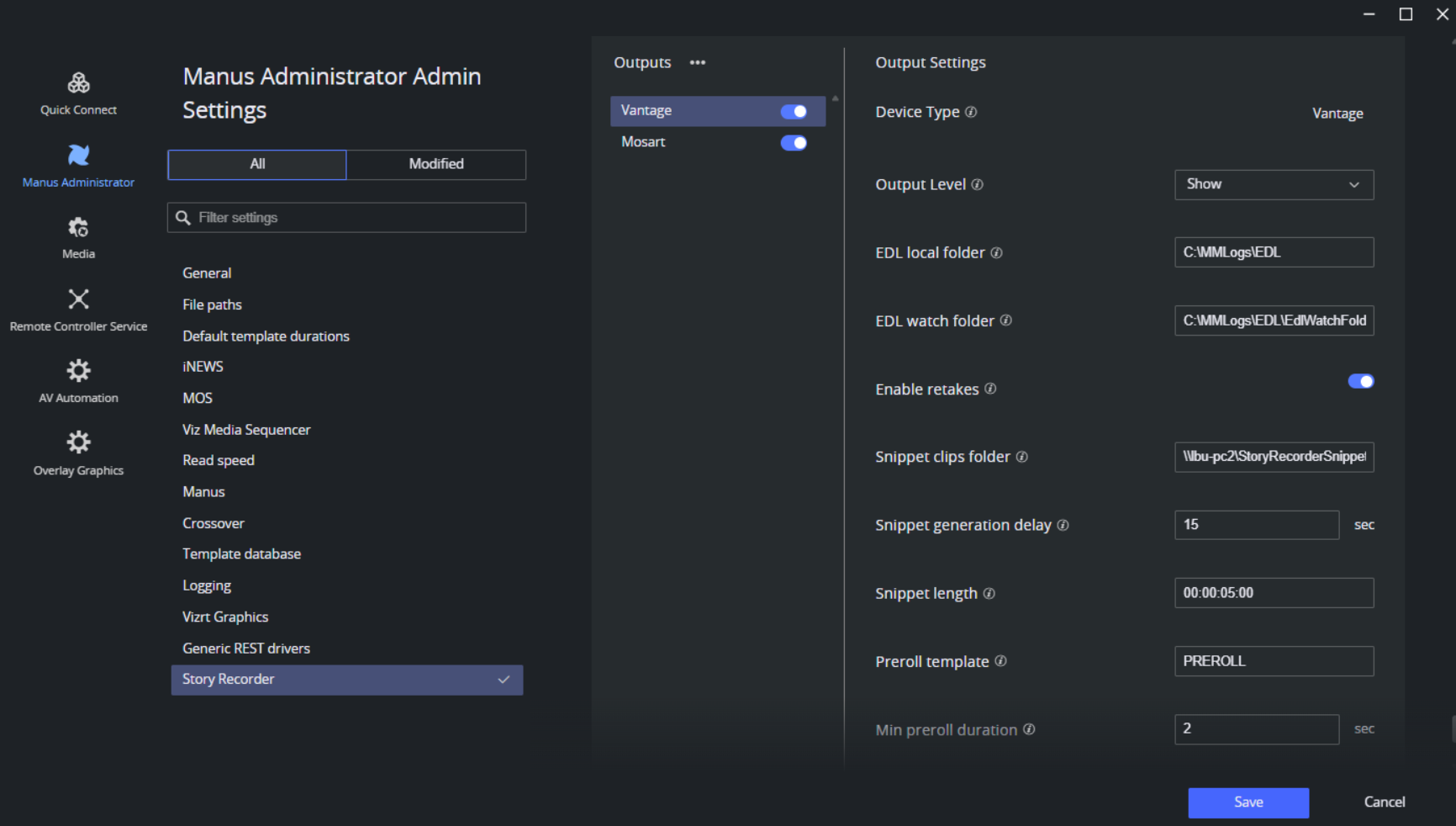
EDL File Outputs > Vantage
Produces .tsedl (Telestream EDL) files consumed by a Vantage transcoder for show-level clip stitching.
Setting | Default | Description |
|---|---|---|
Output Level | Show | Read-only. Determines the granularity at which EDL files are produced. On Show level, one EDL is generated per show. The transcoder stitches recorded segments into a single show clip. Currently, only show-level EDL output is supported. |
EDL local folder |
| Local backup folder for |
EDL watch folder | (empty) | Shared network folder (UNC path, e.g. |
Enable retakes |
| Requires a Pause Timeline keyboard shortcut defined in the Viz Mosart UI that enables Pause and Retake during recording. When enabled, the operator can pause the timeline and re-record segments. The EDL instructs the transcoder to stitch only the valid segments. If disabled, the retake, preroll and pause controls are greyed, and a pause is refused with the warning Pause ignored: retakes are switched off in the EDL output settings. |
The following settings are visible only when Enable retakes is on.
Setting | Default | Description |
|---|---|---|
Snippet clips folder | (empty) | When a retake of a story item is performed, a rendered snippet around the cut point is placed in this folder shortly after the item is retaken. If this property is not configured or left empty, no snippet of the cut is created. The location must be a network shared folder where the user running Mosart Logging Service has read and write access and the user running Mosart GUI has at least read access. Default: empty. This implies that a snippet recorder is optional. |
Snippet generation delay |
| How long in seconds after the retake process started, that generation of the snippet clip (from around the cut) shall begin. |
Snippet length |
| Duration of each recording segment to be included in the snippet (format |
Preroll template |
| The variant name of the Mosart template used for the preroll countdown between retakes. This template must exist in the ChannelTemplates file. When a retake starts, this template is played to allow the presenter time to recompose before the recording resumes.
|
Min preroll duration |
| Minimum fixed duration of the preroll template. The preroll duration can be increased by the user in the Story Recorder panel. This time needs to be sufficient for the video server to reset and be ready to record, after being paused. Typically 10-15 seconds. |
Max preroll duration |
| Maximum duration of the preroll template. The actual preroll duration is determined by the system within this range. |
Procedure
Configure the video server ports
See Configuring the Video Server in Story Recorder Setup. This workflow needs the recording directory to be the same as the playout directory, because the preroll template plays back from the recording. With TriCaster as recorder, also work through Preparing TriCaster on the same page.
Configure the Vantage EDL output
In the Manus Settings menu, enable Enable Story Recorder.
Under EDL File Outputs, open the Vantage section.
Set EDL local folder. Keep
C:\MMLogs\EDLor choose another path, and make sure it differs from the EDL watch folder. Grant the Mosart Logging Service account read and write permission on it.Set EDL watch folder to the UNC path that Vantage monitors, for example
\\vantage-server\watchfolder\. Grant the Mosart Logging Service account read and write permission on it.Leave Enable retakes on if operators need to pause and re-record segments, and define a Pause Timeline keyboard shortcut in the Viz Mosart UI.
Configure the retake settings: Snippet clips folder, Snippet generation delay, Snippet length, Preroll template, Min preroll duration, and Max preroll duration.
Save the settings while Story Recorder is off. They take effect when the next session is enabled.
Install Viz Coder for snippet generation
This setup is optional. It generates a few seconds (configurable) of verification video, intended to reveal the integrity of a fresh cut, after a story item has been paused and then retaken. Snippet creation employs Vizrt's transcoder, Coder.
Download the most recent .exe version of Coder from the customer FTP, by navigating to
/products/VizOne/Latest Versions/Individual Installers and Docs/Coder/Latest Version.You need only install the Coder Worker. Install Coder on the same machine as the Viz Mosart Server. Coder's default installation location is
C:\Program Files\Vizrt\Coder.On the machine that runs the Viz Mosart GUI, define a default media player for
*.mxffiles (for example, VLC).In the Manus Settings menu, for Vantage, configure Snippet clips folder, Snippet generation delay, and Snippet length. Save while Story Recorder is off.
Restart the Viz Mosart UI. The snippet settings take effect when the next session is enabled.
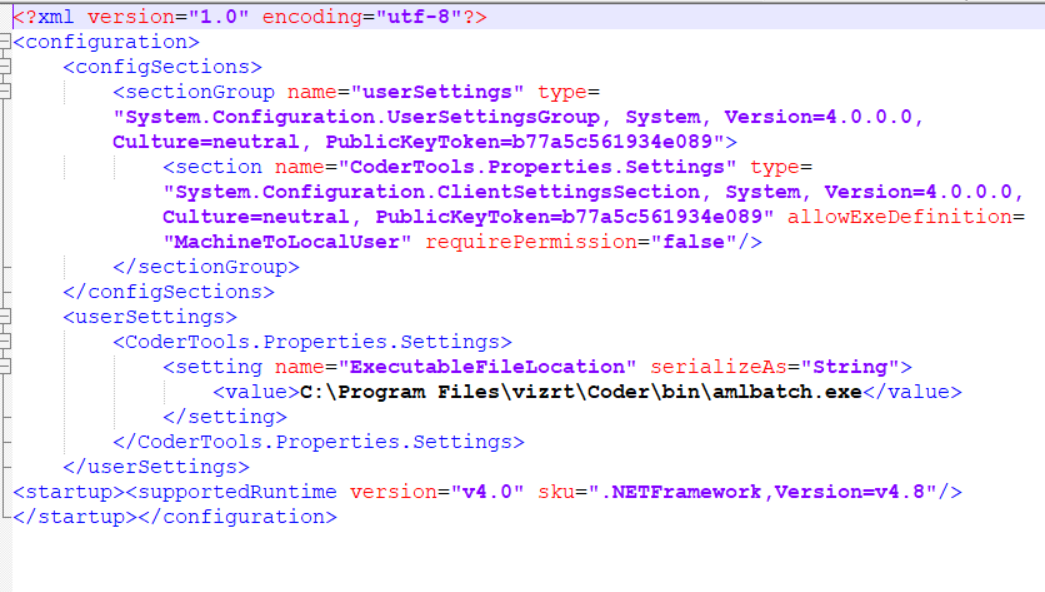
If you install Coder anywhere but the default location, you must then update the configuration file C:\Program Files (x86)\Mosart Medialab\Mosart Server\CoderTools.dll.Config to specify the new path to the Coder executable, amlbatch.exe.
Set the preroll duration
The pre-roll period must be long enough for the video server hardware to reset itself and be ready to continue recording, after a pause.
Determine the time required by your video server hardware to commence recording. This is typically 10-15 seconds.
Configure this value in Min preroll duration.
Operators may increase the value in the Story Recorder panel. The setting is retained between Story Recorder sessions.
Configure automatic naming of the final clip
This step is optional. By default, Viz Mosart names the show, its EDL files and the final clip after the rundown. It lets the NRCS supply the name instead, so the final clip arrives with the name the newsroom already uses for the show.
Three sources can provide the name. The first one that applies wins.
Source | When it is used |
|---|---|
Name entered by the operator in the Story Recorder panel | Always. It overwrites the name from the NRCS. |
NRCS field mapped to | When the operator has not entered a name. This is what the steps below set up. |
Rundown name | The default, when neither of the above is provided. |
The setup has two sides: a column in the NRCS that carries the name, and a mapping in Viz Mosart that tells it which column to read.
In the NRCS:
Open the rundown for the show.
Add a column to hold the name, here SR Base Name. The procedure is specific to your NRCS and may require administrator privileges.
In the first story of the rundown, enter the name of the show, here 9AM news show - en.
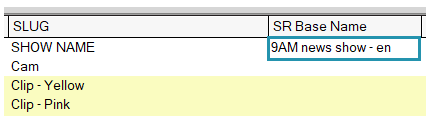
Viz Mosart reads the name from the first story of the rundown only. A name placed in any other story is ignored.
Tip. If your NRCS works on rundown level rather than story level, OpenMedia for example, write a script that copies the rundown field into every story. That fills the first story as well, so Viz Mosart finds the name.
Tip. If the first story of the rundown changes often, start the rundown with a Break that is not part of the show, and keep the name there. The name then survives changes to the running order.
In Viz Mosart:
In the Viz Mosart console application Manus Administrator, type
nsto open the Newsroom Settings menu.Select Edit > Story External Metadata and add a row with the values below, if it is not there already.
Field | Value |
|---|---|
mostagname | The name of the column you added in the NRCS. In this iNEWS example, |
Mosart Action |
|
Format Type |
|
mos_value | Leave empty. |
action_value |
|
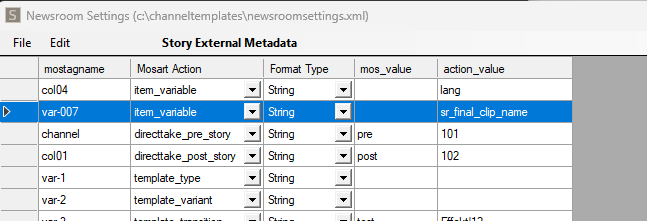
The column name to enter as mostagname is not the label you see in the NRCS. To find the value your NRCS sends, here var-007, see the Story External Metadata section of Newsroom Settings Editor.
Restart the Viz Mosart Server.
Check that the name arrives:
Enter a name in the NRCS as described above.
Load the rundown in the Viz Mosart UI.
Switch Story Recorder mode on. See Working with Story Recorder.
The name from the NRCS appears in the Story Recorder panel.
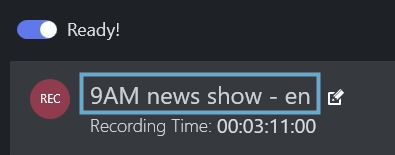
If the name does not appear, press Ctrl+Shift+Alt and double-click the first story item to inspect the underlying XML, and check whether the value arrived from the NRCS at all.
The name is read when Story Recorder mode is switched on. Changing it in the NRCS during a running session has no effect on that session; the new name is picked up the next time Story Recorder mode is activated.
Operators can override the name:
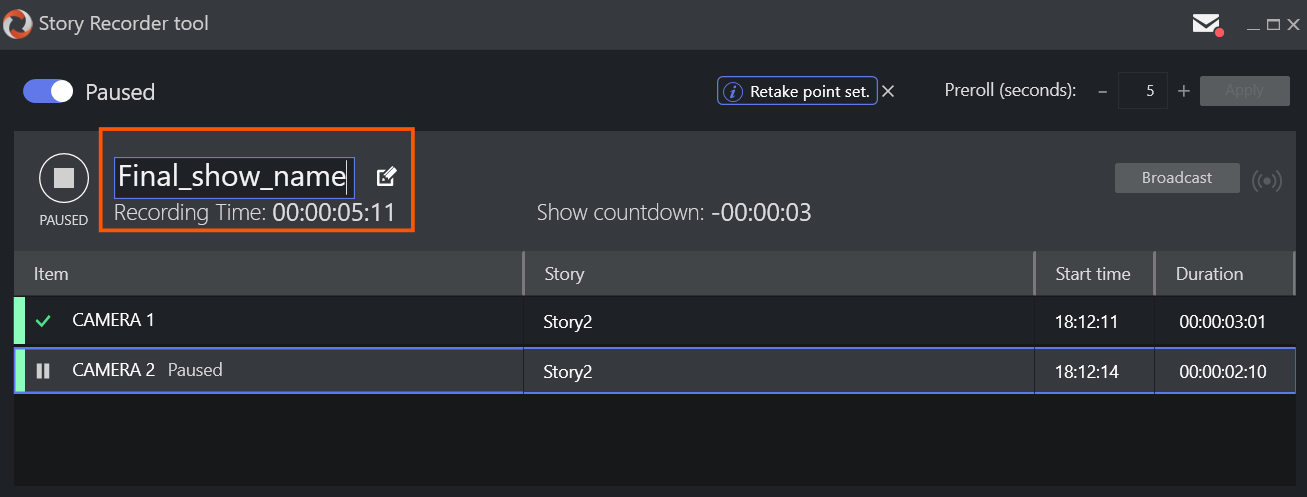
The operator can type a name for the final clip directly in the Story Recorder panel. That name overwrites the one from the NRCS for that session.
Set automatic pause at end of show
As an option, you can automatically pause the show and recording.
Create a dedicated template, typically a Break.
Define a
PAUSE_TIMELINEcontrol command configured on the template.Insert this template at the end of the rundown.
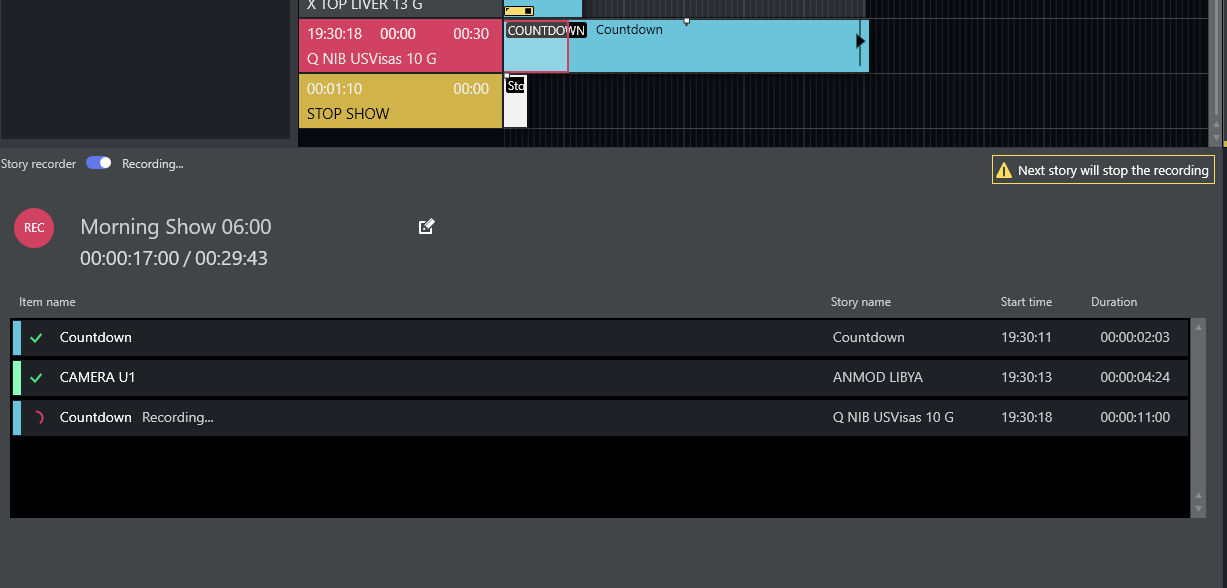
In the Story Recorder session, when the story before this template is taken on air, a message warns the operator that the next story is going to pause the show and thus the recording too.
Assign keyboard shortcuts
The following Story Recorder actions exist only in the show clip production workflow. They are configured as Control Command shortcuts with the command STORY_RECORDER and an Action parameter:
Action | Description |
|---|---|
PAUSE | Pauses the timeline while in Story Recorder mode. |
RETAKE | Sets a retake point at the selected position. |
BROADCAST_TIMELINE | Delivers the show recorded so far, the same as the Deliver button in the Story Recorder tool window (only available while paused). |
A dedicated Pause Timeline shortcut is also available:
Shortcut name | Command | Description |
|---|---|---|
Pause Timeline |
| Pauses or resumes the Mosart timeline when in Story Recorder mode. |
The shared STORY_RECORDER actions TOGGLE, ENABLE and DISABLE, which apply to all Story Recorder workflows, are described in Keyboard Shortcuts in Story Recorder Setup.
Clip naming pattern for EDL files and final show clips
Viz Mosart names EDL files and final show clips automatically.
First delivery: <name>_<timestamp>.<ext>
Subsequent deliveries of the same show: <name>_v<n>_<timestamp>.<ext>
Where:
name: the Final Clip Show name, determined in this order of priority: value provided from the NRCS (
sr_final_clip_name), or overridden by the operator in the Story Recorder panel, or the rundown name (default). See Configure automatic naming of the final clip.timestamp: automatically generated, format
YYMMDDHHmmss.ext: depends on the output.
.tsedlfor Vantage EDL files, or the media extension configured on the transcoder for the final clip (for example,.mxf).v<n>: version counter, added from the second delivery onwards.
Example with Final Clip Show name 9AM news show - en:
File | Description |
|---|---|
| EDL, first delivery |
| Final clip, first delivery |
| EDL, second delivery |
| Final clip, second delivery |
Verification
Check that the Notifications in Mosart UI shows no genlock warning. Unreliable genlock or Genlock is not enabled means Viz Mosart fell back to the internal clock, and the clips will not be frame accurate. You can still verify Story Recorder general functionality without genlock and timecode setup though.
If you configured NRCS naming, load the rundown and confirm that the name from the NRCS appears in the Story Recorder UI. If it does not, press Ctrl+Shift+Alt and double click the first story item to inspect the underlying XML and check whether the value arrived.
Start the show and confirm that recordings appear on both the clean and dirty recording ports.
Press the Pause Timeline shortcut and confirm that the timeline pauses and the preroll template plays with a duration inside the Min preroll duration to Max preroll duration range.
Retake an item, then check the Snippet clips folder for a snippet clip that appears after the Snippet generation delay. Open it from the Story Recorder floating window in the Viz Mosart UI and confirm that the cut looks clean.
Pause the show and click Deliver in the Story Recorder tool window. A message such as Delivered to Vantage confirms what was sent.
Switch Story Recorder mode off and confirm that the
.tsedlfile appears in both the EDL local folder and the EDL watch folder, named<name>_<timestamp>.tsedl.Confirm in Vantage that the watch folder triggered clip assembly, and that the final show clip contains only the valid segments.
Operator instructions for switching on and running Story Recorder are in Working with Story Recorder.