- How Story Recorder Reports Problems
- Message Reference
- Story Recorder Will Not Enable
- Recording Does Not Start or Items Are Missing
- Timecode and Genlock Problems
- Genlock mode is not enabled
- Unreliable genlock
- Time sync issue between the video server and Viz Mosart
- All clips are offset by the same amount
- Only the first story is offset
- The frame rate does not match the video server
- Viz Mosart is reading the wrong recorder output
- TriCaster start of media is UTC
- TriCaster stops reporting start of media
- Clip Production and Publishing Failures
- Pause and Retake Errors
- Naming of the Final Clip
- Housekeeping and Disk Space
- Limitations
- Collecting Data for Vizrt Support
This section covers problems reported by Story Recorder, what each message means, and how to resolve it. It also lists the data to collect before contacting Vizrt Support.
Start here. Many symptoms that look like Story Recorder faults are timing faults. If clips are produced but their content is offset, or edit points do not land where expected, the cause is usually genlock or timecode rather than Story Recorder. Go to Timecode and Genlock Problems below, and then to the Frame Accurate System Operations section.
How Story Recorder Reports Problems
Story Recorder shows messages in two places, and both show the same text:
The Story Recorder panel, at the top of the panel.
The toolbar strip in the Viz Mosart timeline view.
The toolbar also shows the live Story Recorder status next to the on/off switch: SR Off, SR Starting..., SR Prerolling..., SR Ready!, SR Paused, and SR Stopping.... The toolbar and the Story Recorder tool window always show the same status.
Messages carry a severity of Information, Warning, or Error. Confirmation dialogs appear separately, as modal windows.
A long message is shortened in a narrow window. Hover over it to read the full text, and the complete text is always written to the Viz Mosart logs.
Session states
Story Recorder moves through the following states. The state determines which operations are accepted, so it explains several of the messages below.
State | Meaning |
|---|---|
Disabled | Story Recorder is off. This is also the state forced at startup, so a stale state is never carried over. |
Booting | Story Recorder is starting up and checking prerequisites. Genlock warnings are raised here. |
Prerolling | Recorders are being prepared and started. |
Recording | Recording is running. The REC indicator blinks bright red. |
Pausing | A pause has been requested and the recorders are being stopped. |
Paused | Recording is paused. A retake point can be selected and the recording can be delivered. |
RundownInRehearsal | A rundown was reloaded into rehearsal while recording. Recording is paused and no clips are produced. |
ShuttingDown | The session is closing and any final publishing is running. |
Message Reference
Values shown as <port> or <folder> are filled in at runtime.
Information
Message | Meaning |
|---|---|
Story Recorder initialized. | The Story Recorder log adapter started successfully. No action needed. |
Using recorders <name (server:port)>, ... for Story Recorder | Lists the recorder ports that the session will use. Check that the expected ports are listed. |
Delivered to <outputs>. | The result of pressing Deliver: lists each output and what it received, for example Delivered to TriCaster (4 stories), Mosart EDL (6 items, 4 stories, 1 show) and Vantage. The counts cover the whole session, not only the last press. |
Errors
Message | What it means and what to do |
|---|---|
Story Recorder did not start: the Mosart Logging Service is not responding. Check that the service is running on the Mosart server, then switch Story Recorder on again. | The service that hosts Story Recorder did not answer. See Story Recorder Will Not Enable below. |
Story Recorder did not start, although the Mosart Logging Service is responding. Switch Story Recorder on again, and check the Mosart logs if it keeps failing. | The service is running, but the Story Recorder adapter did not complete its start. Switch Story Recorder on again. If it keeps failing, check the Mosart logs and that the Logging Service points at the Server installation. |
Failed to handle Story Log Adapter event. | An event from the log adapter could not be processed by the client. Check the logs and report to Vizrt Support. |
Recorder <port> did not respond to the prepare/start command. Check the video server. | The video server did not answer within the timeout. Check that the server is reachable and the port is not in use elsewhere. |
Failed to prepare recording for port: <port>. | The video server rejected the prepare command. Check the port configuration and free disk space on the server. |
Failed to start recording for port: <port>. | The video server rejected the start command. Check the port state and the recording directory. |
Failed to create recording placeholder item in Mimir. | The Mimir create-item call failed. Check the Generic REST device configuration and Mimir availability. |
Failed to validate the following properties: <list>. Restart Mosart Server Log Service after the fix. | One or more Story Recorder settings are invalid. Correct the listed settings, then restart the Mosart Server Log Service. |
No start timecode received from the video server (port <port>). | The start of media request returned nothing. Edit points cannot be calculated reliably. See Timecode and Genlock Problems. |
The video server returned no valid start timecode (port <port>). | The start of media value was present but not usable. See Timecode and Genlock Problems. |
No recorders configured for Story Recorder | No record port is available. Add a record port to the current salvo in AV Automation. See Recording ports not found below. |
Waiting for recorder to pause. Please try again. | A retake was requested while the recorder was still stopping. Wait for the Paused state, then retry. |
The recording has not yet started. Please try again after the system has paused. | A retake was requested before recording began. Wait for the Paused state, then retry. |
Error while cleaning the snippets folder. <errorType>: <folder>. | The snippets folder could not be cleaned. Check that the folder exists and that the Logging Service account has write and delete rights. |
The snippet transcoding process failed. | Viz Coder could not transcode the review snippet. Check that Coder is installed and that the path in |
Warnings
Message | What it means and what to do |
|---|---|
Genlock mode is not enabled. | Story Recorder starts without genlock and uses time of day. Acceptable for testing only. See Genlock mode is not enabled below. |
Salvo changed while Story Recorder is active. The record port does not change. Reload video ports (CTRL+SHIFT+V) or restart the session to apply it. | A running recording keeps the port it started on. The next recording is prepared on the record port of the current salvo. |
Pause ignored: retakes are switched off in the EDL output settings. | Enable retakes is off in the EDL output settings, so the pause request is refused and the retake controls are greyed. Switch it on if the workflow uses pause and retake; see Show Clip Production Setup. |
The retake point is no longer valid: the take it pointed to was replaced by an earlier retake. Select another retake point. | The selected retake point was superseded by an earlier retake. Select another retake point. The recorded items and EDL entries are kept. |
Story Recorder has no output configured. Recordings will be made but nothing will be published. | Raised when Story Recorder is enabled with no clip or EDL output configured. Configure at least one output; see the workflow pages under Story Recorder Setup. |
Vantage EDL output is enabled but its local or watch folder is not configured. No Vantage EDL will be written. | Fill in both the local folder and the watch folder in the Vantage output settings; see Show Clip Production Setup. |
Nothing to deliver: no output is configured for Story Recorder. | Deliver was pressed with no output configured. Configure an output, then deliver again while the session is still paused. |
Delivered with errors: <n> EDL files could not be written. See logs for details. | One or more EDL files failed to write. Check that the EDL folders exist and that the Logging Service account can write to them, then check the logs. |
Recorder <port> did not respond to the stop command. | The recording may still be running on the video server. Check the port state before starting a new session. |
Time sync issue: video server time (<tc>) differs from Mosart time from external clock (<tc>). | The video server clock and the Viz Mosart clock disagree. Recording is not blocked, but edit points may be offset. See Timecode and Genlock Problems. |
Issues found related to the housekeeping task to delete the recording clips created by Story Recorder. | Automatic purging of intermediate recordings did not run cleanly. See Housekeeping and Disk Space. |
Recording cleanup folder not found: '<folder>' | The configured recordings folder is missing or unreachable. Variants of this message report access denied and validation errors. |
Failed to generate the snippet clip around the cut point. | The review snippet was not produced. The retake itself is unaffected. |
Next story will stop the recording | The upcoming story ends the recording. Informational, shown ahead of the stop. |
Confirmation dialogs
Dialog | When it appears |
|---|---|
End the Story Recorder session? Recordings stay on the video server and remaining stories are sent to their outputs. If you have not pressed Deliver in the Story Recorder tool window, the show EDL is not created, and it cannot be created after the session ends. | When disabling Story Recorder, if confirmation on disable is switched on. |
Are you sure you want to exit during a retake session? | When closing the Viz Mosart client during a retake. |
Story Recorder Will Not Enable
Story Recorder did not start: the Mosart Logging Service is not responding
Symptoms: the switch shows ON but the status stays SR Off, the item list stays empty for the whole show in the Story Recorder Panel, and a few seconds after enabling, the panel shows:
Story Recorder did not start: the Mosart Logging Service is not responding. Check that the service is running on the Mosart server, then switch Story Recorder on again.
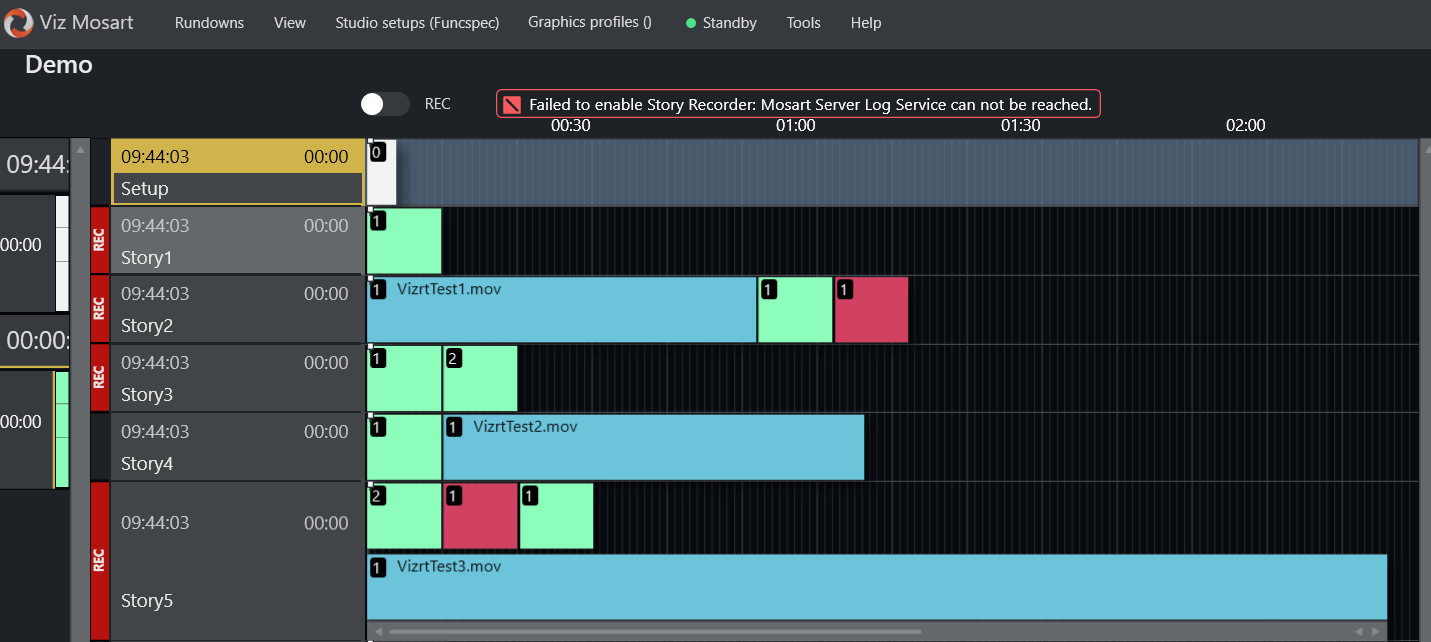
A related message, Story Recorder did not start, although the Mosart Logging Service is responding, means the service answered but the Story Recorder adapter failed or was slow to start: switch Story Recorder on again before working through the list below. Note also that when logging is off there will be no Mosart logs to check.
Story Recorder builds its panel entirely from AsRunLog events. Anything that stops those events from being written stops Story Recorder, so work through the checks below in order.
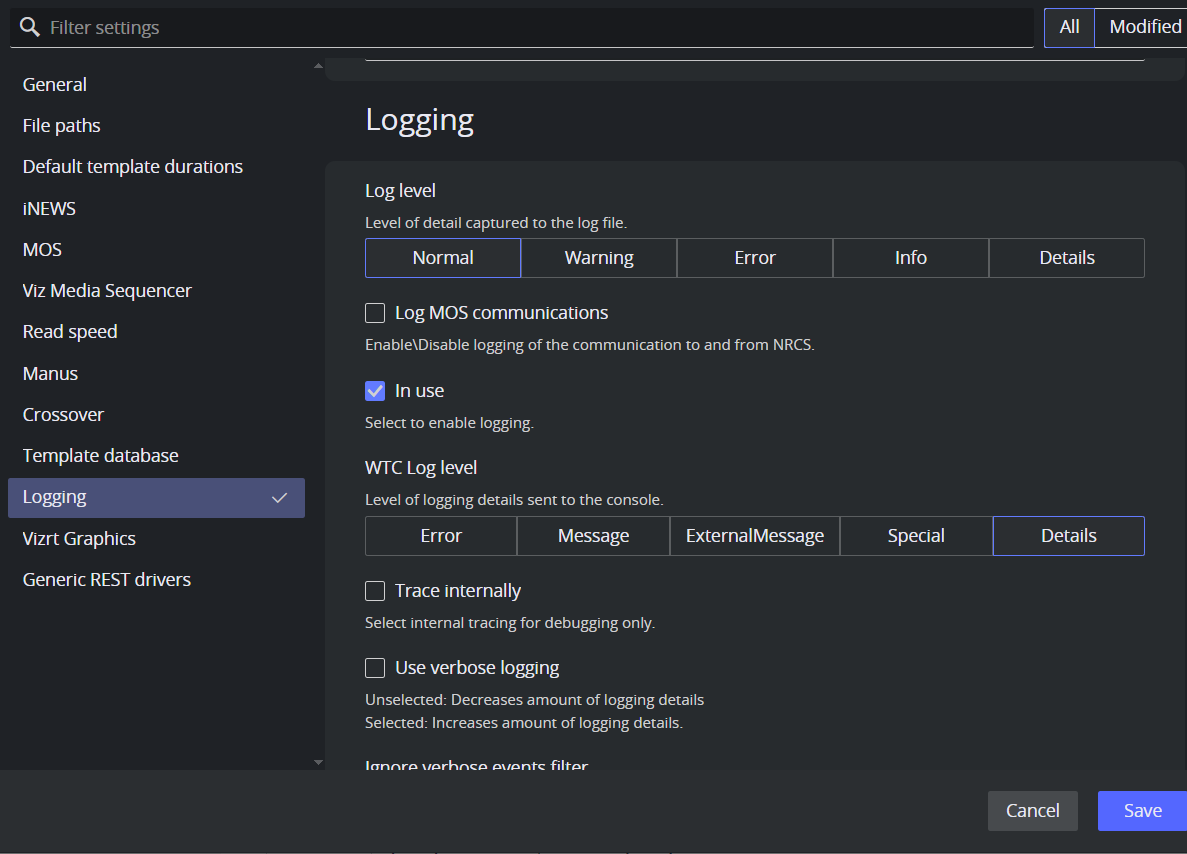
Verify in Viz Mosart Manus Administrator that logging is enabled: type settings, open the Logging section, and check that In use is selected.
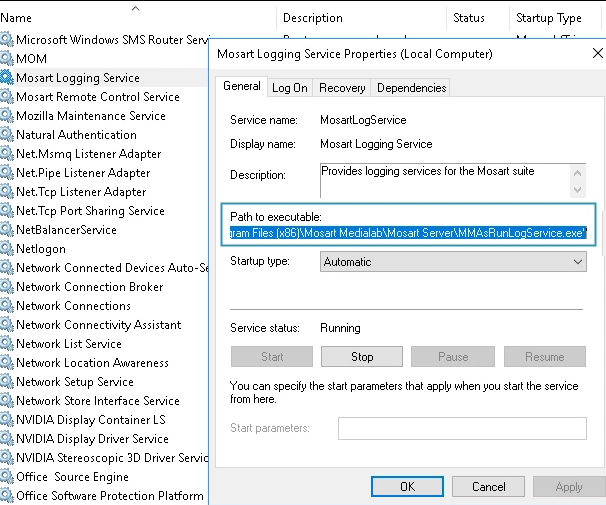
The Logging Service is not running. Check the Windows service, or run it as a console application.
The Logging Service points at the wrong installation. This is the most common cause. When the Viz Mosart client, Audio Player, and Server are installed on one machine, the Server must be installed last, because the Logging Service has to point at the Server installation folder. If it points at the client or Audio Player folder instead, the Story Recorder adapter is not loaded. Run
MMAsRunLogService.exefrom the Mosart Server installation folder as a console application to confirm, then reinstall in the correct order.A second instance refuses to start. A Mosart service started twice from the same folder, for example as a Windows service and from a console, does not start a second time. It reports <application> is already running on this machine, started from <path>. Only one instance can run at a time, as a Windows service or from a console, not both. This one will not start. The instance already running keeps working, so decide which one you want, stop the other, and start it deliberately.
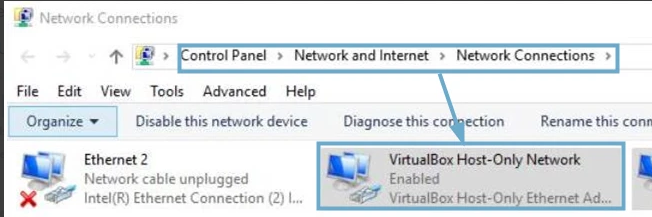
A virtual network adapter is interfering. If the client connects to a remote server, make sure no VirtualBox or comparable virtual adapter is installed on the server machine.
If the Viz Mosart Logging Service is restarted while other applications are already running, those applications stop writing to the AsRunLog and do not recover on their own.
After any restart of the Mosart Logging Service, also restart AV Automation and the Overlay Graphics Interface.
Until they are restarted, events are missing from the AsRunLog and Story Recorder does not work correctly. For example, recording may appear to start OK, but no story items show up in the Story Recorder panel, and graphics encountered in the rundown cannot be backtracked.Settings are invalid. Check for the message Failed to validate the following properties, correct the listed settings, and restart the Mosart Server Log Service.
After any restart of the Mosart Logging Service, also restart AV Automation and the Overlay Graphics Interface. Without this, the first story item of a show produces no as-run events, and graphics state cannot be restored on a retake.
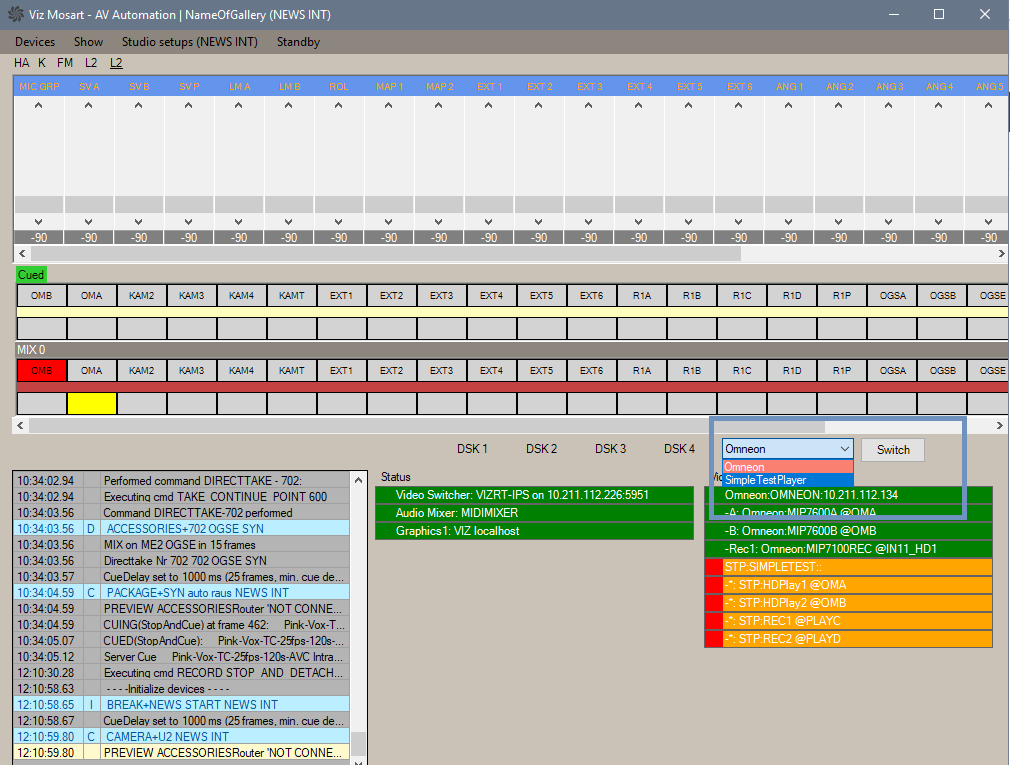
Recording ports not found
The message No recorders configured for Story Recorder means no usable record port was found.
Check the recorder port configuration in AV Automation, under Devices > Properties > Video Servers, and confirm that the port is enabled in the Story Recorder section.
Add a record port to the current salvo if none is present. Recordings are prepared on the record port of the current salvo, so if the message appears after a salvo change, check that the new salvo has a record port.
After changing the port configuration itself, force a reconnect with Ctrl+Shift+V, or restart AV Automation.
Recording Does Not Start or Items Are Missing
Recording not starting
If starting a recording produces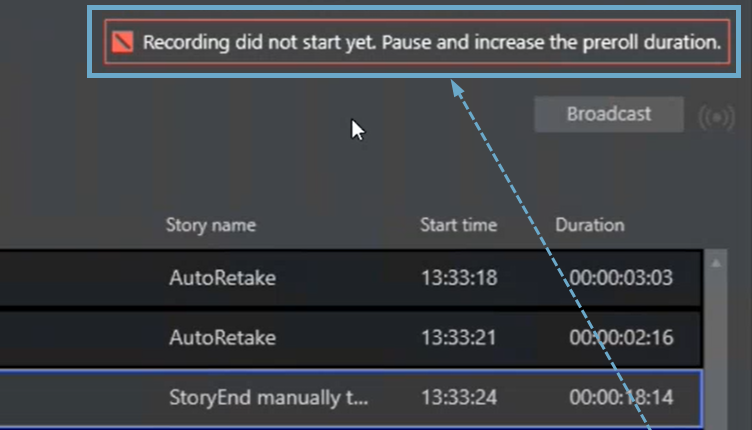
the pre-roll time is not long enough for the recording hardware to prepare itself.
At the top of the Story Recorder panel, increase Preroll (seconds) to the hardware start time plus one or two seconds, typically 10 to 15 seconds in total.
The pre-roll can never be shorter than the re-arm time of the video server.
Story items do not appear in the Story Recorder panel
Story Recorder adds a row when a story item affects the PGM bus of the virtual PP. An item that does not switch a crosspoint on PGM is executed normally but produces no row. This is expected behavior, not a fault. For the full list of what is recognized and what is ignored, see the Show Design for Frame Accuracy and Story Recorder section.
If items that should appear are missing:
Confirm that logging is enabled in Viz Mosart.
Confirm that the Mosart Logging Service is running and points at the Server installation.
After a Logging Service restart, perform an action in the client such as reloading the rundown, so that the connection is re-established.
Restart the Overlay Graphics Interface, otherwise graphics events are not logged and graphics cannot be backtracked on a retake.
Timecode and Genlock Problems
These faults usually show up as clips whose content is shifted rather than as a failure to record.
Genlock mode is not enabled
Genlock is not active, so Story Recorder falls back to time of day for its timecodes. Recording still runs, but edit points are not frame accurate. This is acceptable for testing only. For production use, enable genlock and complete calibration. See the Frame Accurate System Operations section.

Unreliable genlock
The warning about unreliable genlock means Viz Mosart detected a problem with the clock source and fell back to its internal clock. An occasional occurrence is the built-in safety mechanism working as intended and can be ignored. Frequent or persistent occurrences point to a genlock or timecode signal problem that must be fixed.

The AV Automation status bar will also indicate that there is an issue with the selected clock source:

If the warning is shown infrequently, then the message can be safely ignored and the show can continue as planned.
Viz Mosart has a built-in safety mechanism which takes care of intermittent or lost external genlock and/or timecode signal (refer to section Genlock and Timecode Reliability in the topic Frame Accurate System Operations).
If the warning appears frequently or it is persistent, the genlock signal and/or timecode signal have become unreliable and must be fixed.
Time sync issue between the video server and Viz Mosart
Story Recorder compares the start of media reported by the video server against its own clock when recording starts. If the difference exceeds the tolerance, it logs the difference in frames and raises a warning. Recording is not blocked, but mark in and mark out values may be offset.
Situation | Tolerance |
|---|---|
External clock in use and timecode synchronized | 0.5 seconds |
Internal clock, or timecode not synchronized | 1.0 second |
No clock source available | 1.0 second, compared against time of day |
The comparison runs once per recording, at record start. It is not repeated during the session, so two clocks that pass the check and then drift apart produce no second warning. This is why both machines should hold time from NTP rather than being set close by hand.
Check that Viz Mosart and the video server use the same time convention. Story Recorder computes each mark as the story timecode minus the start of media reported by the video server, and it uses that start of media exactly as delivered, so a difference in convention becomes a fixed offset. Use local time in Manus Settings must match the time reference of the master clock that feeds the video server.
External clock is local time in AV Automation is a separate setting. It describes whether the incoming timecode signal carries local time or UTC, and Viz Mosart converts between the two when they differ. It does not have to match Use local time.
The warning names clock synchronization, but it fires for anything that makes the start of media disagree with wall clock. A frame rate mismatch does it. So does a recorder port that points at the wrong output. If genlock and timecode both check out, look next at The frame rate does not match the video server and Viz Mosart is reading the wrong recorder output.
All clips are offset by the same amount
Every story is out by the same amount, and the offset does not grow through the show. The size of the offset tells you which cause it is.
A few frames
The mark lands slightly before or after the picture it should cut on. For example the EDL says a story starts at 22:07 while the video actually starts at 22:10: three frames early.
This is equipment latency. Between Viz Mosart telling the switcher to put a source on air and the recorder writing that frame to the file, time passes, and Viz Mosart has to be told how much. It is corrected in AV Automation > Devices > Properties > Genlock, in the Calibration group.
Adjust PGM-Recorder. Add the number of frames the EDL is early, so an EDL three frames early with PGM-Recorder at 0 becomes 3. If the EDL is late rather than early, reduce the value by the same amount.
Do not use Switcher for this. That value also controls when Viz Mosart sends commands during a live show, so changing it to correct an EDL offset re-times the show itself. Video Server is for clip playout and does not affect marks at all.
Click Apply. No restart is needed. If a session is running, the new value is used from the next one.
Around a second, or an exact number of hours
Too large for equipment latency, and calibration cannot correct it.
A whole number of hours is a time convention mismatch: the recording carries UTC while Viz Mosart works in local time, or the reverse. See Time sync issue between the video server and Viz Mosart, and on TriCaster, TriCaster start of media is UTC.
Around a second, with the timecode feed healthy, usually means Viz Mosart is reading the start of media from a different recording than the one it is cutting. See Viz Mosart is reading the wrong recorder output.
Wildly wrong, or a negative position
The frame rate in Viz Mosart does not match the recorded output. The error scales with the time of day the recording started, so it is large and looks arbitrary. See The frame rate does not match the video server.
The offset is a few frames but genlock is not calibrated at all
If calibration has never been run, do that rather than guessing a single value. See Frame Accurate System Operations.
If the offset grows through the show, it is not this section. See Unreliable genlock.
Only the first story is offset
The request for start of media is asynchronous. If the first story is taken before the video server answers, that story falls back to an estimate from time of day while later stories use the value reported by the server. Allow the session to settle before taking the first story.
The frame rate does not match the video server
Viz Mosart computes each mark as the story timecode minus the start of media, using the frame rate configured in Viz Mosart. On a TriCaster, the start of media arrives over the TriCaster REST API, and Viz Mosart converts it using the frame rate that TriCaster reports for that output. Both halves of the subtraction can therefore be expressed in different units. Nothing in Viz Mosart compares the two frame rates, so a mismatch passes unnoticed.
Symptom. A mismatch does not produce a small offset. The error scales with the time of day at which the recording started, so clips start at a wildly wrong point in the recording, or at a negative position. The export then fails or returns the wrong material.
Fix. Set the Viz Mosart frame rate to the frame rate of the recorded output.
TriCaster Quick Connect does not import the session frame rate. Someone sets that value by hand in Viz Mosart, so it can disagree with the TriCaster session without any warning. To confirm what TriCaster reports, open http://{tricaster}/v1/dictionary?key=record_configuration and read the frame_rate attribute on the <recorder name="OutputN"> row that Viz Mosart records to.
Viz Mosart is reading the wrong recorder output
Viz Mosart matches its recorder port to a TriCaster output row by name, so a port named Rec1 reads the row named Output1. If the program is recorded on a different row than the one Viz Mosart queries, the start of media comes from a different recording. Every clip is then offset by a constant amount, equal to the gap between the moments the two recordings were armed.
Reconfiguring the TriCaster Setup > Output tab is a common way for rows to move, so check this after any change there.
Fix. Make the Viz Mosart recorder port name match the TriCaster output row that carries the recorded program.
TriCaster start of media is UTC
On TriCaster the start timecode of a recording comes from the NDI recorder, and it is UTC by default. Enabling LTC in TriCaster overrides that default. When Viz Mosart is configured for local time while the recording start timecode is UTC, every mark carries a whole-hour offset.
Fix. Enable LTC in TriCaster so the recording carries the house timecode rather than UTC, then set Use local time in Manus Settings to match the convention that timecode uses. External clock is local time in AV Automation describes the incoming timecode signal and is independent of this; it does not have to match Use local time.
TriCaster stops reporting start of media
Viz Mosart asks TriCaster for the start of media of a recording over the REST API, and computes every mark from it. TriCaster can stop answering that request while it otherwise keeps recording normally, and it never answers when it has no timecode source at all.
Symptom. The export job fails, or the story clip is cut at the wrong point in the recording. No start of media for the recording appears in the Mosart log. TriCaster itself looks healthy.
Fix. Restart TriCaster. That clears the case where TriCaster answered earlier in the session and then stopped. Start the recording in TriCaster, wait few seconds and then open this URL in a browser: http://tricaster-server/v1/dictionary?key=record_configuration. The attribute start_timecode_100ns should have a value:
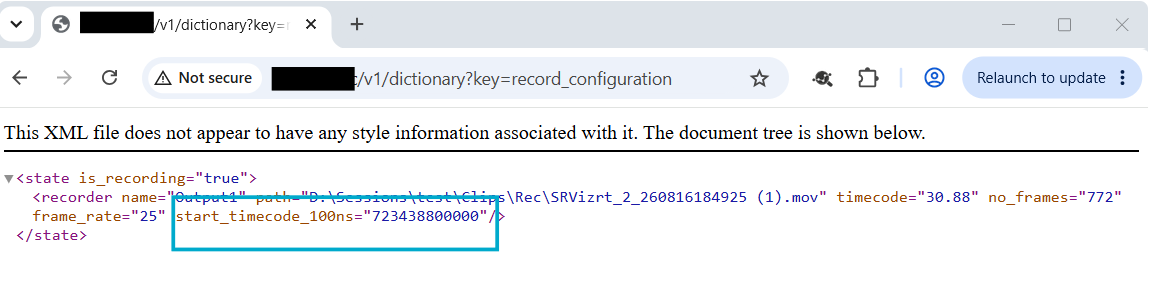
If TriCaster still reports nothing after a restart, it has no timecode source. Open Timecode Configuration in TriCaster, select LTC, and set Source to Local (Silence). Configure this even when the system does not run in frame accurate mode. See Preparing TriCaster in Story Recorder Setup.
Clip Production and Publishing Failures
Mimir: timeout waiting for ingest
Story Recorder waits for the growing recording to be ingested before it asks Mimir to render a story clip. When the wait runs out, no clip is produced for that story.
The log signature. Three lines appear together:
Timeout waiting for ingest on recording <id> to render clip for item <id>. Needed frames: <n>
Recording <id> not ready for rendering story clip <id>. Sending the command anyway.
Giving up render story clip <id> from rec <id> after <n> attempts. Last response: 400 BadRequest
Reading the numbers. Needed frames is how much of the recording had to be ingested before the clip could be cut. Divide it by the system frame rate to get that amount as a duration, which is how far into the recording the story ended.
The attempt count separates two different faults. after 1 attempts means the ingest wait consumed the whole retry budget, so the render never got a real attempt. A count above one means ingest completed and Mimir rejected the render itself, which is a different problem and is not solved by changing the retry settings.
How the retry settings behave. The Mimir retry settings do not work the way their names suggest, so read this before changing them.
Retry start delay elapses first and is not counted in the budget.
Retry total duration is a single budget shared by the ingest wait and the render retries. A long ingest wait leaves nothing for the retries.
Retry interval is the gap between ingest checks, and then the gap between render retries.
A hard ceiling of 15 render attempts applies regardless of the time budget.
Only a validation error meaning the media is too short is retried. Other errors stop the sequence immediately, whatever the settings say.
The quickest way to tell the causes apart. During a show, open the recording item in Mimir and watch its duration. A duration that is not growing points at the recorder or its format. A duration that grows but stays behind the show points at ingest throughput.
Check the causes in this order.
The recorder is not using a low latency wrapper. On a Harmonic Spectrum, the record port Media Wrapper Format must be MXF OP1a (Standard, Low Latency). Plain MXF OP1a (Standard) delays exposure of the growing file, so ingest cannot keep up. This was the confirmed cause in a real customer case.
The recorder is not using an I-frame only format. Long GOP intermediate recordings are not supported.
Ingest throughput is behind the recording. Mimir is taking in the growing file more slowly than the video server writes it. Fixing that is an ingest-side performance question rather than a Viz Mosart setting.
The retry budget is too short for the story length. Convert
Needed framesto a duration and compare it against Retry total duration.The Kelda config ID is wrong. Mimir then uses the wrong ingest configuration. Confirm that the ID matches the ingest configuration in the Mimir tenant.
The path between the video server storage and Mimir is slow or unreachable. Check the network route and the storage that Mimir reads from.
Those six cover the Viz Mosart and recorder side. Causes on the Mimir and Kelda side are not limited to the ones listed, because the ingest and render steps run there rather than in Viz Mosart. Viz Mosart can only report that the recording did not become available in time.
What to check on the Mimir side. Go through these with whoever administers the Mimir tenant.
Whether the recording item exists in Mimir at all. Viz Mosart creates a placeholder item first, and reports Failed to create recording placeholder item in Mimir if that step fails. Viz Mosart then polls that item to watch ingest progress, so a missing or wrong item means the wait can never succeed.
Whether Kelda is ingesting that item, and whether the ingest is progressing, stalled, or never started.
Whether the Kelda config ID in the Story Recorder settings matches an ingest configuration that exists and is active in the Mimir tenant.
Whether Mimir and Kelda can reach the storage where the recording is being written. The render request refers to the recording by path, so the ingest side needs access to that location.
Whether the Preset ID matches a valid render job preset in the Mimir system settings.
Whether the Mimir tenant has capacity, or whether ingest and render jobs are queueing behind other work.
If the recording item is not progressing in Mimir while the recorder is confirmed to be writing a growing file, the investigation belongs with the Mimir and Kelda side rather than with Viz Mosart. Hand over the three log lines, the recording item identifier, the anchor clip identifier, the Kelda config ID, the preset ID, and the time the recording started.
Mimir: other failures
Failed to create recording placeholder item in Mimir. Check the Generic REST device, and that Mimir is reachable.
If a render fails when transcription is enabled, check that the language code and transcription service pair matches a transcription configuration in the Mimir tenant settings. An unmatched pair fails the render.
Invalid JSON in any of the optional request templates is ignored with a warning and the defaults are used, so it never fails the call on its own.
TriCaster export
If an export does not appear, check the export preset names, which are separated by a vertical bar, and the credentials in the video server connection string. For story clip production, the delay before the export job is submitted gives TriCaster time to finalize the growing recording. Increase it if exports fail on long stories.
Vantage and EDL output
Nothing arrives at the transcoder. Check that the EDL watch folder is reachable and that the Mosart Server Logging Service account can write to it. The local EDL folder and the watch folder must be different.
Duplicate jobs. Every press of Deliver sends a new task and creates a new take. The counter is cumulative and never decreases. Cancel unwanted jobs in the transcoder job queue.
Snippet review clips
If no review snippet appears after a retake, check that Viz Coder is installed, that the snippet folder is configured and writable, and that a default player for .mxf files exists on the client machine. Snippet failures do not affect the retake itself.
Pause and Retake Errors
Pause is ignored
The warning Pause ignored: retakes are switched off in the EDL output settings means Enable retakes is off, so the timeline cannot be paused for a retake. The retake, preroll, and pause controls are greyed while it is off. If the workflow uses pause and retake, switch Enable retakes on in the EDL output settings and save while Story Recorder is off. See Show Clip Production Setup.
Invalid retake position
If you get the error notification Retake position no longer valid. Please set retake point this means that you restarted the show after a pause, but the selected story item is not the retake point (the story item with the Set Retake button):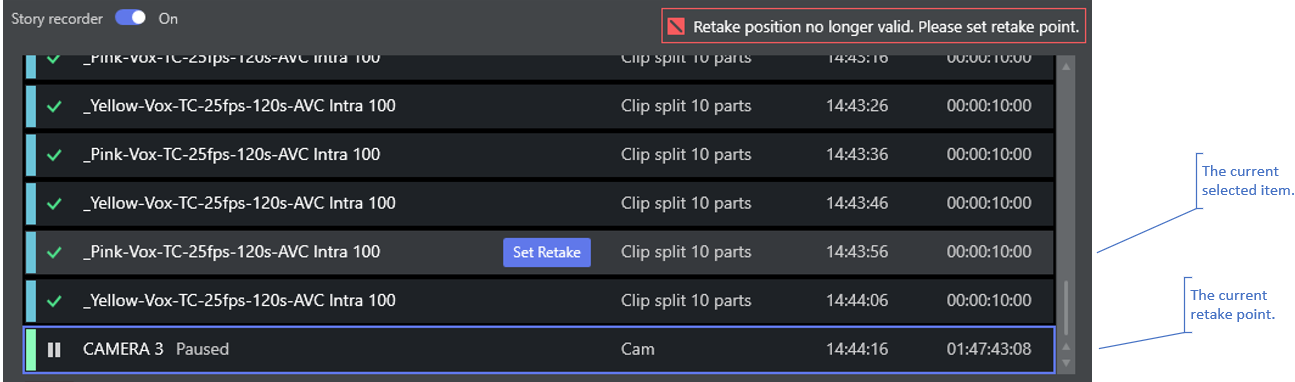
To fix, do one of the following:
Select the current retake point, if this has changed by mistake, or
Make the selected story item the new retake point by clicking the row's Set Retake button.
If you choose (2), remember that all the recorded story items after the retake point, including the story item set as retake point, must be re-done once the show is restarted after pause (see Working with Story Recorder).
Retake point replaced by an earlier retake
The warning The retake point is no longer valid: the take it pointed to was replaced by an earlier retake. Select another retake point means the take that the selected retake point referred to no longer exists, because an earlier retake superseded it. Nothing is removed: the recorded items and their EDL entries are kept. Select another retake point and continue.
Error when pausing the story
If you get the error notification Timeline can not be paused while pre-rolling, this means you are trying to pause while the system is in pre-roll mode. The pre-roll process can not be interrupted.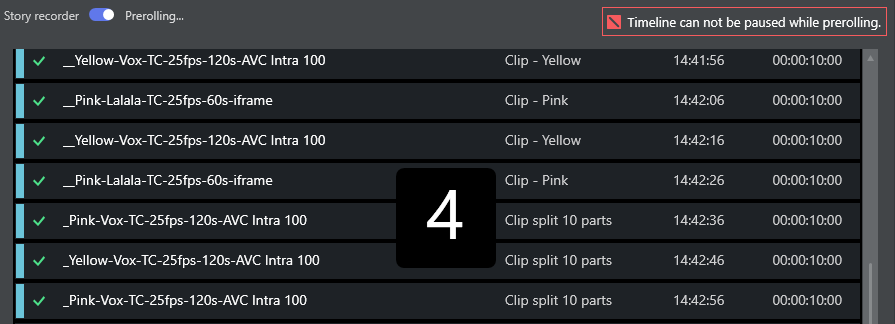
If this action was done intentionally, let the pre-roll time out and auto-take the item to be retaken, and then pause again.
Retake requested too early
The messages Waiting for recorder to pause and The recording has not yet started both mean the session is not yet in a state where a retake can be set. Wait until the panel shows Paused, then try again.
Naming of the Final Clip
If a final clip name supplied by the NRCS does not appear in the Story Recorder panel:
The name is read from the first story in the NRCS rundown. Check the status of the first story. If it has been set to float and is not displayed in Viz Mosart, add the name to whichever story is now first.
Check whether another story has been set as next, which changes which story is treated as first.
A name changed in the NRCS during a session takes effect only at the next session. Disable Story Recorder mode and enable it again.
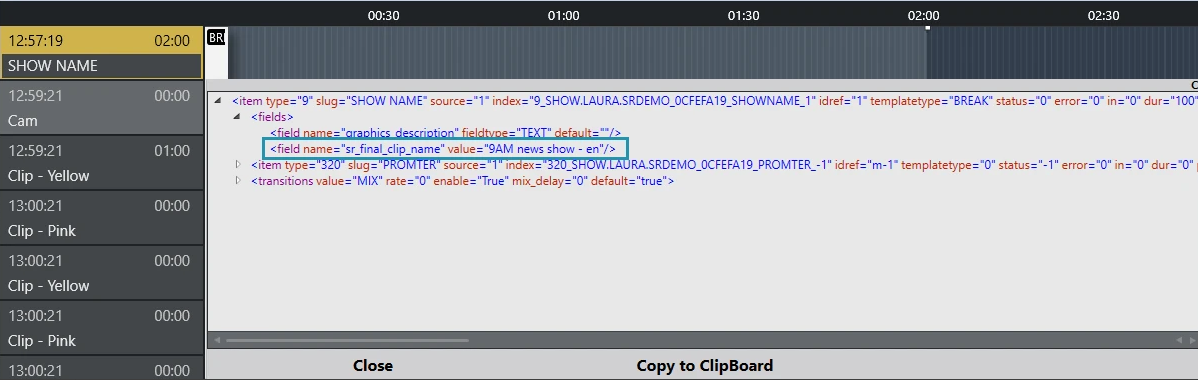
To inspect what the NRCS actually sent, hold Ctrl+Shift+Alt and double click the first story item to view the MOS XML.
Housekeeping and Disk Space
Recorded files are always large. Without a purging regime in place, the recording volume will fill.
Intermediate recordings can be purged automatically using the recording clip name prefix together with the retention period. The task runs every time the Mosart Server Log Service starts or restarts. The service account needs read, write, and delete rights on the recorder port folders. A retention value of zero disables purging.
EDL folders are not managed by Viz Mosart. Neither the local EDL folder nor the watch folder is cleaned up automatically, so both need an occasional manual purge by the local system administrator.
The final show clip folder is controlled by the transcoder, not by Viz Mosart.
All settings, such as pre-roll duration and file locations, are preserved between sessions.
Limitations
A separate, dedicated template set is required for shows that use Story Recorder. These templates cannot be used when Viz Mosart runs in non-Story Recorder mode.
You can only retake from the beginning of a primary story item. A single item cannot be replaced in isolation: everything from the retake point onward must be redone.
The following story elements and secondary items give unpredictable results around the cut point and must be carefully reviewed: accessories, manual commands, running animated graphics, and state variant behavior.
Because Viz Mosart runs in Frame Accurate mode rather than Standard mode during a Story Recorder show, not every feature from Standard mode is available. See the Show Design for Frame Accuracy and Story Recorder section for the full matrix.
Reloading a rundown ends the session by default, publishing what has been recorded, and Story Recorder must then be enabled again. This behavior is controlled by the setting that disables Story Recorder on rundown reload. When that setting is switched off, the session moves to Paused instead and can be resumed.
Reloading a rundown into rehearsal while recording pauses the recording, and no clips are produced.
Tip: Use the snippet player to verify the cut point (see Working with Story Recorder).
Collecting Data for Vizrt Support
Timing problems cannot be diagnosed from a description alone. Collect the following before contacting Vizrt Support.
Files
Item | Where | Why it is needed |
|---|---|---|
Viz Mosart technical logs |
| Crosspoint events, start of media, cue and play commands, with timecodes. |
EDL files | The configured EDL folder, by default | The mark in, mark out, and start of media values actually produced. |
Genlock logs |
| Genlock behavior for the session. |
Clock source statistics | The configured statistics folder, by default under | Whether the external clock and the frame clock were reliable. See the Frame Accurate System Operations section for how to gather these. |
The source recording | Video server clip storage | Lets Support compare the marks against the actual media. |
The rendered clip | Mimir, TriCaster, or the export location | Shows what the viewer would have seen. |
Configuration files |
| Frame rate, video server type, genlock and calibration values, transition types. |
Settings to report
Frame rate, video server type, whether genlock is enabled, the clock source in use, and the four calibration latency values from the AV Automation Genlock tab.
Questions to answer
Which story and which template were on air when the problem occurred?
What action triggered it?
What was expected, and what happened instead?
Is there a screenshot or a short video?
Is it reproducible, and if so how often?
How the offset behaves narrows the cause quickly. A constant offset across all stories points at calibration or a missing timecode signal. Random offsets point at a synchronization problem. An offset that grows through the show points at a clock mismatch between Viz Mosart and the video server.