
“For something that looks this convincing, the rendering is unusually simple.“
High level overview
Culling
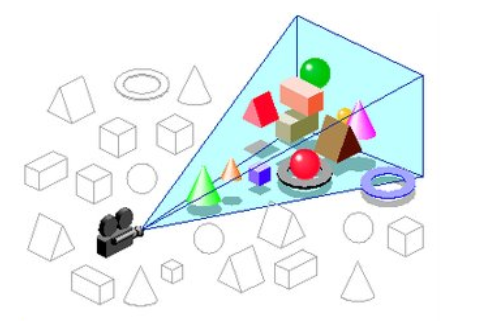
Check what needs to be rendered and not
Sort
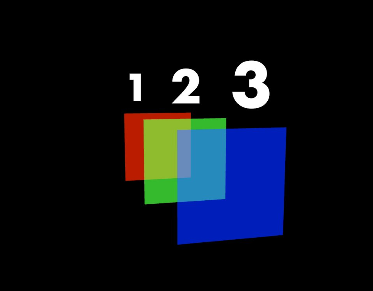
Splats are transparent - therefore, they must be sorted back to front
Render
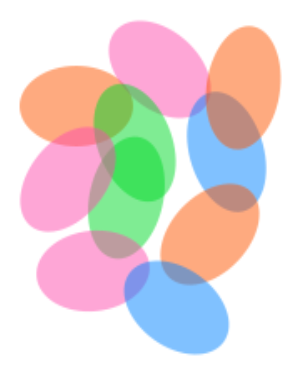
Each splat is rendered as an Ellipsoid (in reality, a quad)
As all splat files come in as geometry, you can simply drag them to the scene tree as new object. These can be used as Virtual Studios, as AR objects and many more.
Coordinate Systems
It might be necessary to choose the correct coordinate system and flip the axis if your model is rendered incorrectly and does not match Viz Engine coordinate system. To do so
split the geometry
click on the sub container's geometry
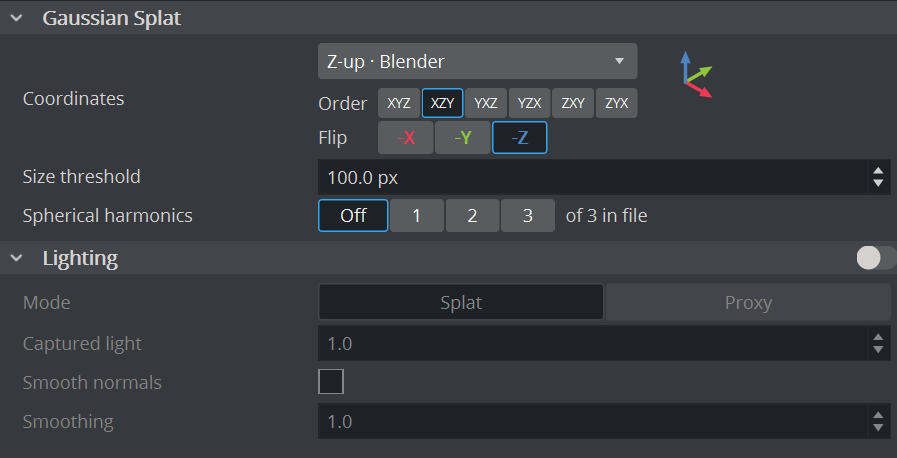
Splat files come from different capture and editing tools, and they don't agree on which way is up. The Coordinates control converts the file's axes into Viz space, where X points right, Y points up and Z points towards the viewer.
Presets
Most files match one of three named conventions. Pick one from the list, and Order and Flip are set for you.
Preset | Typical source | Order | Flip |
|---|---|---|---|
Y-up · OpenGL / Viz | Already in Viz space | XYZ | none |
Y-down · COLMAP / 3DGS | Y points down and Z points forward, as in most 3DGS training output | XYZ | −Y −Z |
Z-up · Blender | Z points up and Y points forward | XZY | −Z |
When the current Order and Flip don't match any preset, the list shows Custom. This includes a freshly imported model: the importer's default is XZY with -X -Y, which isn't one of the presets.
Order and Flip
Order picks which file axis goes on each Viz axis.
XZYmeans Viz X takes the file's X, Viz Y takes the file's Z, and Viz Z takes the file's Y.Flip then negates individual Viz axes. It is applied after the order, so −Z always negates the axis that ends up on Viz Z, whichever file axis that is.
The small axis preview next to the list shows the result. Each arrow is a file axis in its own colour (X, Y, Z), drawn where it ends up in Viz space.
Changing either value rebuilds the model. The splats are decoded again from the stored data and the LOD octree is rebuilt, so a large model may take a moment to reappear. To line a model up with the rest of the scene, prefer the container's transformation. Order and Flip are for correcting the file's own convention.
Size threshold
The splats are stored in an octree with coarser levels of detail near the root. While rendering, the engine walks down the octree and stops at a node once its projected size on screen falls below the threshold, then draws that coarser level instead of refining further.
Lower values draw more detail and more splats, and cost more GPU time.
Higher values stop earlier and draw fewer, larger splats. Use this for distant or background models.
The value is in pixels. The default is 100.0 px and the accepted range is 0 to 100000. Changing it takes effect on the next frame and doesn't rebuild the model.
Spherical harmonics
Spherical harmonics (SH) store the view-dependent part of a splat's colour, such as reflections and sheen that change as the camera moves. Degree 0 is the flat base colour, and each higher degree adds a finer band of view dependence, up to degree 3.
Off renders flat colour and removes the harmonics from the GPU buffer. They are by far the largest part of each splat: 192 bytes, against 16 bytes for everything else.
1 / 2 / 3 switches the harmonics on and evaluates bands up to that degree.
of N in file is the degree the imported model actually carries. Buttons above N are disabled.
“of 0 in file” means the model was imported without harmonics. It can only render flat colour. The buttons for degrees 1 to 3 are disabled, and a degree set earlier may still look selected, but it has no effect.
Off, then on again
Switching to Off and back rebuilds the model from its stored data, so the harmonics come back and the model reports its original degree again. They are only lost for good when the model was imported with SH disabled. That option is worth using for very large models: it keeps the stored geometry small and within the size one stored level can hold.
Rendering
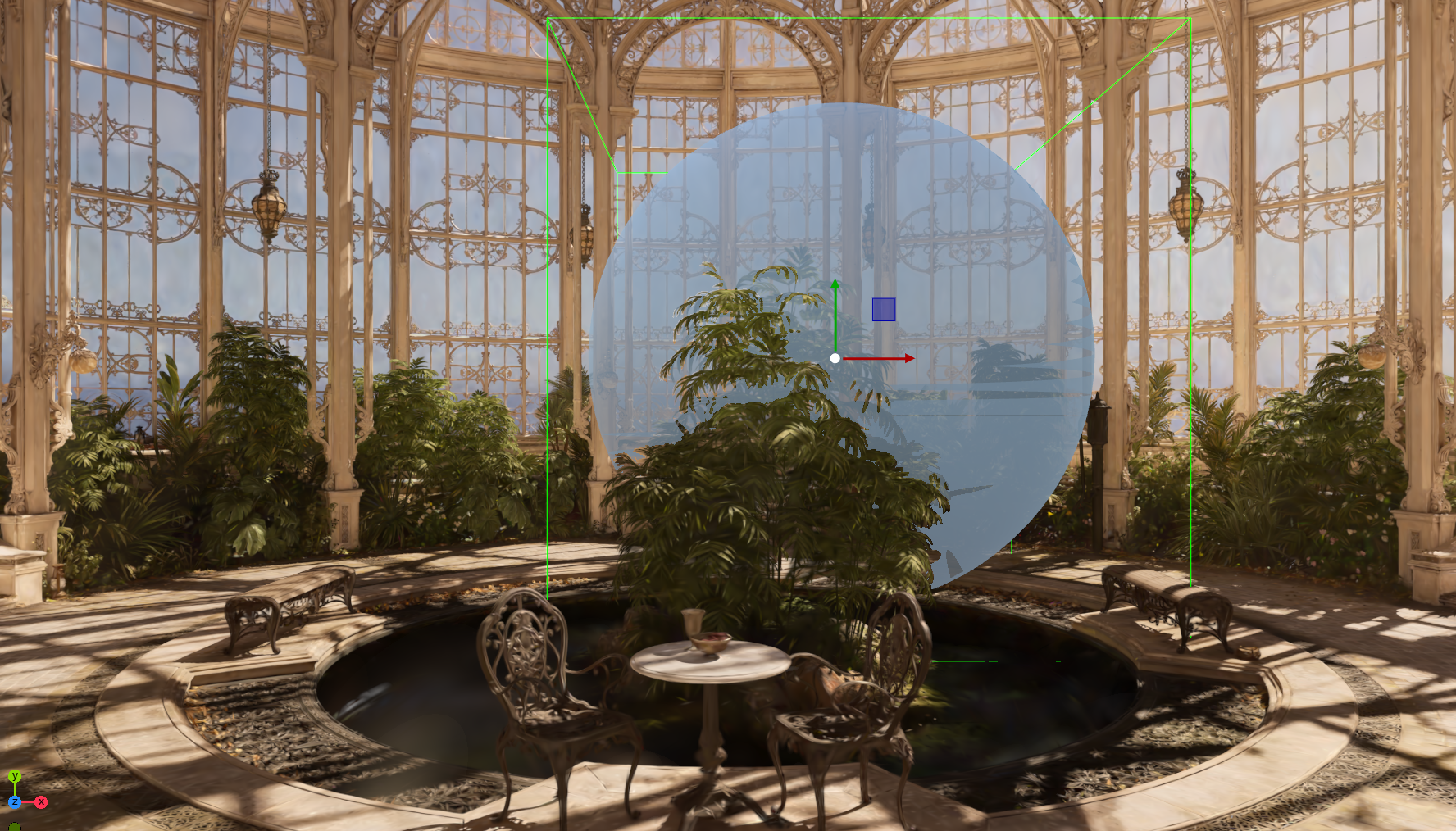
Objects can fully integrate within the imported Splat Files, but might require some additional Z-Sort information to be added.
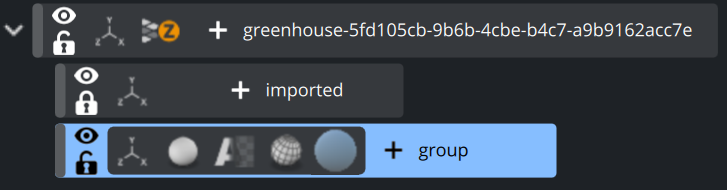
Gaussian Splat objects support
Alpha
Clipping Planes
Expert Settings
MaskSource/Target
Window Mask
Re-Lighting of Gaussian Splats
A splat’s colors carry the lighting from its capture. Viz Engine can add the scene’s virtual lights on top of that lighting, so splats fit in with the other objects in the scene. Lighting needs to be manually enabled on the header of the lighting section.
Splats usually have no normals, so we approximate it in one of two modes:
Splat
Splat (default) lights every splat individually. It gives the best quality, but it costs much more than proxy mode, especially on large captures. By default, each splat’s normal is its shortest axis. That axis varies between neighbouring splats, so flat surfaces can shade unevenly. Smooth normals fixes this by estimating each normal from the surrounding splats, and Smoothing controls how many it uses: higher values shade more evenly, lower values keep more detail. Smooth normals are computed when the splat data loads, so they add to load time but not to frame time.
Control | What it does |
|---|---|
Smooth normals | Uses neighboring splats to compute a smoother normal. Enabling it removes details, but on flat surfaces it might present a more realistic result. |
Smoothing | Defines how many splats are used for computing the smooth normal. Higher values result in a smoother result with less high frequency details. |
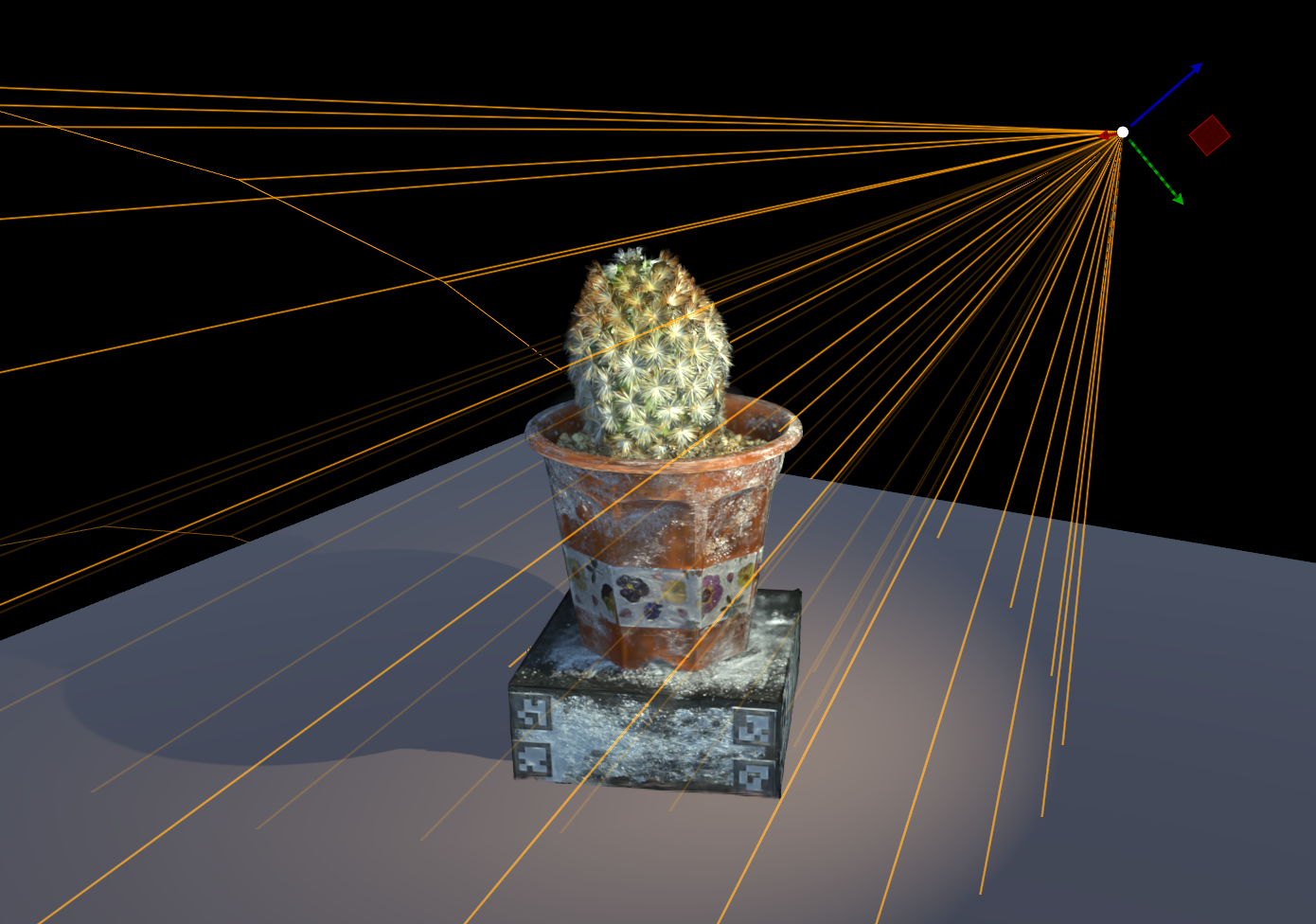
Proxy
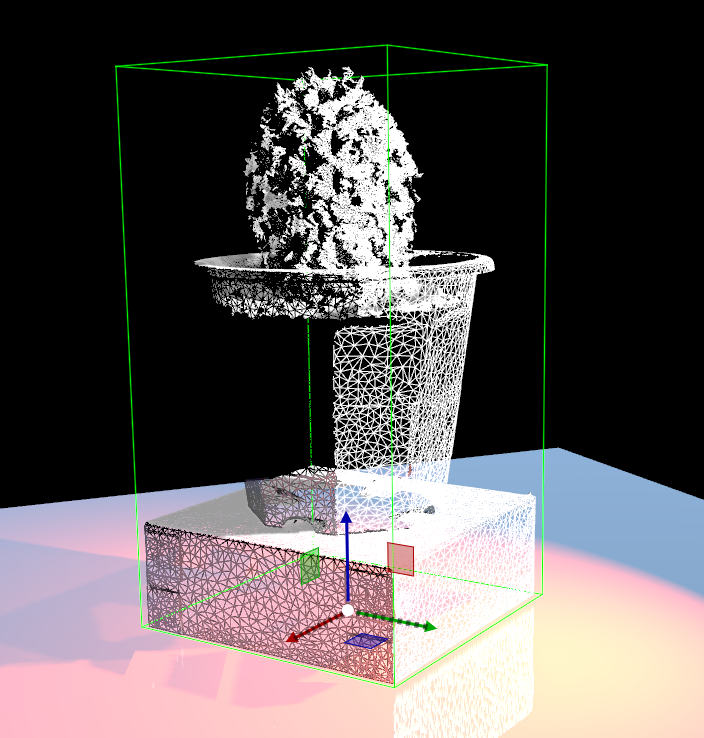
Proxy lights a rough polygon mesh of the same object and passes the result to the splats in screen space, so the mesh only has to cover roughly the same pixels. It costs little more than rendering the mesh, but the lighting is only as good as the mesh’s fit. The mesh stays hidden. Align it by transforming its container. Splats it doesn’t cover keep their captured lighting.
Control | What it does |
|---|---|
Proxy container | Drop a container here. That container and its whole subtree become the proxy. The proxy is used in the splat lighting pass and in shadow rendering, and is hidden in the normal image. |
Show proxy mesh | Also draws the proxy in the normal image ( |
Setting up a proxy
Add the mesh on a container of its own and drop that container on Proxy container.
Switch on Show proxy mesh and align the mesh with the splats using the proxy container's own position, rotation and scaling. A separately exported mesh rarely lines up out of the box. Adjust the proxy, not the splat's Coordinates, because those also change how the splats render.
Switch Show proxy mesh off again once it lines up.
Light the scene with containers that carry a light plugin. The V4 renderer lights the proxy, so the scene's built-in lights don't reach it.
A splat that sits inside its own proxy hierarchy isn't treated as part of the proxy. A scene can hold up to 64 proxy hierarchies.
Captured light (0–1) sets how much of the lighting baked into the capture is kept. At 1, the default, the scene lights are added on top. At 0, the splats are lit by the scene alone, which suits captures lit evenly from every side. The scene’s environment map fills in for whatever captured light is removed.
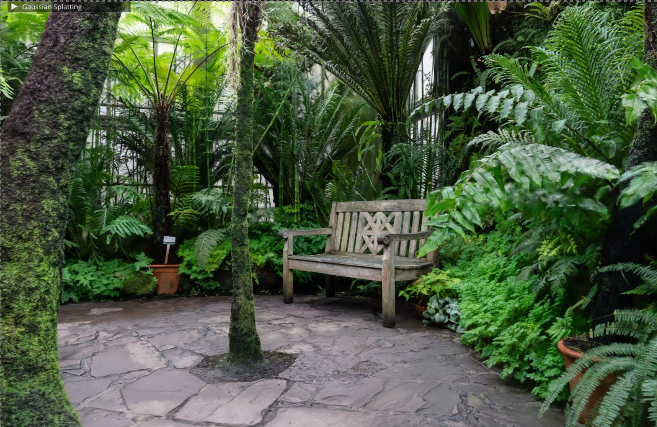
Some more examples:
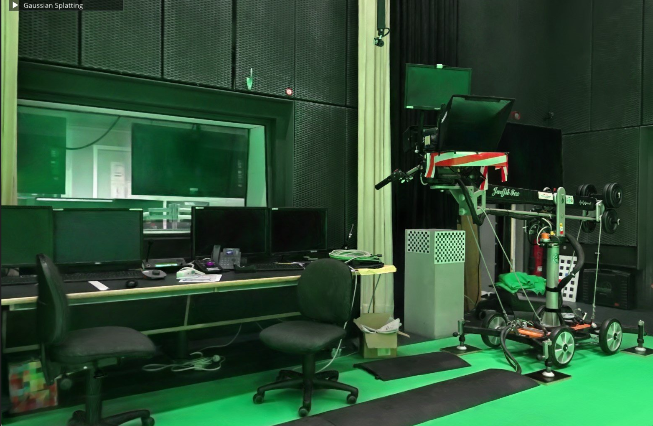 Virtual Studio at the Hochschule Düsseldorf - University of Applied Sciences | 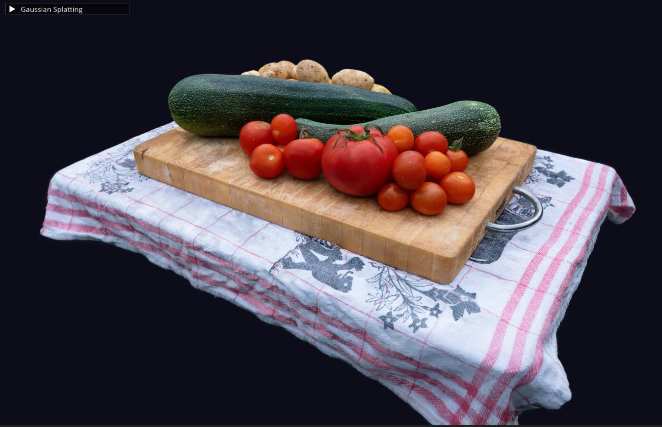 |
 |  |
Known Limitations
Gaussian Splats fit directly into your existing scenes, therefore they support many of Viz Engine Renderer features including SSR and more. However there are some limitations (some of them are listed here):
Shader Effects are not supported
Instancing
Masking (e.g. for Tonemapper)
Texture Slot effects like Screenspace UV masking