States and transitions - the state graph
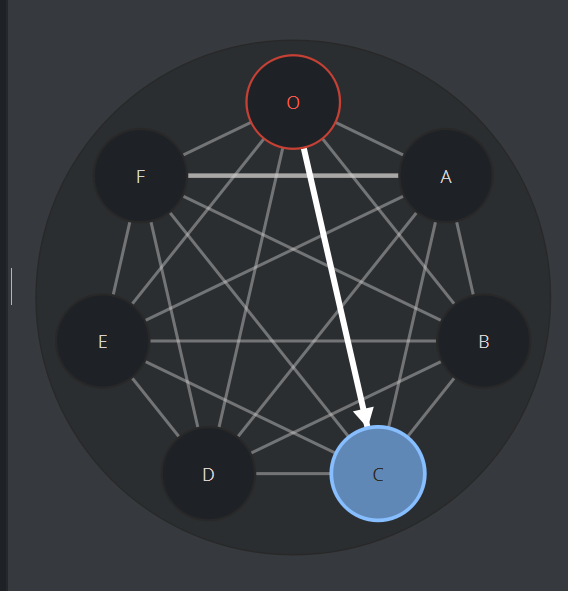
The graph shows the states of the selected layer on a circle: O at the top in red, all other states in green. A line connects each pair of states; each line stands for the transition between them. The current state is filled. The header above the graph shows the layer name; below it a line reads State: X or Animation from A to B for the current selection. Hover a line to see its duration, for example O → IN: 1 s (or no direct transition).
Action | How |
|---|---|
Take a state (animated) | Click the state. A white arrow travels along the line for the real duration of the transition. |
Jump to a state (cut) | Shift+click the state. |
Rename a state | Double-click it, or select it and press F2, or right-click and choose Rename. Enter confirms, Esc cancels. |
Remove a state | Select it and press Delete, or right-click and choose Remove. |
Add a state | Right-click empty space and choose Add state, or use the + on the layer row. |
Change a transition's duration | Double-click the line, or right-click it and choose Set duration.... |
Adding a state
A new state named State, State2, ... appears with its name editor already open. Type the name and press Enter; press Esc to keep the generated name.
The Logicmaker will do the work for you:
it appends the transitions the new state needs so that every state can reach every other state; each new transition is one second long.
Also see The State Graph .
Renaming a state
The name must be valid and not used by another state of the layer; O cannot be renamed (Can't edit Out state.). If leaf scenes still target the old name, a dialog asks:
State "a" was renamed to "A". 1 scene(s) still target "a": 1400. Update them to target "A"?
Answer Yes to retarget those scenes (the status bar confirms Updated 1 scene(s).) or No to leave them; scenes left behind show a warning sign and are reported by the health check.
Removing a state
After the confirmation the Logicmaker removes the state together with its whole footprint on the timeline:
its stop markers, including any stop that only existed as a transition target of that state;
tags inside the removed stretches and the designer keyframes of the removed transitions;
the gaps are closed: later transitions move earlier;
helper directors that become empty are removed, and the Toggle's keyframes are rebuilt from the remaining stops.
Two guard rails always apply: O cannot be removed (Can't remove Out state.) and a layer never drops below two states (Can't have less than 2 states.). If the removed state was the layer's current state, the layer is taken to O so that later takes start from a valid state.
Removing a state discards the animation you designed on its transitions.
Leaf scenes that target it are not deleted; they show a warning sign.
Changing a transition's duration
Double-click a line (or right-click it and choose Set duration...).
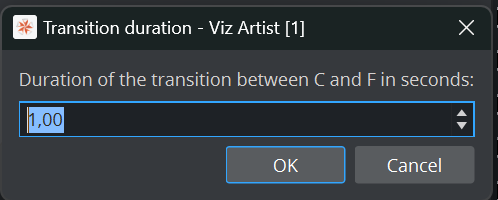
The new duration is applied to every direction that exists on the timeline. A pair can have separate transitions A to B and B to A, and both are changed so the line stays symmetric.
Everything after the changed stretch shifts by the difference, including designer keyframes on the director; the Toggle's keyframes are rebuilt to match.
Designer keyframes inside the changed transition keep their position.
Shortening is refused if the new end would fall before a designer keyframe inside the transition: Shortening would cross a designer keyframe at T s inside the transition; retime or remove those keyframes first.
Example: setting O → IN from 1 s to 2 s moves every later stop and keyframe by one second; the keyframes you placed inside the first second stay where they are.
Designing the animation in the Stage
The Logicmaker creates the structure; the look of a transition is designed in the Stage.
Select the layer. Its transition director is selected and revealed in the Stage dock.
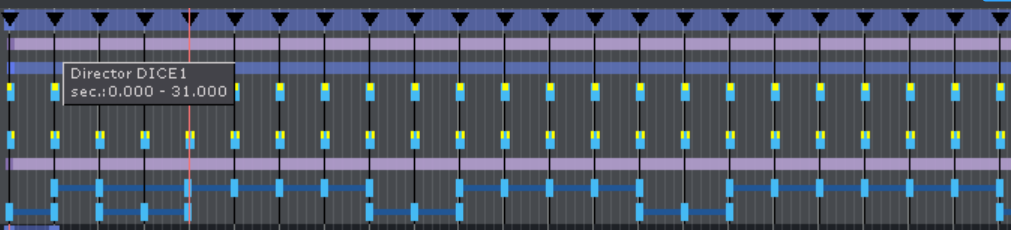
The director's timeline carries one stop marker per state, named like the state. The stretch between two markers is the transition between those states.
Add keyframes for the layer container's properties (for example Position or Alpha) inside the stretch. For a lower third, slide it up between the O marker and the IN marker.
Test in the Logicmaker: click the states in the graph. The arrow shows the real duration.
Adjust the length with Set duration... if needed. Run the health check: Transitions without animation lists stretches you forgot to design.