The Logicmaker is the Viz Artist editor for Transition Logic. It builds and maintains the master scene of a graphics package - its layers, their states and the transitions between them - and the leaf scenes (pages) that a control application takes on air. It works on the scene that is open in the Scene Editor and is available as the Logicmaker dock.
This guide explains the concepts, walks you through your first package, describes every part of the editor, shows complete workflows with examples, and lists every check the Logicmaker performs on a package together with the ways to resolve what it reports.
Quick start
In the Asset View, select the folder that should hold the package, for example Default/News.
Open a new scene in the Scene Editor and open the Logicmaker dock. A scene without Transition Logic shows the empty state with two buttons.
Click Start from scratch. The Create Transition Logic wizard opens.
On Master and Layers, name the master, rename the first layer, add more layers with Add Layer, and add states with the + next to a layer's state badges. Click Next.
On Leaf scenes, add one scene per page and choose its layer and state. Click Finish.
In the Save transition logic master as... dialog confirm the folder and the name of the master.
Result: the master and all leaf scenes are created in that folder, the Asset View jumps to it, the Scene Editor shows the saved master and the Logicmaker lists its layers.
Select a layer and click its states in the graph - the transitions play in the renderer. Design them in the Stage, build the content of the leaf scenes, run the health check (the i button in the bottom bar), click All Out and save the master.
User Interface
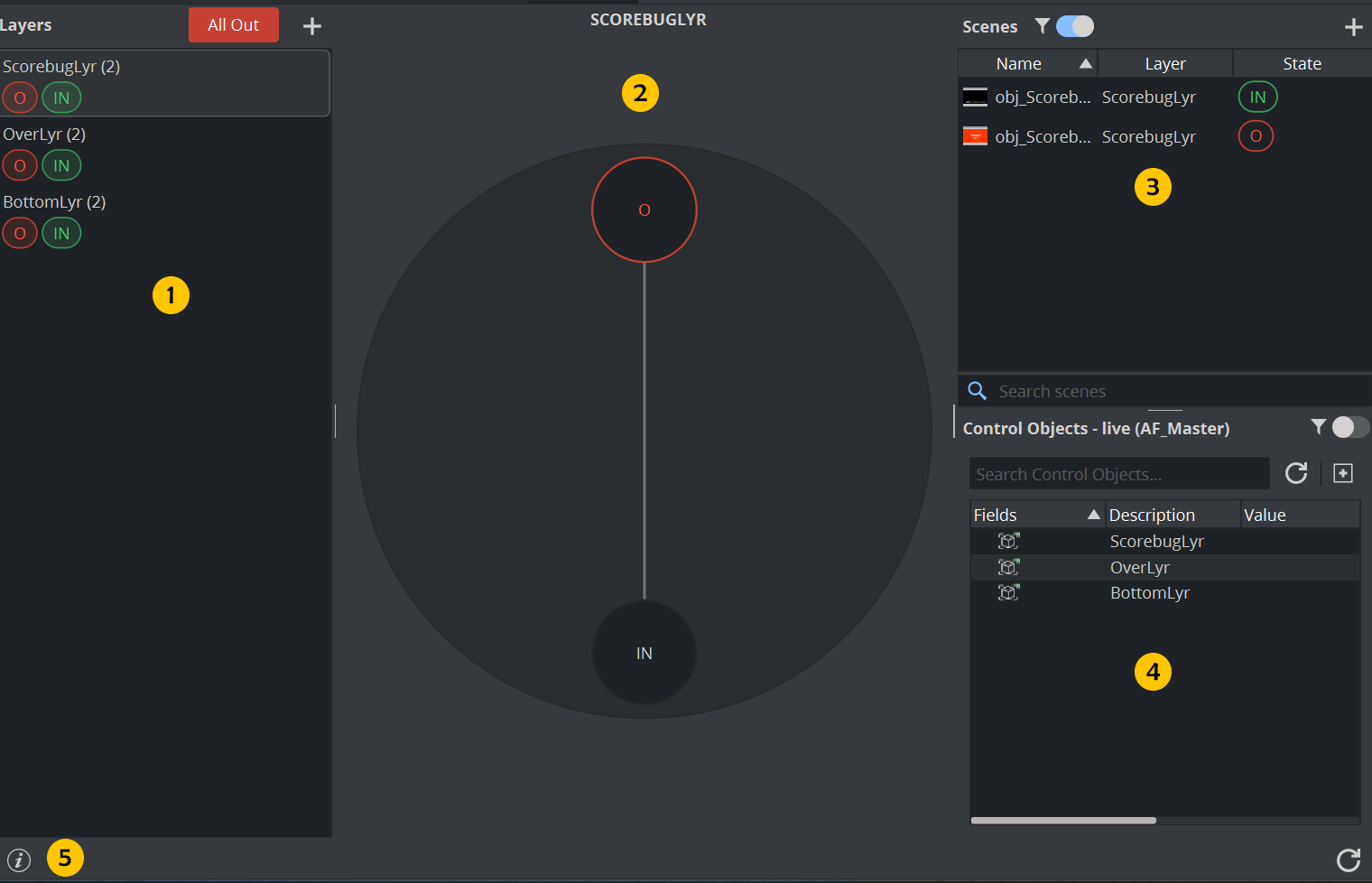
Area | Purpose |
|---|---|
Layers (1) | All layers of the master with a badge for every state. Add, rename and delete layers; take states; All Out. |
State graph (2) | The states of the selected layer on a circle. Take states, add/rename/remove states, change transition durations. |
Scenes (3) | The leaf scenes of the master. Create, preview, rename and delete pages. |
Control Objects (4) | The fields exposed by the objects loaded into the master. |
Bottom bar | The health check button, the status line and the reload button |
When you select a layer, the Logicmaker also selects the layer's container in Viz Artist and its transition director in the Stage dock, so you can jump straight from logic to animation work.
Creating a package
The empty state
When the loaded scene has no transition layers, the dock shows an empty state instead of the editor.
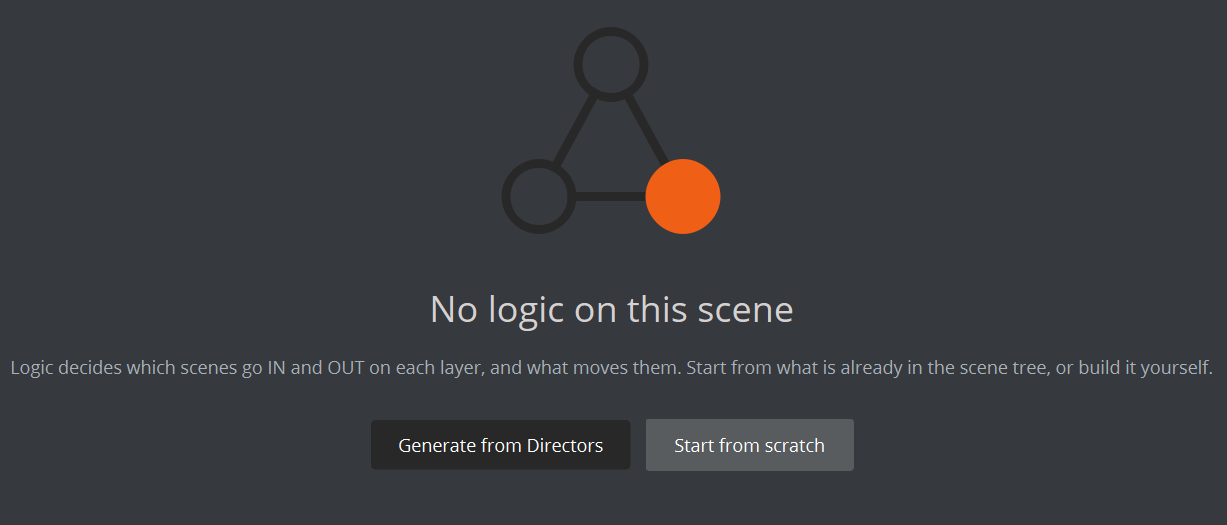
There are three variants:
You see | When | What you can do |
|---|---|---|
No scene loaded | No scene is open in the Scene Editor. | Open a scene. |
No logic on this scene with the buttons Generate from Directors and Start from scratch | The scene has no Toggle layers and is not a page of a master. | Build the logic by Starting from scratch or use existing Directors |
Scene belongs to "Master" with the button Open master scene | The scene is a leaf scene (it has a ControlObject naming a master). | Open the master to edit the logic this page is driven by. |
Generate from Directors is enabled only when the scene tree contains named top-level containers to offer for conversion.
Open master scene loads the master (a sibling of the page in the same folder) into the Scene Editor.
While a scene is being analyzed, the Layers section shows a spinner with the text Gathering information.
Start from scratch
Use this when you build a package from nothing. The wizard has two steps.
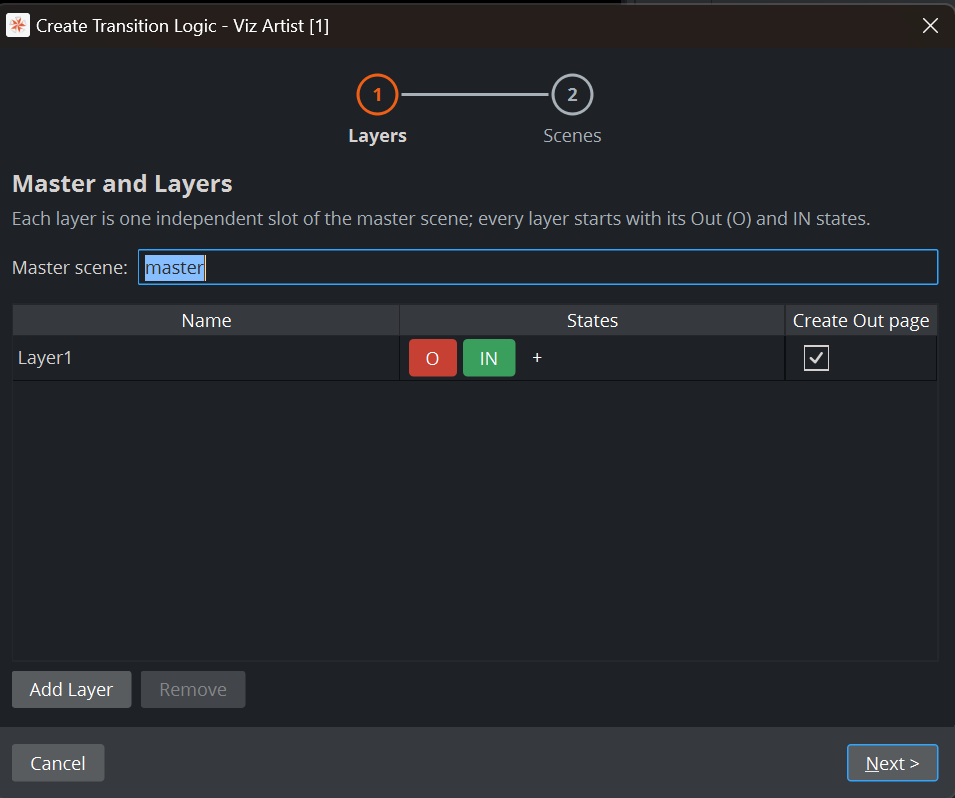
Step 1 - Master and Layers
Master scene - the name of the master. For an unsaved scene the field is editable (default
master)Layer table - one row per layer with the columns Name, States and Create Out page:
Name - editable. Names must be unique and valid (see chapter 12).
States - every layer shows a red O and a green IN badge, then one green badge per extra state, then a +.
Click + and enter a name to add a state.
Right-click IN and choose Rename... to give the on state another name, for example
ON.Click an added state badge to remove it, or right-click it for Rename... and Remove.
Create Out page - ticked by default. Creates a scene
<Layer>_OUTthat takes the layer to O.
Add Layer adds a row with the next free name (
Layer1,Layer2, ...). Remove deletes the selected row and is enabled only while a row is selected.
Next to the buttons a yellow hint explains why Next is disabled:
Hint | Meaning |
|---|---|
The master scene needs a usable name. | The master name is empty or contains forbidden characters. |
Add at least one layer. | The table is empty. |
A layer is missing its name. | A name cell is empty. |
Layer name "X" is not usable. | The name contains a space or a forbidden character. |
Two layers are named "X". | Layer names must be unique. |
Step 2 - Leaf scenes
Leaf scenes are the pages a control application takes. Each one drives its layer to the chosen state.
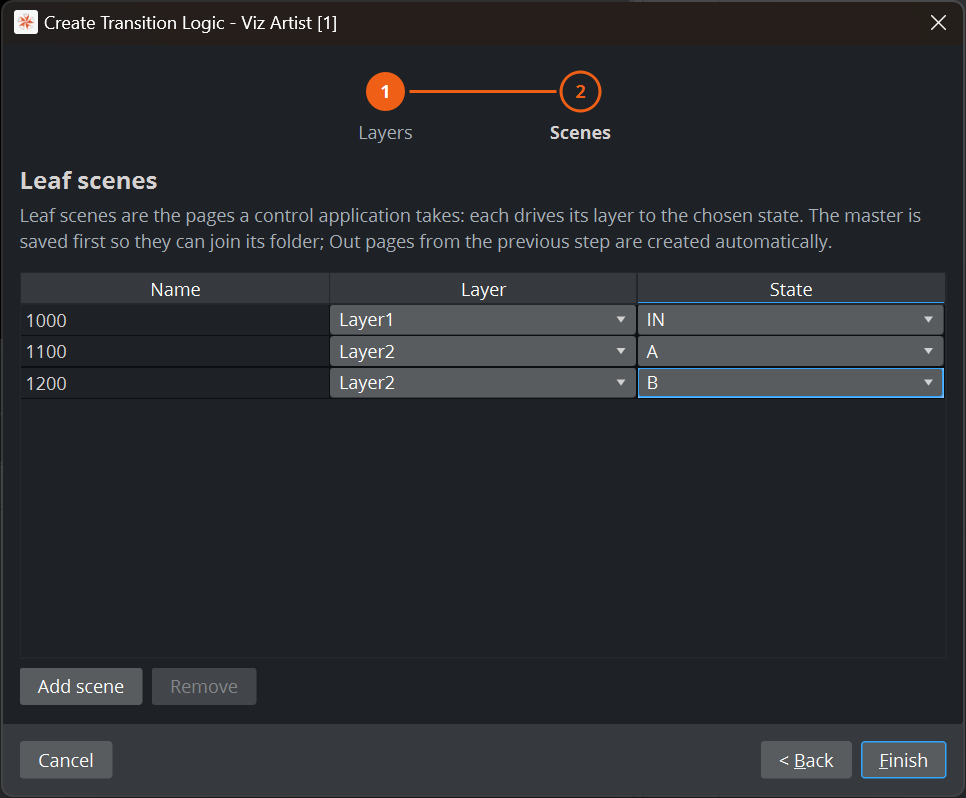
Add scene adds a row. Name defaults to the next free page number (
1000,1100,1200, ...). Layer lists the layers from step 1. State offers the on state, the extra states and O.Remove deletes the selected row (enabled only while a row is selected).
The Out pages from step 1 are created automatically; do not add them here.
You may finish without any scene and create the pages later (section 7.2).
Hints on this step: A scene is missing its name, Scene name "X" is not usable, Two scenes are named "X", and "X" collides with a layer's automatic Out page (for example a scene called Lower_OUT while Create Out page is ticked for Lower).
When you go Back and change layers, the choices you made for the scenes are kept as far as they are still valid.
Clicking on Finsih lets you choose the location where Master Scene, Leaf Scenes and Out Scenes are created.
What Finish does
The layers are created with their states. New layers are inserted at the top of the scene tree.
The master is saved to the chosen location. (A master that is already saved is saved in place.)
The Out pages and then the leaf scenes are created in the same folder.
The Scene Editor switches to the saved master, the Asset View jumps to its folder with the master selected, the Logicmaker shows the layers, and the status bar says Transition logic created.
A new leaf scene contains one container named object carrying the ControlObject plugin. Its fields layer, state and background tell the master where the page belongs; description is filled with <layer> <state> (for example Lower IN) so the page is recognizable in a control application. You build the page's graphics inside object.
Generate from Directors
Use this when the scene already has top-level containers that should become layers. The wizard has three steps: Directors, Master and Layers, Leaf scenes.
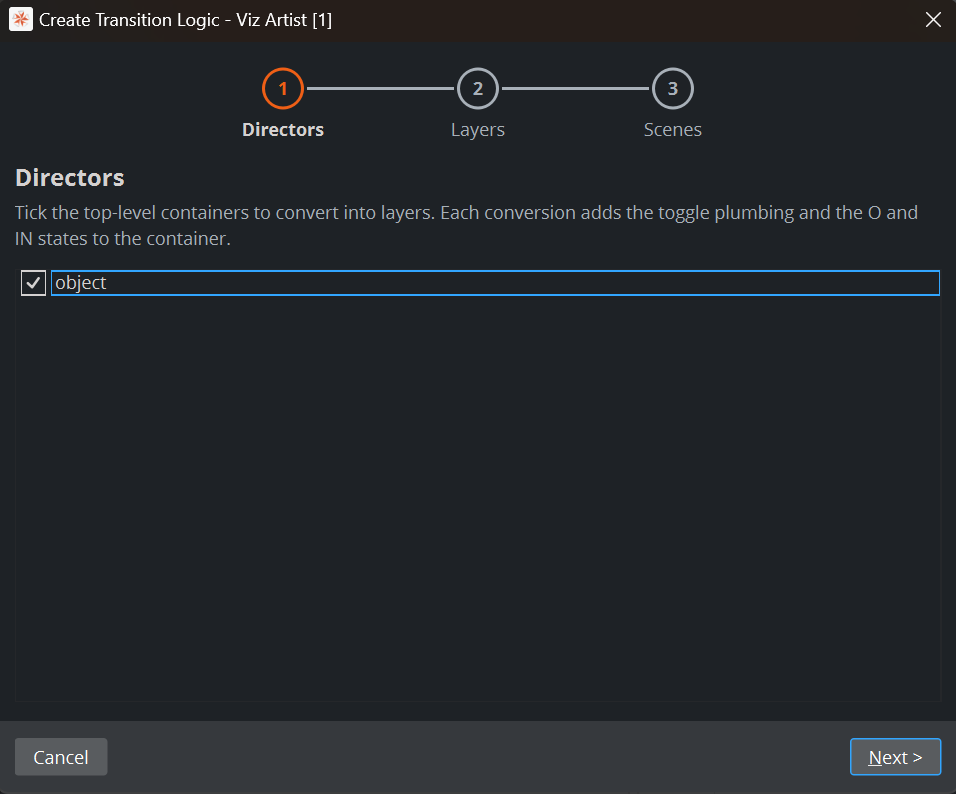
Step 1 - Directors
The detected top-level containers of the scene tree are listed with check boxes, all ticked. Tick the ones to convert. Each conversion adds the Toggle plumbing and the O and IN states to the container; the container keeps its name and its content.
Two kinds of entries cannot be ticked:
" - N states (designed animation; wire up manually for now)" - the container already has a director of the same name that carries designed stop markers. Converting it automatically would collide with that animation, so wire such containers up by hand in the Stage.
" - (name not usable as a layer)" - the name contains forbidden characters. Rename the container in the scene tree and open the wizard again.
If nothing is detected the page says Nothing detected in the scene tree - continue to build layers by hand.
Steps 2 and 3 work as described in Create from Scratch
Example
A scene has the top-level containers Lower, Bug and Clock. Clock already has a director named Clock with five stop markers. In the wizard Lower and Bug are ticked and Clock is disabled as designed animation. After Finish, Lower and Bug are layers with the states O and IN and a one-second transition; Clock is untouched and has to be wired up manually.
Messages and troubleshooting
Messages appear in the status bar at the bottom. A warning has a warning sign and a yellow color; messages disappear after about eight seconds.
Message or symptom | Cause | What to do |
|---|---|---|
No scene loaded | No scene is open in the Scene Editor. | Open a scene. |
Generate from Directors is disabled | No convertible top-level containers were found. | Use Start from scratch or add named top-level containers. |
A container is listed but cannot be ticked | It carries a designed animation, or its name is not usable. | Wire it up by hand in the Stage, or rename it and reopen the wizard. |
Could not read the scene's transition logic. | The scene could not be analyzed (connection problem, scene changed while loading). The status bar shows the engine's message. | Click reload; check the connection to Viz Engine and the Graphic Hub. |
Skipped: Container X (#id) carries a Toggle plugin but no transition logic: the Toggle has no out channel, and no stage director is named after the container. | A container has a Toggle plugin that was never set up as a layer. The rest of the scene loads normally. | Remove the stray Toggle plugin from that container, or delete the container and create a proper layer with +. |
Background scene has not been saved. | The master has no Graphic Hub location, so pages cannot be created beside it. | Save the master in the Scene Editor. |
Scene already contains a layer with the same name. Please choose a different name. | Layer names are unique within the master. | Choose another name. |
Folder already contains a scene with the same name. Please choose a different name. | Scene names are unique within the folder (automatic Out pages count). | Choose another name. |
Invalid layer name / Invalid scene name / Invalid state name: X | The name is empty or contains a space or a forbidden character. | See chapter 12. |
State already exists: X | The layer already has a state of that name. | Choose another name. |
Can't edit Out state. / Can't remove Out state. |
| Leave |
Can't have less than 2 states. | A layer needs | Delete the layer if that is the intent. |
There is no direct transition between A and B on the timeline. | The two states have no transition. | Run the health check, see 10.1. |
Duration must be at least 0.05 seconds. | The minimum transition length is 0.05 s. | Enter a larger value. |
Shortening would cross a designer keyframe at T s ... | A keyframe lies inside the transition beyond the new end. | Move or delete that keyframe in the Stage first. |
"X" is a master scene (contains toggle layers) and cannot be loaded into a layer. | You clicked a master scene in the Scenes pane. | Pages are the other rows; the master is shown as |
Cannot rename director to "X": an ancestor container name contains characters the engine rejects. | The helper director names are derived from the names of the container's ancestors, one of which has a forbidden character. | Rename that ancestor container in the Scene Tree, then rename the layer again. |
The transition director of layer X was not found on the stage. | The layer's director was deleted or renamed outside the Logicmaker. | See 10.4; recreate the director's name or the layer. |
A scene shows a warning sign | Its ControlObject names a layer, state or master that does not exist. | See 10.7. |
The highlighted state differs from what is on air | The Logicmaker shows the state it last took. It does not follow takes made by a control application, and after reload no state is highlighted. | Take a state, or click All Out, to bring the display back in line. |
The Logicmaker shows old data after you edited the Stage or Scene Tree | Changes made elsewhere are not tracked live. | Click reload. The dock also reloads when you undo or redo. |
Reference
Naming rules
Layer, state, master and scene names must not be empty, must not contain spaces and must not contain any of these characters:
$ { } # \ * ? [ ] "State names must be unique within the layer; O is reserved for the Out state. Layer names must be unique within the master, scene names within the folder. The input fields already refuse the forbidden characters.
Good to know
The Logicmaker works on the scene that is open in the Scene Editor and reloads when that scene changes. While the dock is hidden it reloads when it is shown.
Changes to layers, states and durations modify the loaded master: save it to keep them. Leaf-scene operations (create, rename, delete, retarget) are written to the Graphic Hub immediately.
Removing or recreating structure outside the Logicmaker (Scene Tree, Stage) is possible but bypasses its consistency work; the health check finds what drifted.
Containers that already carry a designed director animation cannot be converted automatically yet.