TriCaster Story Clip Setup
This workflow records the stories that the NRCS marks for recording and produces one clip per story with TriCaster. TriCaster acts as recorder, transcoder, and online publisher: Viz Mosart records the program output, then sends an export job that cuts the story clip out of the growing recording. When a story is also marked for publishing, TriCaster pushes the clip to the online platforms in its publish presets.
This page covers the TriCaster half of step 19 of the Story Recorder Setup Checklist. Work through steps 1 to 18 first, including step 16, which prepares TriCaster itself. The setup shared by both story clip outputs, including the NRCS story metadata, is in Story Clip Production Setup.
Info: Story Recorder needs frame accuracy in production. You can configure and test this output without genlock, but the marks will not be frame accurate. See steps 8 to 13 of the Setup Checklist.
What you need
On top of the general Story Recorder setup, this output needs:
Export presets configured in TriCaster. Story Recorder can name them explicitly, or fall back to the presets currently enabled in TriCaster.
Publish presets configured in TriCaster, if you want online publishing.
HTTP credentials for the TriCaster REST API. Viz Mosart uses them to request Start of Media (the timecode of the first frame) for the render job command.
For the validated combination of NRCS, recorder and transcoder, and the product versions, see Supported Configurations in Story Recorder Setup.
Settings
Open the Manus Settings menu and set Enable Story Recorder to true. The remaining Story Recorder settings sections then become available.
Note: Save while Story Recorder is off, and restart the Mosart Logging Service after changing the Clip Outputs devices, including this TriCaster output. See step 25 of the Setup Checklist.
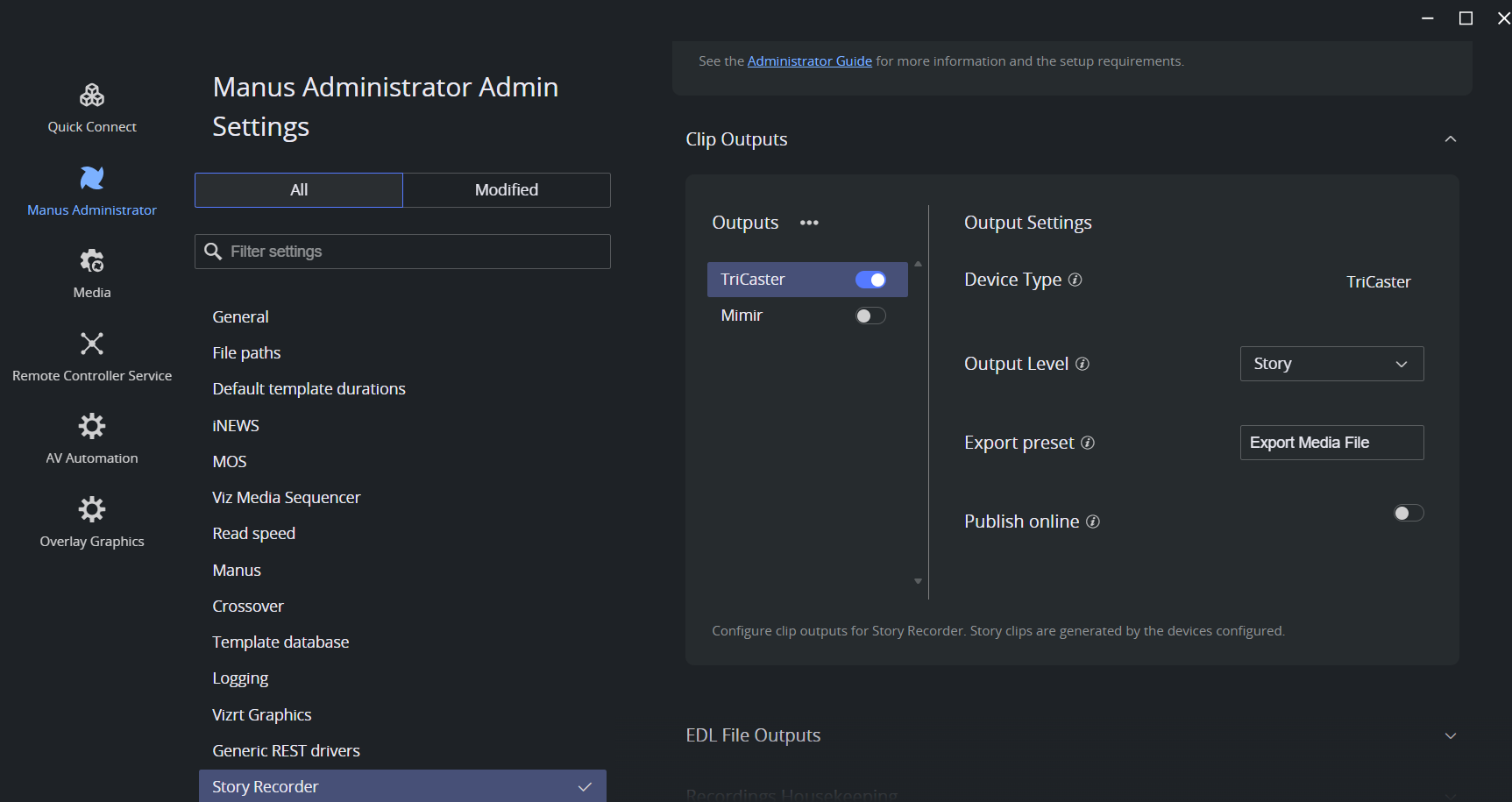
Clip Outputs > TriCaster
Setting | Default | Description |
|---|---|---|
Output Level | Story | Read-only. Determines the granularity at which clips are produced. At Story level, one clip is generated per story in the rundown. Currently, only story-level output is supported for the workflow with TriCaster. |
Export preset | (empty) | TriCaster export preset name(s). Multiple presets can be separated by a vertical bar. If empty, the export presets currently enabled in TriCaster will be used. |
Publish online |
| When enabled, clips will also be published to the online platforms as specified in the TriCaster's publish presets. |
Publish preset | (empty) | TriCaster publish preset name(s) for online publishing. Multiple presets can be separated by a vertical bar. Visible only when Publish online is enabled. If empty, the publish presets currently configured in TriCaster will be used. |
Preset value examples: a single preset is Export Media File, and two presets are Preset1|Preset2. The same syntax applies to Export preset and Publish preset.
Related settings
These settings are shared by all Story Recorder workflows and live on Story Recorder Setup:
Preparing TriCaster: the TriCaster session frame rate, genlock and timecode, the recording folder, and the
HttpUsername,HttpPasswordandAddExportJobDelayMsconnection string properties.Recordings Housekeeping and Related General Setting: the recording clip name prefix, the retention days, and Use local time.
Keyboard Shortcuts and Clip naming pattern of temporary recordings.
Recorded clips can be very large files, easily filling the disk space.
Procedure
Configure the TriCaster clip output
In the Manus Settings menu, enable Enable Story Recorder.
Under Clip Outputs, open the TriCaster section.
Enter the Export preset name, or several names separated by a vertical bar. Leave it empty to use the export presets currently enabled in TriCaster.
Enable Publish online if clips should also go to the online platforms.
With Publish online enabled, enter the Publish preset name(s), separated by a vertical bar for several. Leave it empty to use the publish presets currently configured in TriCaster.
Save the settings and restart the Mosart Logging Service on the Mosart Server machine.
Info: The Quick Connect feature in Manus Settings configures the video server setup, enables the recorder for Story Recorder, and writes the HttpUsername and HttpPassword properties. To configure the ports manually, or to check what Quick Connect produced, see Configuring the Video Server in Story Recorder Setup.
Configure the NRCS story metadata
Story metadata configuration is shared by all story clip outputs: each story that should be recorded must carry metadata that tells Viz Mosart to produce a clip, delivered either by an NRCS with built-in integration or by Newsroom Settings field mapping. The <mosExternalMetadata> sample, the MOS payload elements and the Newsroom Settings field names are documented in NRCS Metadata for Story Clip Production in Story Clip Production Setup.
Online publishing is specific to TriCaster and is controlled by the Publish payload element, or by the sr_publish_story_clip mapped field.
Verification
Load a rundown that has at least one story marked for recording, and check that the story items appear in the Story Recorder panel.
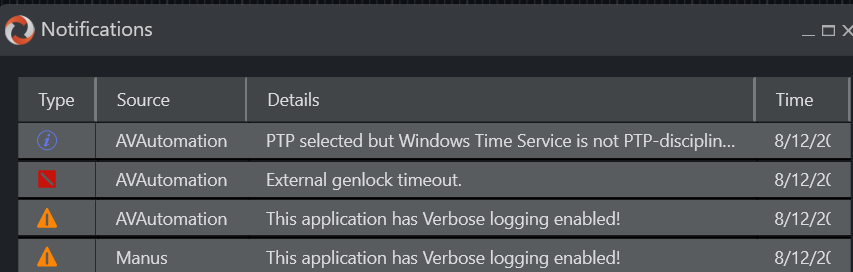
Check that the Notifications in Mosart UI shows no genlock warning. Unreliable genlock or Genlock is not enabled means Viz Mosart fell back to the internal clock, and the clips will not be frame accurate. You can still verify Story Recorder general functionality without genlock and timecode setup though.
Switch Story Recorder on in the Viz Mosart UI. The session must start without errors. Otherwise, check Story Recorder Troubleshooting.
Take the first story on air and confirm that an intermediate recording appears on the video server, with the
movextension and a name such asSRVizrt_1_211001153956.mov.When the story ends, confirm that TriCaster runs the export job. Allow for the
AddExportJobDelayMsdelay (5 seconds by default) before the export starts.If Publish online is enabled, confirm on the target online platform that TriCaster published the clip with the configured publish preset.
Operator instructions for switching on and running Story Recorder are in Working with Story Recorder.