
Viz Mosart Administrator Guide
Version 4.0 | Published September 22, 2020 ©
AV Automation
AV Automation (MMAVAutomation) forms the bridge between Viz Mosart and the devices (for example a vision mixer or video server) in the studio. It also controls full-screen graphics (but not Overlay Graphics engines), which from a Mosart perspective, are treated as clips.
Overview
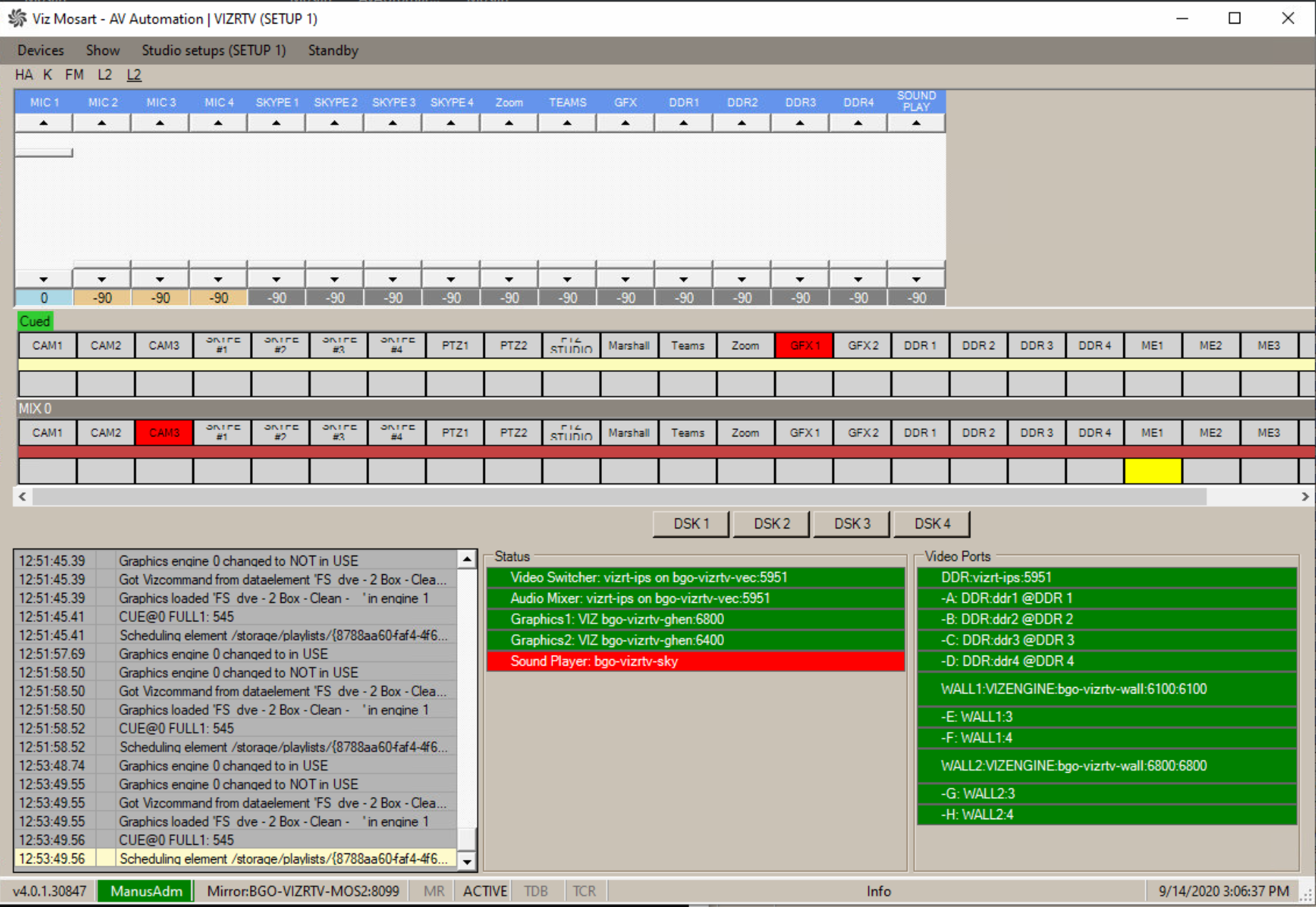
The principal tasks for AV Automation are:
-
To Cue a clip (prepare) when in preview
-
To Play a clip when taken on air
-
To manage control commands to studio devices.
All device drivers are stored in AV Automation, offering the administrator a single point of configuration.
On the fly commands can then be issued directly to each device through the Viz Mosart GUI, or as pre-programmed operations driven by the rundown submitted through the Newsroom System.
All device commands are stored as predefined Viz Mosart templates. They exist in the Template Editor, and are saved in C:\channeltemplates or in a template database.
AV Automation is the device handler of Viz Mosart. This application communicates with all connected devices such as cameras, video servers and vision mixers.
As well as presenting tools for configuring these devices, it includes Template Editor, for defining and customizing templates.
Menu Description
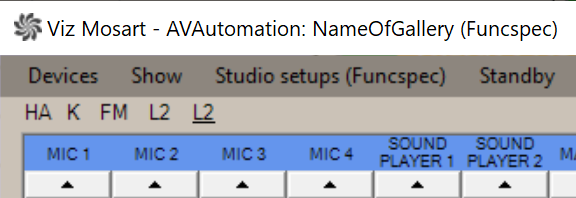
-
Devices:
-
Preferences: Opens AV Automation Device Properties.
-
Template editor: Opens Template Editor.
-
A/V Setup: Opens Audio and Video Setup.
-
Record: See Recording.
-
Change password: Creates or changes the Other Template Functionality.
-
-
Show:
-
Show MVCP Control: Deprecated.
-
Instrumentation Panel: Opens the Mosart Instrumentation Panel.
-
-
Studio setups: Selects the template set to use for the current show. These template sets are not available for selection:
-
those marked as Hide from user
-
the special template set DirectTakes.
-
-
Standby: Lists all configured devices and their connection status (Green: connected, Red: not connected, Orange: standby).

From this menu, a device can be placed in Standby (or taken out of Standby). (Standby means the device is not under control of Viz Mosart; no commands will be sent to it from Mosart.)
The Viz Mosart operator can also perform this action from the main UI. See the Viz Mosart User Interface section of the Viz Mosart User Guide, under Main Menu, Standby for further details. -
Idle: This is an indicator that AV Automation is in idle mode, not a menu option. In this state, the menu bar turns orange.

As long as AV Automation is not in idle mode, there is no 'Idle' in the menu bar.
Logging and Status
Below the fader and switch representations are three monitoring panels.
Logging Panel
To the left is a Logging panel with timestamped event details. Clicking in this panel toggles between three display modes.
-
Basic (default) - log window without color coding
-
Color - log window with color coding
-
Disabled - log window will not show anything
This section presents the following AV Automation topics:
See Also