
Viz Mosart Administrator Guide
Version 4.0 | Published September 22, 2020 ©
AV Automation Devices Video Servers
Viz Mosart is capable of controlling video servers from many different manufacturers. Although the end result is the same, each video server type operates in a slightly different way.
It is essential that the correct settings are defined in AV Automation for Viz Mosart to effectively and correctly control your video servers. You reach these settings with
-
AVAutomation > Devices > Preferences.
From the Mosart Device Properties menu, select the Video Servers tab, to display the configuration menu below.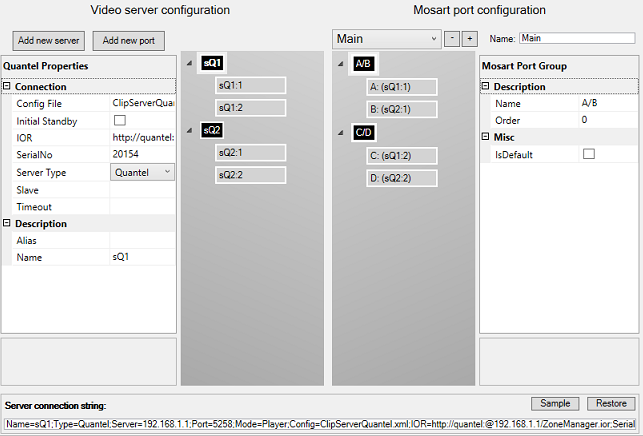
-
The left side presents details of the physical servers, and any port configurations.
The example above presents a Quantel server, sQ1 (as selected from the Server Type drop-down menu), and one other server (sQ2), which could also be a Quantel server.
Server sQ1 has 2 ports defined, sQ1:1 + sQ1:2.
Server sQ2 has 2 ports defined, sQ2:1 + sQ2:2. -
The right side presents details of the virtual connection within Viz Mosart, with salvo definitions.
This is described in Working with Mosart Port Configuration.
This rest of this section contains the following topics, presented according to the configuration menu illustrated above, from left to right:
Working with Video Server Configurations
You can add or remove video servers to your Viz Mosart system, and modify the configuration of existing hardware.
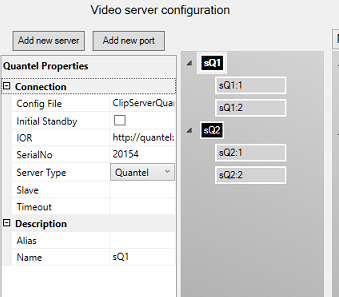
Viz Mosart supports a wide range of video servers. These can be viewed from the Server Type drop-down menu.
Note: Only compatible combinations of MediaAdmin and AVA drivers can be defined. Please contact Vizrt Support for further details.
The Name property links the selected video server to a MediaAdmin properties line.
For an explanation of the various configuration properties, please refer to the specific video server model, as presented in Video Server Properties below.
Video Server Properties
Here are some guidelines for common video servers that Viz Mosart can work with.
Common Settings
Several of the settings are always required, as listed here
-
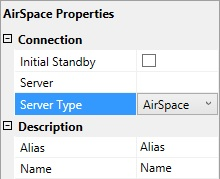
Initial Standby: If selected, the server is forced to start in Standby mode.
-
Server: Defines the hostname or IP address of the video server.
EVSXedio: This value is not required.
-
Server Type: Name of supported video server. For example, AirSpace, AirSpeed, EVS LinX, Orad OCIP.
-
Alias: Defines the name of the server to display in the Viz Mosart GUI and Timing Display.
-
Name: Internal name of the server, for display in AV Automation.
The above settings are typical for
AirSpace, AirSpeed, EVS LinX, EVS Xedio, OradOcip video servers.
AirSpeed MultiStream
-
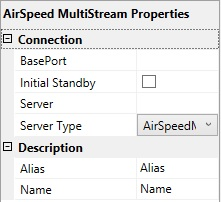
BasePort: The first port Viz Mosart uses to communicate with the AirSpeed MultiStream server. Default: 59451.
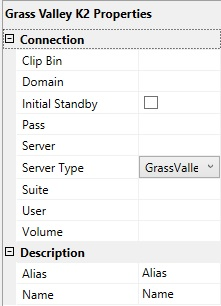
Grass Valley K2
Connection to K2 is initialized with a ping (ICMP) from Mosart to the server to confirm the connection. Then it uses port 3811 to communicate with the K2 server. Both need to be open for Mosart to be able to connect
Manus admin uses a separate port when it connects: 49171 (although a range is OK. Use 49168-49172)
-
Clip Bin: Defines the location on the server that holds the clips.
-
Domain: Define the name of the Domain the user is part of.
-
Pass: Defines the password for logging into the server.
-
Suite: The suite name on the K2 video server that plays out the clips.
-
User: Username to log into the server.
-
Volume: The volume letter where the clips are stored on the K2 server.
After configuration, restart MediaAdministrator and AVautomation, and ensure that the GUI is connected to the K2 server(s).
Verify that all lights regarding videoservers go green.
Tip: If you do not get green lights, and you see the following message in the Mosart log:
Failed connecting to video server K2:
The source was not found, but some or all event logs could not be searched.
Inaccessible logs: Security.
you can try to start AVAutomation as Administrator. This is a known issue in Grass Valley. More info here: http://www.gvgdevelopers.com/concrete/apis/appserver_api/windows/
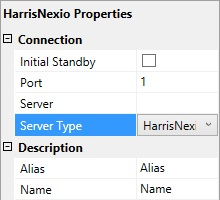
Nexio
-
Port: TCP/IP communication port to the Nexio server.
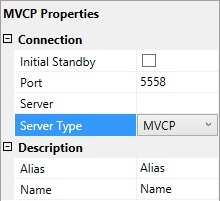
MVCP
-
Port: TCP/IP communication port to the MVCP server.
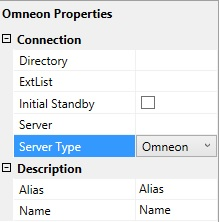
Omneon
-
Directory: Defines the directory where the clips are stored.
-
ExtList: The list of valid file extensions used when listing and querying files on the server. The list is period separated and case sensitive.
Quantel
-
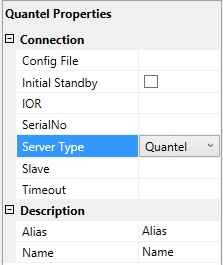
Config File: The path to the XML configuration file used to define the Viz Mosart - Quantel communication.
-
IOR: The HTTP link including hostname or IP address to the IOR resource on the Quantel ISA manager. Example: http://192.168.100.50:2096/ZoneManager.ior
-
SerialNo: The serial number of the Quantel playout server.
-
Slave: The hostname or IP address of the slave/backup IOR.
-
Timeout: Timeout value for requests from Viz Mosart to ISA manager. If the request exceeds this timeout the server connection is reinitialized. Setting a value here should only be needed for sites experiencing issues with the Quantel connections. Leaving a blank value uses the default timeout.
Recording with Quantel Devices
Quantel requires a duration when preparing a recording. This duration can be set the following ways:
-
As part of a template: Specified using markin and markout properties.
-
As part of a keyboard shortcut: Specified by trailing the ClipName property with [,duration]. Similar to the examples under the general section Controlling Video Servers from Mosart above.
-
As part of template control command: Specified as part of the Parameter property. Again, see the general section above.
VDCP
-
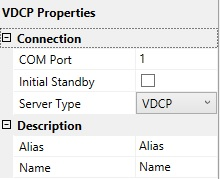
COM Port: The COM port connected to the VDCP video server.
-
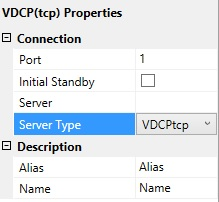
Port: The TCP/IP communication port connected to the VDCP video server.
Viz Engine
-
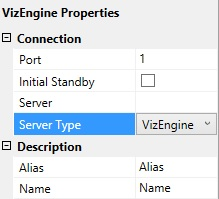
Port: The TCP/IP communication port connected to the Viz Engine video server.
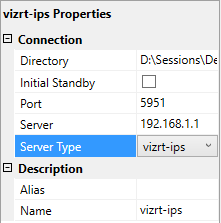
Vizrt-ips
-
Directory: Defines the directory where the clips are stored. The following format can be used: {volume}:/Sessions/{session_name}/Clips/Import
-
Port: The TCP/IP communication port connected to the vizrt-ips video server.
Video Server Port Properties
-
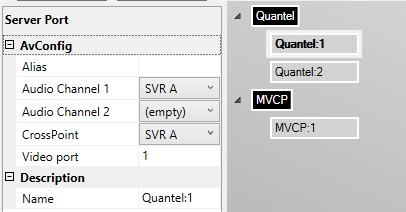
Alias
-
Audio Channel 1: The audio channel 1 for the selected video port.
-
Audio Channel 2: The audio channel 2 for the selected video port.
-
CrossPoint: The video crosspoint for the selected video port.
-
Video port: The actual port name/number on the video server. Please refer to the documentation of your video server for information on how to find these.
-
Name
Working with Servers and Ports
To Add a Server
-
Click the Add new server button
-
In the Properties pane on the left, select the Server Type and add additional information such as Port and Server host.
To Remove a Server
-
In the Video Server Configuration tree, right-click a server node and select Remove.
To Add a Port
-
In the Video Server Configuration tree, select a server node
-
Click the Add new port button, or right-click the server node and select Add new port
-
In the property editor on the left, enter the port information.
To Remove a Port
-
In the Video Server Configuration tree, right-click a port node and select Remove.
Mosart Port Configurations
Virtual Server Ports
-
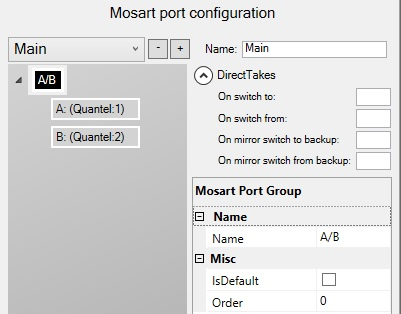
Add new salvo: Use the + icon to add another empty virtual video server salvo.
-
Remove a salvo: Use the - icon to remove/delete a virtual video server salvo.
-
Switch between salvos: Use the drop-down menu to select another virtual video server salvo.
If the Media Administrator setting Enable dynamic configuration (see Media Administrator Properties Editor, Configuration) is True, selecting a salvo will also have the effect that Media Administrator connects only to-
those servers that are part of the salvo selected, and
-
those servers which have Static=True in the Media Administrator connection string. (See Media Administrator Properties Editor, Connection Media Search Servers, Video clip Server <n>.)
-
-
Name: Defines the name of the virtual video server salvo.
Direct Takes -
On switch to: The direct take template number that should be taken when switching to this virtual server salvo.
-
On switch from: The direct take template number that should be taken when switching from this virtual server salvo.
-
On mirror switch to backup: The direct take template number that should be taken when switching to a backup server using this virtual server salvo.
-
On mirror switch from backup: The direct take template number that should be taken when switching from a backup server using this virtual server salvo.
Mosart Port Group -
Name: The name of the virtual server group. This name is displayed in the server part of the templates.
-
IsDefault: Enable to set the default and preferred video port group for assets residing on multiple systems.
-
Order: See the documentation of the Media Router. If the Media Router is not used, this value can be left to the default 0.
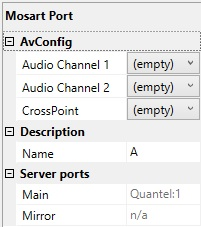
Mosart Port
-
Audio Channel 1: The virtual audio fader 1 for the selected video port. If nothing is selected here, the audio fader from the physical part is used. Default: Empty
-
Audio Channel 2: The virtual audio fader 2 for the selected video port. If nothing is selected here, the audio fader from the physical part is used. Default: Empty
-
CrossPoint: The virtual video crosspoint for the selected video port. If nothing is selected here, the video crosspoint from the physical part is used. Default: Empty
-
Name: The name of the virtual server port, this name is displayed in the server part of the templates.
-
Main: Auto-generated display name of the main video port.
-
Mirror: Auto-generated display name of the mirror video port.
Working with Mosart Port Configurations
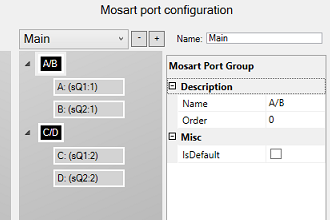
The panel on the right-side of the details presented in the Video Servers tab lists any configured ports. This represents a virtual configuration, presented as Viz Mosart port groupings, or salvos. A salvo is a configured constellation of virtual ports (see Working with Salvos below).
To Add a Virtual Port Group
-
Right-click in the Mosart Port Configuration tree (not on a node) and select either:
-
Add virtual ripple group to add a new virtual ripple group. The default ripple group names are A/B, C/D, E/F etc.
-
-
Add virtual preview group to add a new green virtual preview group node to be used for preview ports. The default preview group name is P.
-
Add virtual recording group to add a new red virtual recording group node to be used for recording ports. The default recording group name is Rec .
You can edit or rename the selected group using the Properties Editor on the right.
To Remove a Virtual Port Group
You can remove a virtual ripple group, preview group or recording group.
-
In the Mosart Port Configuration tree, right-click any ripple/preview/recording group node and select Remove group <name>.
Alternatively, select a node and press the Delete key. -
When prompted, select Yes to confirm that you want to remove the group from all salvos.
To Add a Virtual Port
-
In the Mosart Port Configuration tree, right-click any group node and select Add virtual port.
If the port was added to a preview group, the added port will be a preview port with default name P. If the port was added to a recording group, the added port will be a recording port with default name Rec.
Note: Do not change the name Rec!
To Remove a Virtual Port
-
In the Mosart Port Configuration tree, right-click any virtual port node and select Remove <name>. Alternatively, select a node and press the Delete key.
-
When prompted, select Yes to confirm that you want to remove the group from all salvos.
Working with Salvos
Salvos are used to switch between server setups. They are used when the operator needs to switch between server parks, for example, when switching to a backup salvo.
Salvos can also be used if different video servers are used in different parts of the show, for instance, sports and news, but you still want to use the same ports.
Note: It is recommended that the default Main and Backup salvos are not renamed.
To Connect a Server Port to a Virtual Port
You can connect a server port to a virtual port:
-
Select the server port (in the left-hand, Video server configuration part) you want to connect, and drag it to the virtual port (in the right-hand Mosart port configuration part) that you use to represent the port in the selected salvo.
Note: If the virtual port is a recording port (in the recording group), the server port to connect must also be a recording port: The physical server must have recording capabilities (and the chosen Server Type must allow for recording).
To connect two server ports to one virtual port, causing mirroring:
-
Select a server port and drag it to the virtual port that you use to represent the port in the selected salvo.
-
Select another server port and drag it to the same virtual port.
Note: Only two ports can be mirrored.
To Clear Server Links in a Virtual Port Node
Right-click the virtual port node and select Clear links.
To Add a Salvo
Click the Add  button.
To Remove a Salvo
Click the Delete  button.
To Modify a Salvo
-
Click the drop down box above the Mosart Port Configuration tree and select the salvo you want to edit.
-
Rename the selected salvo in the Name textbox.