
Viz Mosart Administrator Guide
Version 4.0 | Published September 22, 2020 ©
Backup and Recovery
Since the Viz Mosart Template Database is stored in a MySQL database, any backup and recovering strategies offered by the database vendors apply. Also most MySQL clients offers the possibility to backup and restore the entire database from a single .sql file.
In this section, the MySQL command line tools mysqldump and mysql are used for backup and restoring respectively.
Tip: mysql.exe and mysqldump.exe are part of MySQL Server, MySQL Workbench or Wampserver installations.
Using mysqldump for backups
The command above creates a single .sql file containing the entire Viz Mosart Template Database.
mysqldump [--host=hostname] --user=username --password=password --add-drop-database mosarttemplatedb > backupfile.sqlUsing mysql for restore
The command below restores the Viz Mosart Template Database from a single .sql file as created using the mysqldump command shown in the former section.
mysql [--host=hostname] --user=username --password=password mosarttemplatedb < backupfile.sqlBackup and restore from MySQL clients
The backup and restore operations using the mysqldump and mysql tools is also available in all recommended MySQL client applications. When using a client application ensure the following:
-
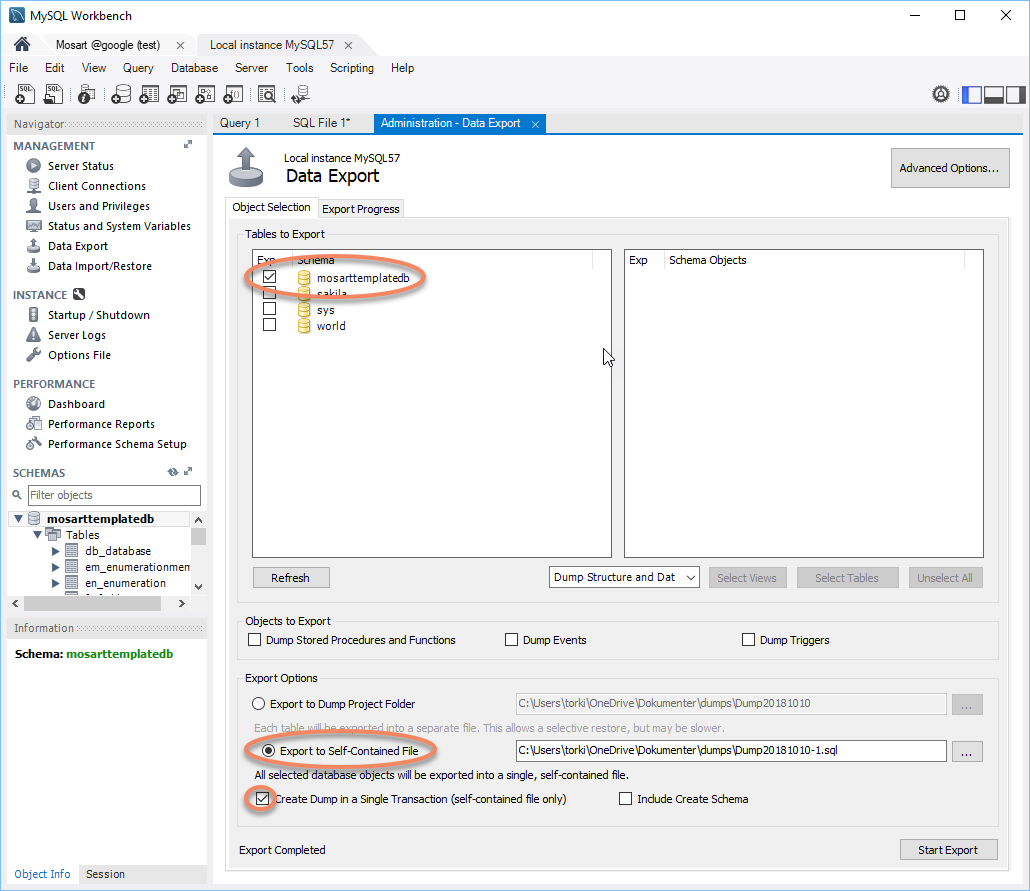
Database schema = mosarttemplatedb.
-
Export to a single file (i.e. the entire database should be saved on a single file).
-
Include drop and create functions. This ensures that the database is restored as stored on the file.
Example, backup from MySQL Workbench
In MySQL Workbench the export dialog box is obtained from the Server > Data Export menu option. The figure below highlights the recommended options:
Restore from a single .sql file in MySQL Workbench is done via the Server > Data Import dialog. Simply select the .sql file as created during backup.
Example, backup from HeidiSQL
In HeidiSQL the export dialog is obtained from the Tools > Export database as SQL menu option.
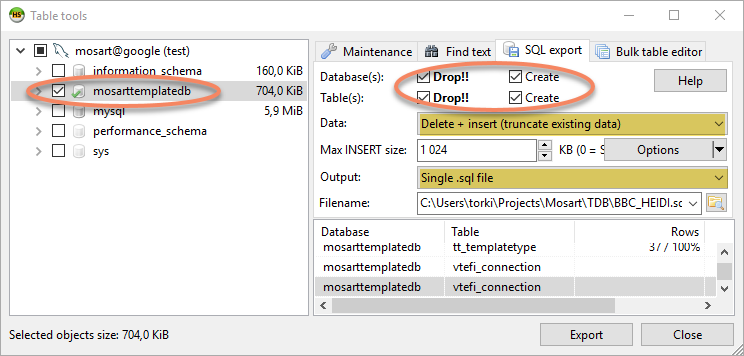
In HeidiSQL ensure the following:
-
Drop and Create is selected for both Database(s) and Table(s)
-
Data: is set to "Delete + insert (truncate existing data)"
-
Output: is set to "Single .sql file"
Restore from a single .sql file in HeidiSQL is done via the File > Run SQL file... menu option.