
Viz Mosart Administrator Guide
Version 4.0 | Published September 22, 2020 ©
Template Properties
This section explains the configurable fields on the General tab of the Template Properties menu, clarifying the function of a Sequence.
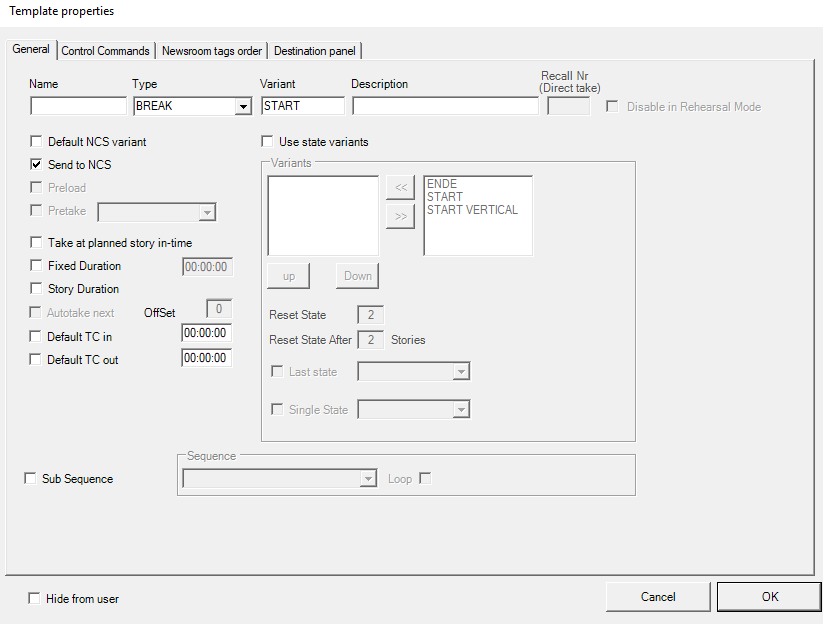
Configuration Descriptions
|
Item |
Description |
|
Name |
The name of the template. This value will only show in log files. English language is preferred, for making it easier to understand log-files. |
|
Type |
The different primary and secondary templates types are described in the Viz Mosart User Guide, section Viz Mosart User Interface under Rundown Window . |
|
Variant |
The variant is a unique name for the selected type, and should match the value entered in the newsroom system. |
|
Description |
Description of the template (optional). English language is recommended, for future maintenance purposes. |
|
Recall Nr (Direct take) |
(Applies only for templates in the Direct takes template set). Values from 0-999 apply, and are the value recalled from the numeric keypad in the Viz Mosart client application. Note: Avoid starting numbers with zero (0). For example, use 56 instead of 056. |
|
Disable in Rehearsal mode |
(Applies only for templates in the Direct takes template set). The DirectTake will not be executed when in Rehearsal Mode |
|
Default TC in |
(Applies only for templates in the Direct takes template set). |
|
Default TC out |
(Applies only for templates in the Direct takes template set). |
|
Default NCS variant |
This sets the template as the default variant for the selected type. |
|
Send to NCS |
When selected, allow this template to show in the NRCS ActiveX. |
|
Preload |
When selected, enable the preview functionality for the Accessory template. The Accessory template must have time code 00:00 for this to function. |
|
Take at planned story in-time |
If you want a story to start at a specific time of day, you can add a template with this option checked, to a story that has a set "hit time" in the NRCS. The "hit time" must be included in the story data sent to Viz Mosart, and the field-name must be mapped to back_time in Newsroomsettings. See Story External Metadata. |
|
Fixed Duration |
Make the template always have the same length (overriding the time from the NCS) in the Viz Mosart rundown. Select this option and enter the time in mm:ss:ff (minutes:seconds:frames). This can also be combined with Autotake to make a frame accurate continue to the next story. Remember to write the whole number each time, you cannot edit a single character at a time. |
|
Story duration |
When selected, the duration of the template will be set equal to "story editorial duration", coming from the NRCS. The "story editorial duration" must be included in the story data sent to Viz Mosart, and the field-name must be mapped to story_duration in Newsroomsettings. See Story External Metadata. |
|
Autotake next |
(Available for primary templates only, cf. Type above.) When selected, automatically perform a Take Next (F12) at the end of the template's duration, with an offset as described in Offset below |
|
Offset |
Set the offset when Autotake is enabled to adjust the Viz Mosart continue action at the end of the event. The value is in frames. A positive value will make the continue action happen later. A negative value will make it happen earlier. |
|
Sub Sequence |
See separate explanation below this table. |
|
Sequence |
See separate explanation below this table. |
|
Loop |
See separate explanation below this table. |
|
Hide from user |
When selected, this template is removed from the template list in the Quick Editor. |
|
Use state variants |
Please refer to OLD and invisible Working with Templates KEPT BECAUSE I AM FULL OF INLINE COMMENTS for explanation of state variants. |
|
Control Commands (tab) |
If the template should have control commands attached, configure here. Please refer to Control Commands in Templates for further instructions. |
Sequences
A sequence is a saved story (including primary and secondary items with relative timing information) .
Sequences are created in Viz Mosart GUI, cp. Viz Mosart User Guide, Operation, Creating Sequences.
Recalling a Sequence from Template
To recall a sequence from a template,
-
Select Sub Sequence
-
Select the Sequence to recall (the available options are the sequence names saved to the template set).
For a directtake template, all sequences, regardless of template set, are eligible, see Recall a Sequence from Directtake Template
-
If required, select Loop.
When a sequence is recalled from a template, actually only the secondary items of the first primary item are recalled (but still with the same timing information that it had in the saved story sequence).
Recall a Sequence from Directtake Template
To recall a sequence from Directtake template
-
Sequences may be recalled from directtake templates just as from other templates.
However, when taking a directtake template, a sequence will be recalled only if the template set selected at that time has a sequence with the name chosen. (as this sequence will be recalled).
Any take out logic might not work as expected if the directtake is not fired at the beginning of the current main template.
When using directtakes with sequences it is recommended to recall them from a primary template and not use them with keyboard shortcuts.
Controlling a Sequence
When a sequence has been started it can be controlled using keyboard shortcuts with Control Command - SEQUENCE.
See table Command Values and Parameters, COMMAND SEQUENCE, Value LOOP, STOP_LOOP, STOP, START.
Template Database Sequences
A template database workflow does not support sequences.